

 iOS Tips & Latest Updates
 Bug Fixes, Unlock Guides
 Giveaways & Freebies


UltData - Best iPhone Data Recovery Tool
Recover Deleted & Lost Data from iOS Devices Easily, No Backup Needed!
UltData: Best iPhone Recovery Tool
Recover Lost iPhone Data without Backup
Setting up a new iPhone should be a smooth experience; however, this process gets frustrating when you feel your data is not downloading or is stuck at some point. Whether the restore is stuck or taking forever, you might feel something is not working fine.
In these situations, you might wonder how to fix a new iPhone stuck on Restore from iCloud? In this guide, we are going to discuss a few of the basic fixes with some advanced alternative methods to restore data from iCloud. Let's get started!

When you start the restore process on your new iPhone from iCloud, it is supposed to happen in the background. It takes time to transfer your data completely, but sometimes you might feel the restore is stuck at a certain percentage and not moving forward at all.
Here are a few reasons that might be responsible for this issue.
A low Internet or Wi-Fi connection can pause the syncing and slow down the restore from iCloud. The data needs to be downloaded from the Apple servers, so a weak Wi-Fi connection might disrupt the restore process.
There is a possibility that Apple iCloud servers may cause delays. Make sure to check the status of Apple servers to see if they are working fine or not.
The restore process also depends on the file sizes. The large file sizes take time to get back on your iPhone. In such a case, data is surely being transferred, and you need to wait a bit.
Apple ID synchronization and login sessions might cause the problem, and the restore process gets stuck. In such cases, the proper data transfer is interrupted.
Sometimes, the restore itself is not the problem; it is your device that is held during the initialization process. This temporary issue might lead to the restoration process.
There could be multiple or no reasons at all. The higher restoration time might just be due to the large data or a single large file.
The iPhone restore from iCloud depends on the size of the data or your Internet connection if all other factors are in line.
However, the smaller backup usually takes up to 30 minutes. The medium-sized backup might take 1-3 hours, and a large backup where you have large videos and photos from iCloud might take longer than 10 hours. However, if the restore from iCloud is stuck for over 24 hours, it is likely abnormal and requires troubleshooting.

If the restore time exceeds the normal time (over 24 hours), the issue may no longer be just network or size-related.
There are some troubleshooting methods that you can try to resolve the issue. These are considered basic fixes and do not guarantee speed for sure.
Check your Wi-Fi to see if it is stable or not. You can check it through different speed test sites to confirm. Avoid switching networks as it will interrupt the restore process. Avoid VPN usage as it can interrupt the communication between your device and the Apple servers, leading to the restore process being interrupted.

Try a fresh restart of your device and let it restart from where it is stopped. The system glitches might create a hurdle for your device to restore data from iCloud. So, a restart should fix the issues.
You need to sign out of the Apple ID and log back in. The authentication refresh helps fix sync loops or verification failures.

Check the Apple servers to see if they're working fine, as server-side delays cannot be fixed locally. You need to wait for them to be working fine. The servers are not going to be down for longer periods.
These were a few of the fixes that you can try easily. However, if any of these don't work, the restore process may require an alternative recovery method.
If your iPhone is stuck on restoring from iCloud for a long time, a more stable recovery method may be needed.
Tenorshare UltData for iOS provides an alternative way to access and restore iCloud-related data without relying entirely on the standard iCloud restore process.
iCloud Data Recovery simply means logging into your iCloud account and get back the sync contacts, iCloud photos, Notes etc. However, iCloud Backup recovery simply mirrors your old iPhone and gets back all the data saved in your old phone. That's why it takes more time than usual while performing the restores. UltData recovery tool helps you in such a situation when system sticks.
Tenorshare UltData is a recovery tool used to retrieve lost data and perform system repairs. It can help you restore data when iCloud restore fails or freezes. It is an alternative recovery path, not a replacement for the Apple system.
Apple's recovery process often gets stuck as it sometime overwrites the data leading the system to take more time. In contrast, Tenorshare UltData recovery tool provide the luxury of not overwriting any data that is already there in your device. It also allows you to selectively download the data you want.
Here is a step-by-step guide to restore iCloud data to your new iPhone.




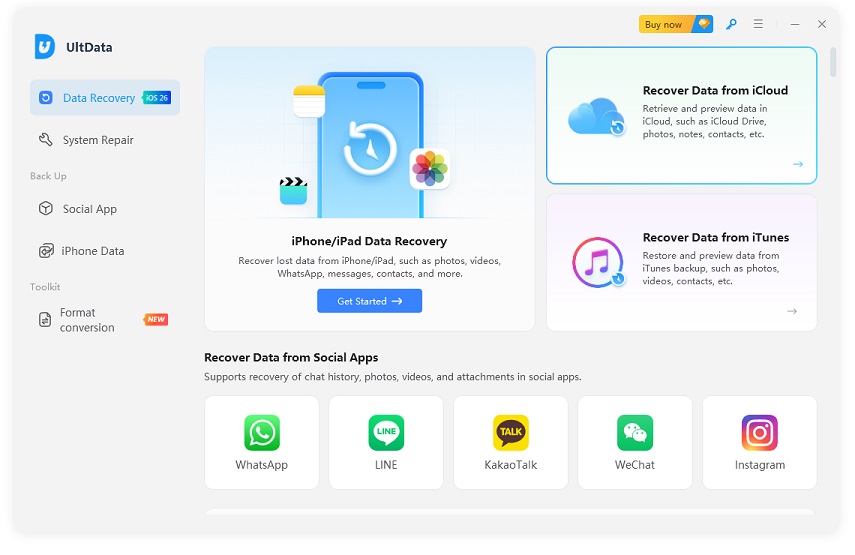


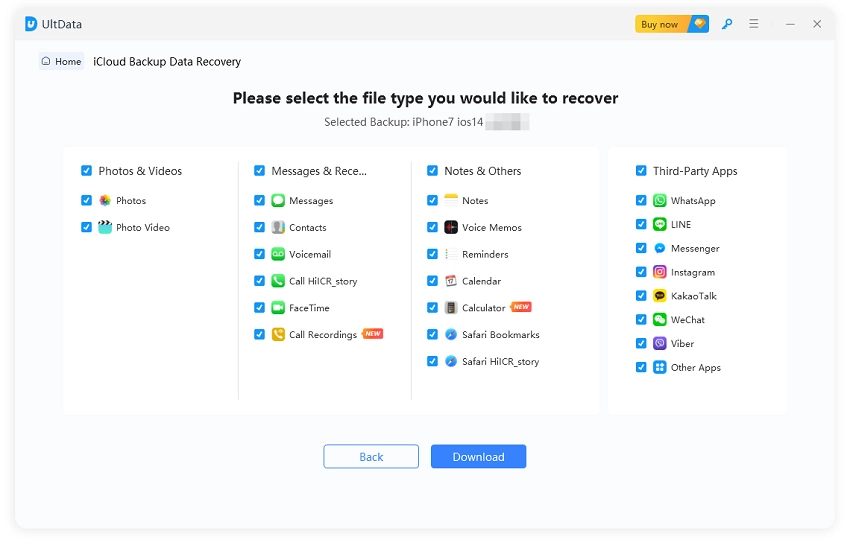

iCloud data restore on iPhone takes time depending on the data size to be downloaded. The number of factors involved in the whole process includes a perfect wi-fi connection, file sizes, and server's feasibility. Check all the basic functions to ensure they are working perfectly fine to get things done.
However, if your iPhone is still stuck while restoring, the perfect solution could be the Tenorshare UltData recovery tool. It retrieves data from iCloud and helps you get back files depending on your data size.


then write your review
Leave a Comment
Create your review for Tenorshare articles

Share this post


UltData - Best iPhone Data Recovery Tool
Recover Deleted & Lost Data from iOS Devices Easily, No Backup Needed!
UltData: Best iPhone Recovery Tool
Recover Lost iPhone Data without Backup
By Jenefey Aaron
2026-10-14 / iOS Data Recovery