An Instagram DM disappeared after iOS 27 update is more common than it sounds.
You may notice that Instagram messages are not showing, older conversations
are missing, or the DM screen keeps loading.
An Instagram conversation that suddenly vanishes may be caused by an app
glitch, account synchronization problem, connection issue, or data-access
problem following an iOS update. However, there are several troubleshooting
and recovery methods to try before assuming your messages are permanently
lost. Stick with this guide to learn how to fix the Instagram DM glitch.
Why Did My Instagram DMs Disappear After the iOS 27 Update?
An Instagram DM not showing after iOS update can have several possible
causes. In many cases, the messages aren't permanently deleted.
Temporary Instagram App Glitch
A major iOS update can change how apps interact with the operating system.
If Instagram has not yet adapted to the new environment, temporary bugs may
affect Direct Messages and other features.
Messages Have Not Synchronized Correctly
Instagram DMs depend on account and server synchronization. A temporary
connection or synchronization problem can make conversations appear
incomplete or unavailable on one device.
App Cache or Data Problems
Cached app data can sometimes behave unexpectedly after an operating-system
update. Restarting or reinstalling Instagram may force the app to rebuild
its local data and reconnect with the account.
Instagram Account or Session Problems
A stale login session can also cause unusual behavior. Signing out and
signing back in can refresh the account connection.
iOS-related App or Data Access Issues
An operating system update can sometimes introduce compatibility issues with
individual apps. Check whether Instagram works normally elsewhere but not on
your iPhone. If yes, the problem may be specific to the app or device.
Data May Actually be Deleted or Inaccessible
If basic troubleshooting does not work, the missing information may require
recovery from an available backup or a specialized recovery method.
Basic Checks for Disappeared Instagram DMs
You don't have to initiate data recovery right away. Follow these simple
fixes first. They are quick and can distinguish a temporary app problem from
a genuine data-loss situation.
Restart Your iPhone
Restart the iPhone and open Instagram again. Check the Direct Messages
section to see whether the missing conversations return.
Check Your Internet Connection
Switch between Wi-Fi and cellular data. A weak or unstable connection can
prevent Instagram from loading conversations correctly. Make sure Instagram
can connect to its servers normally.
Update Instagram
Open the App Store and check for an available Instagram update. Install
the latest version and check your DMs again.
Log Out and Log Back Into Instagram
Log out of the affected
Instagram account, then sign in again. This refreshes the account session and may resolve
synchronization problems.
Check Instagram on Another Device
Log into the same Instagram account on another phone or Instagram Web. If
the DMs appear there, the issue may be related to the iPhone or Instagram
app rather than the account itself.
Reinstall Instagram
Delete Instagram from the iPhone and reinstall it from the App Store. Log
back into your account and check the DM section.
If the Instagram DMs are still missing after trying these fixes, you can
move on to data recovery methods.
How to Recover Instagram DMs That Disappeared After iOS 27 Update
When Instagram DM disappeared after iOS 27 update and weren't recovered
after the above checks, it's time to use data recovery methods. The
following are two of the best recovery solutions you can use:
Official Method: Restore Your iPhone from an iCloud Backup
You can use Apple's official restoration method if you have a suitable
iCloud backup
from before the problem occurred. Follow these steps to restore from an
iCloud backup:
First, you have to reset your iPhone, as you can only restore the backup
during the iPhone's initial setup. Go to
Settings > General > Transfer or Reset iPhone > Erase All
Content and Settings.
Start the setup and select "Restore from iCloud Backup"
when you reach the Transfer Apps window.
Sign in to your Apple account and select the backup made before the DMs
disappeared.
Wait for the restore to finish and reopen Instagram.
Limitations of the iCloud Backup Method
Requires full-device restoration. You can't just pull
back Instagram data on its own.
Existing data may be overwritten, so anything created
after the backup date is at risk.
No data preview, so you won't know if the DMs are
actually in the backup until the restore finishes.
No selective recovery, as it's all or nothing.
Time-consuming process, especially with a large backup or
a slow connection.
If you find these limitations concerning, you have a better option available
in the form of dedicated iPhone data recovery software like Tenorshare
UltData.
Recover Disappeared Instagram DMs with UltData
Tenorshare UltData is an advanced
iPhone data recovery software
that can recover lost Instagram DMs and 35+ data types directly from device
storage without backup. It is also capable of scanning and recovering
selective data from iCloud or iTunes/Finder backup without the need for full
restoration. Plus, it gives you a complete preview of recoverable data,
which helps to only restore the DMs and files you have lost.
Let's take a closer look at how to recover Instagram DMs, with or without a
backup, using UltData.
How to Recover Instagram DMs Without a Backup
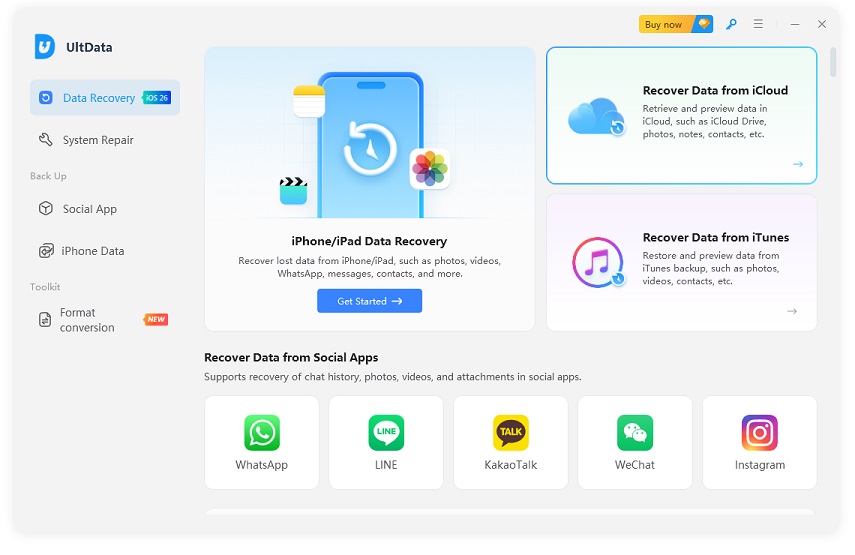
Install and launch UltData iPhone data recovery software on your computer
(Mac or Windows). Click iPhone/iPad Data Recovery from
the home screen.
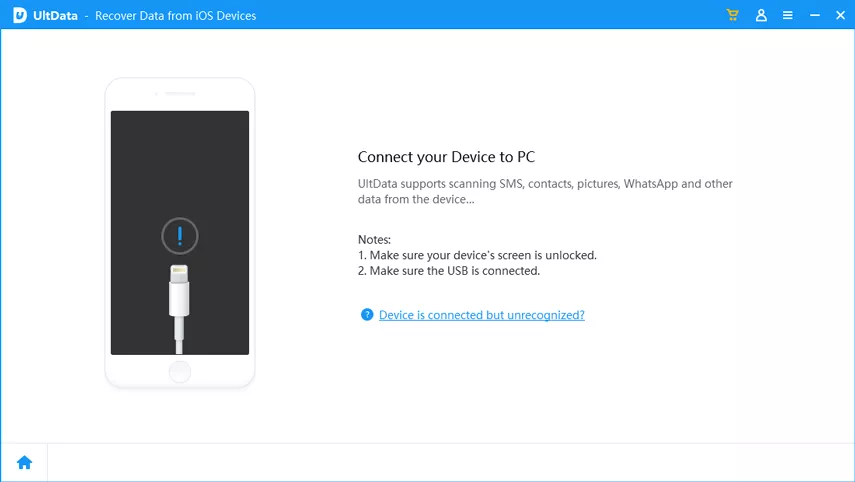
Connect your computer and iPhone via a USB cable.
Select Instagram and other data types and click Scan.
After the scan, you can preview recoverable data. Select the DMs and other
data types to recover and click Recover to PC.
How to Recover Instagram DMs from an iCloud Backup
Return to the UltData main interface and select
Recover Data from iCloud.
Click the iCloud Backup Data Recovery option.
Log in to your iCloud account.
Select the backup file that you believe contains the lost Instagram DMs
and click Next.
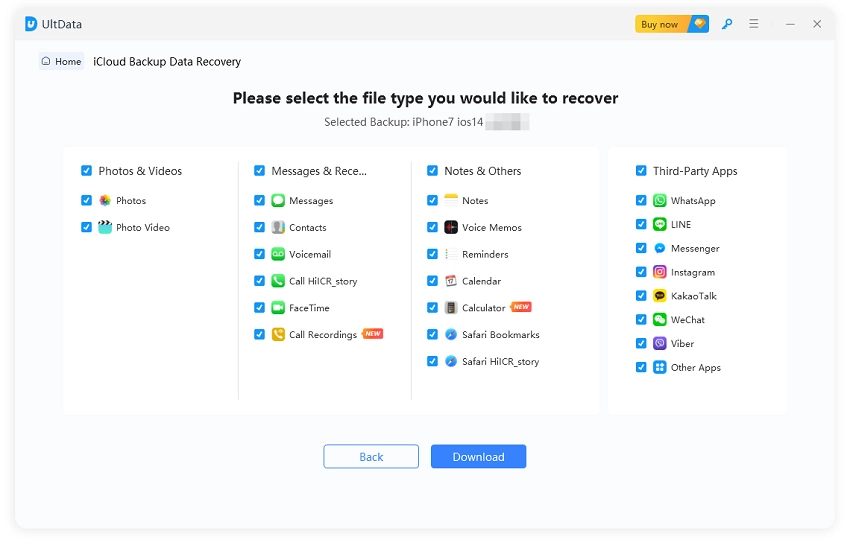
Select the data types to recover and click Download.
After the scan, preview, select, and recover the DMs and other data lost
during the iOS update.
That's how a click-based approach of UltData lets you recover Instagram DMs
within minutes.
Download UltData
and end this frustrating situation right away.
How to Prevent Instagram DMs from Disappearing Again
Prevention is easier than recovery. Follow these prevention tips to avoid
facing the Instagram DM not showing after iOS update issue in the future:
Keep iOS and Instagram updated.
Make regular iPhone/iCloud backups.
Avoid interrupting an iOS update.
Make sure there is enough iCloud storage for backups.
Check Instagram on another device if messages suddenly disappear.
Conclusion
An Instagram DM disappeared after iOS 27 update issue is frustrating, but it
isn't permanent in most cases. A quick iPhone or Instagram account restart,
proper internet connection, and updated app can fix the issue. If not, the
UltData iPhone data recovery tool provides a convenient solution for
scanning, previewing, and recovering lost DMs, with or without a backup.














 iOS Tips & Latest Updates
 Bug Fixes, Unlock Guides
 Giveaways & Freebies






By Jenefey Aaron
2026-10-20 / iOS Data Recovery