

 iOS Tips & Latest Updates
 Bug Fixes, Unlock Guides
 Giveaways & Freebies


UltData - Best iPhone Data Recovery Tool
Recover Deleted & Lost Data from iOS Devices Easily, No Backup Needed!
UltData: Best iPhone Recovery Tool
Recover Lost iPhone Data without Backup
It is frustrating to lose a Keynote presentation when it contains work that took hours or days to create. If you have accidentally deleted a file, closed Keynote before saving, or can no longer find a presentation on your Mac or iPhone/iPad, don't assume it's gone permanently. There are several places to check before turning to recovery software.
This guide explains how to recover Keynote presentation files using Apple's built-in options first, followed by additional recovery methods.

A missing presentation can disappear for several reasons. It is important to identify what happened so you can choose the right method to recover the Keynote file.
You may have deleted the presentation from Keynote, the Files app, Finder, or iCloud Drive without realizing it. Fortunately, files deleted from iCloud Drive or iWork apps can remain in Recently Deleted for up to 30 days.
A Keynote presentation can also be lost when the app closes unexpectedly before your latest changes are saved. This could happen due to a crash/restart or a lack of available storage.
If you store presentations in iCloud Drive, the same files can appear across your Apple devices. A synchronization problem, disabled iCloud Drive, or the wrong Apple Account can make a presentation appear missing even though the file still exists in iCloud.
Sometimes the file hasn't been deleted at all. It may have been moved to another folder or given a different name. Search your Mac with Finder or use the Files app on your iPhone or iPad.
If you accidentally replaced the contents of a presentation, Keynote may still have earlier versions available. On Mac, Keynote lets you browse previous versions and either restore one or save it as a separate copy.
A device reset, system update, transfer, or change to your iCloud setup can sometimes make a presentation appear unavailable. Before assuming the data is gone, check iCloud Drive, another Apple device, and older backups.
 Please swipe to view
A Keynote presentation that no longer appears in the Keynote app may still be stored elsewhere. Checking these locations before using recovery software can save you time and reduce the chance of making unnecessary changes.
Before you recover Keynote files using recovery software or restore a backup, check whether the original file is still available somewhere else.
Avoid creating or saving large amounts of new data to the same device if you suspect the presentation was permanently deleted. Also, don't immediately restore an old backup. If the presentation exists on another Apple device, make a copy first, so you have a safe version to work with.

Open the Files app or the location where the presentation was stored and look for Recently Deleted.
If you find the Keynote file, select it and restore it. Files permanently removed from Recently Deleted cannot be restored through Apple's standard recovery feature.
Use Finder on Mac or the Files app on iPhone and iPad to search for the presentation.
Look for Keynote files with the .key extension and check iCloud Drive, local folders, Downloads, and other locations where you may have saved the presentation.
On Mac, Keynote also provides an Open Recent option that can help you locate presentations you have worked on recently.
Make sure you are using the same Apple Account that was used when the presentation was created. Then confirm that iCloud Drive is enabled and search for the presentation.
Keynote presentations stored in iCloud can be accessed from iPhone, iPad, Mac, or a web browser through iCloud.com.
Do you use Keynote on more than one Mac, iPhone, or iPad? Check those devices before doing anything else.
The missing presentation may still be available locally on another device. If you find it, duplicate or export the presentation immediately.
Check whether the Keynote presentation was included in an older backup. Check the backup date and make sure it was created before the presentation disappeared.
Check iCloud or Finder/iTunes Backup if you use iPhone/iPad. On Mac, check Time Machine backups if available.
Don't restore a backup immediately. First, confirm that the backup likely contains the missing presentation, as restoring it would overwrite the existing device data.
If you recently deleted the presentation, the official Apple recovery method is to check the Recently Deleted folder. Restore the file from there and return it to its original location.

Limitation: This method won't help if the file has already been permanently removed from Recently Deleted.
If you normally save Keynote presentations to iCloud, check iCloud Drive before trying more advanced recovery methods.
First, make sure your device is signed in with the same Apple Account you used when creating or saving the presentation. Then go to Settings > \your name\ > iCloud and confirm that iCloud Drive is enabled.

Open the Files app and select iCloud Drive to search for the missing Keynote file.

You can also sign in to iCloud.com and check your files there. If the presentation was recently deleted, check Recently Deleted and restore it if it is still available.
Limitation: This method only works when the Keynote presentation was previously saved or synced to iCloud. If the file was stored only on your device and never uploaded to iCloud, it may not appear there.
An older backup can help recover a Keynote file that is no longer available on your device or in iCloud. The recovery method depends on which type of backup you have. Here's how to recover deleted Keynote presentation through backups:
iCloud Backup: Check whether you have an iCloud backup created before the presentation disappeared. If so, you can use that backup when restoring your iPhone or iPad and check whether the Keynote presentation is available afterward.

Finder/iTunes Backup: If you previously backed up your iPhone or iPad to a Mac or PC, check the available Finder or iTunes backups. Choose a backup created before the Keynote file was lost and use it to restore the device.

Time Machine: Mac users can also check Time Machine for an earlier copy of the Keynote presentation. Open the folder where the presentation was stored, enter Time Machine, and browse previous versions of the folder to look for the missing file.

Before restoring any complete backup, make sure it actually dates from a time when the presentation was still available. A full backup restoration may overwrite newer data on your device, so back up your important files first.
When the Keynote presentation cannot be found in Recently Deleted, iCloud, another Apple device, or any available backup, Tenorshare UltData offers an alternative recovery option.
Tenorshare UltData is advanced iPhone data recovery software that can scan the device's internal storage to recover lost/deleted data without a backup. It performs a deep scan and then supports preview-based recovery of selective presentations or other data.




This can be especially useful when you don't have a usable backup or the presentation is no longer available through iCloud. However, whether a specific deleted file can be recovered depends on the available data and its condition.




If the presentation is present in an iCloud backup, you don't have to restore the entire backup. UltData can connect to the backup, scan its data, and enable preview-based selective recovery.
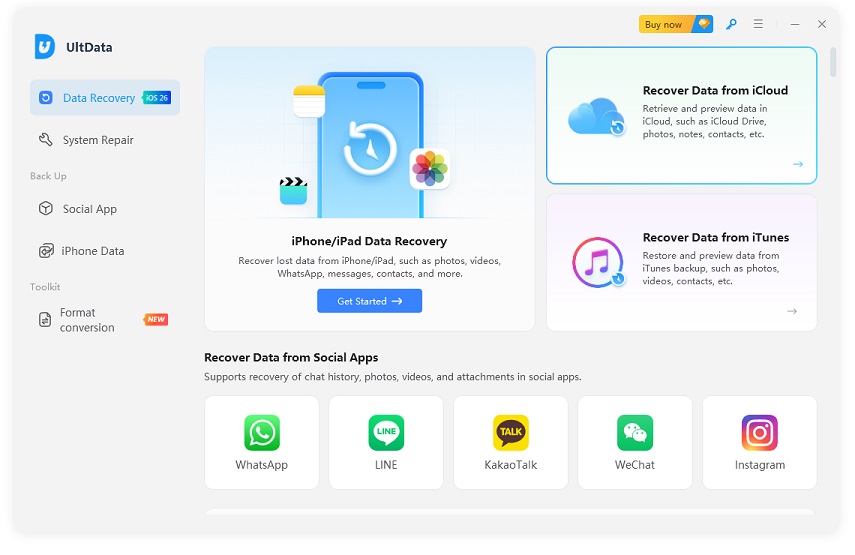


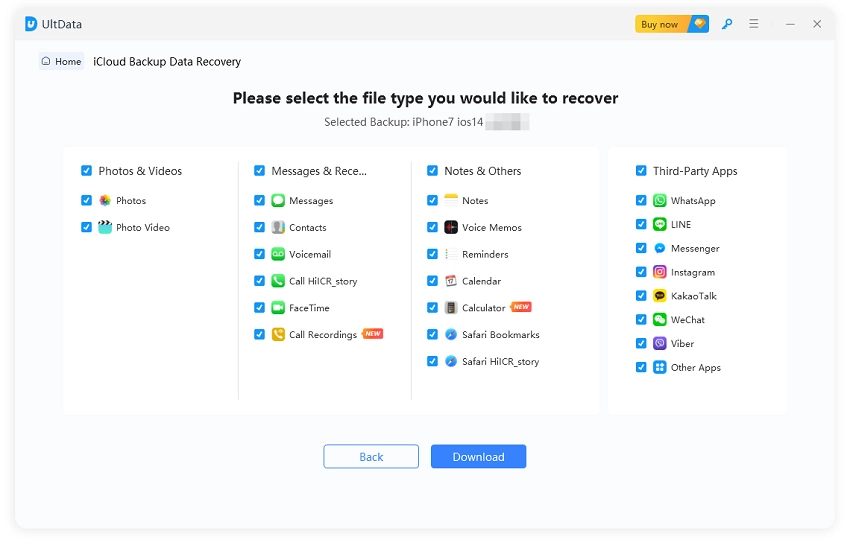

Feel impressed? Download Tenorshare UltData and get back your lost/deleted Keynote presentations with simple clicks.
Now that we have learned how to recover deleted Keynote presentations, let's go through quick tips to prevent a similar situation in the future:
Keep important presentations in iCloud Drive to make them accessible across supported Apple devices and through iCloud.com.
Use iCloud Backup on iPhone and iPad when appropriate, and maintain Time Machine or another backup solution on Mac.
For important presentations, consider exporting a copy to PDF or PowerPoint. You can also keep another copy on a computer or external storage device.
Create a duplicate before making major changes to an important presentation. Clear filenames and organized folders can also reduce the chances of accidental deletion.
Yes, depending on where the presentation was stored and how long ago it was deleted. Check Recently Deleted, iCloud Drive, other Apple devices, and backups first.
Check whether an earlier version is available in Keynote's version history, particularly when the presentation was stored in iCloud Drive. On Mac, Keynote also provides access to previously saved versions.
Yes, if you have created a backup before they were deleted. In that case, you can restore the iCloud, Finder/iTunes, or Time Machine backup to restore the file. Even if you don't have a backup, you can use recovery software like UltData to scan and recover the file directly from the internal storage.
They can be stored locally on your Mac, in iCloud Drive, or another supported location. Finder and Keynote's Open Recent feature can help locate them.
Yes, when the file is still in iCloud's recovery window, or an earlier version is available. Apple states that deleted iCloud Drive and iWork files can generally be recovered within 30 days.
Yes, but first check Recently Deleted, iCloud Drive, version history, and another Apple device. If the file still can't be found, use recovery software such as UltData to scan and recover the presentation from the internal storage of the device.
On Mac, open the presentation and choose File > Revert To > Browse All Versions. You can review previous versions, restore one, or save a copy of an older version.
How to recover Keynote presentation files should start with Apple's built-in options. Check Recently Deleted, iCloud Drive, version history, other Apple devices, and available backups before trying anything more advanced. If the presentation isn't available through those methods, Tenorshare UltData offers another recovery route for supported iPhone and iPad data, with device, iCloud, and iTunes recovery modes, plus preview and selective recovery features. Furthermore, avoid overwriting the device and create regular backups of important Keynote presentations.


then write your review
Leave a Comment
Create your review for Tenorshare articles

Share this post


UltData - Best iPhone Data Recovery Tool
Recover Deleted & Lost Data from iOS Devices Easily, No Backup Needed!
UltData: Best iPhone Recovery Tool
Recover Lost iPhone Data without Backup
By Jenefey Aaron
2026-10-26 / iOS Data Recovery