There is one common complaint among iPad users these days: files disappeared
after the iPadOS 27 update. This has led many owners to wonder, Where did all
my files go on my iPad?
You can be facing missing files from the Files app, iCloud Drive, or the "On
My iPad" section of local storage. Some users have also complained that files
are lost from multiple locations at once.
Missing doesn't always mean deleted forever. There could be a sync issue, file
relocation, or other scenarios causing files to be missing. This article
covers where to look first, a few basic checks to run, the official iCloud
backup method, and a dedicated data recovery tool for cases where those first
steps don't solve the problem.
Common Situations When Files Disappear After iPadOS 27 Update
Different iPad users are having different situations of file disappearance
after updating to iPadOS 27. Some of the common reported ones are:
Files Are Missing from the Files App
Files or folders that were visible before the update can no longer be found
when browsing through the Files app.
Files Are Missing from iCloud Drive
Files stored in iCloud Drive may not appear after the update, especially if
iCloud hasn't finished syncing.
Files Are Missing from On My iPad
Files saved locally may stop appearing under "On My iPad," even if nothing
was intentionally moved or removed.
Files Are Missing from Multiple Locations
Several files or folders may disappear at once, while the very same files
remain accessible on another Apple device or through iCloud on the web.
Why Did My Files Disappear After iPadOS 27 Update?
The issue of files disappearing after an iPadOS version update is common.
Some of the usual reasons behind this data loss/invisibility are:
iCloud Drive Hasn't Finished Syncing
After the iPadOS 27 update, iCloud Drive needs time and a proper internet
connection to complete syncing. So, the syncing process may be happening in
the background right at the moment you are looking for those files. Until
the sync is complete, files may appear to be gone.
Files Were Moved or Deleted
Files may have been moved to another folder, accidentally deleted, or sent
to Recently Deleted without you noticing.
iCloud Sync or Storage Issues
Interrupted iCloud syncing or a nearly full iCloud storage plan can quietly
stop files from downloading or displaying correctly.
Temporary iPadOS or Files App Glitches
Right after any major update, the Files app can behave inconsistently for a
short period due to a temporary software glitch. This can cause files or
folders to stop showing in the Files app.
Files Became Inaccessible After the Update
Some locally stored files may become inaccessible/unreadable after the
update and may require a backup or data recovery method.
Basic Checks for Files Disappeared After iPadOS 27 Update
You don't need to perform complex recovery steps to fix the file disappeared
after iPadOS 27 update issue. The following are some quick troubleshooting
steps that worked for many users:
Restart Your iPad: Power it off, then back on. Open the
Files app to see if the files reappear.
Check Your Internet Connection: Connect to stable Wi-Fi
and give iCloud Drive a few minutes to finish syncing.
Check Your Apple Account: Make sure the iPad is signed in
with the right Apple Account used to store or sync the files.
Check for an iPadOS Update: Go to
Settings > General > Software Update. Install any
available update if applicable.
If your files are still missing after these basic checks, move on to the
recovery methods below.
How to Recover Files That Disappeared After iPadOS 27 Update
Which method works best depends on whether the missing files were backed up
before they disappeared.
Official Method: Restore Your iPad from an iCloud Backup
iPad users can create a full device backup on iCloud. If you had created one
before the iPadOS 27 update, it must have backed up those deleted files.
Now, you have to restore your iPad with that
iCloud backup.
Steps to Restore Files from an iCloud Backup
First, you have to factory reset your iPad, which is mandatory to restore
a previous backup. Open
Settings > General > Transfer or Reset iPad > Erase All
Content and Settings.
Begin the iPad initial setup. When you reach the
Transfer Your Apps & Data window, click
From iCloud Backup.
Sign in with your Apple Account and pick the most recent backup that still
contains the missing files. Then wait for the backup to restore.
Limitations of the iCloud Backup Method
Erases all data on the iPad and replaces it with the backed-up data.
You cannot just preview and restore selective files from the backup. The
entire backed-up data gets restored.
Any files or data created after that backup was made are lost during the
backup restore.
Recover Missing iPad Files with UltData
The official iCloud backup recovery method is useful to get back files that
disappeared after the iPadOS 27 update, but it restores the entire backup
after wiping out the existing iPad's data. Tenorshare UltData offers an
alternative recovery option.
Tenorshare UltData is
iPhone/iPad data recovery software
that can recover lost/missing files by directly extracting them from
internal storage without a backup. It performs a deep scan of the storage
and pulls out lost files during the iPadOS upgrade process. Plus, it lets
you preview and recover selective files.
What we found best about Tenorshare UltData is that:
It scans the iPad's internal storage directly and recovers 35+ data types.
It runs a deep scan to catch files that went missing during the iPadOS
update process.
It shows a preview of recoverable files before restoring anything.
It lets you recover files selectively.
It doesn't erase existing iPad data.
Simply put, Tenorshare UltData gives a backup-free solution for where did
all my files go on my iPad after an upgrade.
How to Recover Files from iPad Without a Backup
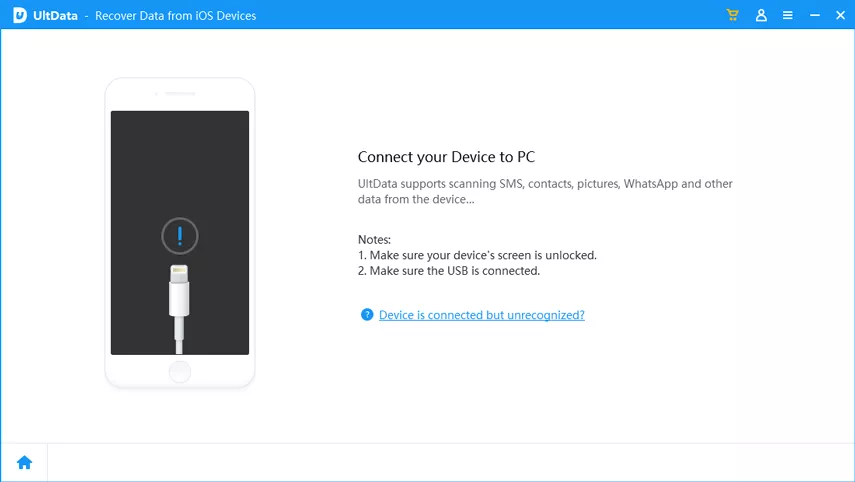
Install and launch UltData on your computer (Windows or Mac). Click
iPhone/iPad Data Recovery from the main dashboard.
Connect your iPad to the computer using a USB cable.
Select the data types for the files you want to recover, then click
Scan.
After the scan, preview and select the files, then tap
Recover to PC to save them.
That's all you have to do with UltData data recovery software to retrieve
the missing iPad files after an OS upgrade.
FAQs About Files Disappeared After iPadOS 27 Update
Where did all my files go on my iPad?
They are usually still on the device or in iCloud, just not showing up. This
can happen if iCloud Drive hasn't finished syncing after the update, if a
file was moved or accidentally deleted, or if the Files app is having a
temporary glitch. Restarting the iPad and checking your internet connection
is the first thing to try.
Why did my files disappear after the iPadOS 27 update?
Your files may disappear after the iPadOS 27 update due to an incomplete
iCloud sync, insufficient iCloud storage, a file that was moved without you
realizing it, or a brief software glitch right after the update. Sometimes,
locally stored files become inaccessible and require a backup or recovery
tool to restore them.
How do I recover files that disappeared from my iPad?
Start with some basic checks. Restart the iPad, confirm you are on a stable
Wi-Fi connection, and make sure you are signed in to the correct Apple
Account. If the files are still missing after that, you can either restore
from a recent iCloud backup or use dedicated recovery software to pull back
specific files without wiping the device.
Can I recover missing iPad files without a backup?
Yes. You can use a data recovery tool like UltData. The tool will scan your
iPad's local storage directly and lets you preview and recover
missing files
without a backup.
Can I recover files from an iCloud backup?
Yes, as long as a backup containing those files exists. However, you first
have to reset your iPad, then choose "Restore from iCloud Backup" during
setup. Keep in mind this replaces everything currently on the iPad with the
backup's contents, so anything created since then will be lost.
Conclusion
Files disappeared after iPadOS 27 update is a frustrating situation, but it
is fixable in most cases. You should start with basic checks. Restart your
iPad, check the internet connection for proper syncing, and configure the
correct Apple account. If that doesn't work, use the previously made iCloud
backup to restore files.
Above all, if you want a reliable and quick fix for the problem, use UltData
data recovery software that lets you scan and recover lost files with simple
clicks in minutes without a backup. So,
download UltData
and get back those lost files right away.











 iOS Tips & Latest Updates
 Bug Fixes, Unlock Guides
 Giveaways & Freebies






By Jenefey Aaron
2026-10-20 / iOS Data Recovery