

 iOS Tips & Latest Updates
 Bug Fixes, Unlock Guides
 Giveaways & Freebies

UltData - Best iPhone Data Recovery Tool
Recover Deleted & Lost Data from iOS Devices Easily, No Backup Needed!
UltData: Best iPhone Recovery Tool
Recover Lost iPhone Data without Backup
Losing a GarageBand project can be frustrating, especially when it contains hours of recording, editing, and arranging. If your files disappeared after an iOS update, an app crash, or accidental deletion, do not assume they are gone permanently. A project may still be available in GarageBand, the Files app, iCloud Drive, another Apple device, or an existing backup.
If you're wondering How to Recover Missing GarageBand Files on iPhone, this guide will walk you through several effective ways to find and recover your lost GarageBand projects. Keep reading to discover the best solution for your situation and get your music files back.

There are several reasons a GarageBand project may no longer appear where you expect it. You might be looking at the Recents view rather than browsing all available projects, or you may be signed in to a different Apple Account.
A project could also be stored in another location, remain on a previous device, or be affected by a temporary app issue. It is also important to distinguish between a GarageBand project and an exported audio file. A project keeps editable elements such as tracks, arrangements, and instrument settings.
Before trying recovery software, check the places where your projects may already exist.
Open GarageBand and return to its project browser. Look through Recents first, then switch to Browse or another available project view to inspect additional files.

If the project appears, open it and check whether its tracks and arrangements are intact. A project missing from Recents is not necessarily deleted; it may simply not be listed among recently opened items.
Open the Files app and tap Browse. Check the locations available on your iPhone, including iCloud Drive and On My iPhone, if they appear. Search for the project name or look through folders where you usually save music files.

If you find a project or audio export, open or import it in a suitable app to confirm that it is usable.
If you may have deleted a file accidentally, open Files, tap Browse, and look for Recently Deleted. If the missing item appears, select it and choose Recover when that option is available.

Return to its original location and confirm that it opens correctly. This option only helps with eligible files that remain in Recently Deleted.
If the project disappeared after changing devices or adjusting settings, confirm that you are using the Apple Account associated with the original files.

Review the available iCloud settings for GarageBand and iCloud Drive, then browse iCloud Drive in Files. iCloud Drive synchronization is different from an iCloud device backup.
A temporary software problem may stop GarageBand from displaying projects correctly. Restart your iPhone, reopen GarageBand, and check the project browser again.
You can also check the App Store for a GarageBand update and Settings for an available iOS update. These steps may resolve an app issue, but they cannot restore a permanently deleted file by themselves.
If a GarageBand file disappeared and it is not visible in the app or Files, look for another copy before assuming it is permanently lost.


Look on your Mac, PC, external drive, or other storage locations where you may have copied projects or exported recordings. If you have an iPhone backup, review whether it may contain the relevant app data before considering a restore. Not every backup includes every GarageBand project.
If you have used GarageBand on another iPhone, iPad, or Mac, open GarageBand on that device and check its project browser. Also look for manually saved copies.
A data recovery tool may be worth investigating after you have checked GarageBand, Files, iCloud, other devices, and existing backups. However, Tenorshare UltData for iPhone should not be treated as a dedicated GarageBand project recovery tool.


If the software supports your situation, follow its instructions to connect the iPhone, scan for supported recoverable data, preview available results where possible, and recover only items that it explicitly supports. Here is a step-by-step guide to recover the lost file through Tenorshare UltData recovery tool.
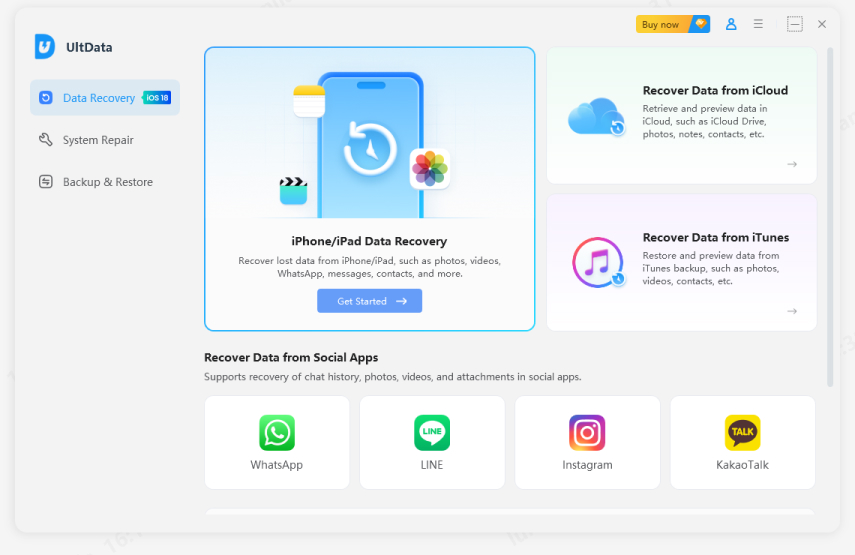
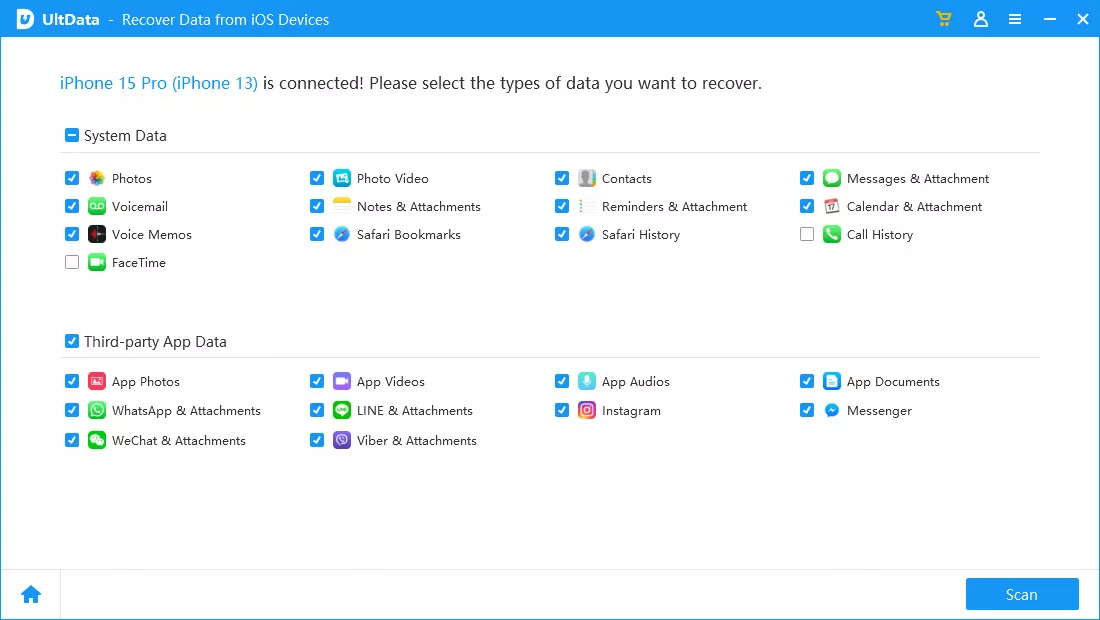
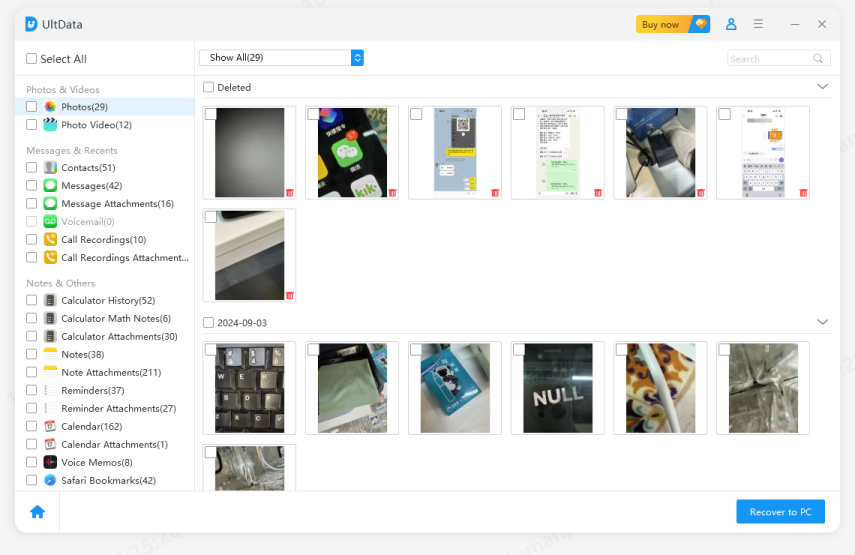
If you're looking for How to Recover Missing GarageBand Files on iPhone, start by checking the GarageBand project browser, the Files app, Recently Deleted, and iCloud Drive. You can also look for copies on other Apple devices or in existing backups. If these methods don't work, a data recovery tool may be another option, depending on the file type and recovery situation.
Tenorshare UltData is another option worth considering when your GarageBand files are missing and no available backup contains them. It can scan your iPhone for supported recoverable data and let you preview and select files before recovery. If you've recently lost important files, it's worth trying UltData to see whether your missing data can still be recovered.


UltData - Best iPhone Data Recovery Software




then write your review
Leave a Comment
Create your review for Tenorshare articles
Share this post


UltData - Best iPhone Data Recovery Tool
Recover Deleted & Lost Data from iOS Devices Easily, No Backup Needed!
UltData: Best iPhone Recovery Tool
Recover Lost iPhone Data without Backup
By Jenefey Aaron
2026-11-03 / iOS Data Recovery