

 iOS Tips & Latest Updates
 Bug Fixes, Unlock Guides
 Giveaways & Freebies

UltData - Best iPhone Data Recovery Tool
Recover Deleted & Lost Data from iOS Devices Easily, No Backup Needed!
UltData: Best iPhone Recovery Tool
Recover Lost iPhone Data without Backup
An iMovie project with missing clips, black thumbnails, or unavailable media usually occurs when the source files have been deleted or moved. A disconnected external drive or an iCloud sync issue can also prevent iMovie from finding them.
So, how to fix missing file in iMovie starts with locating the original media, then checking Photos and iCloud, or restoring from an available backup. If you still can't find the files, a recovery tool may help check for recoverable media. Stick with this guide to learn the fixes on both Mac and iPhone.

When an iMovie project has missing media, one of these causes is usually behind it:

Missing media does not always mean the originals are gone forever. In many cases, the project has just lost the path to files that still exist.
The efforts on how to recover missing files on iMovie should start with the simplest checks and then move forward based on the results.
Search for the original clip in Finder. Check Movies, Downloads, and Desktop, along with any folders where you usually store video. Search by filename or file type, such as .mov or .mp4, if you remember those details.

If the clip still appears in another working project, select it in the timeline and choose File > Reveal in Finder. iMovie opens the folder containing that clip's source file.
If your project uses media stored on an external drive, connect and power on that drive before opening the project. Check that the drive mounts in Finder and that the original folder is still there.
For iCloud files, check that syncing has finished and download the original file to your Mac if needed. A cloud placeholder may appear before its full-size video has downloaded.

Open iMovie and check that the library containing your project appears in the Libraries list. If it was moved, use File > Open Library to select the correct library.
If the source video is accessible, reimport it through iMovie's Import window (File > Import Media). Some iMovie versions may prompt you to locate missing media. Follow the on-screen directions if that option appears.


Reimporting may require replacing the missing clip by hand, and its earlier trims/transitions or other timeline edits may need to be redone.
If you use Time Machine, browse a backup from before the clip went missing.
This method works only if a Time Machine backup exists.

On the iPhone, the media usually lives in Photos, so the checks start there. If you wonder how to recover missing files on iMovie iPhone, these four steps cover Apple's own options.
Open Photos and search by date, location, or album. If you deleted the clip, open Collections > Recently Deleted, unlock the album, select the video, and tap Recover.

Deleted items remain there for up to 30 days. After that, this album cannot restore them.
Go to Settings > \your name\ > iCloud > Photos and check that Sync this iPhone is enabled. Then open Photos and review the library's sync status. Check your network connection and available storage as well, since a stalled download can look like lost media.

Remember that iCloud Photos syncs changes across devices. Deleting a photo or video from one synced device can remove it from the others too.
When the clip appears in Photos, open the iMovie project, move the playhead to the appropriate point, and tap Add Media. Choose Video or Photos, select the original, and add it to the project. You may need to replace the missing timeline clip manually because the original edit details may not return with the file.

If you are a user who makes backups in iCloud or on your computer, the missing media may be included in that backup.
Look at the date of your latest iCloud backup under Settings > \your name\ > iCloud > iCloud Backup.

Alternatively, open Finder and select Manage Backups for a computer backup. If the backup exists before your suspected deletion date, the missing media may still be inside it.

Keep in mind that restoring a full iPhone backup replaces the current data on your device, so any photos, messages, or app data added after that backup will be lost. Review that cost before you restore. Also remember that photos stored in iCloud Photos are usually not part of an iCloud backup, so the results can vary.
If the original iPhone video or photo is missing from Photos, Recently Deleted, and available backups, Tenorshare UltData offers another way to scan and retrieve files directly from the iPhone's internal storage.
Tenorshare UltData is an iPhone data recovery software that performs a deep scan of the internal storage with the goal of recovering the original photos or videos so you can import them into iMovie again. It does not repair the iMovie project itself or restore the original editing timeline.


Follow these steps on how to recover missing files on iMovie iPhone using Tenorshare UltData:
Download the Tenorshare UltData software from the official product page and install it on your Mac or Windows computer.
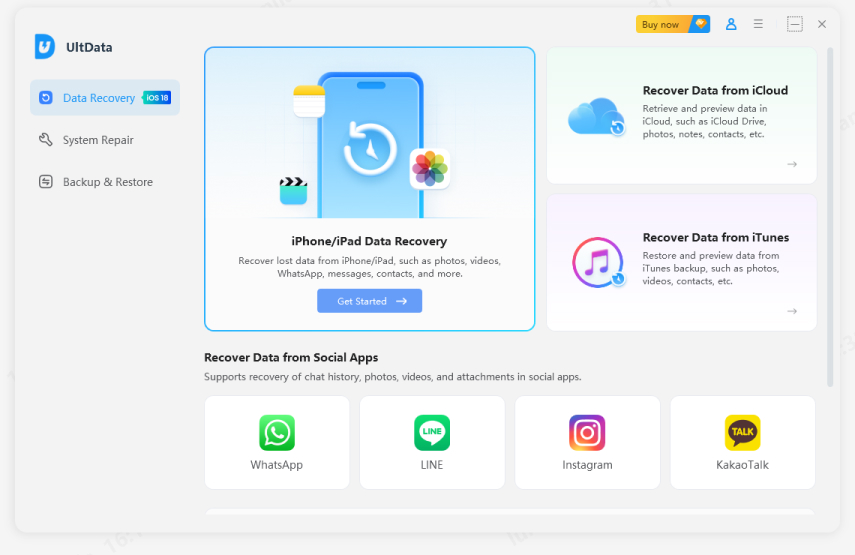
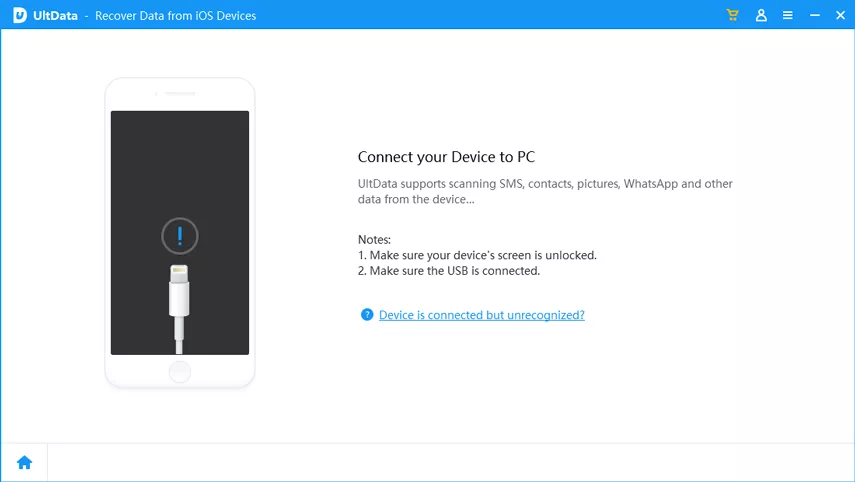
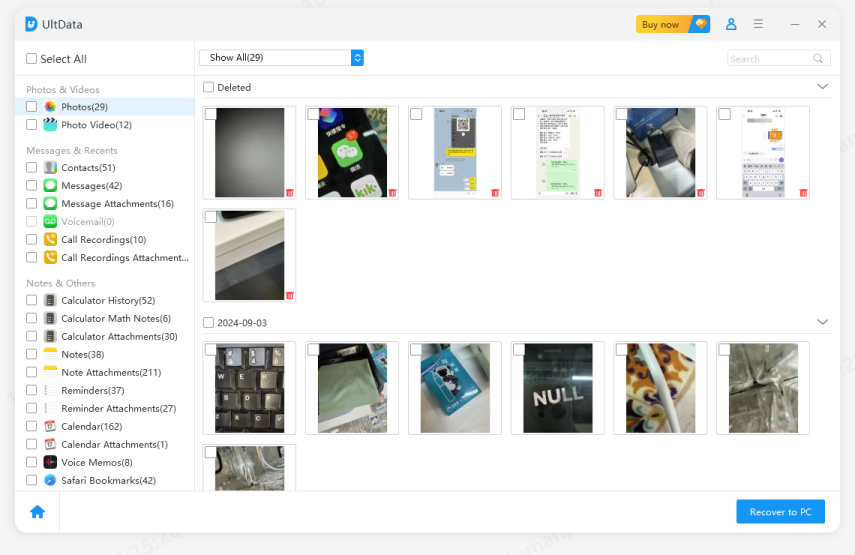
Select the data types to scan. Since your concern is "iMovie project has missing media," you should select the photo or video categories that are related to your missing files. Start the scan and keep the iPhone connected.
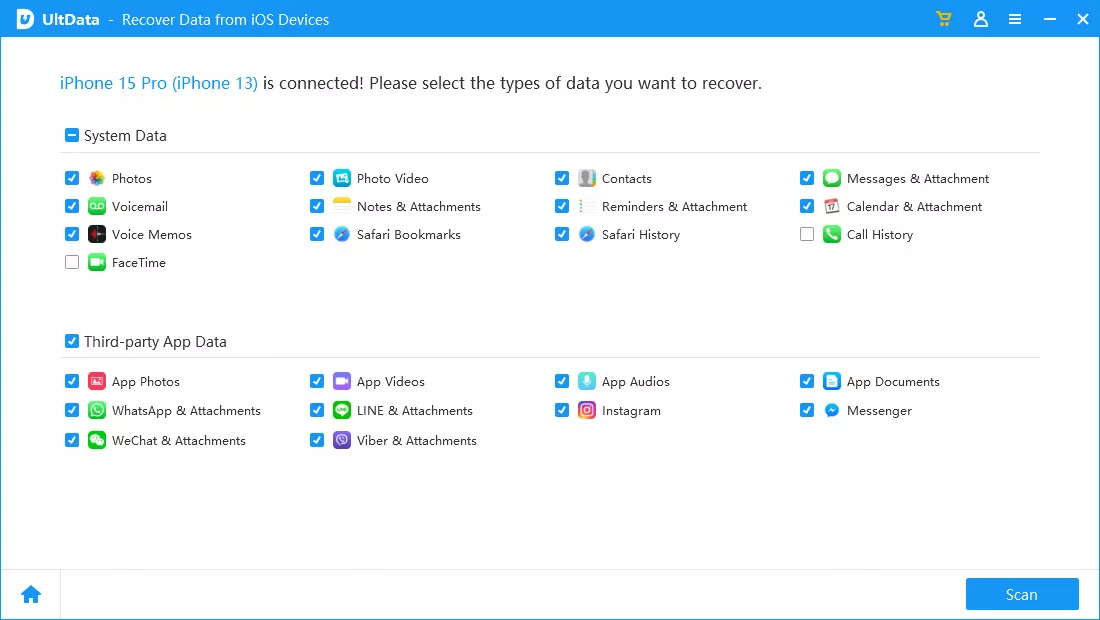
Review the scan results and preview any files the software finds. Select the media you need and save available recovered files to your computer, then import them into iMovie. Recovery depends on the device and data condition, so results are not guaranteed.
Beyond addressing how do I get back missing files in iMovie, let's also remember these tips to prevent this situation in the future:
Search for the original in Finder or Photos, reconnect any external drive, and check cloud storage. If it was deleted, look in Recently Deleted or restore a suitable backup.
Check Photos, Recently Deleted, and iCloud Photos first. You can add an available original back through iMovie's media browser. A recovery tool may scan for supported iPhone media if these checks turn up nothing.
Possibly. Recovery depends on whether a backup exists and whether the source video remains recoverable on the device or storage. No method can guarantee a result.
The project may have lost access to a source file that was moved, renamed, deleted, or stored on an unavailable drive. Syncing delays can also make a cloud-stored clip appear missing.
The journey of how to fix missing file in iMovie should start with locating the original media and checking the project's library and storage connections. On iPhone, review Photos, Recently Deleted, iCloud Photos, and available backups. If the original iPhone media remains unavailable, install Tenorshare UltData and let the software scan and retrieve the recoverable photos and videos right away.


UltData - Best iPhone Data Recovery Software




then write your review
Leave a Comment
Create your review for Tenorshare articles

Share this post


UltData - Best iPhone Data Recovery Tool
Recover Deleted & Lost Data from iOS Devices Easily, No Backup Needed!
UltData: Best iPhone Recovery Tool
Recover Lost iPhone Data without Backup
By Jenefey Aaron
2026-11-03 / iOS Data Recovery