

 iOS Tips & Latest Updates
 Bug Fixes, Unlock Guides
 Giveaways & Freebies


UltData - Best iPhone Data Recovery Tool
Recover Deleted & Lost Data from iOS Devices Easily, No Backup Needed!
UltData: Best iPhone Recovery Tool
Recover Lost iPhone Data without Backup
You may have heard a lot of people asking how do I delete trash on iPad? So you've been poking around your iPad looking for a trash can, right-clicking things, hunting for that satisfying "empty bin" button, and coming up empty. If it's a fast time you're inquiring about the trash folder on iPad, you'll figure out that iPad doesn't have a shared trash folder the way computers have.
Deleted photos, files, and notes all hide in their own separate corners, quietly waiting to vanish on a timer unless you clear them out yourself. Here's the actual breakdown of where to look and what to do about it.

Short answer, no. Longer answer, sort of, but not where you'd expect. Your Mac or PC funnels everything into one Recycle Bin you can empty whenever. iPadOS never got that memo. Every app just handles its own leftovers. Delete a photo, and it goes into the Photos app's own little "Recently Deleted" corner. Delete a Word doc or PDF, and Files quietly stashes it somewhere else entirely. There's no master list, which is honestly what throws most people off the first time they go digging.
There's a reason for it, though, and it's not a bad one. Think of it as a built-in "oops" button. Delete a photo by accident, and you've still got about 30 days to grab it back before Apple wipes it for good. Notes and Files play by similar rules, just with slightly different timers depending on which app you're in.
If something's missing and you suspect you deleted it, these are the usual suspects:
Yeah, three different spots instead of one is a little annoying. No way around that on iPad. But it sticks after you've done it once or twice, you'll just know where to check.
If your storage is full right now and you can't wait a month for iPadOS to clean things up, you can clear these folders manually. Here is how to remove trash from iPad across your main apps.
Photos and long videos usually take up the most space, so clearing this album gives you instant results.

That's the whole thing. Once you delete from this folder, it's actually gone; there's no secret third step or extra confirmation waiting to surprise you.
Old PDFs, big downloads, and documents pile up fast in the Files app.
If your storage bar's been creeping into the red, this is a good habit to build. Video files and scanned docs are heavier than people expect, and they don't stop taking up space just because you "deleted" them the first time.

Notes, Voice Memos, basically the same drill everywhere. Open the app, dig into its Recently Deleted folder, and select Delete. Learn it once, and you've basically learned it for the whole system.
Okay, flip side, now you deleted something you actually needed. It happens to literally everyone at some point. Before you start Googling random recovery apps, it's worth trying what Apple already built in first.
This one only helps if you'd already backed up the iPad to a computer before the file disappeared.
The downside, and it's a real one, is that this doesn't just grab the one file you lost. It rolls the whole iPad back to exactly how it looked when that backup was made. Anything you've done since then gets erased right along with it.

Same basic idea, just through iCloud instead. You'll need a backup made before whatever you lost goes missing.

Catch is, you have to erase the iPad first, which is a big ask if you just want one photo back. Whatever's currently on it might get overwritten, and just like the iTunes route, there's no picking and choosing it's the whole backup or nothing at all.
Honestly, neither of these feels great if you just want one lost thing back without blowing up everything else. That's usually the point where people start looking for a less nuclear option.
If you've got an iCloud or iTunes/Finder backup sitting around, Tenorshare UltData for iCloud can extract specific files from it without forcing a full restore. It opens up the backup, lets you actually look through what's in there, and you just grab what you need: photos, texts, contacts, notes, that sort of thing, while the rest of your iPad stays exactly as it is.




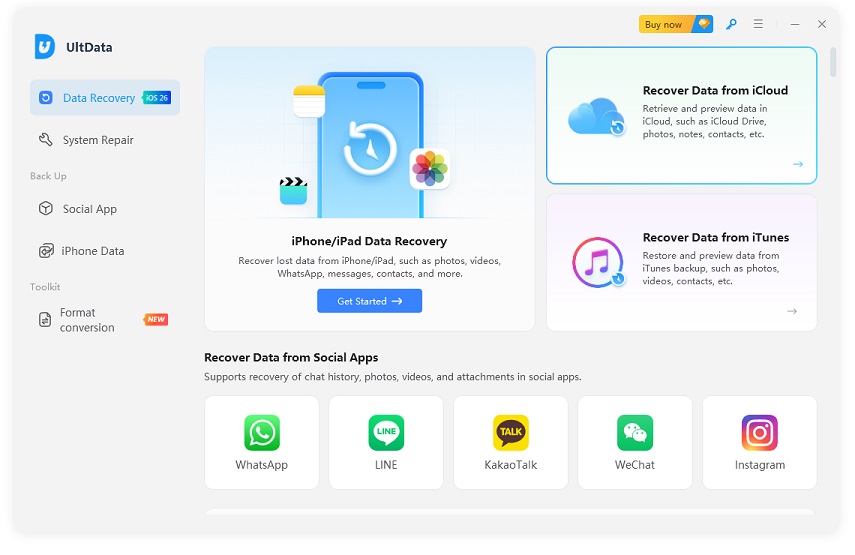


Got no backup at all? Doesn't mean it's hopeless. Tenorshare UltData for iOS can scan the iPad directly and look for traces of whatever got deleted, without erasing or restoring from anything. You get to see what it actually finds before deciding whether it's worth pulling back.
This route tends to make more sense when:



Knowing how do I delete trash on iPad is the easiest way to keep your storage clean and your device running fast. Taking a few seconds to clear out Recently Deleted folders in apps like Photos and Files frees up space right away. And if you ever accidentally wipe something important, tools like Tenorshare UltData give you a hassle-free way to recover your files without resetting your whole iPad.


UltData - Best iPhone Data Recovery Software






then write your review
Leave a Comment
Create your review for Tenorshare articles

Share this post


UltData - Best iPhone Data Recovery Tool
Recover Deleted & Lost Data from iOS Devices Easily, No Backup Needed!
UltData: Best iPhone Recovery Tool
Recover Lost iPhone Data without Backup
By Jenefey Aaron
2026-09-28 / iOS Data Recovery