

 iOS Tips & Latest Updates
 Bug Fixes, Unlock Guides
 Giveaways & Freebies


4uKey - One-Click Easy iPhone/iPad Unlocker
Unlock Screen Lock/Apple ID/MDM/Screen Time Passcode Instantly
Easy iPhone/iPad Unlocker
Unlock iPhone Passcode Instantly
You're staring at an iPad stuck at the Apple ID login screen, and you already know how unhelpful the standard advice is: "Just sign in with your iCloud password." What if you don't have it? Maybe you bought the iPad secondhand, inherited an old family device, or simply forgot the credentials. Whatever the reason, this guide shows you how to reset an iPad without an iCloud password using Apple's tools and a dedicated third-party option. So, you can choose what works for you.

Yes. But the outcome depends on one setting: "Find My iPad." This is Apple's anti-theft feature, and it's the reason a factory reset isn't always enough:
So, "resetting" and "unlocking" aren't always the same job. A factory reset clears data and settings. Activation Lock is a separate ownership check that persists after a reset.
When you don't know the device passcode, Apple ID, or both, a dedicated unlocking tool is the most direct route. 4uKey for iOS connects to the iPad over USB and handles the reset and lock removal without your old credentials. For forgotten passcodes, secondhand devices, or MDM-restricted iPads, it's a fast option without a visit to the Apple Store. Here are the core features of 4uKey:
Here's how to reset iCloud without a password, specifically remove iCloud Activation Lock, with 4uKey:


Before reaching for third-party software, it's worth trying Apple's own tools first. They're free, and for a lot of lockout scenarios (especially when Find My is off), they're all you need:
You know the iPad's screen passcode, and Find My iPad is turned off. In that case, iPadOS won't ask for an Apple ID during the reset, only the device passcode. Here's how to reset an iPad without an iCloud password from Settings:


The iPad wipes and restarts at the "Hello" setup screen. If Find My iPad is on, it will instead land on the Activation Lock screen afterward.
You're locked out of the iPad (forgotten passcode or disabled device) but have access to a computer. In that case, you can reset the iPad using Recovery Mode. Here's how to reset an iPad without an iCloud password:


If Find My was on, Activation Lock will appear after the restore. You'll need the original Apple ID credentials, or one of the workarounds in Part 4 or 4uKey for iOS, to get past it.
The iPad still turns on and responds normally, but you want a clean factory restore without using Settings. It's similar to the method in 3.2 but skips manually entering Recovery Mode since the device is still responsive. Here's how to reset an iPad to factory settings without an iCloud password:

This method is best when you have on-device access and want a clean reset, not to bypass an existing Activation Lock.
When you can access your Apple account, you can still unlock the iPad's lock screen. You're in a much better position and may not need to reset the device at all. Here are some ways to reset the passcode:
You have full access to the iPad but can't remember the Apple account password. Since you're already authenticated, iPadOS lets you set a new password without the old one:


When you have a second iPhone, iPad, or Mac signed into the same Apple account (or listed as a trusted device), you can reset the password from there. Here's how:

When you only forgot the iCloud password and the iPad is otherwise fine, resetting the Apple account password is almost always better than wiping it:
Your iPad reset successfully, but now it asks for an Apple ID and password you don't have, or you've run into Activation Lock. This is expected if Find My iPad was enabled before the reset. Here's what you can do to counter that:
Here's a short comparison of every reset method mentioned in this article so you can decide without doubt which is the best pick for your situation:
 Please swipe to view

Only 4uKey for iOS and the previous owner/Apple Support routes in "Part 5" can remove Activation Lock without the original credentials. Apple-native reset methods clear data but leave Activation Lock if Find My was on.
Before you reset your iPad, here are some crucial things you must keep in mind:
No. Recovery Mode reinstalls iPadOS and wipes local data, but Activation Lock is tied to the Apple ID on Apple's servers. If Find My were on, Activation Lock would reappear during setup.
Yes, if Find My iPad is off. Settings or Recovery Mode resets won't ask for an Apple ID. But if Find My is on, you'll need the original credentials, proof of ownership through Apple Support, or an Activation Lock removal tool, like 4uKey.
Yes, if you know the passcode and Find My is off. Settings > Erase All Content works directly on the iPad. But if it's disabled or you don't know the passcode, you'll need a computer to enter Recovery Mode or visit an Apple Store.
It removes the account's data and local session. But if Find My iPad is enabled, the Apple Account remains linked at the activation server level until properly signed out or removed via Find My. That's why Activation Lock can reappear after a reset.
Knowing how to reset an iPad without an iCloud password means dealing with two things: clearing the device and handling Activation Lock if Find My was on. For a simple wipe with Find My off, Settings or Recovery Mode works for free.
If you only forgot the password and still have access to the iPad, resetting the Apple account password is faster and avoids data loss. But if you're facing Activation Lock without the original account, 4uKey for iOS is the most practical option.


Tenorshare 4uKey - Best iPhone Unlocker







then write your review
Leave a Comment
Create your review for Tenorshare articles
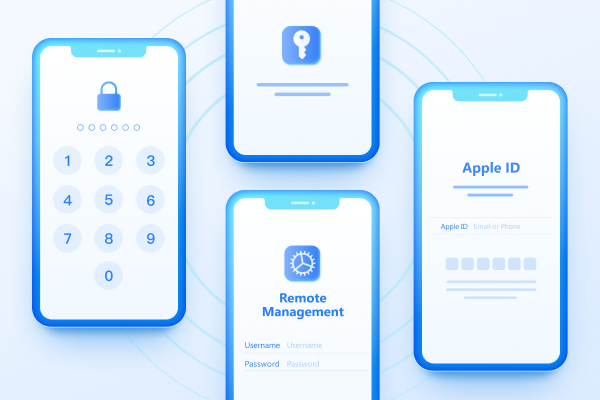
Easily Unlock iPhone passcode/Apple ID/iCloud Activation Lock/MDM
100% successful unlockShare this post


4uKey - One-Click Easy iPhone/iPad Unlocker
Unlock Screen Lock/Apple ID/MDM/Screen Time Passcode Instantly
Easy iPhone/iPad Unlocker
Unlock iPhone Passcode Instantly
By Jenefey Aaron
2026-09-24 / Unlock iPhone