

 iOS Tips & Latest Updates
 Bug Fixes, Unlock Guides
 Giveaways & Freebies


UltData - Best iPhone Data Recovery Tool
Recover Deleted & Lost Data from iOS Devices Easily, No Backup Needed!
UltData: Best iPhone Recovery Tool
Recover Lost iPhone Data without Backup
Many users expect that turning on iCloud Sync will bring back all their previous data. However, iCloud Sync only keeps supported data updated across devices. It does not restore every file, app data, or deleted item.
If data disappeared after turning on iCloud Sync, the reason may be related to sync settings, account mismatches, storage limits, or timing. This guide explains why iCloud did not sync everything and what you can do to find or recover missing data.

Before troubleshooting what's missing, it helps to clear up a basic misunderstanding that iCloud Sync and iCloud Backup are not the same thing. Only one of them is meant to bring data back.
Many people assume that turning on iCloud Sync will restore everything from iCloud. However, that's not how it works.
iCloud Sync is a real-time synchronization service. It keeps supported apps like Photos, Contacts, Notes, and Calendars updated across all devices you are signed in to.
iCloud Backup is the one that saves a snapshot of your device for restoration purposes and restores all data when required.
 Please swipe to view
So, when someone says, "Why didn't everything from my iCloud sync?", the honest answer is that sync was never meant to bring back everything.
There isn't one common reason why data get disappeared after turning on iCloud sync. Some of the main reasons different users have reported are:
Not all content on your iPhone is synchronized. iCloud Sync only covers a limited set of built-in categories. Anything outside that list simply won't move to the cloud.
The common apps and data that sync with iCloud include:
Not always synced files include:
If the missing content falls into the second group, it was never going to sync in the first place.
Sometimes, the issue is just because you enabled iCloud sync with a different Apple ID. This usually happens after switching phones.
For example, an old iPhone might be signed in with Apple ID A, while a replacement device is set up under Apple ID B. When sync is turned on with the new account, the data tied to the old ID appears to vanish because they were never linked to this new account.
Go to Settings → [Your Name] → confirm the Apple ID in use. Compare it against the account your older backups or data are tied to.

iCloud Sync is not a version history tool. It only reflects the current state of your device. If a photo is deleted on the iPhone and iCloud Photos is enabled afterward, that deletion can sync across devices too. This means the photo disappears everywhere beyond the original phone.

Sync updates the current state, but it does not retain every previous version of your data by default. Once something is removed locally and the sync runs, it's removed from iCloud as well.
Sometimes, supported data types can fail to sync if the process itself never finishes. A few common culprits:
Go to Settings → [Your Account] → iCloud → Storage. Confirm there's space available, and that sync isn't stuck mid-upload.

Don't assume the data is gone right away when you encounter data disappeared after turning on iCloud sync. Follow these quick checks to ensure it isn't some simple settings or timing issue:

Try to restart your sync using the following ways:
Sync can stall if the device loses power or connection mid-upload, so providing a stable connection and giving it some time often resolves partial syncs on its own.
Sign in to iCloud.com to check whether the missing items exist there:

If the data is also missing from the web, it means iCloud may not have stored it in the first place. So, the fix needs to come from somewhere other than iCloud itself.
If your data is not available through iCloud Sync or iCloud.com, the next option is checking whether the data still exists in your iCloud backup or device storage using iPhone data recovery software.
If you remember creating an iCloud backup of your iPhone prior to data loss, it can help recover missing data. The official way of restoring an iCloud backup requires factory resetting the iPhone and restoring the entire backup. However, we have a better way for you.
Tenorshare UltData for iOS is a specially designed iPhone data recovery software that lets you scan and preview recoverable iCloud backup data without the need to restore the entire backup to your iPhone. Within the preview, you can select the lost/missing data and restore it to your computer.
Follow these steps to recover missing data from iCloud backup using UltData;




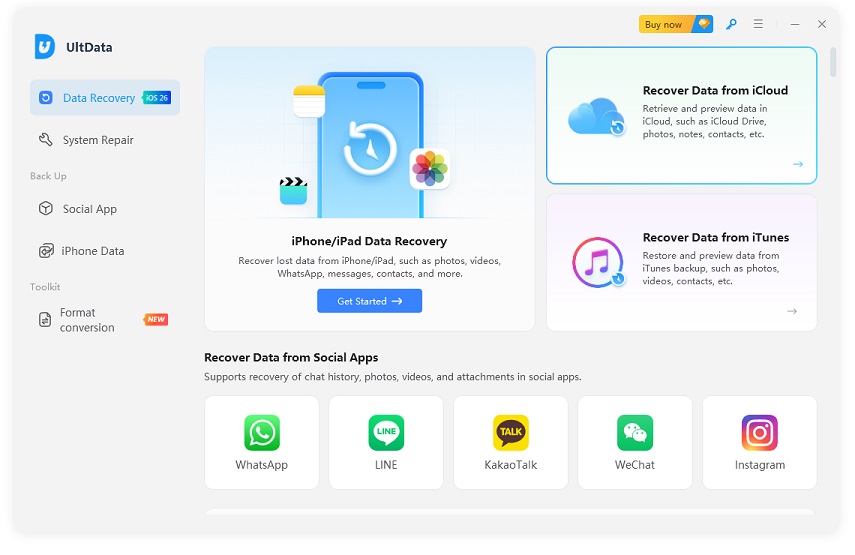


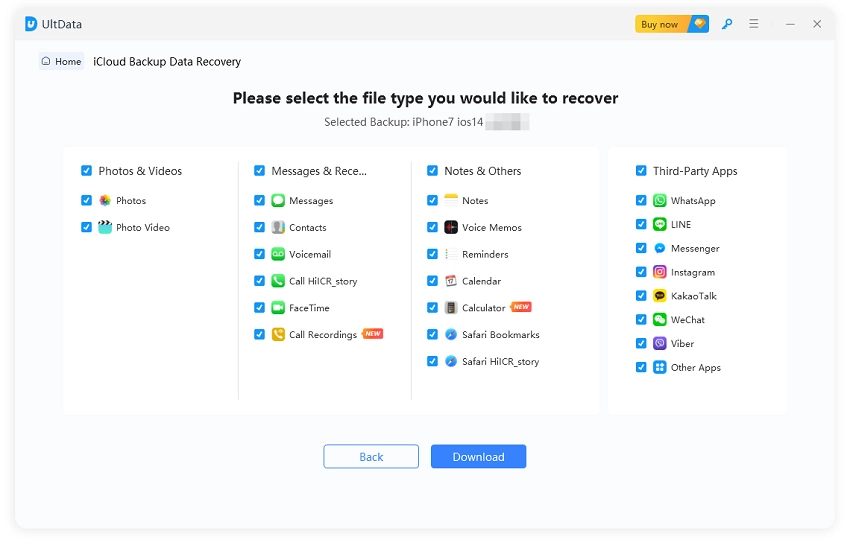

Even if you don't have a backup to restore from, you can recover missing data directly from your iPhone. UltData for iOS performs a deep scan of your iPhone's internal storage and retrieves any missing data files that have not been overwritten yet. The steps are:

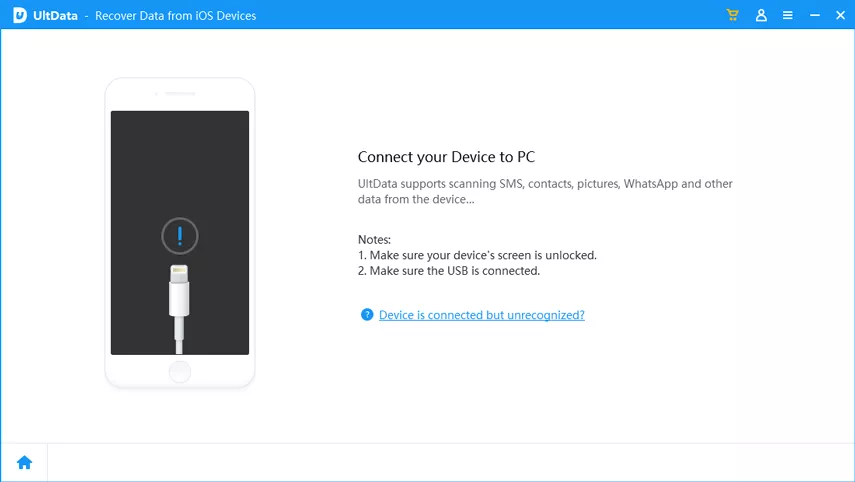


That's how fast and simple it is to recover missing data from an iPhone. Download UltData and get started for free.
To avoid facing a similar iCloud sync data loss issue in the future, follow these prevention tips:
Data disappeared after turning on iCloud sync usually happens due to unsupported data types, a mismatched Apple ID, full iCloud storage, or an interrupted upload. Therefore, start with sync settings, confirm the Apple ID in use, and look on iCloud.com. If you're sure the data is lost, use UltData for iOS to recover missing data from iCloud backup or directly from iPhone with simple clicks.


then write your review
Leave a Comment
Create your review for Tenorshare articles

Share this post


UltData - Best iPhone Data Recovery Tool
Recover Deleted & Lost Data from iOS Devices Easily, No Backup Needed!
UltData: Best iPhone Recovery Tool
Recover Lost iPhone Data without Backup
By Jenefey Aaron
2026-10-14 / iOS Data Recovery