

 iOS Tips & Latest Updates
 Bug Fixes, Unlock Guides
 Giveaways & Freebies


4uKey - One-Click Easy iPhone/iPad Unlocker
Unlock Screen Lock/Apple ID/MDM/Screen Time Passcode Instantly
Easy iPhone/iPad Unlocker
Unlock iPhone Passcode Instantly
Is your Find My iPhone greyed out? Exasperating, isn't it? You can't turn Find My on or off. So, you're basically stuck with Activation Lock, unable to sign out of your Apple ID, or get your phone ready to sell or give away. But hang on, you're not out of options. Here, we'll explain what could have greyed out the Find My iPhone toggle, and how to fix it, depending on what's causing the issue.

If you're contemplating, "Why is Find My iPhone grayed out," it could be because of the following reasons:
The following are 7 solutions to troubleshoot the "Find My iPhone is greyed out," issue. Pick a method based on the reason for the problem:
The "Find My iPhone greyed out" issue usually happens because of Screen Time restrictions. If the iPhone is set up for a child or part of Family Sharing, a parent can lock settings like location services. Sometimes restrictions were turned on by mistake or years ago and forgotten. But you can grant Screen Time permissions if they're disabled. To do so:
Open "Settings." Then, choose "Screen Time." Enter the Screen Time passcode if you know it.

Tap "Content & Privacy Restrictions." Input your Screen Time/Restrictions passcode.
Click "Account Changes." Next, toggle on "Allow" from "Don't Allow."

If your Stolen Device Protection is disabled, you'll get the 'Can't turn off Find My iPhone, greyed out' issue. This feature protects your phone if someone knows your passcode and turns off important security settings. If you're not in a familiar location, it may also add a one-hour security delay before changes are allowed. So, here's what you can do:
Open "Settings." Then, choose "Face ID & Passcode." Enter your passcode.\
Move down. Hit "Stolen Device Protection." Switch it off and confirm with Face ID or Touch ID (you can't use your passcode for this).

If you're away from home/work, click "Start Security Delay." Wait one hour, then verify again with Face ID/Touch ID.

Find My iPhone depends completely on Location Services to function. But if location is turned off or blocked, the Find My option may appear grayed out because the phone can't track itself. Sometimes specific permissions for Find My or system services are disabled, causing a conflict. But refreshing location settings helps the GPS function properly again. Here's what to do:
Open "Settings." Then, choose "Privacy & Security." Tap "Location Services." Make sure it's turned on.

In the same menu, locate "Find My." Set its location access to "While Using the App" or "Always."


Move down to "System Services." Confirm Find My iPhone is turned on.

If everything looks correct, switch off "Location Services." Wait 10 seconds, then turn it back on to refresh it.

If the issue continues, restart your iPhone. Check if Find My iPhone is greyed out or not.
When Apple updates iCloud terms, you must accept them before changing important account settings. Until you agree, features like Find My may be locked or grayed out. This happens because Apple temporarily limits iCloud actions that update server data. Once you accept the new terms, the settings should work normally again. Here's how to fix the 'iCloud and "Find My greyed out' issue:
Head to "Settings." Next, select your "Apple ID profile."
If you see a red alert for the new terms, tap it and accept the terms.
Signing out and back into your Apple ID might resolve the "Find My iPhone toggle greyed out" issue, as it refreshes your account on the phone. Sometimes the digital authorization key becomes outdated or corrupted, which can lock features like Find My. But logging out and back in restarts background iCloud services and often clears the issue. Here's how:
Head to "Settings." Then, choose your "Apple ID profile." Move down and tap "Sign Out."

After signing out, force restart your device to clear any cached issues. Next, head to "Settings" again.
Click "Sign in." Enter your Apple ID and password to sign back in.
A force restart can refresh system processes and fix temporary glitches that may cause features like Apple Intelligence to disappear after an update.
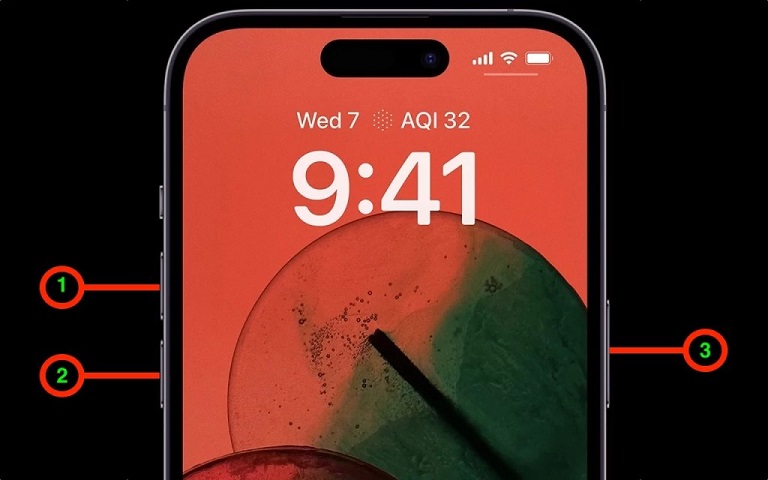
Open "Settings." Then, select "General." Tap "Software Update."
Download and install the update if available. After restarting with the new iOS, examine if the toggle is now functioning.

Corrupted network tokens, DNS settings, or old VPN data can block proper iCloud communication, resulting in the "Find My iPhone greyed out" issue. So, as a last-mile fix, you can reset network settings. It clears damaged connection data, refreshes the connection, and often restores normal function. Here's how to reset network settings:
Open "Settings." Then, select "General." Tap "Transfer or Reset iPhone."
Click "Reset." Next, choose "Reset Network Settings." Enter your passcode to confirm.

Wait for your iPhone to restart (Wi-Fi and Bluetooth connections will be erased).
Reconnect to Wi-Fi, then check if the Find My iPhone toggle functions.
Some of you might've bought a used iPhone with Find My enabled, and now can't contact the previous owner. So, the only way left is to remove it yourself. However, this is not possible, as you require an Apple ID to turn off Find My. But if you don't know it, a tool like Tenorshare 4uKey for iOS offers to remove the FMI (Find My iPhone) feature without Apple ID and passcode. The tool also offers other functions, such as:




Here's how to remove FMI with 4uKey for iOS:
Connect your iPhone to the computer and unlock it. When "Trust This Computer" appears, hit Trust.


Open 4uKey on your computer. Then, select "Remove Apple ID." Next, follow the on-screen prompts.

If your iPhone has no screen passcode, set one before continuing. On your phone, head to "Settings." Next, pick "Safari."
Tap "Advanced." Turn on "Web Inspector." Open "Safari" on your iPhone. Then, head to "www.icloud.com." Sign in to your Apple ID.

Hit "Start Remove" on the tool. Next, follow the prompts on your iPhone. Wait while the tool removes Find My iPhone.

Keep your computer connected to the internet, but disconnect your iPhone from the internet. When finished, Find My iPhone will be removed from your iPhone.


This usually means the phone is still linked to the previous owner's Apple ID (Activation Lock) or managed by a school or company. So, ask the owner or organization to remove it.
Yes, sometimes. If your iPhone can't connect to Apple's servers, some features may stop functioning. So, try turning Airplane Mode on and off, changing Wi-Fi, or resetting Network Settings.
This is a security feature. If Find My is on, you must enter your Apple ID password to turn it off before signing out. Without the password, you can't sign out.
You can troubleshoot the "Find My iPhone greyed out," issue by checking Screen Time, turning off Stolen Device Protection, and verifying Location Services. Accepting new iCloud terms, signing out and back in, updating iOS, or resetting network settings can also fix this issue.
However, if you bought a used iPhone and can't contact the previous owner to remove Find My, normal solutions won't do the job. In that case, a tool like Tenorshare 4uKey for iOS can help switch off Find My successfully without an Apple ID and jailbreak. It can also remove Activation Lock, MDM, screen locks, or Screen Time passcode without needing the original credentials.


Tenorshare 4uKey - Best iPhone Unlocker






then write your review
Leave a Comment
Create your review for Tenorshare articles
Easily Unlock iPhone passcode/Apple ID/iCloud Activation Lock/MDM
100% successful unlockShare this post


4uKey - One-Click Easy iPhone/iPad Unlocker
Unlock Screen Lock/Apple ID/MDM/Screen Time Passcode Instantly
Easy iPhone/iPad Unlocker
Unlock iPhone Passcode Instantly
By Sophie Green
2026-09-28 / Unlock iPhone