
 iOS Tips & Latest Updates
 Bug Fixes, Unlock Guides
 Giveaways & Freebies


UltData - No.1 Android Data Recovery Tool
Recover Lost Data Without Root or Backup for Any Android Devices!
UltData: No.1 Android Recovery Tool
Restore Lost Android Data Without Root
If you've performed a factory reset on your iPhone or Android device and lost important data, you might be wondering if recovery is still possible. The good news is that in many cases, data can still be recovered after a factory reset, especially if you act quickly. This comprehensive guide will walk you through multiple methods to recover your lost photos, videos, messages, and other important files from both iPhone and Android devices.
If you're wondering whether data can be recovered after a factory reset, you're not alone. Many users search for terms like "after factory reset can data be recovered iPhone" or "recover data after Android factory reset" because losing everything after a reset feels final. Luckily, a factory reset doesn't always erase data forever. On both iPhone and Android, deleted files often remain in internal storage until new data overwrites them — which means recovery is still possible if you act quickly.
A factory reset wipes your system settings and clears file indexes, but the underlying data blocks usually stay intact temporarily. This is why deep-scan phone recovery tools can still extract old data. When you perform a factory reset, your device essentially removes the roadmap to your files rather than the files themselves. The actual data remains on the storage chip until it gets overwritten by new information.
Think of it like removing the table of contents from a book — the chapters are still there, you just need the right tool to find them again. This technical reality is what makes data recovery after factory reset possible, especially when you use professional recovery software like Tenorshare UltData.
iOS and Android both treat deleted data as "free space," not immediately overwriting it. Unless the phone has been heavily used after the reset, a large amount of recoverable data may remain. Both operating systems use similar storage management principles where deletion marks storage blocks as available rather than actively erasing them.
On iPhone, the APFS file system maintains data integrity until those storage blocks are explicitly needed for new data. On Android, the ext4 or F2FS file systems work similarly. This means your photos, videos, messages, and app data could still be sitting in storage, waiting to be recovered with the right tools.
Success usually depends on several key factors that determine whether your data can be successfully retrieved:

Act fast — every minute of usage reduces the recovery chance. The best practice after an accidental factory reset is to immediately stop using the device and begin the recovery process as soon as possible.
Before attempting deeper recovery, check whether a backup already contains your files. Many users searching for "recover iPhone data after factory reset without backup" later discover they actually had iCloud or Google backups enabled unknowingly. Restoring from a cloud backup is always the safest first step and often the quickest way to get your data back.
If iCloud Backup was enabled before the factory reset, you can easily restore your data during the device setup process or by erasing and restoring your iPhone. Here's how to check and restore from iCloud backup:
If your device is already set up, you can restore from iCloud by going to: Settings → General → Transfer or Reset iPhone → Erase All Content and Settings → Restore from iCloud Backup
For computer backups created with iTunes or Finder:

Android users can check for automatic backups through Google services or manufacturer-specific cloud solutions. Google automatically backs up many types of data when backup is enabled. Here's how to restore:
To check your Google backup settings or manually restore:
If the backup is old or doesn't include the files you need, you will need to attempt recovery directly from the device using deep-scan tools. Sometimes backups may be outdated, corrupted, or simply don't contain specific file types you need. In these cases, professional data recovery software becomes necessary.
Common scenarios where backups fail to help include:
If you have no backup, you can still recover lost files. Many users search for "recover iPhone data after factory reset without backup" or "recover data Android after factory reset" when traditional options fail. The good news: recovery without backup is possible because the internal storage often retains deleted data until overwritten.
A factory reset clears system references but not the raw data blocks. Professional tools can read these blocks and reconstruct photos, videos, WhatsApp data, and other files. The technical process involves scanning the device's storage at a low level, bypassing the operating system's file management to access data that the system considers "deleted."
Modern recovery tools like Tenorshare UltData use advanced algorithms to identify and reconstruct file fragments, even when file system metadata has been removed. This is possible because:
If cloud backups don't help, your choices are:

Use a recovery tool when:
This leads into the most effective solution — using Tenorshare UltData, which provides comprehensive recovery capabilities for both iPhone and Android devices even when no backup exists.

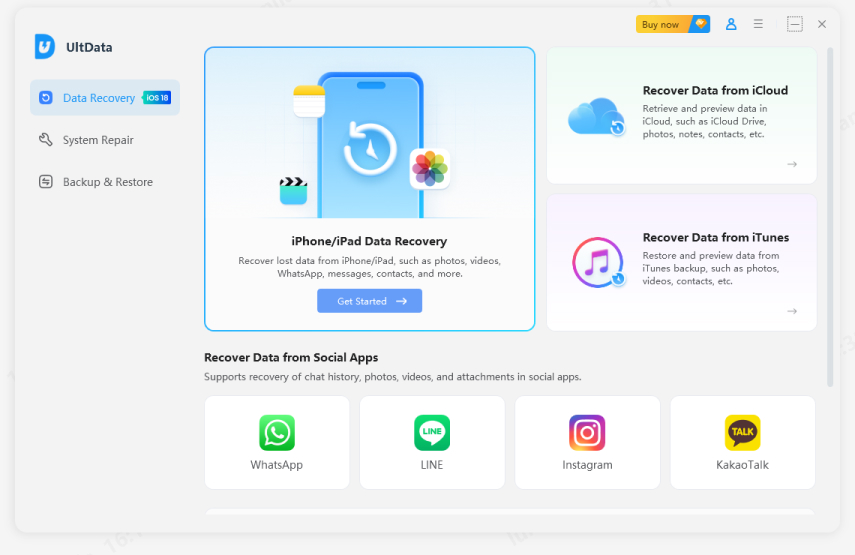
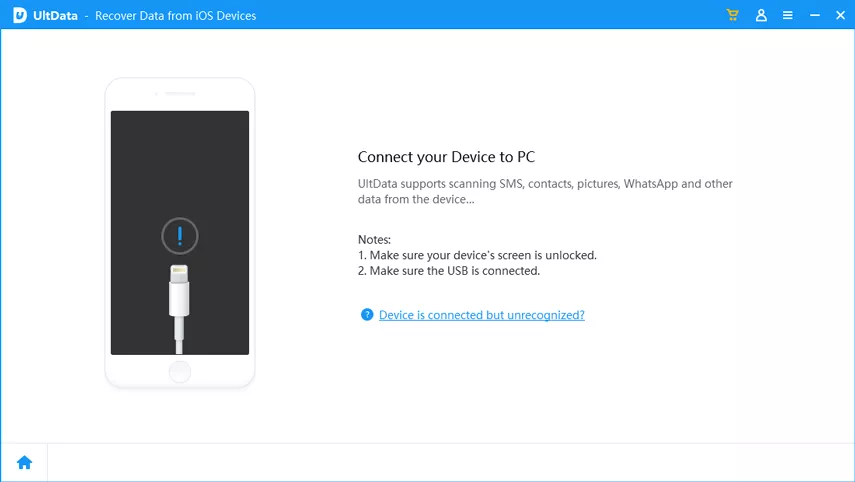
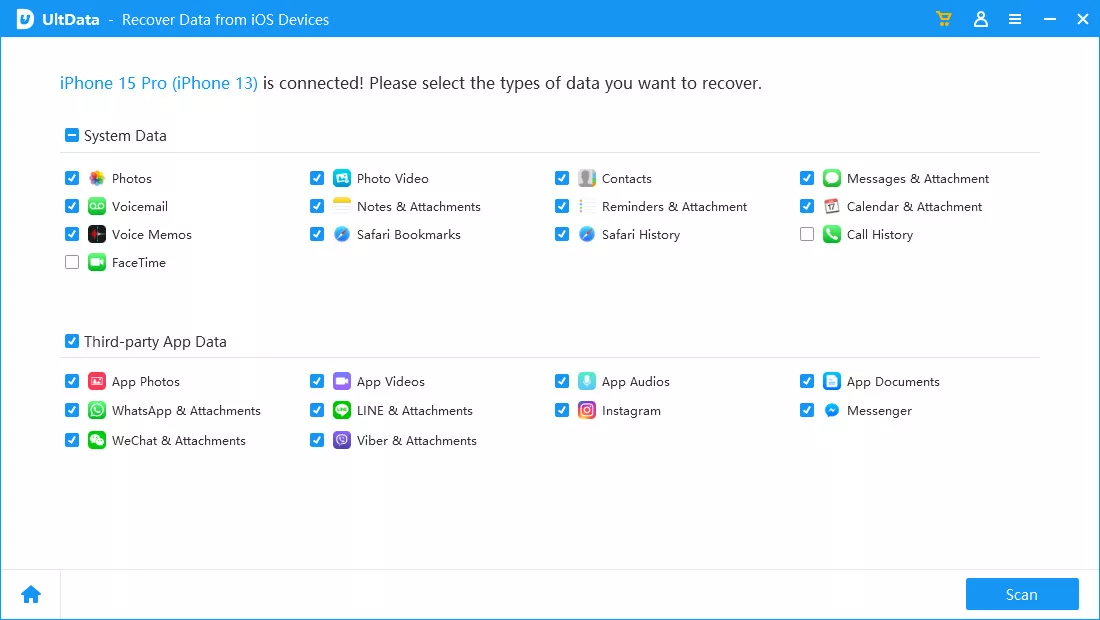
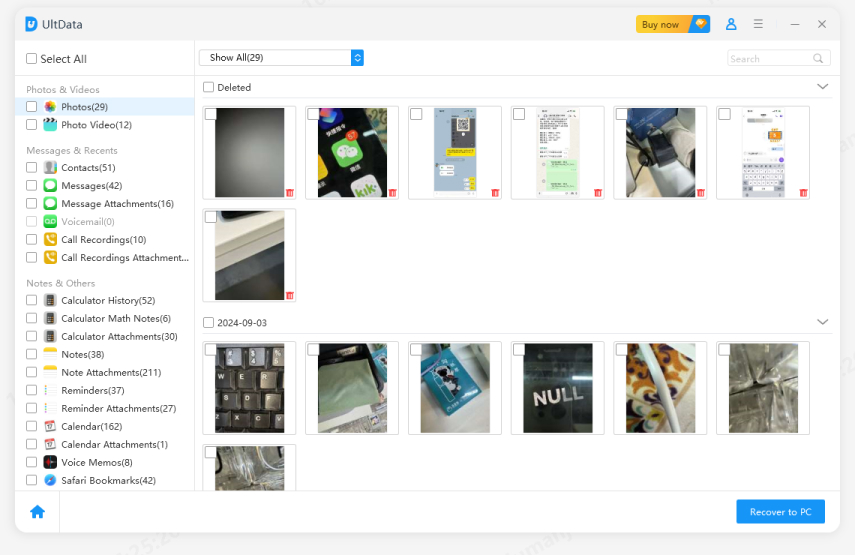
Tenorshare UltData offers the most reliable method for recovering lost data on both iPhone and Android, especially when there is no backup. Below are clear, practical steps for each platform to help you recover your valuable data after a factory reset.
Follow these simple steps to recover your iPhone data after factory reset using Tenorshare UltData:




For Android users, UltData Android Data Recovery provides similar powerful recovery capabilities. Here's how to use it:

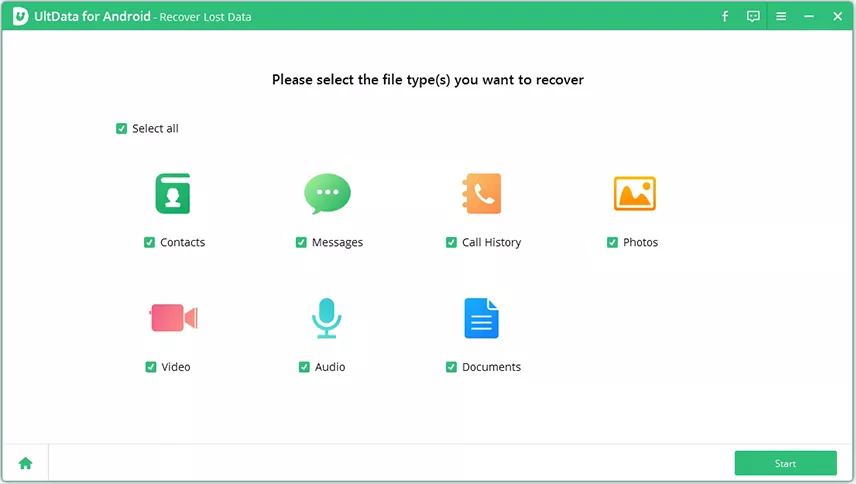
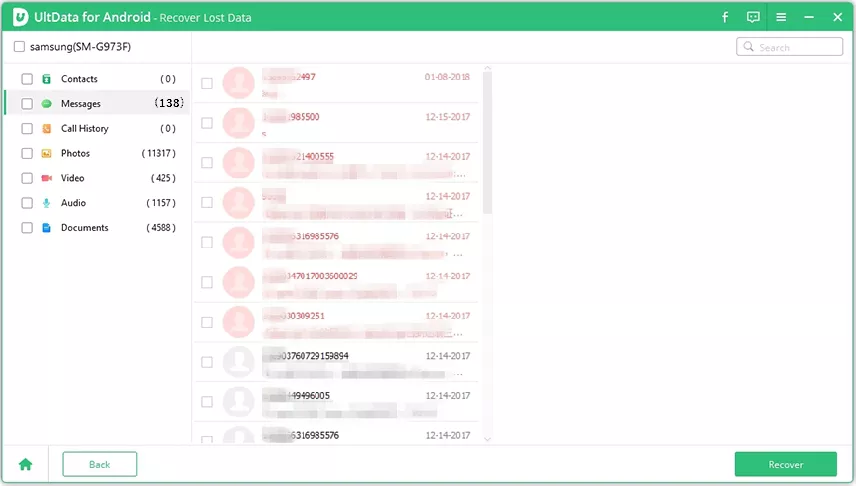
For Android devices, root access may be required for deeper scanning and maximum recovery success. The software will guide you through the rooting process if necessary.
Tenorshare UltData stands out as the premier choice for data recovery after factory reset for several compelling reasons:
UltData scans deep storage sectors, retrieves data that normal apps can't access, and works even when no backup exists. It supports both iPhone and Android, covers photos, videos, WhatsApp, and more — making it the best all-around recovery solution after a factory reset.
Yes, data can often be recovered after an iPhone factory reset. If you had iCloud or iTunes backup enabled, restoring from backup is the easiest method. If no backup exists, professional recovery tools like Tenorshare UltData can scan your device and recover deleted photos, videos, messages, and app data directly from internal storage.
To recover Android data after factory reset without backup, use professional recovery software like Tenorshare UltData for Android. Connect your device to a computer, enable USB debugging, select the data types you want to recover, and run a deep scan. The software will search for recoverable files and allow you to preview and restore them.
Yes, WhatsApp messages can be recovered after factory reset in several ways. First, check if WhatsApp cloud backup was enabled (Google Drive for Android, iCloud for iPhone). If available, reinstall WhatsApp and restore from backup. If no cloud backup exists, use Tenorshare UltData which can recover WhatsApp messages, photos, and videos directly from device storage.
The recovery window depends on device usage after the reset. Data remains recoverable until new files overwrite the storage blocks. If you stop using the device immediately after factory reset, recovery chances are highest. The more you use the device (downloading apps, taking photos, etc.), the lower the recovery success rate becomes. Act quickly for best results.
No, factory reset doesn't permanently delete everything immediately. It removes system references to files and marks storage as available, but the actual data often remains on the storage chip until overwritten. This is why recovery is possible using professional tools like Tenorshare UltData, especially if you act quickly before new data overwrites the old storage blocks.
Experiencing data loss after a factory reset can feel overwhelming, but your files are often far from gone. Whether you use backups or scan your device directly, there are reliable ways to restore lost data on both iPhone and Android. For situations with no backup — or when traditional methods fail — Tenorshare UltData offers the strongest chance of retrieving your photos, videos, messages, and app data. Remember to act quickly, avoid using the device extensively after the reset, and always maintain regular backups to prevent future data loss scenarios.



then write your review
Leave a Comment
Create your review for Tenorshare articles
Best Android Data Recovery Software
Highest Data Recovery RateShare this post


UltData - No.1 Android Data Recovery Tool
Recover Lost Data Without Root or Backup for Any Android Devices!
UltData: No.1 Android Recovery Tool
Restore Lost Android Data Without Root
By Jenefey Aaron
2026-10-14 / Data Recovery