

 iOS Tips & Latest Updates
 Bug Fixes, Unlock Guides
 Giveaways & Freebies
then write your review


4uKey - One-Click Easy iPhone/iPad Unlocker
Unlock Screen Lock/Apple ID/MDM/Screen Time Passcode Instantly
Easy iPhone/iPad Unlocker
Unlock iPhone Passcode Instantly
MDMPatcher Enhanced is a tool that many iPhone and iPad users consider when they need to remove MDM restrictions. But does it really work, and is it safe to use? With iOS 27 now available, compatibility is also worth checking before you begin.
In this MDMPatcher Enhanced review, we'll look at its features, supported devices, Mac requirements, and common problems. You'll also learn how to use it and what alternatives you can try if it doesn't work on your device.

MDMPatcher Enhanced is a tool designed to help users bypass MDM (Mobile Device Management) restrictions on supported iPhones and iPads. These restrictions are usually placed on devices managed by schools, businesses, or organizations. The tool is mainly intended for use on a Mac and may require specific iOS versions and device models. Before using it, check whether your device and iOS version are supported, especially if you are looking for MDMPatcher Enhanced for iOS 27.
Pros
Cons
MDMPatcher Enhanced can be useful, but it is not an official Apple tool, so you should use it carefully. The tool is available as an open-source project, but its developer does not guarantee its security or compatibility. You should download it only from a trusted source and check whether your iPhone or iPad is supported.
Also, avoid using it on a device managed by a school or company unless you have permission. Before starting, back up your important data and understand the risks involved.
Using MDMPatcher Enhanced on a Mac involves downloading the tool, connecting your iPhone or iPad, and following the instructions shown by the program. Before you begin, check that your device and iOS version are supported.


When the process finishes, check your iPhone or iPad. If the Remote Management screen is still there, your device or iOS version may not be supported.
When MDMPatcher Enhanced fails, Tenorshare 4uKey offers an easier MDM removal option. Tenorshare 4uKey provides a Bypass MDM mode with a guided interface, so you can complete the process without dealing with complex commands. It can recognize a connected iPhone or iPad and walk you through the required steps.
4uKey can also remove forgotten iPhone passcodes, Apple ID locks, and Screen Time passcodes. Its straightforward interface makes it easier to handle different iPhone unlocking tasks from one place.
Key Features of Tenorshare 4uKey




How to Bypass MDM with Tenorshare 4uKey


Yes, MDMPatcher Enhanced is available as a free, open-source project, but you should download it only from a trusted source.
Check the USB connection, cable, device compatibility, and iOS version. An unsupported device or iOS version can also prevent detection.
It depends on the device and MDM setup. A bypass may not remain after a reset or when the device reconnects to the organization's management system.
MDMPatcher Enhanced is primarily designed for macOS, so it is not a standard Windows tool.
MDMPatcher Enhanced can be a useful option for managing MDM restrictions on supported iPhone and iPad devices. However, compatibility can vary by device and iOS version, especially with newer releases like iOS 27. Check the requirements before getting started and use it only on a device you own or are authorized to manage. Tenorshare 4uKey is another option with a simple interface and dedicated MDM bypass feature. It also offers tools for other common iPhone lock issues.


then write your review
Leave a Comment
Create your review for Tenorshare articles
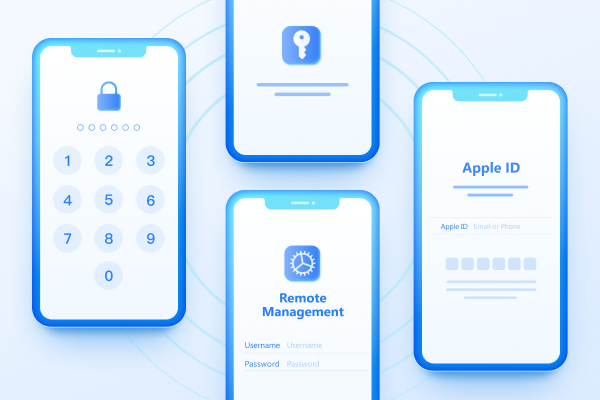
Easily Unlock iPhone passcode/Apple ID/iCloud Activation Lock/MDM
100% successful unlockShare this post


4uKey - One-Click Easy iPhone/iPad Unlocker
Unlock Screen Lock/Apple ID/MDM/Screen Time Passcode Instantly
Easy iPhone/iPad Unlocker
Unlock iPhone Passcode Instantly
By Jenefey Aaron
2026-10-14 / Unlock iPhone