

 iOS Tips & Latest Updates
 Bug Fixes, Unlock Guides
 Giveaways & Freebies

iCareFone - Free iOS Backup tool & Easy Data Manager
Backup/Transfer/Restore/Manage iOS Data with Simple Clicks
Backup/Manage iOS Data Easily
Backup/Manage iOS Data in Clicks
The best apps to control a PC from a phone are Chrome Remote Desktop (free remote access), Microsoft Windows App (Windows Pro), AnyDesk (low lag) and Unified Remote (phone as a mouse and media remote). Remote desktop apps show your PC screen and work over the internet. Phone-as-remote apps send mouse, keyboard and media commands, usually on the same Wi-Fi.
This guide covers both. You'll get a quick comparison table, our 9 picks (free and paid), step-by-step setup, safety tips and fixes for when the connection won't start.

Yes, you can control a PC from your phone. Every app on this list works the same basic way: you install a small helper program on the PC, install the matching app on your Android phone or iPhone, and pair the two. After that, the apps split into two groups.

if you need to see what's on the screen, pick a remote desktop app. If you're sitting in front of the screen and just want to control it from across the room, a use phone on PC app is faster and simpler. And if you're on Android and want the full desktop, any remote desktop app Android users rate well, like Chrome Remote Desktop or AnyDesk, is a safe start.
Here's how the best apps to control PC from phone compare at a glance. The free options are marked, so you can also use the table to find apps to control PC from phone free of charge.
 Please swipe to view
We grouped the remote desktop apps first, then the phone-as-remote apps. Prices and features below were checked in November 2026.
Chrome Remote Desktop is Google's free remote access tool, and it's the easiest place to start. You set it up from the Chrome browser on your PC, sign in with your Google account, and then open your computer from the Chrome Remote Desktop app on your phone. There are no ads, no session limits and no paid tier, which makes it the top pick among apps to control PC from phone free.

Price: Free.
Works with: Windows, macOS and Linux PCs; Android and iPhone apps.
Pros:
Cons:

"This app is great for accessing my PC from my phone! The 'touch screen as a mouse' is actually easy to use..." (Google Play user, 4★, Nov 2024)
anyone who wants free, reliable access to a home or work PC from anywhere.
Microsoft Remote Desktop is built into Windows, so there's nothing extra to install on the PC. On phones, Microsoft has replaced the old Remote Desktop app with the Windows App on iPhone, Android and Mac. You add your PC by name, sign in with your Windows account and get a sharp, responsive desktop on your phone.
The catch is that the PC you connect to must run Windows 10 or 11 Pro or Enterprise. Windows Home can't be controlled this way, so Home users should pick Chrome Remote Desktop or AnyDesk instead. Reaching the PC from outside your home network also takes extra setup, such as a VPN.

Price: Free.
Works with: Windows Pro/Enterprise PCs; Windows App for Android, iPhone and Mac.
Pros:
Cons:
"I only use the Remote Desktop features of the app, but I don't have any complaints. I expected the app to be bloated but was pleasantly surprised to find that it seems pretty lightweight." (Google Play user, 5★, Oct 2026)
Windows Pro users who want a native, high-quality connection.
TeamViewer is the name most people know, and it's built for remote support. The person you're helping opens TeamViewer (or the lighter QuickSupport app), reads you an ID and password, and you take over their screen from your phone. It's free for personal use, with paid plans for business.
Only use the official TeamViewer download page or the app stores, since fake copies are common. Scammers also love TeamViewer, so read the safety tips in Part 3 before you share access codes with anyone.

Price: Free for personal use; paid business plans.
Works with: Windows, macOS, Linux, ChromeOS and Raspberry Pi; Android and iPhone apps.
Pros:
Cons:
"Great app, the best remote PC program... I can transfer files from PC to my Phone or Tablet." (Google Play user, 4★, Nov 2025)
helping parents, relatives or friends with PC problems.
AnyDesk is known for low latency, so scrolling, typing and even watching short videos feel smoother than on many rivals. It's free for personal, non-commercial use and supports almost every platform. Its Android app has good touch controls and an easy switch between touch and mouse modes.

Price: Free for personal use; paid plans for commercial use.
Works with: Windows, macOS, Linux; Android and iPhone apps.
Pros:
Cons:
"I have been using it in the last 2 months on a daily basis to connect from phone to PC when I was at work. Didn't have any issues with it." (Google Play user, 5★, Oct 2026)
users who want the smoothest possible remote screen.
RealVNC Connect pairs VNC Viewer (on your phone) with VNC Server (on your PC). The free Lite plan is for non-commercial use and covers up to 3 devices. It includes end-to-end encryption and two-factor authentication, which is why security-minded users like it. It's also a favorite for people who run Linux or a Raspberry Pi.

Price: Free Lite plan for personal use; paid plans for business.
Works with: Windows, macOS, Linux and Raspberry Pi; Android and iPhone apps.
Pros:
Cons:
"I control my home computers with my smartphone, sometimes as a remote for entertainment purposes. Also, I can provide remote assistance to friends and family in a secure way." (Google Play user, 5★, Aug 2025)
users who care most about security, plus Linux and Raspberry Pi owners.
Unified Remote turns your phone into a universal remote for your computer. Instead of a mirrored screen, you get purpose-built remotes for media players, browsers, Spotify, PowerPoint and more, plus a touchpad and keyboard. Install the free server on the PC, open the app on the same Wi-Fi, and it finds your computer automatically.
The free version includes 18 essential remotes. A one-time Full version purchase unlocks the rest, along with custom remotes and widgets.

Price: Free; one-time Full upgrade.
Works with: Windows, macOS and Linux; Android and iPhone apps.
Pros:
Cons:
"It does the job very well and does everything I needed it to do which was basically not get up out of my bed at night and have to change youtube videos..." (Google Play user, 5★, Sep 2025)
controlling media, presentations and apps from the couch.
Remote Mouse does one thing well: it makes your phone a wireless mouse, keyboard and touchpad. It's one of the simplest options here. Install the free server on your computer, connect on the same Wi-Fi and start moving the cursor. The free app shows ads, and extra panels like the media remote and web remote are paid add-ons. Read our full Remote Mouse app review to see if Pro is worth it.

Price: Free with ads; Pro add-ons.
Works with: Windows and macOS; Android and iPhone apps.
Pros:
Cons:
"I can use my phones keyboard to type on my laptop... Using this feature is silent so my kids don't wake up while I'm typing on my laptop now!" (Google Play user, 5★, Sep 2026)
people who just want a touchpad and keyboard on their phone.
PC Remote by Monect turns your phone into a game controller, keyboard, touchpad or presentation clicker. It includes ready-made controller layouts for driving and shooting games, and you can build your own. It's free with ads, with paid extras for more layouts.

Price: Free with ads; paid extras.
Works with: Windows PCs; Android and iPhone apps.
Pros:
Cons:
"Really great app, been using it for over a year now. but the recent update made it so it isn't fullscreen anymore." (Google Play user, 4★, Oct 2026)
couch gaming and slide presentations.
KDE Connect links your phone and computer for remote input, media control, notification sync, clipboard sharing and file sharing. It's completely free, open source and has no ads. It works best with Android, and it runs on Windows, Linux and macOS. The iPhone app exists but has fewer features.

Price: Free.
Works with: Windows, Linux and macOS; Android (full features) and iPhone (fewer features).
Pros:
Cons:
"I've always used other methods of communicating between my Linux computers and my Android devices... But KDE Connect has nearly replaced that now." (Google Play user, 5★, Sep 2026)
users who want a free, ad-free toolkit and don't mind a little setup.
Still not sure? Here are the best apps to control PC from phone, matched to what you need:
Here's how to control PC from phone with the two most popular free tools. Method 1 works on any PC; Method 2 is for Windows Pro.


If your PC runs Windows Home, you won't see the Remote Desktop switch. Use Method 1 instead.
Remote access software gives full control of your computer to whoever connects, so a few habits go a long way:
Remote access apps control your PC from your phone, but they aren't built to copy your phone's own files in bulk. If you want to copy iPhone photos to your PC instead of controlling it, a dedicated file manager is the better tool.
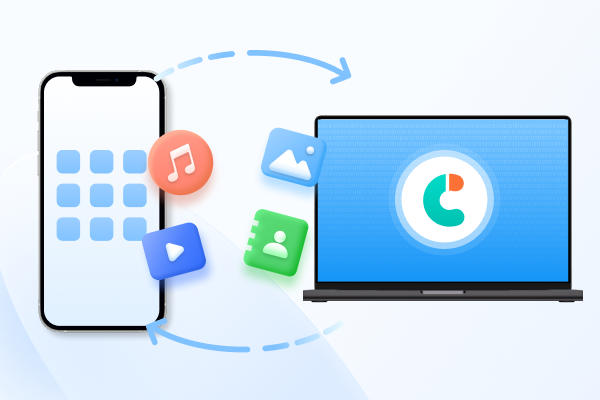
Tenorshare iCareFone is an iPhone data manager for Windows and Mac that moves photos, videos, music and contacts between your iPhone and computer without iTunes.


Chrome Remote Desktop is the best choice for most people because it is free, easy to set up and works from anywhere. Choose AnyDesk for lower latency, Microsoft Windows App if your PC runs Windows Pro, or Unified Remote if you only want a mouse and media remote.
Yes. Chrome Remote Desktop, Microsoft Remote Desktop (Windows App) and KDE Connect are free, but Microsoft's option only works with a Windows Pro or Enterprise PC. TeamViewer, AnyDesk, RealVNC Lite, Unified Remote and Remote Mouse have free versions with limits, such as personal use only, a device cap, ads or locked remotes.
Yes, with a remote desktop app such as Chrome Remote Desktop, TeamViewer or AnyDesk, which connect over the internet. Phone-as-remote apps such as Remote Mouse usually need the same Wi-Fi, though Unified Remote can also connect by Bluetooth.
Chrome Remote Desktop is the best free remote desktop app for Android because it has no paid tier or session limits. AnyDesk is built for low latency if you want smoother scrolling. Both are on Google Play.
Yes. Every remote desktop app in this guide has an iPhone app, and Unified Remote and Remote Mouse also work on iPhone. KDE Connect's iPhone app has fewer features than its Android version.
Use it only on trusted home Wi-Fi and keep it updated. In 2021, a researcher disclosed six vulnerabilities (CVE-2021-27569 to CVE-2021-27574) in versions up to 4.0.0.0, including remote code execution through crafted network packets. If you prefer a lower-risk option, choose Chrome Remote Desktop or Unified Remote.
Only if you know and trust the person, and only with access codes you generate and share yourself. Never allow access to anyone who contacts you first claiming to be tech support.
The best apps to control PC from phone depend on one question: do you need to see the PC screen? If yes, Chrome Remote Desktop is the best free choice, Microsoft Windows App suits Windows Pro users, and TeamViewer or AnyDesk are best for helping others. If you only want a remote from the couch, Unified Remote or KDE Connect needs less setup.
Download only from official sources and never share access codes with anyone who contacts you first. If you also move photos or music between iPhone and PC, Tenorshare iCareFone can do it without iTunes.
then write your review
Leave a Comment
Create your review for Tenorshare articles
Best Free iPhone Transfer & iOS Backup Tool
Easily, without iTunesShare this post


iCareFone - Free iOS Backup tool & Easy Data Manager
Backup/Transfer/Restore/Manage iOS Data with Simple Clicks
Backup/Manage iOS Data Easily
Backup/Manage iOS Data in Clicks
By Jenefey Aaron
2026-11-18 / Reviews