

 iOS Tips & Latest Updates
 Bug Fixes, Unlock Guides
 Giveaways & Freebies

iCareFone - Free iOS Backup tool & Easy Data Manager
Backup/Transfer/Restore/Manage iOS Data with Simple Clicks
Backup/Manage iOS Data Easily
Backup/Manage iOS Data in Clicks
This Remote Mouse app review covers what the app does, whether it is safe, what is free versus Pro, and how it compares with alternatives. Remote Mouse turns your iPhone or Android phone into a wireless mouse, keyboard, and touchpad for Windows, macOS, and Linux computers. It is a legitimate app and its core controls are free, but extras like the media remote, web remote, and ad removal cost extra.
In this review, we test its core features, security credentials, Free vs. Pro pricing, and top alternatives to help you decide if it is right for your setup.

Remote Mouse lets users control their computers through an iPhone or Android phone. It offers wireless mouse, keyboard, touchpad, and media controls. This section explains its supported devices, main features, connection process, and overall performance.
Remote Mouse is a mobile application that connects your phone or tablet to a computer. It uses a wireless connection to send mouse and keyboard commands to the desktop. You need to install the mobile app and its desktop helper to use the service.
The app supports several computer operating systems:
Remote Mouse supports Wi-Fi and Bluetooth connections. For Wi-Fi, connect your phone and computer to the same network. Open the desktop helper and mobile app, then select your computer. If automatic discovery does not work, you can enter the computer's IP address manually. The official website also provides separate downloads for desktop systems and mobile devices.
Remote Mouse offers several useful controls for everyday computer tasks. However, actual lag, battery use, and connection stability depend on your devices, network, and settings. We do not present unmeasured figures as test results.
Here are its main features:
Overall, Remote Mouse covers the basic needs of users who want to control a computer from another part of the room.
Is Remote Mouse safe to use on your phone and computer? Before recommending this app, users should check its developer, download sources, privacy policy, permissions, and antivirus reports to understand possible security risks and protect their personal data.
Yes, the established Remote Mouse application is a legitimate computer-control tool with official mobile and desktop downloads. However, users should check the developer name and app details before installing it.
Several applications use similar names, including products from different developers. Do not assume that every app called Remote Mouse belongs to the same company. Download the application from its official website or the relevant app store. Avoid unknown APK websites and unofficial desktop installers.
Antivirus tools sometimes flag Remote Mouse because it needs permission to move the cursor and send keystrokes, which resembles how some malicious tools behave. The developer says to download only from official channels. As one point-in-time check, FossHub lists 0 of 14 antivirus detections for the Windows helper version 4.601.
Follow these safety steps:
Apple's App Store privacy information also lists usage data as information that may be used for tracking and linked to users. Privacy practices can change, so check the latest store disclosure before installing.

Is Remote Mouse safe? It is a legitimate application, but no app deserves an automatic security guarantee. Download the correct version, check its permissions, and use a trusted network. If you work with sensitive data on the computer, close the helper when you are not using it.
Remote Mouse offers free and paid features for controlling computers through a smartphone. However, the Pro version includes additional options that may require payment. This section compares both versions, explains their prices, and helps you decide whether upgrading is worth it.

The free remote mouse app provides basic computer-control functions. Users can access mouse and keyboard controls without purchasing a subscription. Depending on the platform and current app version, available features and restrictions may differ.
The main free-use functions include:
The free app contains ads. Some App Store reviewers also report being prompted to pay when using Bluetooth. The listing does not say which tier covers Bluetooth, so test it before buying.
The following prices come from the US App Store listing checked on November 10, 2026.
 Please swipe to view
a separate paid iOS app called Remote Mouse Pro also exists, which can confuse buyers. Check which app and which purchase you are buying before paying.
The answer depends on how often you use the application.
My recommendation is to try the free version first. Upgrade only when you find a feature that you actually need.
Remote Mouse is not the only option. Other applications offer similar controls, but their features, pricing, and device support differ.
Please swipe to view

buying Media Remote ($1.99), Web Remote ($1.99), and Wallpaper ($1.99) separately comes to $5.97, or $6.96 with Remove Ads. That is about half of the $13.99 yearly Pro Membership. If you only need one add-on, buying it alone is cheaper. If you want everything across platforms, the yearly plan costs less than twelve months of the $1.49 monthly plan ($17.88).
Your choice should depend on your operating system, budget, and required features.
Remote Mouse focuses on controlling your computer rather than managing files between devices. Its clipboard sync supports text and images, but this does not make it a complete iPhone file-transfer tool. For example, if you want to move hundreds of photos, videos, contacts, or other files from an iPhone to a Windows PC, you need a separate data-management application.
Tenorshare iCareFone is an iPhone data management tool for Windows and Mac that helps users transfer, back up, restore, and organize supported data between their iPhones and computers. Unlike Remote Mouse, which focuses on controlling a computer remotely, iCareFone handles everyday iPhone data-management tasks.
It provides a convenient way to move photos, videos, music, contacts, and other supported files without relying entirely on cloud storage. Whether you want to create a local backup, transfer important files, or manage your iPhone content, iCareFone offers several useful features through its desktop interface.


Install Tenorshare iCareFone on your computer and open it. Connect your computer and iPhone to the same WiFi network. After a few seconds, iCareFone will detect your iPhone. Select your iPhone within the iCareFone interface.

Now, select the Manage tab from the left-hand side.
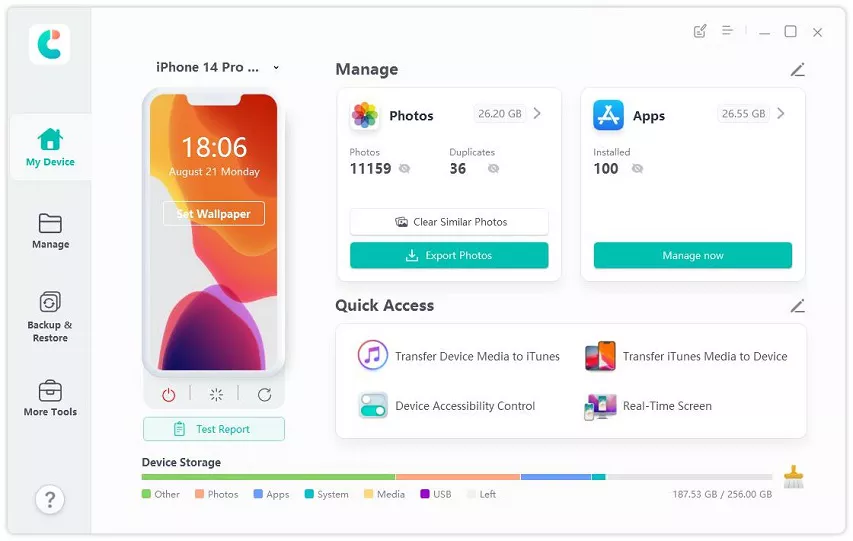
On this page, select the type of files you want to transfer from iPhone to PC wirelessly(photos, music, videos, messages, contacts, etc.). Then, click the "Export" button.

Once the data is being exported, wait for the process to complete. The more files you’re transferring, the longer it will take.

The established Remote Mouse app is a legitimate application. However, users should download it from official sources, check permissions, and avoid unofficial installers. Use a trusted network for safer connections.
Unified Remote and WiFi Mouse offer free versions with basic mouse and keyboard controls. You can also consider Mobile Mouse, although its pricing and available features differ.
First, connect your phone and computer to the same Wi-Fi network. Then check that the desktop helper is running, restart both applications, and allow the desktop helper through your firewall. If automatic discovery fails, enter the computer's IP address manually.
Some operating systems provide accessibility and input features, but they do not always offer the same remote-control experience. A dedicated application such as Remote Mouse can provide a simpler way to control a compatible computer.
This Remote Mouse app review shows a legitimate, easy-to-set-up way to control a Windows, Mac, or Linux computer from your phone. The core mouse, keyboard, and touchpad controls are free, and Pro is only worth paying for if you need extras like the media or web remote. For safety, install the latest desktop helper, set a connection password, and avoid public Wi-Fi.
Remote Mouse controls your computer but doesn't transfer files. If you also need to move photos, videos, or contacts between an iPhone and a computer, Tenorshare iCareFone is one option to consider.

then write your review
Leave a Comment
Create your review for Tenorshare articles
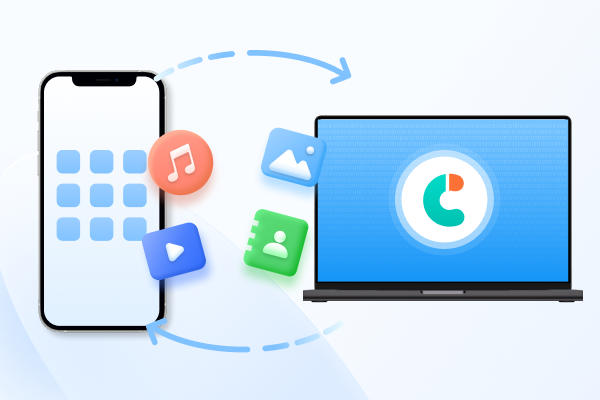
Best Free iPhone Transfer & iOS Backup Tool
Easily, without iTunesShare this post


iCareFone - Free iOS Backup tool & Easy Data Manager
Backup/Transfer/Restore/Manage iOS Data with Simple Clicks
Backup/Manage iOS Data Easily
Backup/Manage iOS Data in Clicks
By Jenefey Aaron
2026-11-16 / Reviews