

 iOS Tips & Latest Updates
 Bug Fixes, Unlock Guides
 Giveaways & Freebies
then write your review


ReiBoot - No.1 Free iOS System Repair Software
Fix 150+ iOS Issues without Data Loss & Safely iOS 27 Upgrade/Downgrade
ReiBoot: No.1 iOS Repair Tool
Fix 150+ iOS Issues, No Data Loss
Control Center not working almost always comes down to one of four causes --- a swipe gesture landing in the wrong zone, Access Within Apps switched off, a stuck background process, or the new iOS 27 Liquid Glass slider making icons too transparent to see. Each has a direct fix below.
Search interest in "control center not working" has spiked since Apple shipped iOS 27 on September 14, and iPhone 18 Pro owners are reporting it more than any other group, since the new models ship with iOS 27 pre-installed. This guide starts with the fastest fixes, the ones that resolve most cases in under two minutes, then covers the iOS 27-specific cause almost no other article has addressed yet: Control Center that opens fine but is genuinely hard to read because of the redesigned Liquid Glass interface. The last section covers what to do if none of that works.

Control Center problems fall into three distinct categories, and the fix depends on which one you have: it won't open at all, it opens but ignores taps, or it opens with modules missing. Working out which applies before changing settings saves you from cycling through fixes that were never going to help.
The swipe starts in the wrong spot more often than people expect. Every iPhone 18 model uses Face ID, so Control Center opens by swiping down from the top-right corner, near the battery icon, not from the middle of the screen. If Control Center won't pull down, try starting the swipe slightly higher and further right than feels natural --- iOS reads a swipe that starts too low as a Notification Center gesture instead. If the gesture is correct and it still fails, Access Within Apps is the next thing to check.

A Control Center that opens but ignores taps points to touch input, not the gesture. iPhone 18 units on an early iOS 27 build have reported this more than older models, likely tied to background processes competing for system resources in the days right after a major OS update. A dirty screen, a case that overlaps the display edge, or one stuck app in the background can all cause the same symptom.
This is a layout change, not a bug. iOS 27 reorganized which modules appear by default, and a custom module you added before updating --- Reduce White Point is a common example --- doesn't always carry over cleanly. If a toggle you rely on has disappeared, check Settings > Control Center and re-add it from the More Controls list rather than assuming it broke.
Work through these in order. Most Control Center issues resolve by the third step, and none of them require a reset.

A restart clears whatever background process is competing for touch input --- the most common cause behind a Control Center that opens but doesn't respond.
This forces iOS to refresh the permission instead of just reading its current state, which fixes cases where the setting looks correct but isn't actually being applied.

A case sitting even 1--2mm too high along the top edge blocks the exact zone Face ID models use to open Control Center. Remove the case and screen protector, then retest the swipe before assuming the problem is software.
Apple has already shipped several point releases since the September 14 launch, and Control Center bugs are a common target for these updates.

If Control Center only fails inside one specific app, that app is the problem, not Control Center. Swipe up and pause to open the App Switcher, close the frozen app, then retry the gesture from the Home Screen.

If the problem started right after you customized Control Center, a specific module is the likely cause --- not Control Center as a whole.

This is the part most troubleshooting guides miss. A large share of people searching for a Control Center fix this month don't have a technical failure at all --- they're describing a control center transparency issue in iOS 27 where the redesigned interface is genuinely hard to read against certain wallpapers. That's a settings issue with a direct fix, not a bug to wait out.
iOS 27 replaced the Clear/Tinted toggle from iOS 26 with a single slider that controls transparency across the system. It affects Control Center, notifications, and folders together. At the clear end of the slider, Control Center's background shows through strongly enough that icons can blend into a busy wallpaper, which is exactly why some users describe a liquid glass control center hard to read against certain backgrounds. It isn't random: the effect is a direct, predictable result of where the slider is set.

For a more complete fix, Settings > Accessibility > Display & Text Size > Reduce Transparency flattens Liquid Glass system-wide instead of just adjusting its intensity.
Reddit users recently asked why Reduce White Point isn't a default Control Center toggle, since Accessibility settings are too many taps away when you need quick relief from glare or a hard-to-read Liquid Glass panel.
It isn't in Control Center by default, so it has to be added manually:
This is a display accommodation rather than a Control Center repair on its own, but pairing it with a more tinted Liquid Glass setting is the combination that produced the clearest result in testing.
If Control Center still won't open, still ignores taps, or the problem keeps returning after a restart, the cause likely sits deeper than a single toggle. It's worth ruling out a corrupted system file before assuming a full restore is the only option.
This clears every customized setting --- including Control Center layout, network settings, and privacy permissions --- but keeps your photos, messages, and apps untouched.
A settings reset only fixes settings-level problems. If Control Center is unresponsive because of a corrupted system file left over from an interrupted update --- common in the weeks after a major release like iOS 27 --- a reset won't touch it, and Apple doesn't offer a built-in way to repair individual system files short of a full restore.
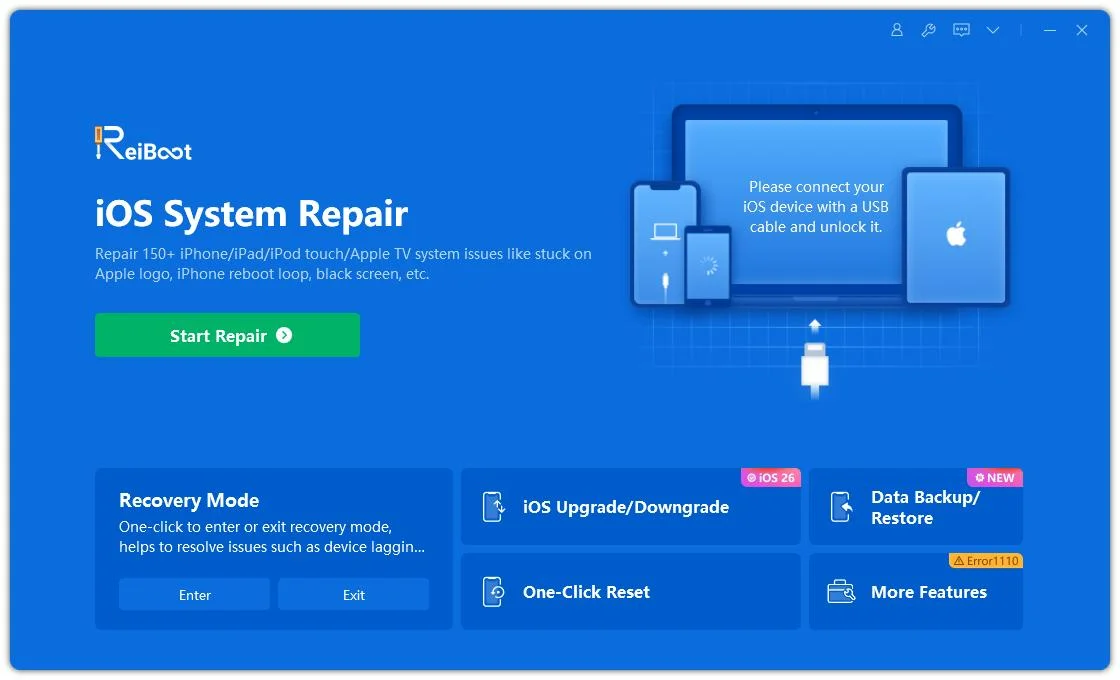
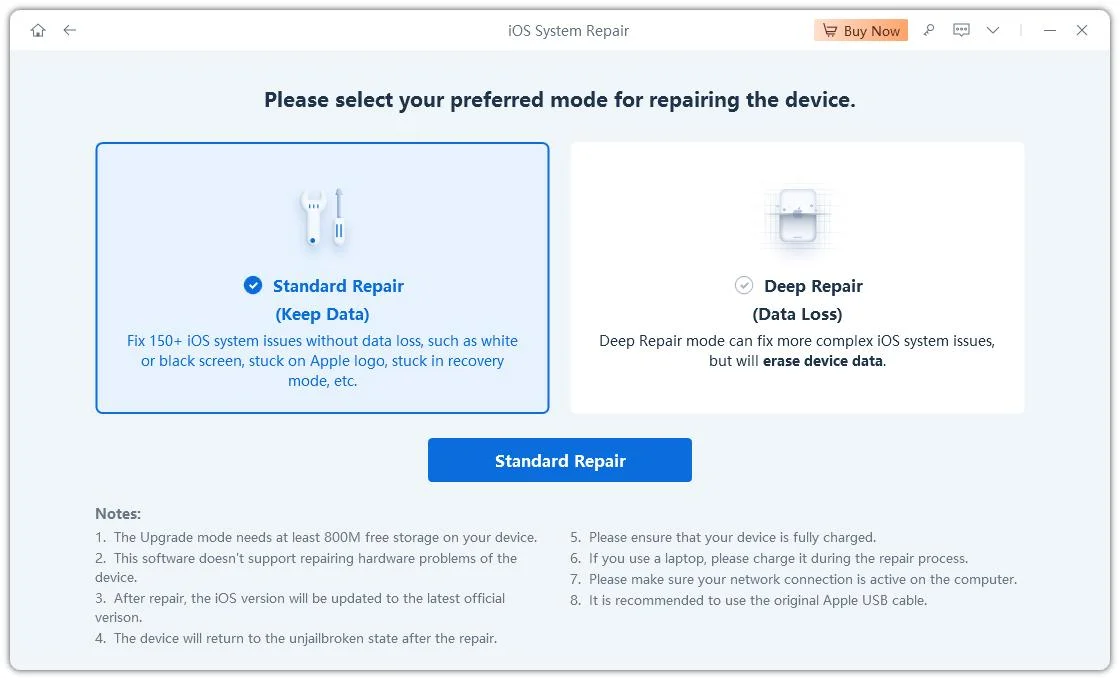
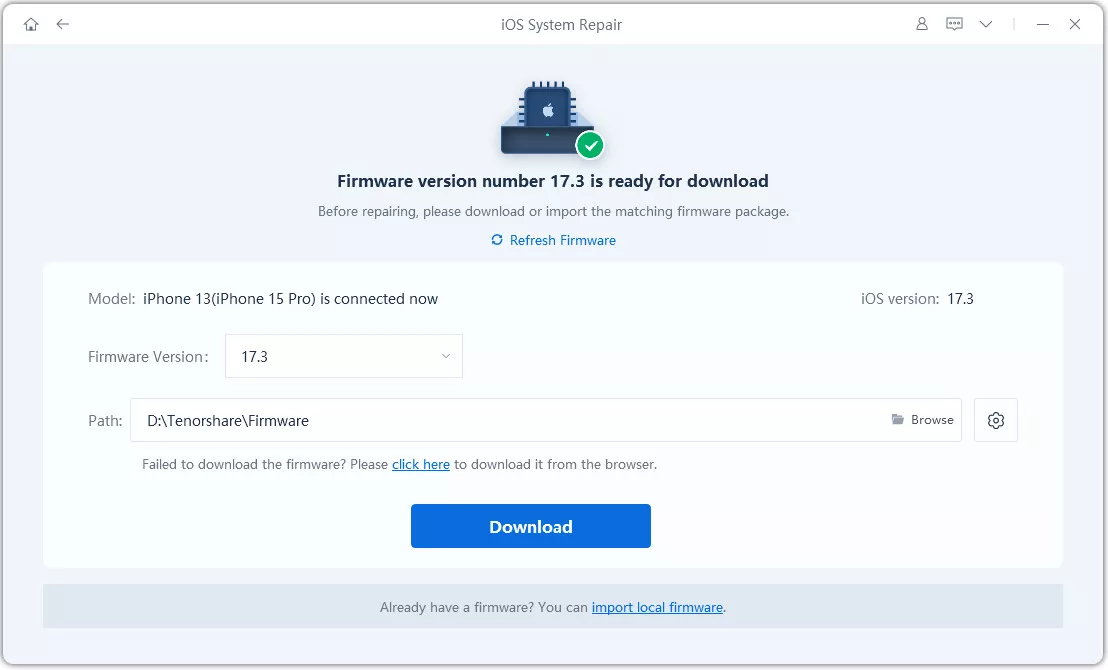
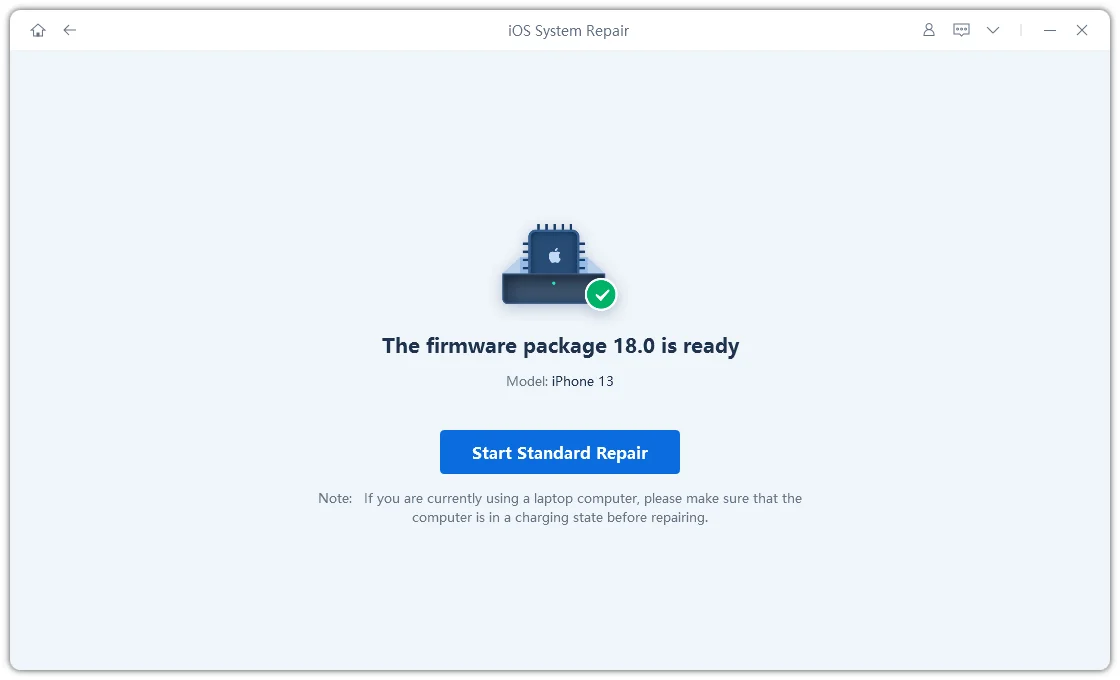
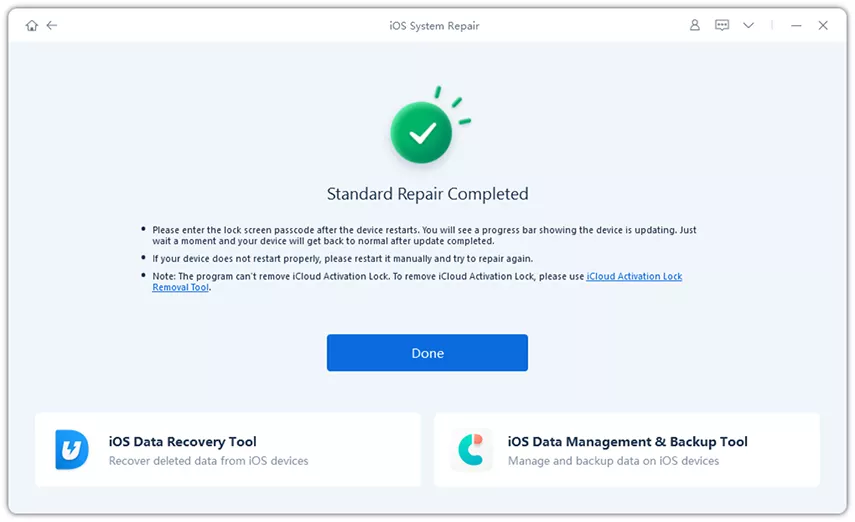
That gap is what third-party iOS repair tools are built for. Tenorshare ReiBoot is one option built specifically for this kind of iOS system-level issue: it scans for known iOS corruption and applies a fix without necessarily erasing the device, which matters if a recent backup doesn't exist.




If Control Center won't open from inside the Settings app specifically, check Settings > Control Center > Access Within Apps. When this toggle is off, the swipe gesture is disabled inside every app, including Settings itself, and only works from the Home Screen or Lock Screen.
iPadOS 27 runs the same Liquid Glass system as iOS 27, so the causes are the same: a disabled Access Within Apps setting, a transparency level that makes icons hard to see, or a swipe gesture starting outside the active zone near the top-right corner of the display.
Control Center is on by default. If it isn't appearing, go to Settings > Control Center and confirm Access Within Apps and Access on Lock Screen are both turned on, then swipe down from the top-right corner of the screen to open it.
Yes. Reset All Settings clears customized preferences and network settings but doesn't delete photos, apps, messages, or any personal files. It carries less risk than a full restore and is worth trying before considering a system repair tool.
Most Control Center problems come down to one of three things: a swipe gesture landing outside the active zone, Access Within Apps switched off, or the new Liquid Glass slider making icons hard to see against your wallpaper. Work through restart, Access Within Apps, and the Liquid Glass adjustment before assuming anything is seriously wrong.
If Control Center not working still persists after that, a settings reset resolves most of what's left, and iOS repair software like Tenorshare ReiBoot is there for the rarer cases where the cause sits inside a corrupted system file rather than a setting you can toggle yourself.


then write your review
Leave a Comment
Create your review for Tenorshare articles

Share this post


ReiBoot - No.1 Free iOS System Repair Software
Fix 150+ iOS Issues without Data Loss & Safely iOS 27 Upgrade/Downgrade
ReiBoot: No.1 iOS Repair Tool
Fix 150+ iOS Issues, No Data Loss
By Jenefey Aaron
2026-09-24 / iOS 27