

 iOS Tips & Latest Updates
 Bug Fixes, Unlock Guides
 Giveaways & Freebies


Cleamio: All-in-One Mac Cleaner & Optimizer
Clean junk files, free up space, and boost Mac performance
No.1 Mac Cleaner & Optimizer
Clean, speed up, and optimize your Mac
Is your Mac slowing down when you have too many tabs open? This frustrating lag is a common pain point for users who rely on their machines for heavy multitasking. The best way to fix this is a Mac RAM upgrade, which provides the overhead needed for smooth performance. This article covers how to check your current usage, identify if your Mac model is upgradeable, and provides step by step installation guides.

If your Mac feels slow, freezes during multitasking, or shows the spinning beach ball often, the first step is to check whether it’s actually running out of memory. macOS includes a built-in tool called Activity Monitor, which works like a task manager and shows real-time RAM usage.

The "Memory Pressure" graph is the most important indicator of your Mac’s RAM health:

If your Mac isn't upgradable or you want an immediate performance boost without opening the chassis, software optimization is the key. Closing apps helps, but many background processes and hidden junk files can still slow your system.
One effective solution is using a dedicated Mac cleaning tool, like Tenorshare Cleamio, an AI-powered Mac cleaner that improves speed through deep system cleanup. It scans your Mac, removes unnecessary and duplicate files and processes, and reduces system load. This helps free up storage, improve RAM availability, and boost CPU performance indirectly. It uses advanced file detection methods to safely identify junk without touching important system files.
Key Features of Tenorshare Cleamio include:
In some cases, it can free up 20GB or more of storage, which helps your Mac work more efficiently.
Option 1. Clean Up Junk Files to Free Up RAM


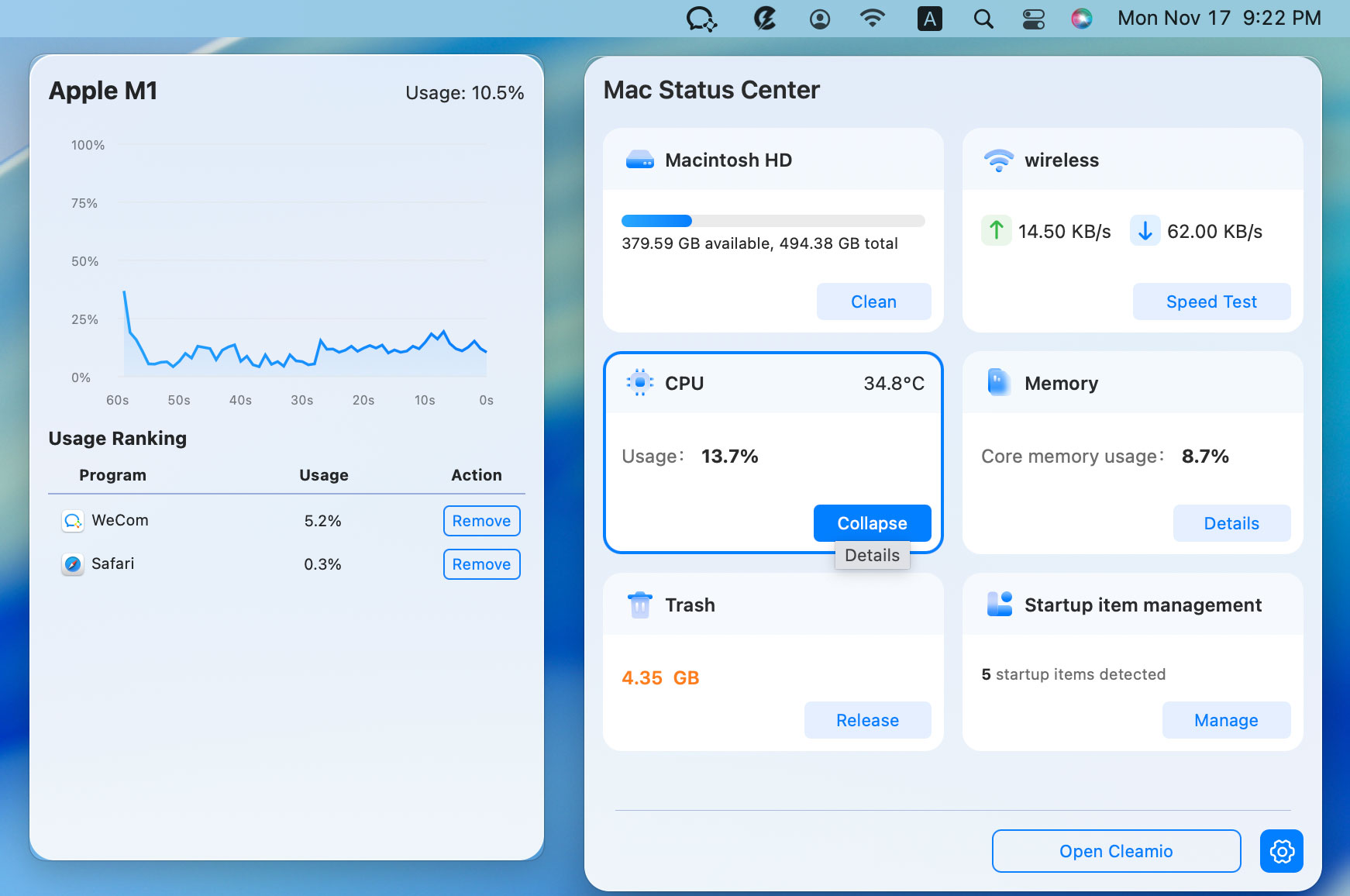
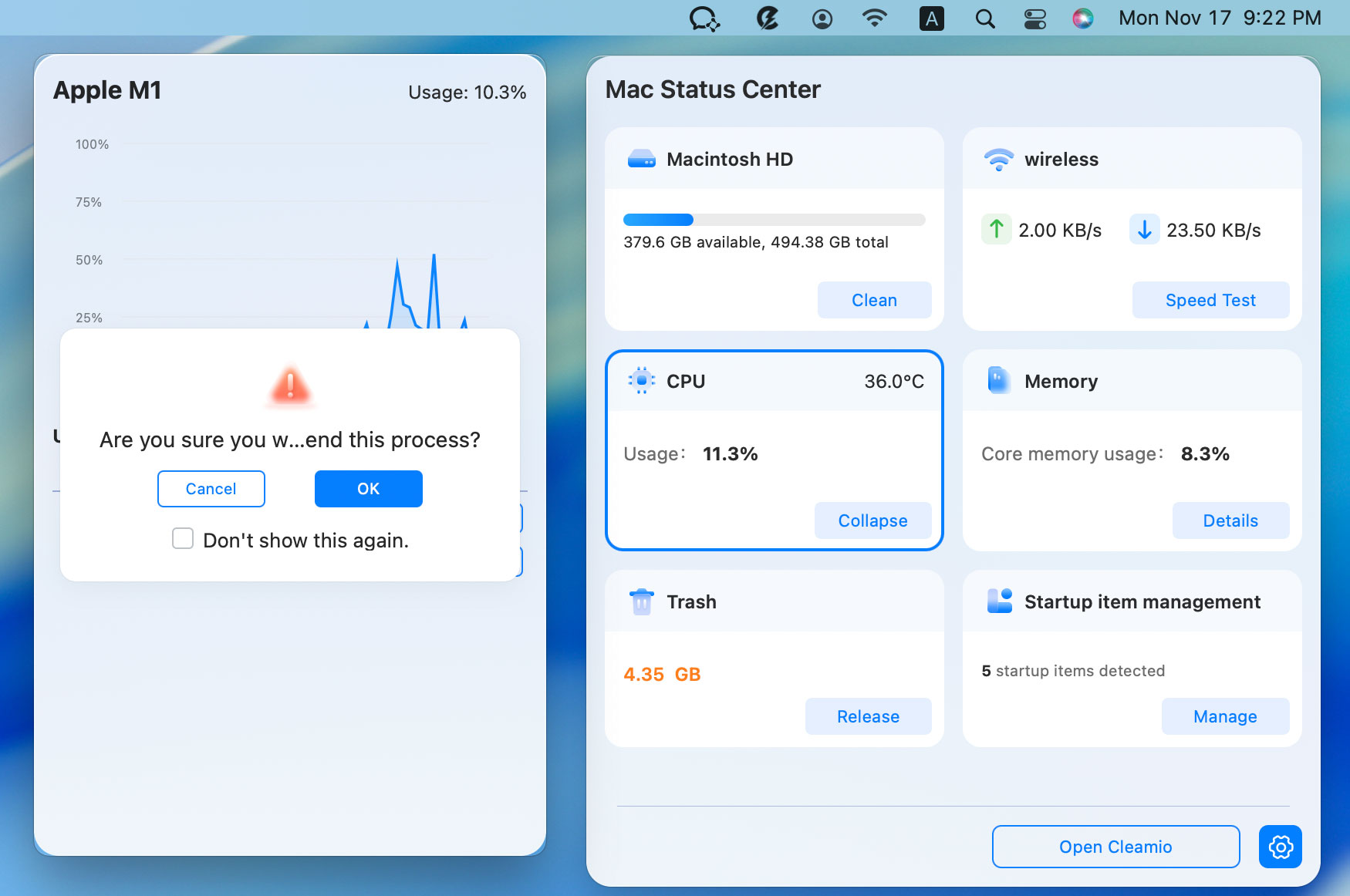
Option 2: Free Up CPU & Memory via Cleamio ’ s Mac Status Center

Apple has transitioned toward "unified memory" integrated directly into the M-series chips (M1, M2, M3), making physical upgrades impossible on newer models. However, many Intel-based Macs still allow for manual expansion.
Steps:


a. If you see "Upgradeable: Yes" or if there are physical slots listed with "Empty" status, your Mac supports RAM upgrade.

b. If it says "Soldered", “No”, or shows unified memory, a manual Mac RAM replacement is likely impossible. For instance, this MacBook Pro (15-inch, 2017) is not upgradeable and the maximum RAM is 16 GB.

Or, you can only check your Mac model and check if it is upgradeable in the summary table in the next Part 4.
The transition to Apple Silicon (M1, M2, M3, M4 chips) changed the landscape. These chips use "Unified Memory," which is integrated into the processor and cannot be changed after purchase. However, Intel-based Macs and certain pro models remain upgradeable.
Here is a clear summary:
 Please swipe to view

If RAM upgradeability is important to you, choose older Intel-based 27-inch iMacs, certain Mac Minis, or Mac Pros. For newer Apple Silicon Macs, buy the maximum RAM you need at the time of purchase.
A Mac RAM replacement or upgrade can significantly improve performance on supported models.
An upgrade Mac mini RAM is one of the simplest hardware upgrades, but only supported on older models (mainly 2010–2012).
Tools Needed: Phillips screwdriver, anti-static wrist strap, compatible DDR3 RAM modules.
Steps:


A MacBook Pro RAM upgrade involves replacing memory sticks inside the laptop. But only older MacBook Pro models support it because newer models have RAM soldered to the motherboard.
Tools Needed: Phillips screwdriver, anti-static wrist strap, compatible DDR3 RAM modules.
Steps:

An iMac RAM upgrade is usually easier because many models have a dedicated memory compartment, especially older Intel-based versions.
Tools Needed: Phillips screwdriver, anti-static wrist strap, compatible DDR3/DDR4 RAM modules.
Steps:

A Mac Pro is the most flexible system for upgrades. If you're wondering how to upgrade Mac Pro RAM, the process is straightforward.
Tools Needed: Phillips screwdriver, anti-static wrist strap, compatible DDR3/DDR4 DIMMs.
Steps:

Mac Pro supports professional-grade expansion for heavy workflows such as 3D rendering and video editing.
If you find that your RAM is soldered, don't lose hope. You can still add memory to MacBook Pro functionality by changing how your system handles data.

If your Mac supports upgrades, choosing the correct RAM is very important. Apple systems are notoriously picky about timing, voltage, and CAS Latency (CL).
Steps to choose the right RAM:
Only on models manufactured in 2012 or earlier. Modern Retinas and M-series chips use a MacBook Pro RAM expansion through soldered memory that cannot be changed after purchase.
Yes, provided your model has physical slots (such as the 27-inch iMac or the 2018 Mac Mini). This is the most common way to increase MacBook RAM performance on supported hardware.
For basic tasks, 8GB is the minimum. For multitasking and light creative work, 16GB is the sweet spot. Professionals in video or 3D rendering should aim for 32GB or more.
For general use, yes. However, as AI tools and complex web apps become more common, 16GB may become the new "minimum," making 24GB or 32GB a better long-term investment.
If your Mac has an SSD and is otherwise healthy, a $60 RAM upgrade is much better than a $1,200 new machine. If you are still using a mechanical hard drive, upgrade that to an SSD first.
Yes, but only if you were previously hitting "Red" memory pressure. It won't make your CPU faster, but it will prevent the "beachball" lag caused by disk swapping.
No. All MacBook Air models ever made have their RAM soldered directly to the motherboard.
A Mac RAM upgrade can significantly improve performance, but not all Macs support it. Understanding your model is the first step before making any decisions. If your Mac is not upgradeable, software optimization becomes essential. Tools like Tenorshare Cleanmio can help clean junk files, free up memory, and restore smooth performance without hardware changes.


then write your review
Leave a Comment
Create your review for Tenorshare articles
 Cleamio
All-in-One Mac Cleaner & Optimizer
Share this post


Cleamio: All-in-One Mac Cleaner & Optimizer
Clean junk files, free up space, and boost Mac performance
No.1 Mac Cleaner & Optimizer
Clean, speed up, and optimize your Mac
By Jenefey Aaron
2026-10-19 / Mac Optimization