If your Mac suddenly feels slow, noisy, or heats up for no clear reason,
there’s a good chance WindowServer is involved. Many users on macOS Sequoia,
Sonoma, Tahoe, Monterey, and Ventura report
WindowServer Mac high CPU issues even when they’re doing simple tasks.
This system process controls how everything looks on your screen, so when
Mac WindowServer high CPU and memory usage happens, your whole Mac can
feel unusable. With this guide, you can get an idea of how to deal with it and
get the best of your Mac.
WindowServer is an important part of macOS. It controls everything on your
screen. It manages everything from windows, menus, animations, to even how
apps are drawn on the screen. It is responsible for translating apps to
Mac’s graphics system.
WindowServer is a crucial part that always needs to keep running. MacOS
cannot work without it. Anything that involves any windows, tabs, desktops,
will require it to work in the background.
Normally, the Mac WindowServer process uses a small and stable amount of CPU
and memory. Problems start when it has to manage too many visual tasks at
once, which can push it into macOS WindowServer high CPU territory.
How Much CPU or Memory Should WindowServer Use?
Please swipe to view
Usage Type
CPU Usage
Memory Usage
Normal usage
2%–10%
50–300 MB
High usage
20%+ for long periods
500 MB–2 GB+
If the CPU stays above 20% or memory keeps climbing without dropping, that
counts as Mac WindowServer using too much memory and needs attention.
Part 2. Why Is WindowServer Using So Much CPU, Memory, or RAM? Can I Quit
WindowServer?
Why is WindowServer taking so much CPU?
When WindowServer high CPU appears, it means that the screen is having
difficulties being displayed. This problem still persists on newer Macbooks.
The issue often becomes worse with external displays or heavy visual effects
enabled.
Common causes include:
Too many open windows, Spaces, or full-screen apps
High-resolution or multiple external monitors
Apps with constant overlays or screen tracking
Transparency and animation effects
Browser tabs using GPU acceleration
These situations can quickly turn into WindowServer taking up CPU,
especially after a long uptime.
Can I Quit WindowServer on Mac? Is It Safe?
The short answer is no. WindowServer is essential to macOS. If it quits,
your screen session ends, and macOS will force you to log out or restart. On
newer systems, users sometimes see
WindowServer quit unexpectedly on Sequoia, which is often linked to
high CPU load or display-related bugs.
Instead of quitting it directly, you should reduce the load it handles. This
is especially important if you are using an external monitor, since
display scaling and refresh rates can trigger why is WindowServer taking so
much CPUproblems.
Part 3. How to Fix Mac WindowServer High CPU/Memory/RAM Usage?
If you are dealing with Mac WindowServer high memory or CPU spikes, the
fixes below work for most users. These steps focus on reducing the visual
work WindowServer has to do.
1. Close Unused Windows, Desktops, and Spaces
WindowServer must manage every visible and hidden window. If you leave many
apps open across multiple desktops, it keeps using more resources. This is
one of the most effective fixes for Macbook WindowServer high memory issues.
Steps:
Close apps you are not actively using
Reduce the number of virtual desktops in Mission Control
Minimize the use of Split View and Stage Manager if you have many
windows open
Keep your desktop clean and organized
You will often see CPU drop within seconds.
2. Quit Conflicting Apps That Overload WindowServer
Some apps constantly redraw parts of the screen or hook into window
behavior. This can cause Mac WindowServer high CPU without you realizing it.
Apps known to cause issues include:
Grammarly Desktop,
Dell Display Manager,
Bartender,
monitor control apps (e.g., MonitorControl, BetterDisplay),
menu bar tools (e.g., iStat Menus, Hidden Bar),
Older versions of Chrome/Firefox.
Quit them via Activity Monitor or Force Quit (Option-Command-Esc).
Uninstall if the issue returns.
Switch heavy browsing to Safari, which is more optimized for macOS.
Many users reporting WindowServer Mac high CPU noticed improvements after
closing these apps. Discussions like this one explain how WindowServer
taking up half my CPU can be app-related.
3. Reduce transparency, visual effects, and animations
MacOS visual effects look nice, but they add pressure to WindowServer.
Turning them off can immediately help with macOS WindowServer high memory
usage.
Steps:
Go to System Settings → Accessibility. Open Display.
Enable “Reduce transparency”.
Enable “Reduce motion”.
This reduces GPU and CPU load at the same time.
4. Avoid heavy browsers or apps
Chrome and Firefox are known to use more system resources, especially with
many tabs open. Switching to Safari often helps stabilize WindowServer using
high CPU situations.
Safari is better optimized for macOS graphics handling. This small change
alone can reduce Mac WindowServer high memory usage during daily browsing.
5. Restart WindowServer or restart your Mac
Since you can’t quit WindowServer directly, logging out is the safest way to
restart it.
Steps:
Quick restart of WindowServer: Log out (Shift-Option-Command-Q)
and log back in—this clears caches without a full reboot.
Or fully restart your Mac to free RAM and reset processes. Do this
regularly if you rarely shut down.
If issues persist, restart your Mac. This clears temporary display bugs tied
to macOS WindowServer high CPU.
6. Update macOS
Apple often fixes WindowServer bugs through system updates. Older builds of
Sonoma, Ventura, or Sequoia can be updated to reduce Mac WindowServer using
too much memory problems. Always back up your data before updating.
Steps:
Go to System Settings > General > Software Update.
External displays, especially ultra-wide or high-refresh-rate monitors, can
overload WindowServer. Disconnecting them helps you confirm whether the
display setup is causing WindowServer high CPU.
If the CPU drops after disconnecting, adjust resolution or refresh rate
before reconnecting.
Part 4. Bonus: How to Monitor & Release CPU and Memory in Real Time
Even after fixing WindowServer issues, it helps to monitor your Mac’s
performance regularly. This is where
Tenorshare Cleamio
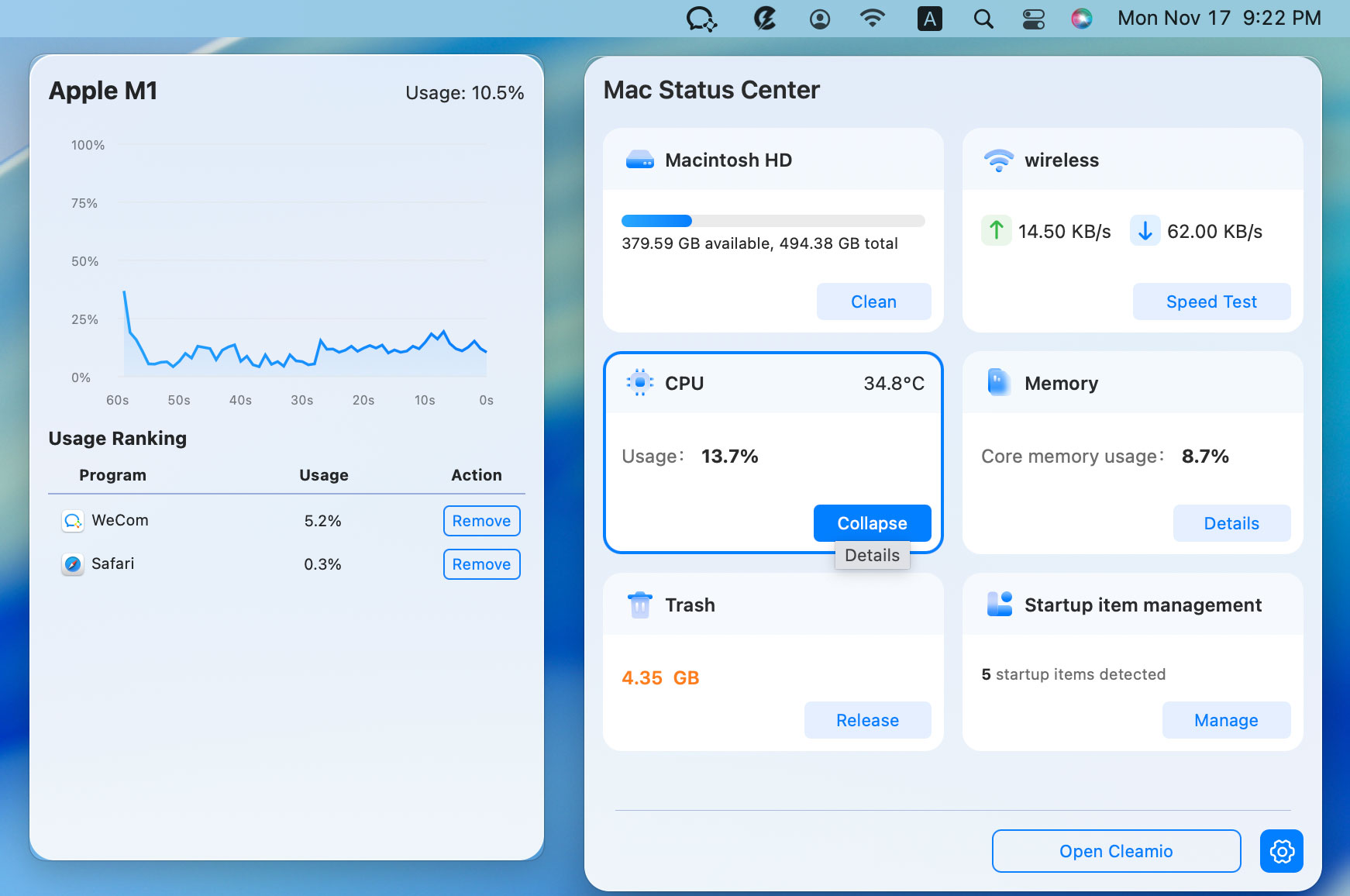
becomes useful. It includes a Mac Status Center that shows live CPU and
memory usage in a clean, simple layout.
More importantly, Cleamio lets you release CPU and RAM with just one click.
This is helpful when Mac WindowServer high memory or CPU spikes suddenly
return during work.
How to check and release CPU and memory with Cleamio
Install and open
Tenorshare Cleamio. Go to Mac Status Center by clicking its top-right Cleamio logo.
Tap on the “CPU” or “Memory” module to check what apps are taking up CPU
and memory.
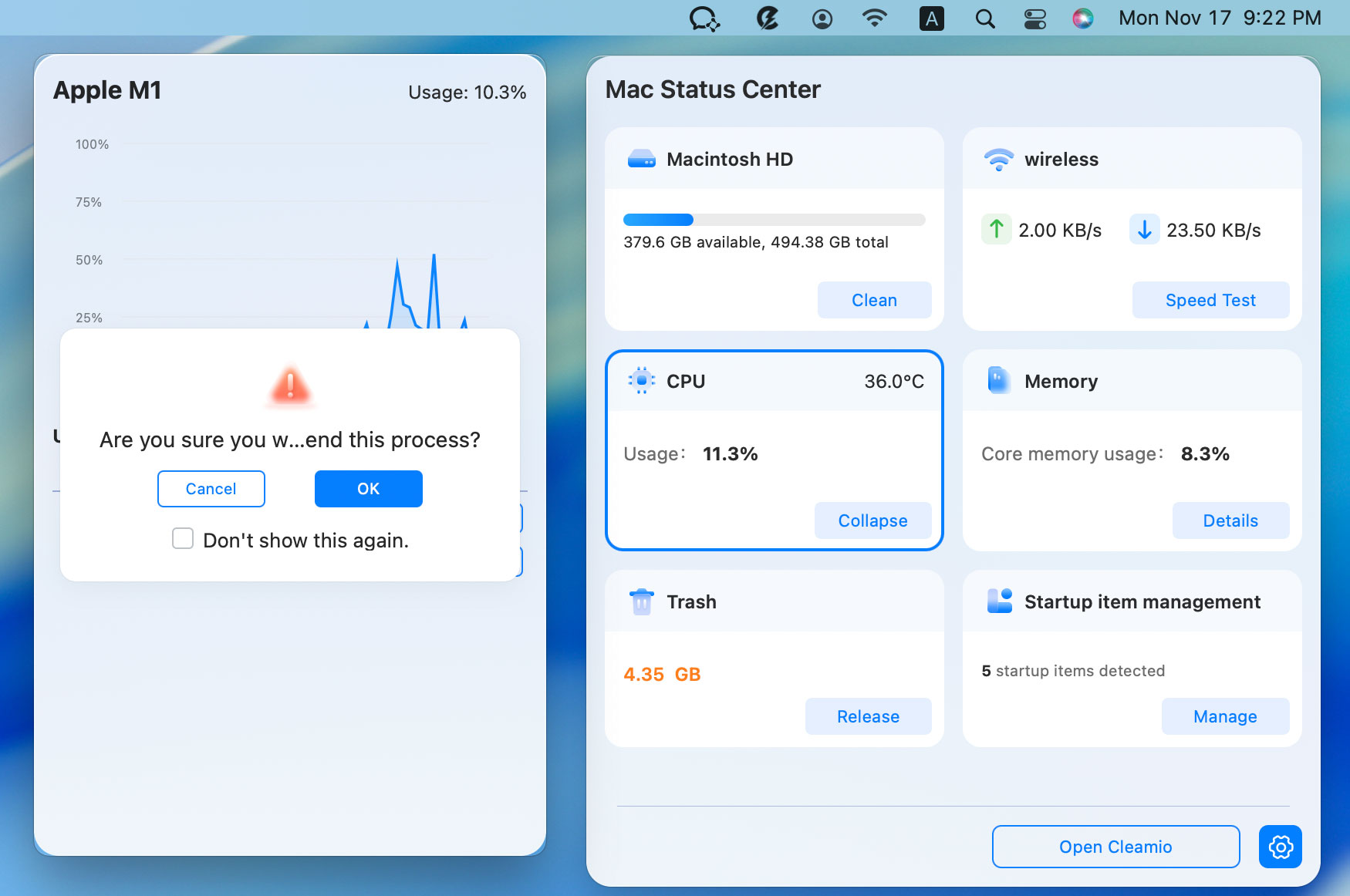
To release those Mac resources, click “Remove” or “Remove All” button to
close the high-cpu/memory apps.
This approach works well alongside manual fixes, especially if Macbook
WindowServer high memory appears frequently.
People Also Ask about WindowServer on Mac High CPU
Q1: Why does my WindowServer quit unexpectedly on Sequoia?
This usually happens due to display driver issues, external monitors, or
system bugs causing Mac WindowServer high CPU spikes.
Q2: Is WindowServer essential for macOS?
Yes. macOS cannot display anything without it. Force quitting leads to
logout or system restart.
Q3: How do I optimize macOS for WindowServer?
The key is to reduce graphical load on your Mac for preventing macOS
WindowServer high memory. Use less intensive visual effects, limit external
monitors, close unused apps, and monitor usage
Conclusion
If your Mac WindowServer high CPU and memory usage persists, it can
slow down your machine and provide you with an uncomfortable experience.
However, luckily, the fixes are simple and easy to understand.
By applying the fixes above and monitoring usage regularly, you can keep
WindowServer Mac high CPU under control. For ongoing performance
tracking and one-click cleanup, Tenorshare Cleamio is a practical and
reliable solution.




 iOS Tips & Latest Updates
 Bug Fixes, Unlock Guides
 Giveaways & Freebies






By Jenefey Aaron
2026-09-28 / Mac Optimization