You open Activity Monitor and there it is: mds_stores sitting at the top,
eating 80%, 100%, sometimes even more of your CPU. Your fan is screaming, your
Mac feels sluggish, and you have no idea what this process even is or whether
it's safe to touch. You're not alone.
Mac mds_stores high CPU is one of the most common complaints
among macOS users.
Fortunately, it's almost always fixable. Read this quick article and learn
what mds_stores actually is, why it spikes CPU, and 7 proven ways to fix mac
mds_stores high CPU fast, without breaking your system or disabling anything
you need.
mds_stores is a
built-in macOS background process that belongs to Spotlight, Apple’s powerful search feature. The name stands for Metadata Server
Stores.
In simple terms, it helps build and maintain an index of all the files,
emails, apps, and other data on your Mac. This index lets you find things
instantly with Cmd + Space or in Finder.Without it, Spotlight searches would
be slow or incomplete.
The process lives deep in the system at a path like
/System/Library/Frameworks/CoreServices.framework/. You
don’t usually notice it because it normally runs quietly with very low
resource use.
2. Differences: macOS mds_stores vs. mdworker vs. mds
These three processes often appear together and work as a team for
Spotlight. Here’s a quick breakdown:
Please swipe to view
Process
Full Name
Main Job
Typical Behavior
mds
metadata server
manages the overall indexing system
coordinates everything
mds_stores
metadata server stores
handles storage of the index data
saves and updates the database
mdworker
metadata server worker
does the actual scanning of files
runs multiple copies when busy
You’ll often see mdworker (or several of them) when your Mac is actively
scanning new or changed files, while mds_stores focuses more on writing and
organizing that information.
3. Is mds_stores a Virus?
No, mds_stores is not a virus. It is a legitimate Apple
system process, digitally signed by Apple itself. It normally stays in the
background and uses minimal resources. The confusion usually comes when it
suddenly shows mds_stores high cpu usage. It can look alarming, but it’s
just macOS doing its job, sometimes a bit too enthusiastically.
Part 2. Why Is mds_stores Using High CPU? Common Causes
When mac mds_stores high cpu usage spikes, it usually means the process is
working overtime to update the Spotlight index. Here are the most common
reasons:
Recent macOS updates (such as Sequoia or later versions):
The system often rebuilds the entire index after an upgrade, which can
take hours or even days.
Large numbers of file changes: Adding, moving, or
deleting lots of files, photos, or documents triggers constant
re-indexing.
External drives or backups: Connecting a big external
hard drive or running Time Machine can keep Spotlight busy scanning
everything. See:
How to safely delete Time Machine backups
Certain apps or folders: Developer projects, large email
libraries, browser caches, or folders with thousands of small files can
cause repeated indexing loops.
Corrupted index: Sometimes the Spotlight database gets
out of sync, leading to endless high-CPU activity even when your Mac is
idle.
Specific software triggers: In some cases, browser
extensions (like certain Pinterest tools in Firefox) have been known to
constantly modify files and keep mds_stores running at full speed.
If the high usage continues for more than an hour or two after a restart,
it’s usually worth taking action instead of just waiting.
Part 3. How to Fix mds_stores High CPU on Mac | 7 Proven Methods
If you’re dealing with mds_stores high cpu, try these methods in order,
starting with the simplest. Most users see improvement within minutes.
Before diving into advanced steps, give your Mac a chance to settle. If
mds_stores is still using too much CPU after that, the following fixes have
helped thousands of users stop the issue without losing Spotlight’s
usefulness.
1. Wait It Out (and When to Stop Waiting)
After a macOS update or big file transfer, Spotlight simply needs time to
finish indexing. Leave your Mac plugged in and awake for a few hours (or
overnight). Check Activity Monitor again later.
If CPU stays high after 4–6 hours with no major file activity, move to the
next fix.
2. Rebuild Spotlight Indexing
When waiting doesn’t help, a clean rebuild of the Spotlight index often
solves mds_stores mac high cpu spikes quickly. This method tells macOS to
stop indexing temporarily, clear the old database, and start fresh. It’s
especially useful after system updates or when the index becomes corrupted.
Here’s how to do it:
Open Terminal (you can find it in “Applications” > “Utilities” or
search with Spotlight).
Copy and paste these commands one at a time, pressing
Enter after each. Enter your admin password when
prompted:
a) sudo mdutil -i off
b) sudo mdutil -E
c) sudo mdutil -i on
Restart your Mac. Spotlight will rebuild the index from scratch. This
often resolves mds_stores mac high cpu spikes quickly.
3. Exclude Heavy Folders from Spotlight Indexing
One of the most popular and effective ways to stop excessive mds_stores high
cpu is to temporarily exclude and then re-include your drive in Spotlight’s
Privacy settings. This forces a clean re-index without losing the search
feature entirely. Many users (including on Reddit and Apple forums) report
this as their go-to fix because it resets problematic indexing loops.
Follow these steps:
Go to “System Settings” > “Siri & Spotlight” (or Spotlight).
Scroll down and click “Search Privacy” (or “Spotlight Privacy”).
Click the + button at the bottom and add your
Macintosh HD
(or specific heavy folders like large project directories, Downloads, or
external drives).
Wait 10–30 seconds, then select the item you just added and click the –
button to remove it.
Spotlight will now rebuild the index more efficiently. Check Activity
Monitor afterward, most people notice the high CPU drops within minutes.
4. Disable Firefox Pinterest Extension or Pin It Plugin
In some cases, a specific browser extension is the hidden culprit behind
constant mds_stores high cpu usage. Several Mac users discovered that the
official Pinterest “Pin It” button or extension in Firefox keeps triggering
tiny file changes in the background, which forces Spotlight to re-index
repeatedly.
To test this:
Open Firefox and go to three horizontal lines in the top-right corner.
Select “Add-ons and Themes” (or type about: addons in the
address bar).
Click “Extensions: in the left sidebar and find the Pinterest extension or
“Pin It button” and disable or remove it.
Close Firefox completely, restart your Mac, and monitor Activity Monitor.
If mds_stores calms down right away, you’ve found the source. You can
switch to another browser or avoid that extension if needed.
5. Disconnect External Drives Temporarily
External drives and Time Machine backups are frequent triggers for Spotlight
overactivity. When you connect a large drive, mds_stores tries to index
everything on it, which can push CPU usage through the roof, especially if
the drive is slow or contains millions of small files.
Safely eject all external drives, restart your Mac, and give it some time to
settle with just the internal drive. Once mds_stores high cpu returns to
normal levels, reconnect the external drives one by one and monitor the
behavior. This helps isolate whether an external volume is the main problem.
6. Disable Spotlight Indexing Temporarily or Permanently
If nothing else has worked and you need immediate relief from how to stop
mds_stores on mac, you can turn off Spotlight indexing entirely as a
temporary or longer-term solution. This stops mds_stores and related
processes from running at high CPU, though you’ll lose the convenience of
fast system-wide search (you can still use Finder’s basic search or
third-party tools).
Here’s how:
Using the Privacy tab (same as Method 3):
Add your entire Macintosh HD to the list and leave it there to pause
indexing.
Or via Terminal for a system-wide disable:
sudo mdutil -a -i off
To turn it back on later, use: sudo mdutil -a -i on
Part 4. Best Way to Monitor and Reduce CPU Usage on Mac Automatically
Keeping an eye on background processes like mds_stores can be tricky if you
have to keep opening Activity Monitor. Many Mac users want a simpler, more
automatic way to track CPU spikes and quickly fix them when they appear.
That’s where a dedicated optimization tool can make a real difference.
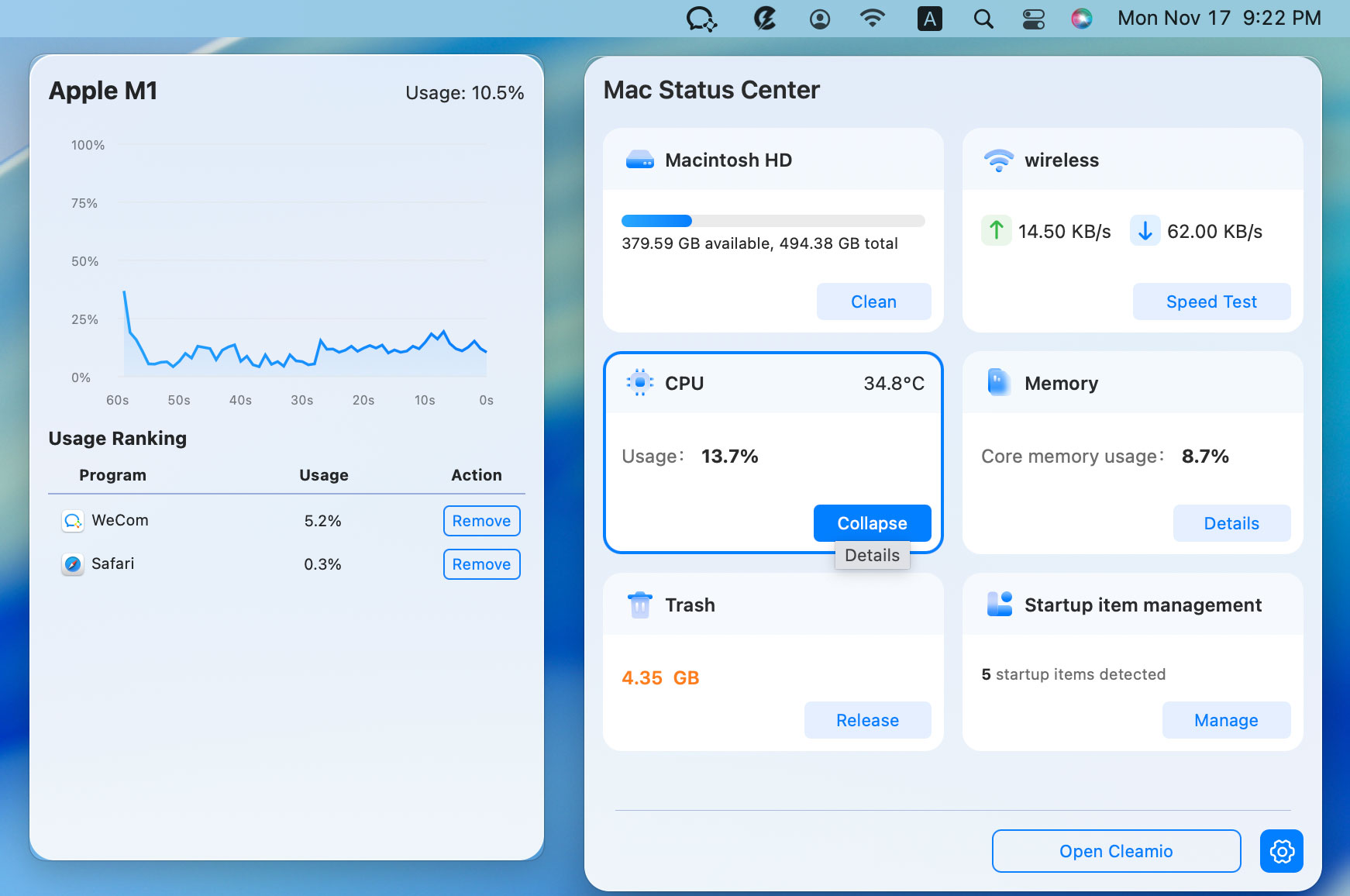
Tenorshare Cleamio
offers a clean and easy-to-use Mac Status Center that shows real-time CPU,
memory, and disk usage. It highlights which apps or processes (including
mds_stores mac high cpu) are consuming the most resources and lets you take
action with just one click to
improve Mac performance
effectively
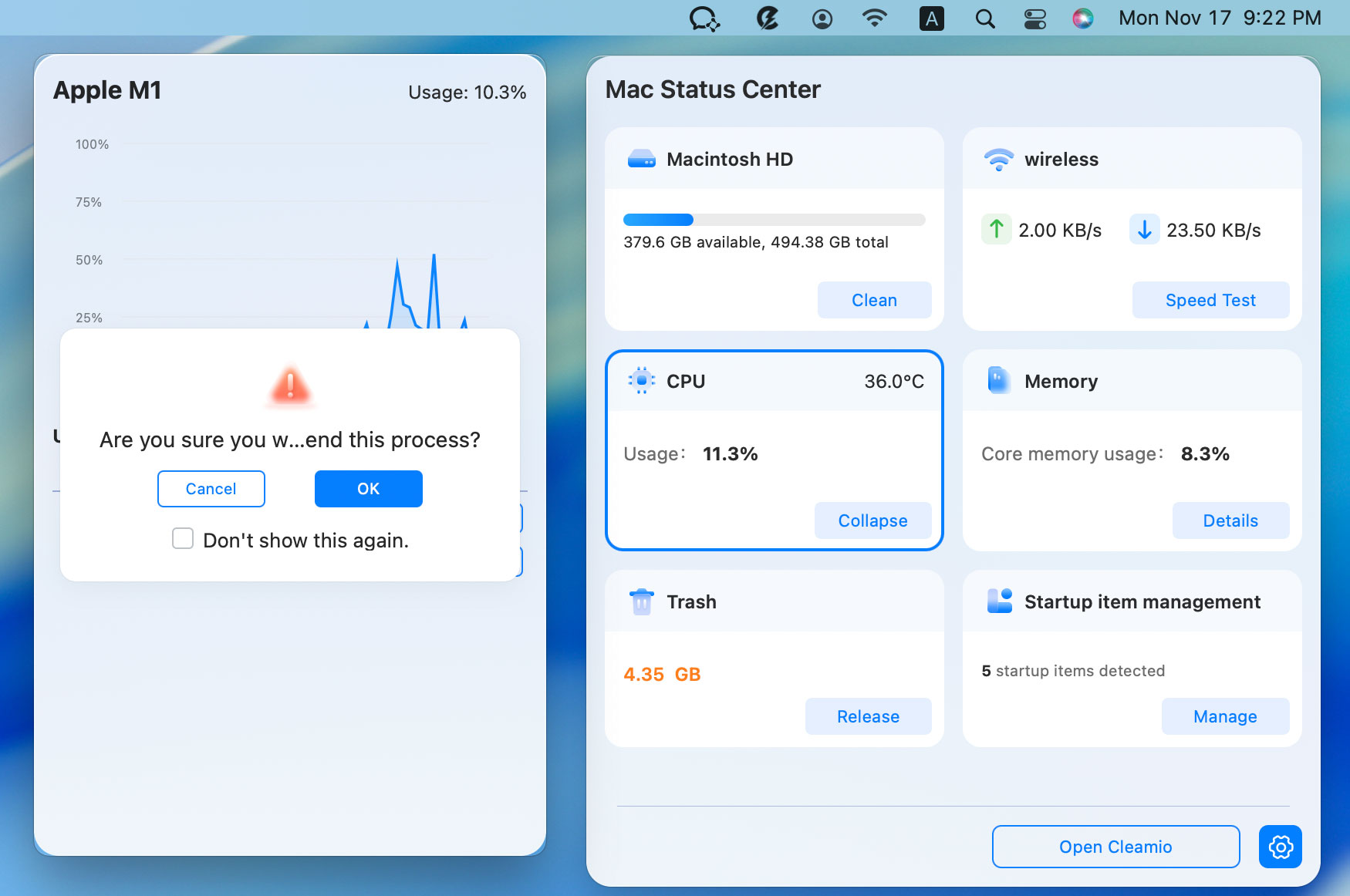
How to Monitor and Reduce CPU Usage on Mac with Cleamio:
Download, install, and open
Cleamio
on your Mac. Click on the Cleamio logo in the top-right corner of Mac
screen to open Cleamio’s built-in Mac Status Center.
You’ll instantly see a live dashboard showing current CPU load, memory
usage, startup items, and more Mac performance criteria. Click “Details”
of the CPU and Memory modules to check which apps are consuming resouces.
Click “Remove” or “Remove All” to close those resource-heavy apps to free
up CPU and memory.
This approach is especially helpful for users who don’t feel comfortable
with Terminal commands or want a hands-off solution to keep mds_stores high
cpu under control in the long run.
Part 5. Prevention Tips: Stop mds_stores High CPU Forever
Once you’ve fixed the current mds_stores high cpu issue, it’s smart to take
a few preventive steps so the problem doesn’t keep coming back. Here are
some practical habits that have worked well for many Mac users:
Exclude heavy folders from Spotlight right away
If you work with large project folders, developer code directories, or big
photo/video libraries, add them to the Spotlight Privacy list in System
Settings as soon as you create or download them. This stops Spotlight from
constantly re-indexing files that don’t need fast searching.
Give your Mac time after updates or big file changes
After installing a new macOS version (like Sequoia) or moving thousands of
files, leave your Mac plugged in and awake overnight. Allowing mds_stores to
finish its work naturally prevents many high CPU spikes later.
Safely eject external drives when not in use
External hard drives and Time Machine backups are common triggers for
mds_stores mac high cpu usage. Eject them properly instead of leaving them
connected all the time, and only reconnect when you actually need them.
Keep macOS and apps updated
Apple regularly improves Spotlight performance in system updates. Make sure
your Mac is running the latest version of macOS, as newer releases often fix
indexing bugs that cause excessive CPU usage.
Limit browser extensions that cause constant file changes
Some extensions (especially in Firefox or Chrome) create temporary files
repeatedly. Review and disable any extensions that seem to trigger heavy
background activity if you notice mds_stores high cpu returning.
Get into the habit of glancing at Activity Monitor once a week or use a
simple tool like CleanMyMac’s Status Center. Catching unusual mds_stores
behavior early makes it much easier to fix before it becomes a major
slowdown.
People Also Ask about mds_stores Mac High CPU
Q1: Can I quit mds_stores?
Yes, you can force quit mds_stores in Activity Monitor, but it’s not
recommended as a long-term solution. The process will simply restart
automatically because it’s a core part of macOS Spotlight. Quitting it only
gives temporary relief.
Q2: How to fix extremely high CPU usage?
Start by restarting your Mac and waiting a few hours. If that doesn’t help,
try rebuilding the Spotlight index using the Terminal commands or the
Privacy Tab method described earlier. These two approaches solve the
majority of mds_stores high cpu cases.
Q3: Is it safe to force quit mds_stores?
Start by restarting your Mac and waiting a few hours. If that doesn’t help,
try rebuilding the Spotlight index using the Terminal commands or the
Privacy Tab method described earlier. These two approaches solve the
majority of mds_stores high cpu cases.
Q4: Does mds_stores high CPU damage my Mac?
No, mds_stores high cpu will not physically damage your Mac. It may cause
higher fan noise, reduced battery life, and slower performance while it’s
running at full speed, but it won’t harm the hardware.
Q5: How long should mds_stores run at high CPU?
For normal indexing after an update or big file changes, it’s common for
mds_stores to run at elevated CPU for 30 minutes to several hours. If it
stays very high (over 50-70%) for more than 4–6 hours with no obvious
activity, it’s a good idea to apply one of the fixes above.
Conclusion
Dealing with mds_stores high CPU can be frustrating, but
the good news is that it’s usually easy to fix once you understand what’s
happening. By following the methods in this guide, especially the Privacy
Tab trick and rebuilding the index, most users can quickly bring their Mac
back to normal speed.
For ongoing peace of mind and easier maintenance,
Tenorshare Cleamio ’ s Mac Status Center lets you monitor
CPU usage in real time and optimize heavy processes with just one click,
making it much simpler to keep mds_stores high cpu and other background
issues under control.




 iOS Tips & Latest Updates
 Bug Fixes, Unlock Guides
 Giveaways & Freebies






By Jenefey Aaron
2026-10-14 / Mac Optimization