

 iOS Tips & Latest Updates
 Bug Fixes, Unlock Guides
 Giveaways & Freebies


Cleamio: All-in-One Mac Cleaner & Optimizer
Clean junk files, free up space, and boost Mac performance
No.1 Mac Cleaner & Optimizer
Clean, speed up, and optimize your Mac
If you are wondering why ChatGPT is so slow, the answer usually comes down to a few common factors.ChatGPT is ususally slow because of server congestion, long conversation threads, heavy reasoning models, browser cache issues, too many active extensions, or a weak internet connection.
The fastest fixes are to start a new chat, switch to a faster model, refresh the page, clear browser cache, disable unnecessary extensions, or check OpenAI’s status page.
In this guide, we’ll break down the most common reasons ChatGPT feels slow and show you step-by-step fixes you can try right away.

Use the table below to quickly identify why ChatGPT is slow and what to do first.
 Please swipe to view

Before changing browser settings or restarting your device, first check whether ChatGPT is slow for everyone. Sometimes the issue is not caused by your computer, browser, or internet connection. OpenAI server congestion, maintenance, degraded performance, or temporary incidents can affect ChatGPT response speed.
The fastest way to check this is to visit OpenAI’s official status page and see whether ChatGPT is listed as operational. The OpenAI status page reports current service status and historical incidents for ChatGPT and related services.
The fastest method is visiting OpenAI’s official status page.
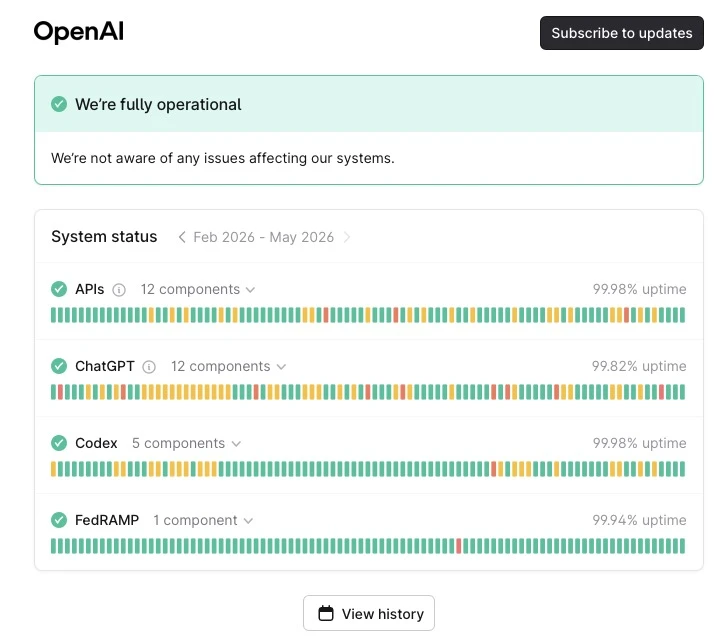
If ChatGPT is slow because of a platform-side issue, local fixes like clearing cache or restarting Chrome may not solve the problem immediately. In that case, waiting, retrying later, or using a different model or device may be the best temporary workaround.
If ChatGPT is having performance problems, users may notice:
These symptoms usually point to either server-side load or overloaded browser resources.
Browser memory overload, oversized conversation history, server congestion, and complex prompts are the most common causes behind ChatGPT slow response problems. Long-running sessions especially increase browser rendering load and token-processing delays.
Long conversations are one of the most common reasons of ChatGPT's long chat and slow problems. When a chat contains many previous messages, the browser has to render more content, and ChatGPT may need to handle more context when generating a new reply.
Some advanced reasoning models take longer because they analyze prompts more deeply before generating responses. This can make them feel slower than lightweight models, especially for simple tasks.
Corrupted cache files or overloaded browser storage can lead to ChatGPT glitches, loading failures, and lag. OpenAI specifically recommends clearing browser cache and cookies when ChatGPT suddenly becomes slow after previously working normally.
Extensions running in Chrome can consume RAM and CPU resources, especially AI-related plugins.
Extremely detailed prompts require more processing time, leading to ChatGPT's slow response issues.
If your entire computer is slow, ChatGPT may also feel slow. Low available RAM, excessive junk files, or too many background apps can make ChatGPT feel sluggish.
Slow Wi-Fi, unstable networks, packet loss, or high latency can delay message delivery and make ChatGPT appear stuck on “Generating…” or “Loading.”
Reducing conversation size, lowering browser memory pressure, and switching to lighter models are some of the fastest ways to improve ChatGPT slow on Chrome problems.
The methods below focus on practical fixes that directly reduce lag, freezing, and delayed response generation.
Extremely long conversations increase frontend rendering load and token memory overhead. Starting a fresh conversation significantly improves responsiveness during ChatGPT long chats slow situations.

This is especially effective for fixing ChatGPT long chat slow issues.
Reasoning-focused models (like GPT-5 Thinking) process responses more slowly because they generate additional internal computation steps. Switching to a lightweight model improves generation speed and reduces perceived lag.
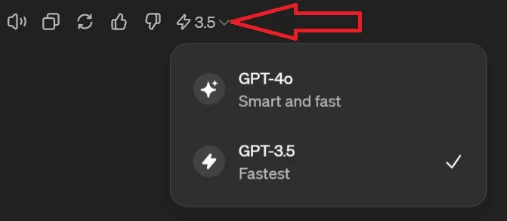
Many users notice faster response times immediately after switching away from heavier reasoning models.
Opening a shared conversation inside a fresh thread preserves important context while reducing accumulated frontend memory usage. This approach is useful for users researching how to boost GPT speed in chrome in long threads.

This method became popular among power users handling extremely long AI workflows.
Mobile apps often handle memory management more efficiently than overloaded desktop browsers. Using the official ChatGPT mobile application can reduce rendering lag and improve session stability.
In many cases, the app feels smoother than overloaded desktop browsers.
Corrupted browser cache files and excessive cookies commonly trigger ChatGPT glitch, slow loading, and delayed response rendering. Clearing browser storage refreshes local assets and improves page performance.
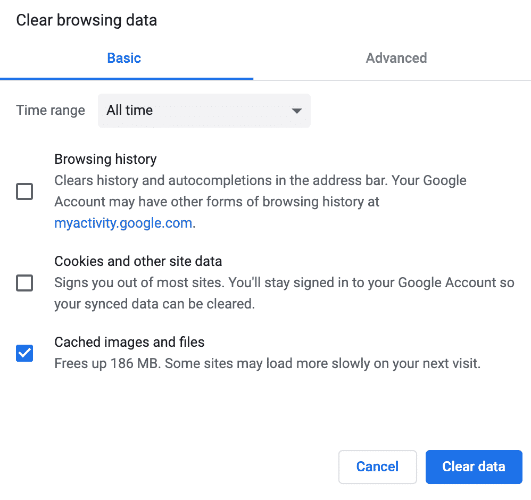
After clearing the cache, many users notice reduced lag and fewer loading errors.

If you wanna deep clear multiple browsers’ caches and junks, give Tenorshare Cleamio a shot. It can scan all junk files, including online browsing data and smart cleanup them in 3 clicks.
Summarizing previous context manually reduces token history while preserving essential information. Reddit user reports show that this method noticeably improves response speed during extremely long sessions.
This method reduces token load while preserving important information.
Conversation-cleaning extensions reduce frontend rendering load by hiding or trimming older messages. Reducing visible chat history lowers memory consumption and improves browser responsiveness.
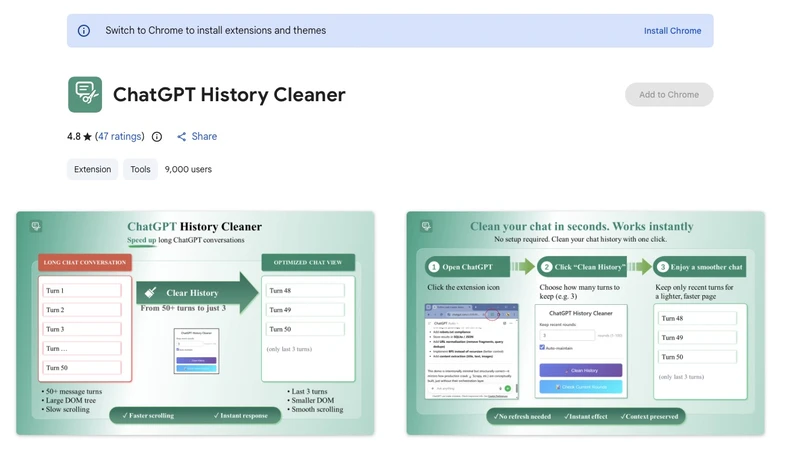
This can significantly improve scrolling and response performance.
Background extensions, video tabs, and memory-heavy applications frequently interfere with browser responsiveness. Disabling unnecessary extensions and freeing RAM improves overall ChatGPT performance stability.
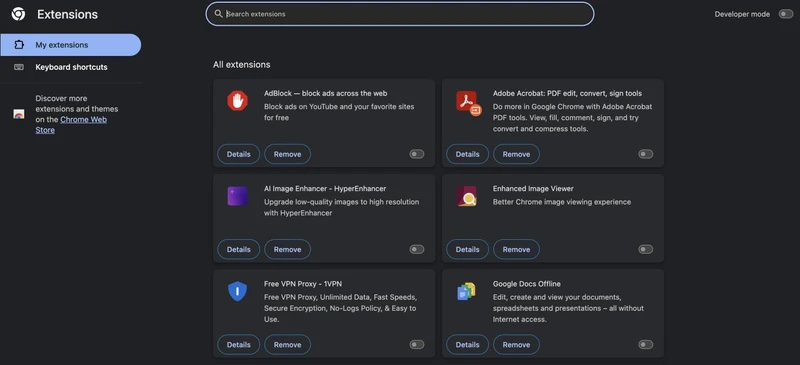
During testing, disabling several AI helper extensions reduced lag noticeably.
Very large prompts increase token processing time and delay response generation. Shortening prompts and splitting tasks into smaller requests improves processing speed and reduces ChatGPT unresponsive behavior.
This is one of the easiest ways to reduce ChatGPT's slow response problems.
If only ChatGPT is slow, the issue is probably related to ChatGPT, your browser, your network, or a long conversation. But if your whole Mac is lagging at the same time, the problem may be system-wide.
Common causes include:
In this case, optimizing your Mac can improve browser responsiveness and make ChatGPT feel smoother.
Tenorshare Cleamio can help remove junk files, clear unnecessary cache, free up storage, and reduce browser-related clutter. This is useful when ChatGPT feels slow while Chrome, Safari, or your entire Mac is also running slowly.
Cleamio is especially helpful for users who want a simple cleanup tool instead of manually searching for cache files, logs, temporary files, and other system clutter.

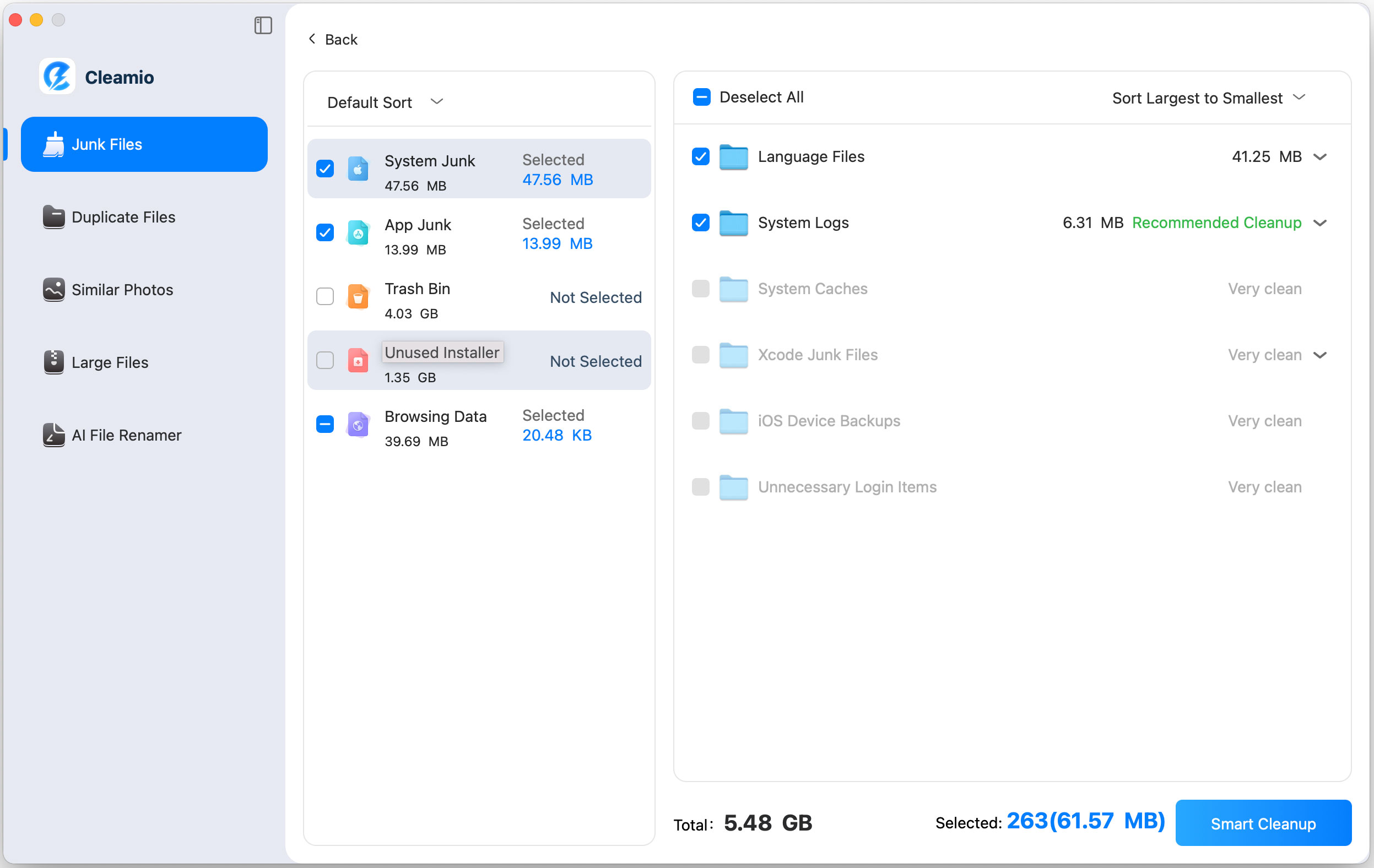
This is especially useful if ChatGPT feels slow while your browser or entire Mac also becomes laggy.
Long conversations increase token history size, frontend rendering complexity, and browser memory consumption. Large threads require more processing during each response generation cycle, which directly affects speed and responsiveness.
Yes, unstable internet connections, packet loss, and high latency can delay message delivery and response loading. Weak Wi-Fi networks especially increase timeout frequency and temporary ChatGPT not loading issues.
Yes, extended browser sessions accumulate cache data, memory usage, and rendering overhead over time. Long continuous usage without refreshing the session can contribute to gradual ChatGPT lagging and delayed interface responsiveness.
Why is ChatGPT so slow is usually related to overloaded conversation history, browser cache buildup, limited system resources, and temporary server congestion. Starting fresh chats, reducing prompt complexity, clearing browser data, and using lightweight models significantly improve responsiveness. Tenorshare Cleamio additionally helps optimize Mac performance by removing junk files, freeing storage space, and reducing browser-related system slowdowns.


then write your review
Leave a Comment
Create your review for Tenorshare articles
 Cleamio
All-in-One Mac Cleaner & Optimizer
Share this post


Cleamio: All-in-One Mac Cleaner & Optimizer
Clean junk files, free up space, and boost Mac performance
No.1 Mac Cleaner & Optimizer
Clean, speed up, and optimize your Mac
By Jenefey Aaron
2026-09-28 / Mac Optimization