If your Mac fan has been spinning like crazy lately,
Google Chrome Helper (Renderer) is likely the culprit. This
background process quietly runs alongside Chrome, and when it gets out of
hand, it can push your CPU to the limit, leaving your Mac sluggish and
unresponsive. In this guide, we'll break down exactly what it is, why it
causes high CPU usage, and how to fix
Google Chrome Helper (Renderer) high CPU for good.
Google Chrome uses a multi-process design to keep your browsing safe and
stable. Each tab, extension, or site element runs in its own separate
process. On macOS, these often appear in Activity Monitor as Google Chrome
Helper or Google Chrome Helper (Renderer).
The "Renderer" part specifically handles displaying web
pages, turning code into what you see on screen, running JavaScript, and
managing graphics. This setup improves security (one faulty tab won't crash
the whole browser) but can lead to higher resource use, especially on Macs.
In short, it's not a separate app or virus. It's simply how Chrome works
behind the scenes. Understanding this helps explain why you sometimes see
several of these processes running at once.
Part 2. Why Is Google Chrome Helper (Renderer) Using So Much CPU?
Now that you know what it is, the next question is usually: why does it
suddenly start consuming so much CPU? Here are the most common reasons Mac
users experience google chrome helper renderer high cpu:
Too many open tabs or heavy websites: Complex sites like
YouTube, Google Docs, or web apps with lots of animations and scripts
force multiple renderer processes to work harder.
Problematic extensions: Some extensions run background
scripts that keep polling or refreshing, pushing CPU usage higher.
Hardware acceleration issues: When Chrome tries to use
your Mac's graphics processor for smoother rendering, conflicts can
actually increase overall CPU load.
Memory leaks: Over time, certain tabs or sites can cause
renderer processes to use more and more resources, leading to both high
CPU and google chrome helper renderer high memory.
Multiple leftover processes: Older Chrome versions
sometimes leave behind helper services that keep running even after you
update.
These factors often combine, which is why many people ask, "Why does Google
Chrome have so many processes?" or "Why are there so many Google Chrome
Helper Renderer entries?"The good news is that once you identify the
trigger, fixing it becomes much easier.
Part 3. How to Diagnose Which Chrome Helper Is the Culprit
Before jumping straight to fixes, it's worth taking a minute to figure out
which specific process is actually causing the problem. This way, you can
target the root cause instead of guessing. Here's how to do it quickly on a
Mac:
Go to
Finder > Applications > Utilities > Activity Monitor, or simply search for it using Spotlight (Cmd + Space).
Sort the list by CPU usage by clicking the "% CPU" column header. This
brings the most resource-hungry processes to the top.
You'll likely see multiple instances. Pay attention to the ones
consistently sitting at a high CPU percentage. Anything above 30–40% from
a single process is worth investigating.
Each process has a unique PID. If you want to trace a specific one back to
a tab or extension, this number is your reference point.
Cross-check with Chrome's built-in Task Manager: Inside
Chrome, press Shift + Esc (or go to the menu:
More Tools > Task Manager). This shows you which
specific tab or extension corresponds to each process, making it much
easier to pinpoint the culprit without guessing.
Once you've identified the offending process, you're ready to move on to the
fixes below.
Part 4. How to Fix Google Chrome Helper (Renderer) High CPU on Mac
If you're dealing with google chrome helper renderer high cpu on mac, try
these fixes one by one. Many users see big improvements after the first or
second step.
1. Switch to Firefox or Safari
As a quick test (or long-term solution), try using Firefox or Apple's Safari
browser instead. Both are generally lighter on Mac hardware and handle
modern web pages efficiently without creating as many helper processes. If
Chrome is only needed for specific sites, keep it as a secondary browser.
This single change often resolves how to stop high CPU usage in Google
Chrome for good.
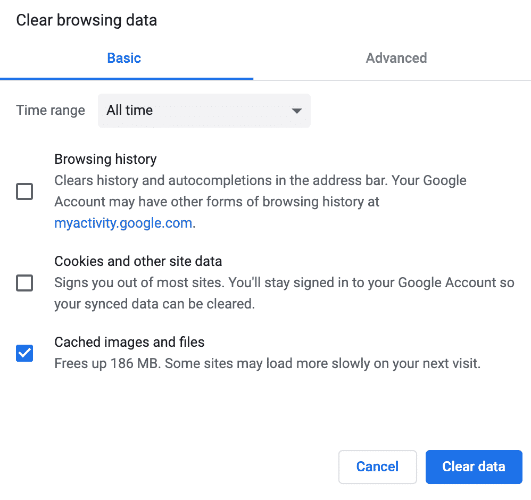
2. Clear Chrome Cache
Over time, Chrome builds up a large amount of cached data: temporary files,
images, scripts. Old cached files can make renderer processes work harder
than necessary and slow things down. Clearing the cache is quick and won't
delete your bookmarks or saved passwords.
In Chrome, click the
three dots menu > Settings > Privacy and security > Clear
browsing data.
Select "Cached images and files" (and optionally cookies if needed).
Choose "All time" and click Clear data.
Restart Chrome.
This simple step frees up resources and often reduces both CPU and memory
spikes.
3. Remove Older Google Chrome Helper Service
A reliable solution is removing an older version of the Google Chrome Helper
service that continues running silently in the background, even when you're
running a much newer version of Chrome. apple Essentially, Chrome stores
helper executables from older versions inside its package contents, and
these can keep firing up on their own.
Open Activity Monitor, switch to the Energy tab, find any
Google Chrome Helper entries, and click the "X" button to stop them.
Quit Chrome completely.
In Finder, go to Applications > right-click
Google Chrome >
Show Package Contents.
Navigate to Contents > Versions.
Delete any folders for older Chrome versions (for example, version 60.x if
you're now on a much newer release).
Empty the Trash and restart your Mac.
4. Completely Uninstall Chrome (with Leftover Removal) & Reinstall It
If the above steps don't fully solve the google chrome helper high cpu
issue, a clean reinstall often does the trick.
First, quit Chrome. Drag the Google Chrome app from Applications to the
Trash. To remove hidden leftovers manually, go to
~/Library/Application Support/Google/Chrome and delete the
folder (be sure to back up important data first if needed).
For a thorough and safer removal, many Mac users recommend
Tenorshare Cleamio. It can fully uninstall apps like Chrome and delete all associated
leftover files in one go, preventing old helper processes from lingering.
Install and open Tenorshare Cleamio. Go to the left “App Management” menu
tab and click “Start” to scanning all installed apps on Mac.
Select “App Uninstallation”. Browse the list of apps and locate Google
Chrome. Cleamio will also show associated categories like: Binary Files,
Preferences, Support Files, Others (caches, leftovers, etc.). Select all
relevant categories to ensure a complete removal and click “Uninstall”.
After completion, review the Cleaning Log to see exactly what was removed.
You can now close Cleamio or uninstall additional apps if needed.
After the clean uninstall, download and install the latest version of Chrome
from the official Google website. This fresh start often eliminates
persistent high CPU problems.
Part 5. Advanced Tip: Best Way to Check and Reclaim CPU & Memory in Real
Time Automatically
If you’ve tried the basic fixes but still notice occasional spikes in google
chrome helper renderer high cpu or want a more proactive approach, using a
dedicated Mac optimization tool can make a big difference.
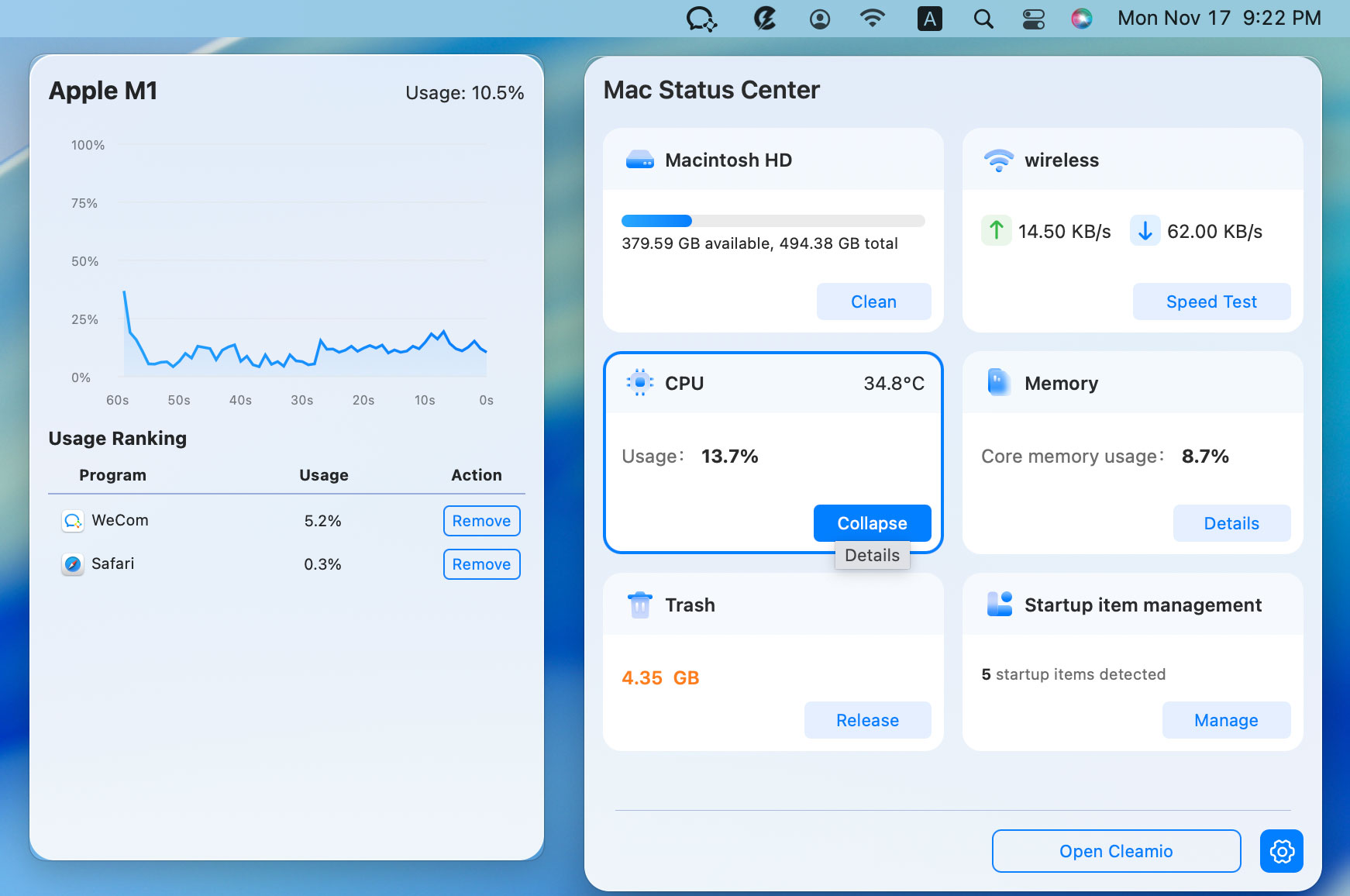
Tenorshare Cleamio
stands out because it includes a convenient Mac Status Center that gives you
real-time insights into your system’s performance. Instead of constantly
opening Activity Monitor, you can quickly see which processes (including
stubborn Chrome helper entries) are using too much CPU or memory. With just
one click, it helps you
clean junk files,
remove app leftovers, and reclaim resources so your Mac runs smoother.
Here’s how to monitor and reduce CPU usage on Mac with Cleamio:
Open Tenorshare Cleamio and click the Cleamio icon in the menu bar to
launch the Mac Status Center.
Select the CPU and Memory modules to
view real-time usage details.
Click Details to see a breakdown of running processes and
identify any high-usage items (such as Google Chrome Helper processes).
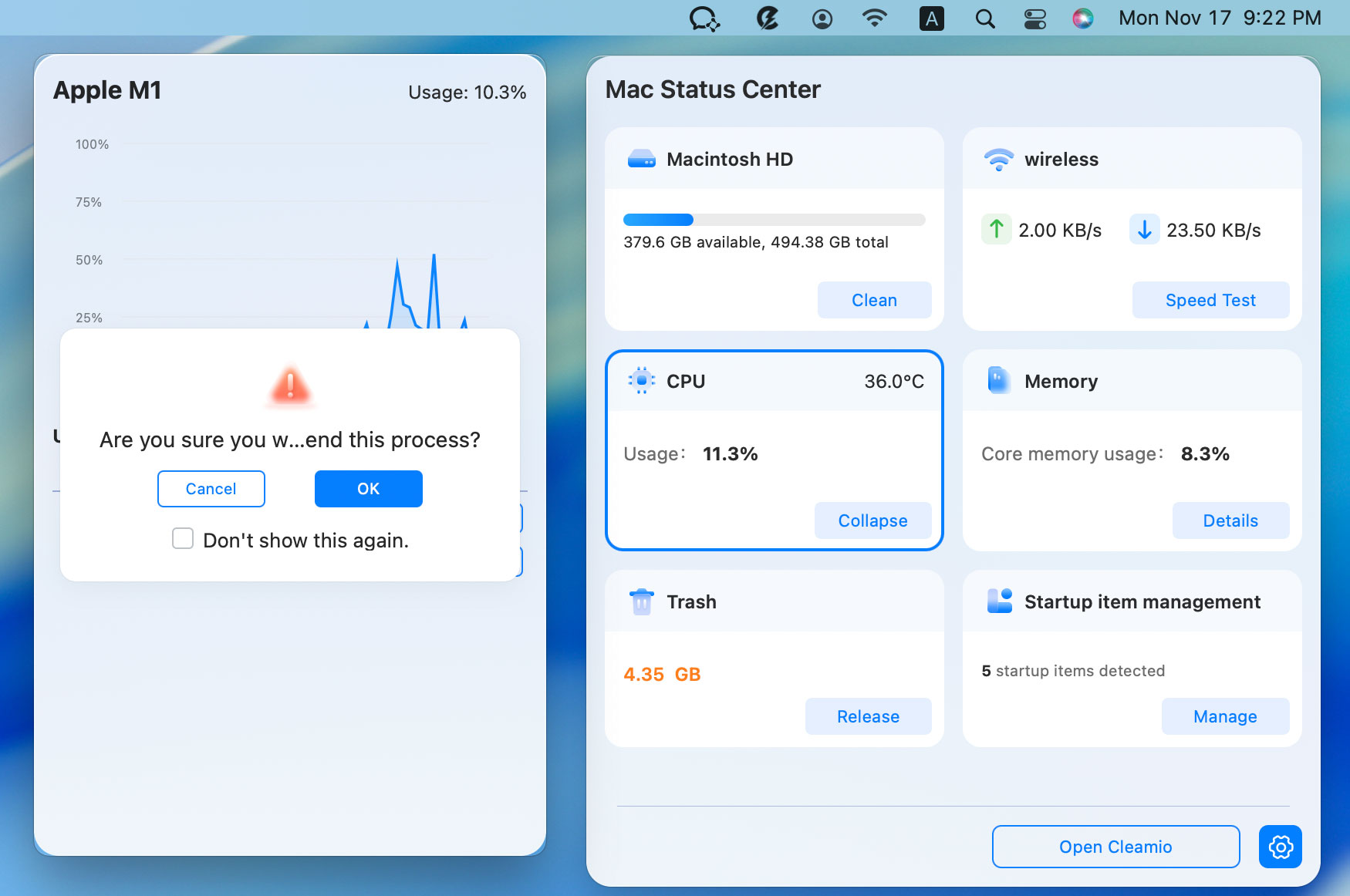
If you spot unnecessary or heavy apps consuming resources, click the
Remove button next to them to free up CPU and memory
instantly.
For ongoing maintenance, use the one-click cleanup features to remove system
junk, caches, and leftovers files that can contribute to high resource
usage.
People Also Ask about Google Chrome Helper (Renderer)
Q1: Is Google Chrome Helper (Renderer) a virus?
No, Google Chrome Helper (Renderer) is not a virus. It is a normal part of
Google Chrome that helps render web pages. High CPU usage is usually caused
by too many tabs, heavy websites, or extensions, not malware.
Q2: Why does Google Chrome have so many processes?
Chrome creates a separate process for each tab, extension, and site element
to improve security and stability. This is why you often see multiple Google
Chrome Helper (Renderer) processes running, especially on Mac. While it
makes the browser safer, it can also lead to higher CPU and memory usage.
Q3: How to stop multiple Google Chrome Helper processes on Mac?
To stop multiple Google Chrome Helper processes and fix google chrome helper
renderer high cpu, use Chrome’s Task Manager (Shift + Esc) to close heavy
tabs, disable unused extensions, turn off hardware acceleration, or clear
the cache. For a complete solution, uninstall and reinstall Chrome cleanly.
Tools like Tenorshare Cleamio can also help monitor and reclaim CPU quickly.
These methods usually stop high CPU usage in Google Chrome for most Mac
users.
Conclusion
Dealing with G oogle C hrome H elper R enderer high CPU on
your Mac can be frustrating, but the right steps make it easy to fix. By
diagnosing the issue, clearing cache, removing leftovers, and using proper
tools, you can significantly reduce high CPU usage and improve performance.
For the fastest and most complete solution, we recommend
Tenorshare Cleamio. It helps you fully uninstall Chrome,
clean all leftovers, and monitor CPU in real time, so you can keep your Mac
running smoothly.






 iOS Tips & Latest Updates
 Bug Fixes, Unlock Guides
 Giveaways & Freebies






By Jenefey Aaron
2026-10-14 / Mac Optimization