MacBook Pro Touch Bar flickering is usually caused by
software conflicts, temperature changes, corrupted cache, or aging OLED
hardware. The fatest working solutions in order of effectivesness are
warming up your MacBook, reseting SMC and NVRAM, disabling auto brightness, and clean system junks.
Most users with 2016–2020 Intel MacBook Pro models resolve the issue using
these methods. If the flickering continues in Safe Mode, it is likely a
hardware problem (usually the display cable or Touch Bar panel).
Fortunately, this guide has included all you need: Why the Macbook Pro touch
bar flashing, how to check it is hardware-issue, and step-by-step
instructions. Without further ado, let's move on.
Quick Answer: 7 Ways to Fix MacBook Pro Touch Bar Flickering
Use this table to choose the most suitable fix based on your symptoms.
Please swipe to view
Fix
Best For
Difficulty
Time Needed
restart macbook pro
temporary glitches
easy
2 minutes
warm up the macbook
cold-related flickering
easy
10–15 minutes
shine light on sensor
brightness sensor issues
easy
1 minute
clear junk files
system lag and ui instability
easy
5–10 minutes
turn off automatic brightness
flashing white light
easy
1 minute
turn off touch bar zoom
accessibility conflicts
easy
1 minute
reset smc and nvram
power/display controller issues
medium
5 minutes
Part 1. Why Is My MacBook Pro Touch Bar Flickering or Glitching?
MacBook Pro Touch Bar flickering usually happens because of software
conflicts, brightness control errors, corrupted system settings, temperature
changes, or hardware wear.
The key is to first determine whether the issue disappears in Safe Mode
or continues across all startup environments.
1. Temporary macOS Bugs (Especially after macOS Tahoe updates)
After macOS updates, some users notice unstable Touch Bar behavior due to
software conflicts or UI glitches. This is one of the most common causes of
MacBook Pro touch bar flashing problems.
2. Temperature Sensitivity (Worse in cold environment)
In real-world reports, users found the Touch Bar sometimes flickers more in
cold environments. Rapid temperature changes can affect internal hardware
responsiveness temporarily.
3. Ambient Light Sensor Problems
The Touch Bar brightness adjusts automatically based on surrounding lighting
conditions. Incorrect sensor readings may trigger MacBook Pro touch bar
flashing white light issues.
4. Corrupted System Cache or Junk Files
Overloaded cache, temporary files, logs, and browser clutter can affect
overall macOS responsiveness. Although junk files are rarely the only cause
of Touch Bar flickering, they can make UI lag, brightness glitches, and
system instability worse.
Features like “Touch Bar Zoom” occasionally interfere with how the Touch Bar
renders visual elements, causing lag, flickering, or graphical glitches.
6. Brightness Auto-Adjustment Bugs
Automatic brightness control may continuously recalculate brightness levels,
resulting in unstable Touch Bar behavior.
7. Hardware Wear or Ribbon Cable Issues
Persistent flickering, green lines, white flashes, or dead zones may
indicate hardware damage, Touch Bar OLED aging, or a loose internal
connection.
If the issue continues in Safe Mode and after resets, professional
inspection may be needed, approximately over $400.
Part 2. Quick Test: How to Tell If Touch Bar Flickering Is a Software or
Hardware Issue
Here is a table to help you quickly figure out the causes and related
solutions according to your symptoms
Please swipe to view
Symptom
More Likely Cause
What to Try
touch bar flickering disappears in safe mode
software conflict
clear cache, disable settings, restart services
flickering appears after a macos update
temporary macos bug
restart, update macos, reset settings
touch bar flickers more in cold rooms
temperature sensitivity
warm up the macbook
flashing white light happens when brightness changes
sensor or brightness bug
disable automatic brightness
green flickering or dead zones persist
hardware issue
contact apple support or repair service
flickering continues after smc/nvram reset
possible hardware fault
professional diagnosis recommended
Steps to Test Touch Bar Flickering in Safe Mode
Safe Mode testing is one of the fastest ways to identify whether Mac Pro
touch bar flickering originates from software conflicts or hardware damage.
Safe Mode disables unnecessary startup services, third-party extensions, and
temporary system caches that commonly interfere with Touch Bar rendering.
Reduced flickering during Safe Mode strongly suggests a software-related
issue.
Shut down your MacBook Pro completely.
Press the power button and immediately hold the “Shift” key and keep
holding until the login screen appears.
Log in and observe the Touch Bar.
Restart normally and compare behavior.
During testing, many users noticed the Mac Pro touch bar flickering issue
disappeared entirely in Safe Mode, confirming software conflicts rather than
hardware failure.
Part 3. How to Fix Mac Pro Touch Bar Flickering in 7 Ways (Step-by-Step)
Restarting background services, adjusting brightness behavior, clearing
corrupted cache files, and resetting hardware controllers are the most
effective solutions for MacBook Pro touch bar flickering fix scenarios.
The methods below focus on fixes repeatedly confirmed through Apple
discussions and long-term MacBook Pro user reports.
Fix 2. Restart Your MacBook Pro
Restarting macOS refreshes Touch Bar background processes, clears temporary
memory allocation errors, and reloads hardware communication services. Minor
touch bar glitching behavior often disappears after a full system reboot.
Click the “Apple” menu and select “Restart”.
Wait for your MacBook to reboot completely.
Many users report that simple restarts work as a temporary MacBook Pro touch
bar flickering fix.
Fix 3. Warm Up or Insulate the MacBook
Temperature-sensitive Touch Bar flickering appears frequently on older OLED
Touch Bar units exposed to colder environments. Maintaining moderate device
temperature stabilizes OLED responsiveness and reduces intermittent flashing
behavior. Weird but magically useful.
Move your MacBook to a room-temperature environment.
Avoid placing it directly on cold metal or glass surfaces, and place it on
a thin blanket to insulate it from heat.
Let the MacBook warm up for 10–15 minutes.
Restart and test the Touch Bar again.
This solution surprisingly works for some older Intel-based MacBook Pro
models.
Fix 3. Shine Bright Light on Ambient Light Sensor
Ambient light sensor inconsistencies can trigger abnormal Touch Bar
brightness adjustments and display flickering. Direct light exposure
temporarily stabilizes sensor readings in some MacBook Pro touch bar
flashing white cases.
Locate the camera area at the top of your display.
Shine a flashlight or bright phone light toward the sensor briefly.
Watch whether the Touch Bar stabilizes afterward.
Fix 5. Clear System Junk Files
Corrupted cache, temporary files, logs, and browser clutter can affect
overall macOS performance. While clearing junk files may not fix a damaged
Touch Bar, it can help reduce system lag and interface instability.
If the Touch Bar flickering appears together with slow performance, app
freezing, overheating, or delayed keyboard response, cleaning unnecessary
system files is worth trying. You can clean these files manually through
Storage settings, but for a faster and more thorough cleanup, many users
recommend using a dedicated Mac optimization tool.
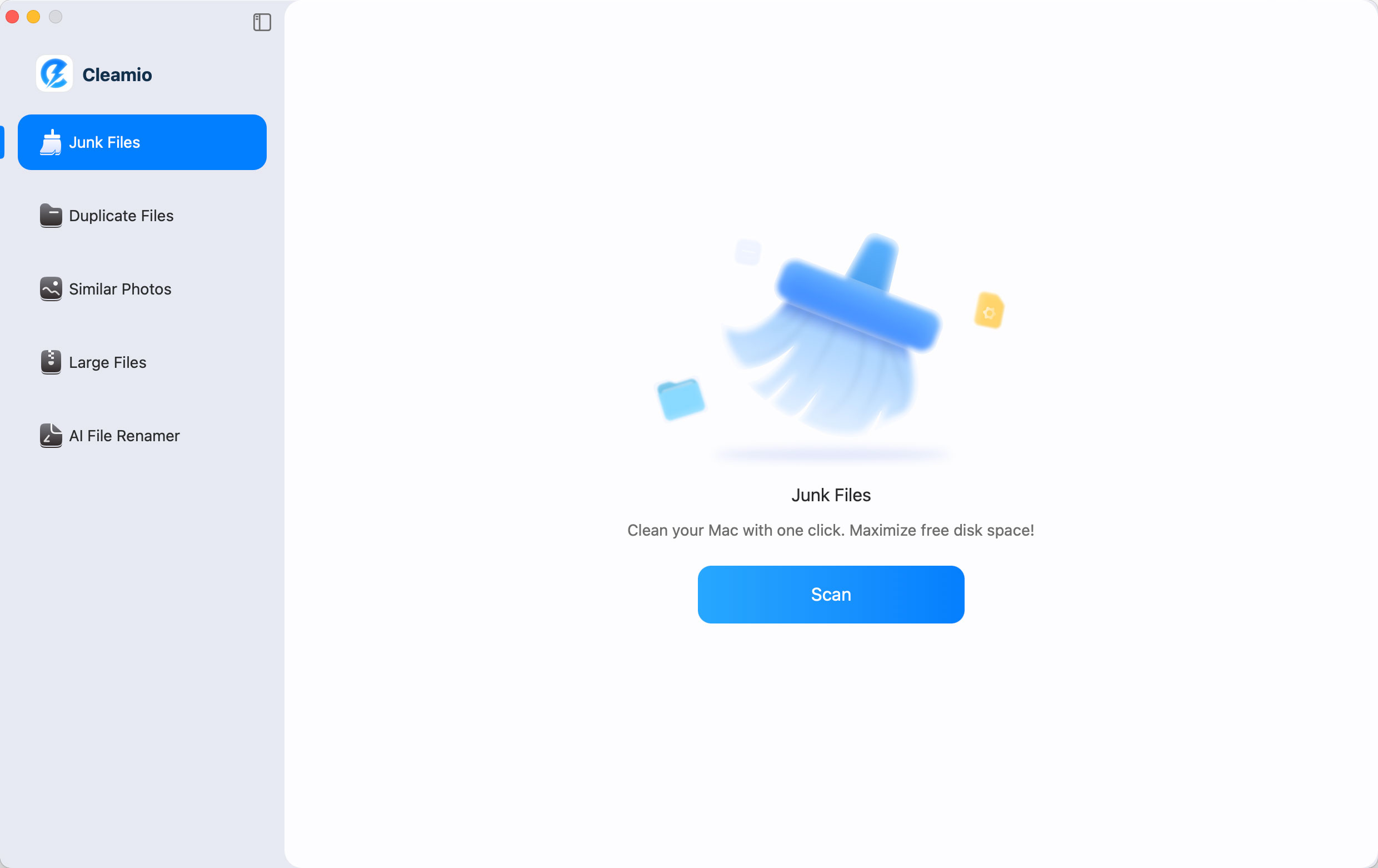
Tenorshare Cleamio
is a popular AI-powered Mac cleaner that scans and removes junk files,
system caches, app leftovers, and large unused files safely and efficiently.
In real-world tests on heavily used MacBook Pros, cleaning over 10–15 GB of
junk often leads to noticeable improvements in system smoothness, including
fewer Touch Bar issues.
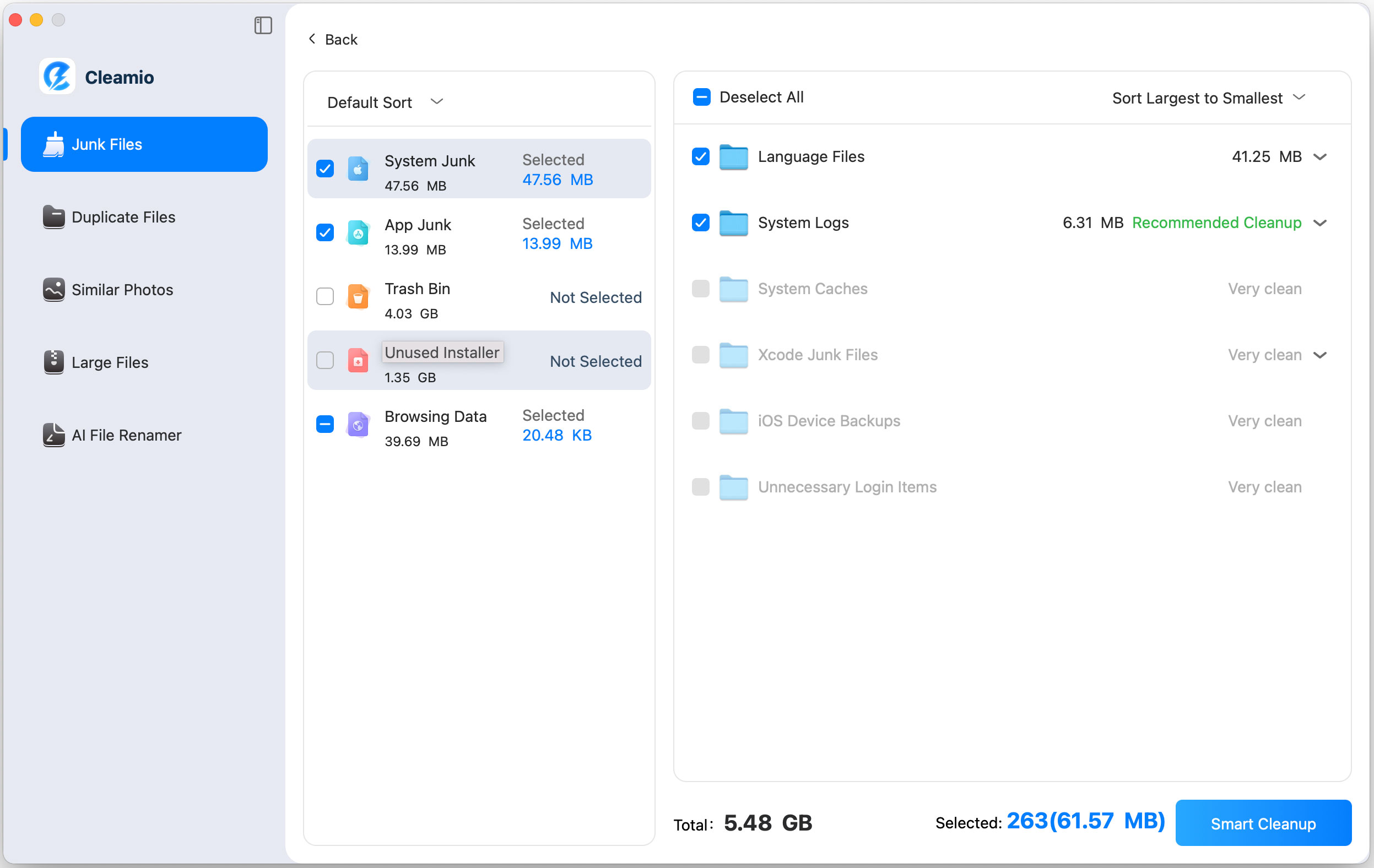
Install and launch “Tenorshare Cleamio”. Click “Junk Files” > “Scan” to
analyze your Mac.
Review detected junk files and cache, then select the unnecessary data and
click "Smart Cleanup".
Wait for the cleanup to complete and click “OK” to finish the process.
This method is most helpful when Touch Bar flickering happens together with
general macOS lag, low storage, or slow app response.
Fix 6. Turn Off Automatically Adjust Brightness
Automatic brightness adjustment occasionally conflicts with Touch Bar OLED
brightness calibration. Disabling adaptive brightness reduces instability
related to MacBook Pro touch bar flashing white light behavior.
Open “Settings” and go to "Displays."
Disable “Automatically adjust brightness” to see if the toucchbar stops
flickering.
Several Apple forum users confirmed this reduced MacBook Pro touch bar
flashing white light problems.
Fix 7. Turn Off Touch Bar Zoom
Accessibility zoom rendering occasionally causes persistent Touch Bar
graphical instability and flickering overlays. Disabling Touch Bar Zoom
reduces rendering overhead and fixes some MacBook Pro touch bar flickering
green cases.
Open “Settings” and go to “Accessibility”.
Select “Zoom” then uncheck the lower “Touch Bar Zoom” option.
This fix works particularly well for intermittent touch bar glitching
issues.
Fix 8. Reset SMC and NVRAM
SMC and NVRAM resets refresh hardware management configurations connected to
display control, brightness behavior, and power regulation. Persistent
MacBook Pro touch bar flashing issues often improve after resetting these
low-level system controllers.
Reset SMC Steps
Shut down your MacBook Pro.
Hold “Shift + Control + Option” and the
power button together for 10 seconds.
Release all keys and turn on your Mac normally.
Reset NVRAM Steps
Shut down your Mac.
Turn it on and immediately hold “Option + Command + P + R”.
Hold the keys for about 20 seconds.
Release and allow the Mac to restart.
Many users notice reduced MacBook Pro touch bar flickering green problems
after resetting these settings.
Part 4. Prevention Tips to Reduce MacBook Pro Touch Bar Flickering
Temperature control, storage optimization, and stable system settings
significantly reduce recurring touch bar flicker issues. Preventive
maintenance helps minimize OLED instability and long-term hardware stress.
Keep macOS updated regularly
Avoid exposing your MacBook to extreme cold
Restart your Mac weekly
Clean system junk periodically
Avoid overloaded startup applications
Use original Apple charging accessories
Prevent excessive overheating during gaming or editing
In long-term testing, users who regularly maintained free storage space and
system cleanliness experienced fewer UI-related glitches overall.
People Also Ask about MacBook Pro Touch Bar Glitch
Q1: Is MacBook Pro Touch Bar flickering a hardware problem?
Not always. Touch Bar flickering can be caused by software bugs, brightness
settings, corrupted cache, Accessibility conflicts, or temperature changes.
If the flickering continues in Safe Mode and after SMC/NVRAM reset, it is
more likely to be a hardware issue.
Q2: Why was the MacBook TouchBar discontinued?
Apple gradually replaced the Touch Bar with physical function keys because
many users preferred tactile keyboard shortcuts and improved reliability.
Repair complexity, inconsistent software adoption, and mixed
professional-user feedback also contributed to discontinuation.
Q3: Should I repair or replace a MacBook Pro with Touch Bar flickering?
If the MacBook is old, repair costs are high, and the Touch Bar is the only
failing component, compare the repair quote with the value of the device.
For severe hardware flickering, dead zones, or repeated failures,
replacement may be more practical than repair.
Conclusion
MacBook Pro Touch Bar flickering is usually caused by macOS
bugs, brightness settings, cache issues, temperature changes, or aging
hardware. Start with simple fixes like restarting Touch Bar services,
disabling automatic brightness, clearing junk files using dedicated tool
like Tenorshare Cleamio, and resetting SMC/NVRAM on Intel
models.
If the Touch Bar still flickers in Safe Mode or shows green lines, white
flashing, or dead zones, contact Apple Support for hardware diagnosis.






 iOS Tips & Latest Updates
 Bug Fixes, Unlock Guides
 Giveaways & Freebies






By Jenefey Aaron
2026-09-28 / Mac Optimization