
 iOS Tips & Latest Updates
 Bug Fixes, Unlock Guides
 Giveaways & Freebies


Cleamio: All-in-One Mac Cleaner & Optimizer
Clean junk files, free up space, and boost Mac performance
No.1 Mac Cleaner & Optimizer
Clean, speed up, and optimize your Mac
If you're searching for how to delete large files on Mac, chances are your storage is running low and your Mac is starting to slow down. Large videos, old downloads, forgotten backups, and unused apps can quietly take up gigabytes of space without you noticing. Over time, this clutter makes everyday tasks feel sluggish and frustrating.
The good news is that deleting large files on Mac doesn't have to be complicated. macOS offers built-in ways to find and remove space-hogging files, but these tools don't always show the full picture. Some large files are hidden deep in folders, and deleting the wrong file can cause problems.
That's why tools like Cleamio are becoming a popular choice. Cleamio helps you quickly find and delete large files on Mac with a clear, visual overview—so you know exactly what's safe to remove. In this guide, you'll learn both manual and automated ways to find and delete large files on Mac, and how to free up space safely without risking important data.
Understanding why storage fills up is the first step to learning how to delete large files on Mac effectively. Most storage problems aren't caused by thousands of small files, but by a handful of large ones hiding in plain sight.
Large files usually include videos, disk image files (.dmg), old app installers, iOS backups, and archived documents. These files often remain on your Mac long after they're needed.
When disk space runs low, macOS has less room to manage system processes. This can result in slower performance, app crashes, and constant "Storage Almost Full" warnings. Your Mac needs adequate free space to run smoothly, typically at least 10-15% of total storage capacity.
If you prefer a hands-on approach, macOS provides basic tools to help you find and delete large files on Mac manually.
Finder lets you search files by size and sort them from largest to smallest. This is useful for deleting obvious space hogs, but it can be time-consuming.

Go to Apple Menu > About This Mac > Storage > Manage to see which file categories take up the most space. While helpful, this view doesn't always reveal exact file locations.


Manual deletion requires careful attention to avoid removing important system files. Always verify what you're deleting before moving files to Trash, and empty the Trash to permanently free up space.

If you want a faster and safer way to delete large files on Mac, Cleamio offers a simple step-by-step process that helps you find and remove space-consuming files without manual searching.

Follow these simple steps to quickly find and delete large files on Mac using Cleamio :
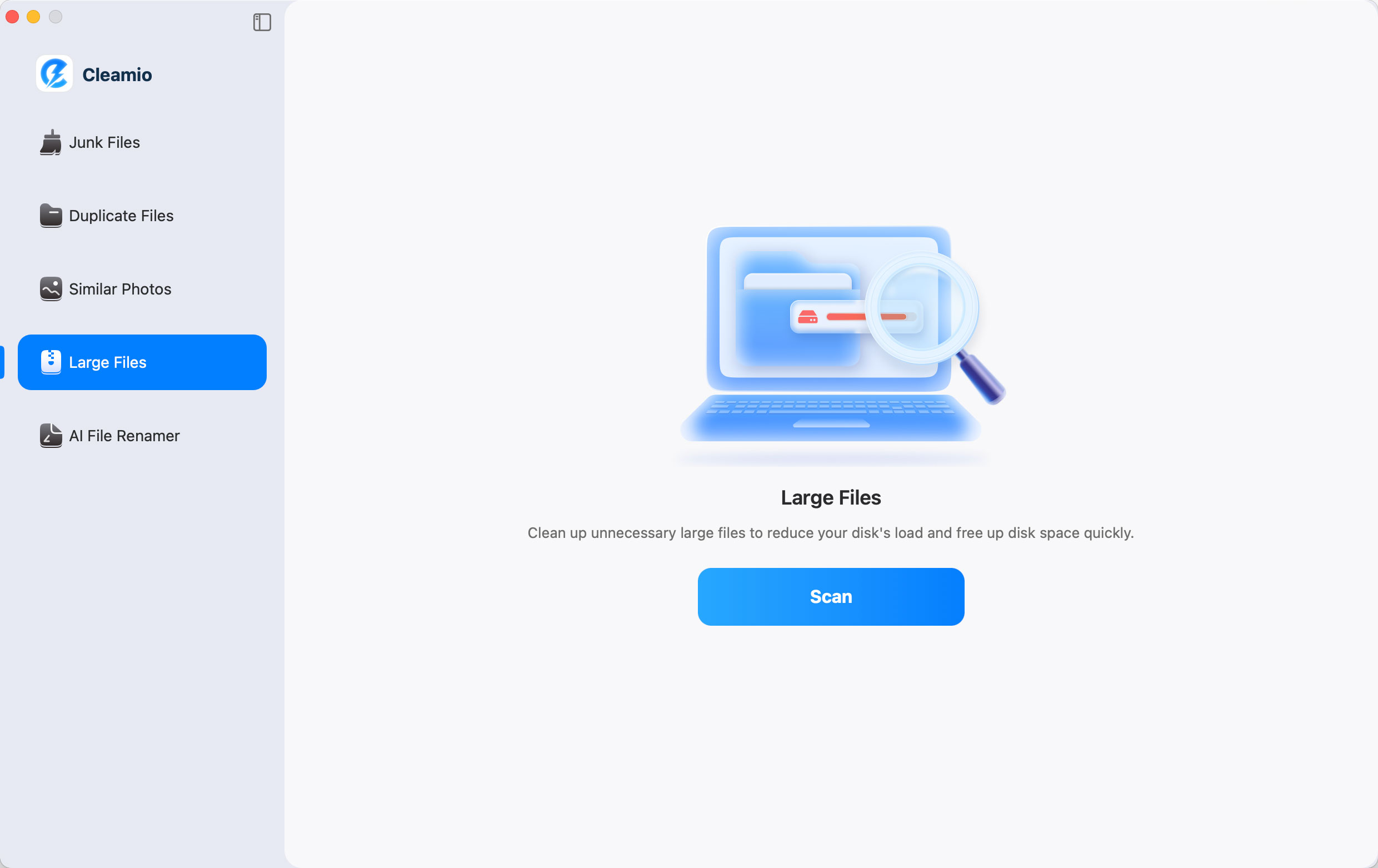


Once you've learned how to delete large files on Mac, the next step is preventing them from coming back. Maintaining a clean storage system requires ongoing attention and good habits.
Review your Downloads, Desktop, and Documents folders every few weeks to avoid unnecessary buildup. Delete files you no longer need and move important files to external storage or cloud services.
Using Cleamio alongside macOS storage tools helps you stay ahead of storage issues and keep your Mac running smoothly. Schedule regular scans with Cleamio to catch large files before they accumulate.

Deleting large files frees up storage space and can improve your Mac's performance. However, make sure the files are not system-critical before deletion. Files moved to Trash can still be recovered until you empty the Trash permanently.
You can use Finder's search function to find files larger than a specific size, or use macOS Storage Management. For a more comprehensive view, tools like Cleamio automatically scan your entire system and display all large files sorted by size.
Yes, it's safe as long as you know what you're deleting. Avoid removing files from the System or Library folders unless you're certain they're not needed. Using tools like Cleamio helps prevent accidental deletion of important system files by identifying only safe-to-remove items.
It's recommended to keep at least 10-15% of your total storage free for optimal performance. This allows macOS to manage virtual memory, cache, and temporary files efficiently without slowing down your system.
Knowing how to delete large files on Mac is one of the most effective ways to free up space and improve performance. While macOS offers basic tools, they often miss hidden or scattered large files that continue to consume valuable storage.
Cleamio provides a safer, faster, and more complete solution to find and delete large files on Mac without risking important data. By combining smart cleanup with regular maintenance, you can keep your Mac fast, organized, and storage-efficient for the long term. Whether you choose manual methods or automated tools like Cleamio, regular cleanup ensures your Mac remains in peak condition.


then write your review
Leave a Comment
Create your review for Tenorshare articles
 Cleamio
All-in-One Mac Cleaner & Optimizer
Share this post


Cleamio: All-in-One Mac Cleaner & Optimizer
Clean junk files, free up space, and boost Mac performance
No.1 Mac Cleaner & Optimizer
Clean, speed up, and optimize your Mac
By Anna Sherry
2026-09-28 / Mac Cleanup