Keeping your Mac fast and stable requires more than guesswork. While Apple's
built-in
Activity Monitor
offers basic insights, it often lacks real-time visibility, temperature
tracking, and cleanup tools. That's why many users turn to the best Mac system
monitor app for deeper control.
Part 2. The 8 Best Mac System Monitor Apps You Can Try in 2026
Mac system monitoring tools have matured far beyond basic CPU meters. Each
app below serves a different use case, from casual users to professionals
pushing their hardware to the limit.
1. iStat Menus -- Most Comprehensive Menu Bar Mac System Monitor
✌ Best for monitoring: Comprehensive system metrics including
detailed CPU/GPU load, RAM allocation, network bandwidth usage, disk I/O,
and sensor readings.
⭐ Rating: 4.8/5
iStat Menus is the most powerful and efficient system monitoring app for
macOS, offering real-time insights directly from the menu bar. It monitors
everything from CPU and GPU performance to weather, battery health, sensors,
and network activity. With deep customization, smart alerts, and
privacy-first design, it's the go-to tool for professionals who want total
visibility into their Mac's performance.
- Highly customizable interface with multiple display options
- Extensive history graphs for all monitored parameters
- Weather station integration
- Dark mode support
- Native support for Apple Silicon
- -day free trial available
- macOS-only (no Windows/Linux support)
- It can feel overwhelming for casual users
- Premium license required after trial
- UI customization may take time to master
2. Tenorshare Cleamio -- All-in-One Mac Monitor with Cleanup & Startup
ManagerOption
✌ Best for monitoring: System resource usage,
startup items, disk space utilization, and performance bottlenecks.
⭐ Rating: 4.8/5
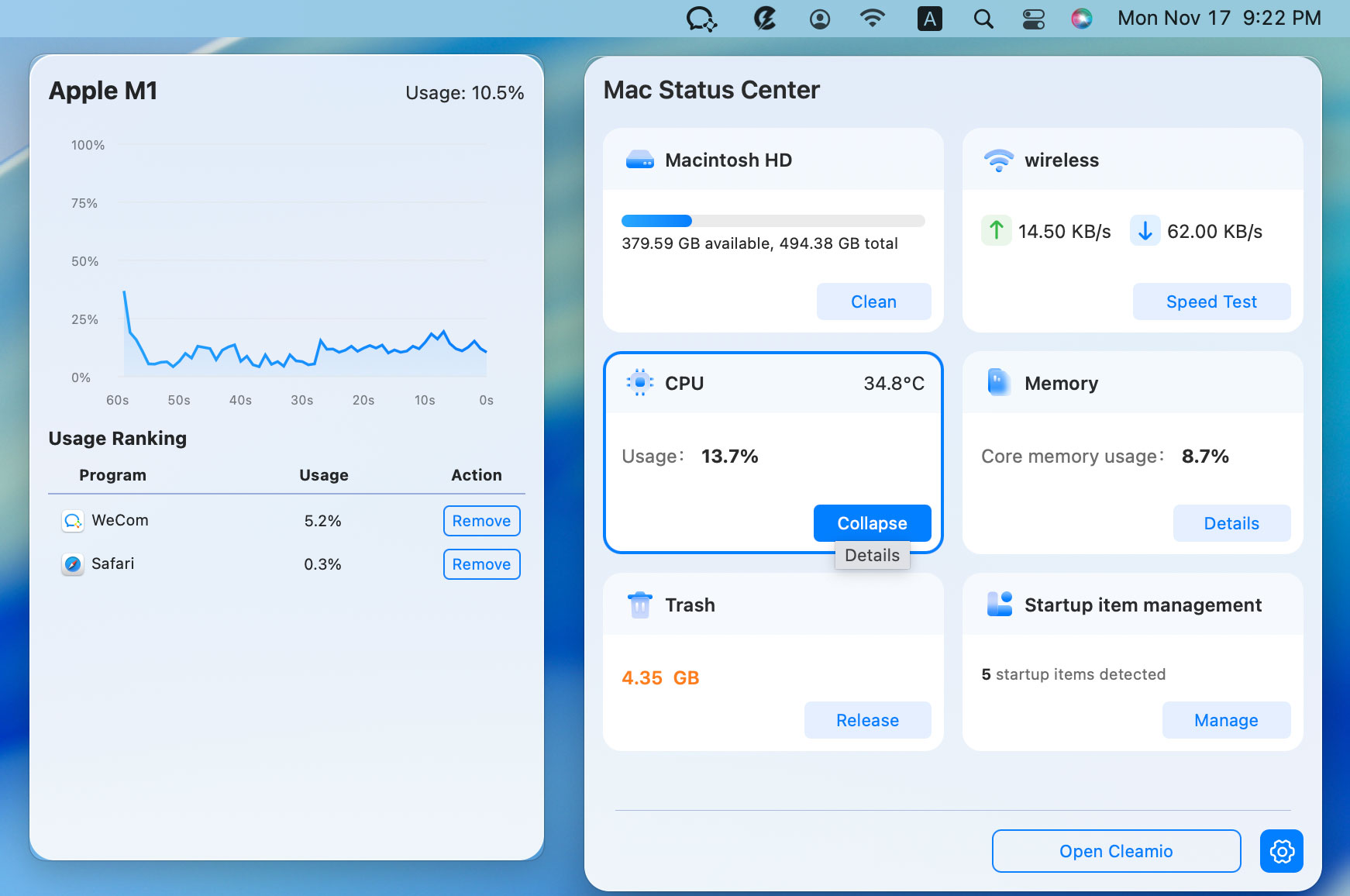
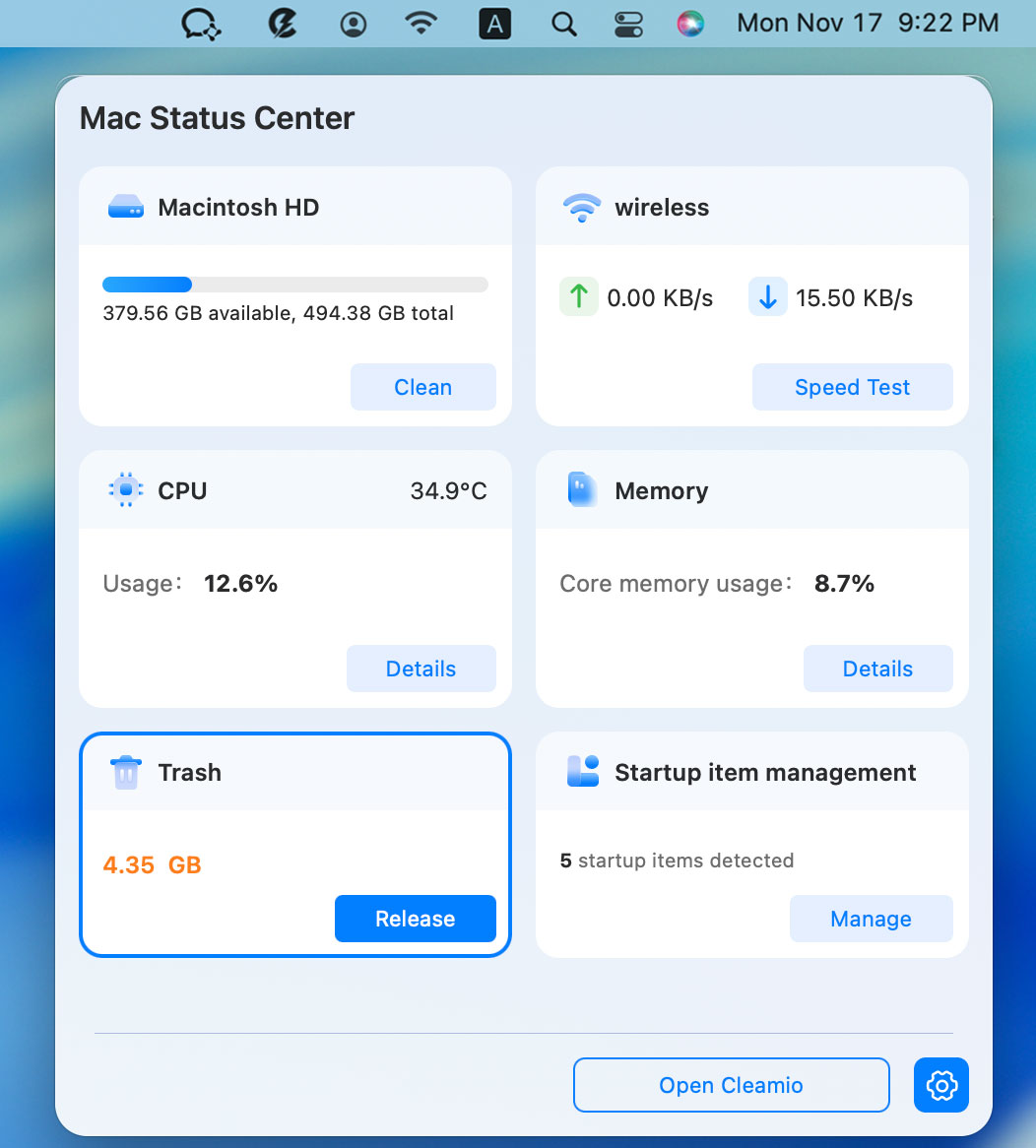
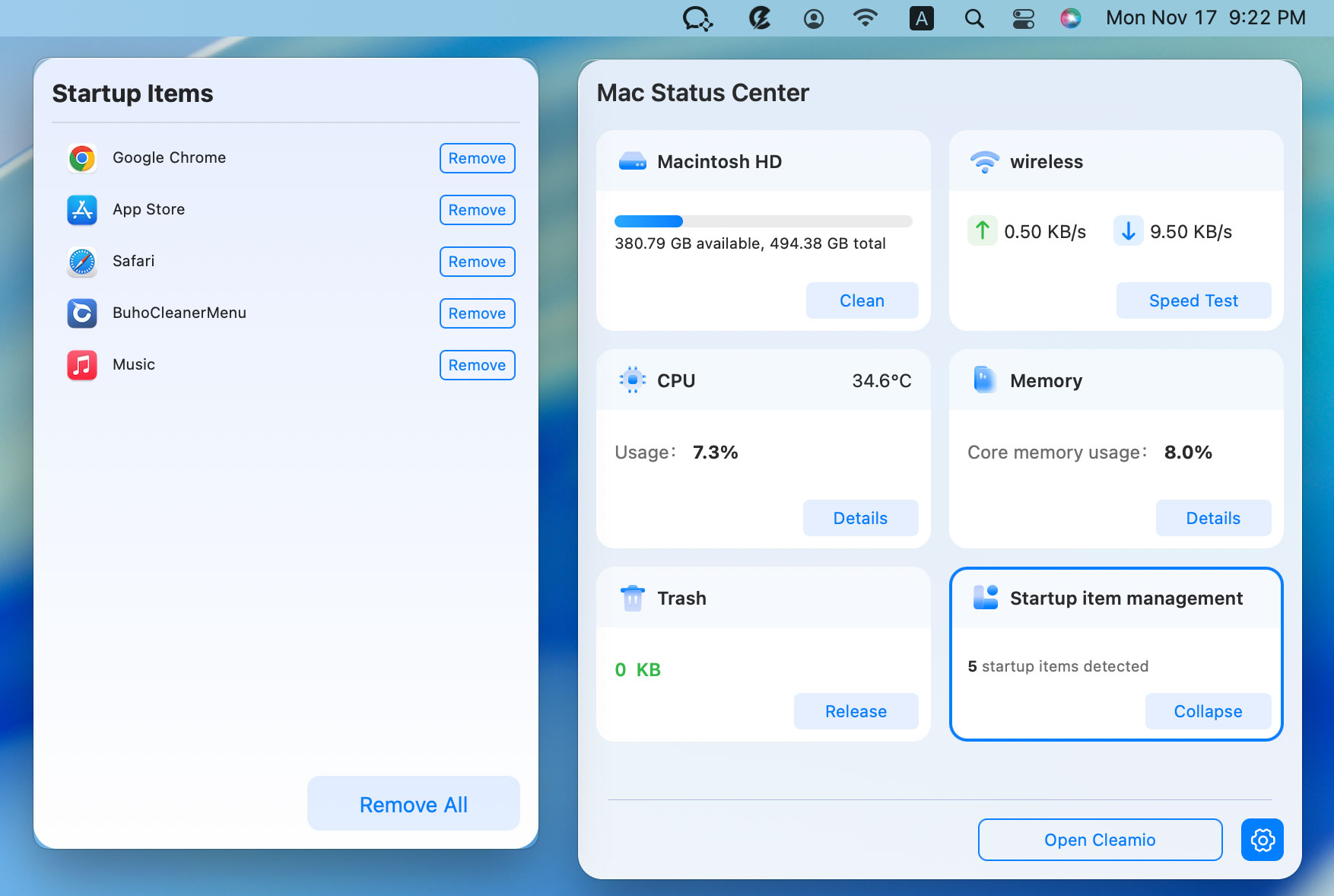
Tenorshare Cleamio
is an AI-powered Mac optimization tool that helps users monitor system
performance and clean their Mac at the same time. It offers real-time
monitoring of CPU, memory, disk space, and startup items, along with
one-click cleanup for junk files, caches, and app leftovers. It
Apple-notarized and safe to use. Cleamio is designed to free up storage,
speed up startup, and keep your Mac running smoothly with zero risk.
- Combines monitoring with active system optimization
- % free one-click cleanup
- Startup manager helps
- reduce boot time
- Uses accurate MD5 detection
- Intuitive, user-friendly interface
- Full Apple Silicon compatibility
- No long-term performance history
- Limited advanced filtering options
- No automatic scheduled cleaning
3. Stats -- Best Free Menu Bar Mac System Monitor
✌ Best for monitoring: Basic system metrics including CPU,
RAM, disk usage, network activity, and battery status.
⭐ Rating: 4.6/5
Stats has established itself as the premier free option for Mac system
resource monitoring. It boasts over 1 million downloads while maintaining an
open-source development model. The application delivers essential monitoring
capabilities through a clean, unobtrusive menu bar interface. It is designed
for simplicity, and it helps users monitor their Mac's health without
slowing it down.
- Completely free and open-source
- fully customizable widgets across 9 modules
- Minimal resource consumption
- Highly customizable menu bar widgets
- Supports Apple Silicon (M1/M2/M3/M4)
- Regular updates and community support
- No cleanup or optimization features
- No startup management
- Remote monitoring requires beta access
- Interface may feel technical for beginners
4. XRG -- Free Open-Source Mac System Monitor with Temperature
✌ Best for monitoring: CPU, GPU, memory, disk activity,
network traffic, and basic temperature readings.
⭐ Rating: 4.3/5
XRG is a free, open-source system monitor for Mac that focuses on real-time
performance visualization using colorful, live graphs. It allows users to
track core system activity such as CPU, GPU, memory, temperature, battery,
and network usage without cluttering the Mac interface. It is designed to be
flexible and non-intrusive, XRG is ideal for users who prefer visual
monitoring over detailed dashboards.
- Free and open-source
- Customizable graph displays with adjustable time scales
- Temperature monitoring included
- Low resource footprint
- Support for multiple displays and spaces
- Floating window design may not suit all workflows
- Less polished interface than commercial alternatives
- Limited advanced features beyond basic monitoring
- Infrequent updates than commercial options
5. Sensei -- Mac Temperature Monitor for Overheating Prevention
✌ Best for monitoring: System temperatures, SSD health,
battery status, and performance optimization opportunities.
⭐ Rating: 4.6/5
Sensei combines powerful system monitoring with optimization tools
specifically designed to prevent thermal issues. This Mac system temperature
monitor provides comprehensive insights into your Mac's thermal performance
alongside tools to address potential problems. It provides real-time
insights into CPU, GPU, battery health, fan speeds, storage, and system
thermals directly from the menu bar.
- Detailed temperature monitoring across multiple components
- SSD health analysis with remaining life prediction
- Battery health monitoring with cycle count
- Performance optimization recommendations
- Clean, modern interface
- Annual subscription model ($29/year)
- Advanced stats may overwhelm casual users
- No manual fan control on some Macs
6. TG Pro -- Mac Temperature & Fan Control for Thermal Management
✌ Best for monitoring: CPU, GPU, and component temperatures,
fan speeds, and thermal patterns.
⭐ Rating: 4.6/5
TG Pro specializes in comprehensive temperature monitoring and fan control,
making it essential for users with intensive workflows. The application
tracks temperatures across all sensors while offering precise fan speed
management options. TG Pro is ideal for preventing overheating and thermal
throttling, fully compatible with Intel, Apple Silicon (M1–M5), and macOS
10.13 through macOS 26 Tahoe.
- Monitors all available temperature sensors
- Manual and automatic fan speed control
- Temperature alerts and notifications
-
Support for all Mac models including complete M-series compatibility
- Minimal resource usage
- Limited system resource monitoring beyond temperatures
- One-time purchase required
- Interface prioritizes function over esthetics
- Advanced features may overwhelm casual users
7. MenuMeters -- Ultra-Lightweight Free Menu Bar Mac System Monitor
✌ Best for monitoring: Basic CPU, memory, disk, and network
activity with minimal system impact.
⭐ Rating: 4.2/5
MenuMeters is a free, open-source Mac tool that shows live performance stats
in the menu bar. It is designed as a native SystemUIServer menu extra. It
offers persistent, reorderable meters that survive logins and restarts.
MenuMeters focuses on simplicity, accuracy, and minimal system impact,
making it an ideal lightweight monitoring solution for Mac users.
- Completely free
- Exceptionally low resource footprint
- Simple, straightforward interface
- Customizable display options
- Regular updates for macOS compatibility
- Limited to basic metrics only
- No temperature monitoring or fan control
- Minimal customization compared to other options
- Purely informational with no optimization features
8. Monit -- Ultra-Minimal Notification Center Mac System Monitor
✌ Best for monitoring: CPU, memory, network, and disk usage
through notifications.
⭐ Rating: 4.0/5
Monit takes a unique approach to Mac system processes monitoring by
integrating directly with macOS Notification Center rather than using the
menu bar. This application delivers system information through periodic
notifications or on-demand widgets. It balances professional-grade metrics
with an elegant, distraction-free design.
- Notification-based monitoring reduces interface clutter
- Customizable alert thresholds
- Widget support for quick information access
- Minimal impact on system resources
- Simple, focused design philosophy
- Limited monitoring capabilities than dedicated tools
- No battery optimization or calibration tools
- Basic interface with minimal customization options
People Also Ask About Mac System Monitor
Q1: Does Mac have a system monitor?
Yes, macOS includes a built-in tool called Activity Monitor. It lets you
track CPU, memory, disk, energy, and network usage in real time and manage
running processes.
Q2: How do I open the system monitor on Mac?
Press Command (⌘) + Space, type "Activity Monitor", then hit "Enter". You
can also open it by going to Applications, then Utilities, then Activity
Monitor.
Q3: What is the system monitor app for Mac?
The default system monitor app for Mac is Activity Monitor. For advanced
features like temperature monitoring or menu bar stats, users often choose
third-party apps such as Tenorshare Cleamio.
Q4: What is the Mac version of Alt F4?
The Mac equivalent of Alt+F4 is Command (⌘)+Q, which fully quits an app. Use
Command (⌘) + W to close only the active window.
Q5: Can I monitor Mac temperature for free?
Yes, you can monitor Mac temperature for free using apps like Stats or XRG.
These tools provide basic temperature readings without requiring a paid
subscription.








 iOS Tips & Latest Updates
 Bug Fixes, Unlock Guides
 Giveaways & Freebies






By Jenefey Aaron
2026-09-28 / Mac Optimization