

 iOS Tips & Latest Updates
 Bug Fixes, Unlock Guides
 Giveaways & Freebies


ReiBoot - No.1 Free iOS System Repair Software
Fix 150+ iOS Issues without Data Loss & Safely iOS 27 Upgrade/Downgrade
ReiBoot: No.1 iOS Repair Tool
Fix 150+ iOS Issues, No Data Loss
Has your iPhone showing two white phones on screen suddenly stopped working? Don't worry. This screen usually does not mean your phone has hardware damage. In most cases, your iPhone has entered Apple's Recovery Mode after an update, restart, or software problem. The same screen appears on every supported model, from iPhone 11 Pro to the latest iPhone 17 Pro Max. The good news is that most people fix this issue in just a few minutes without visiting an Apple Store.

If your iPhone showing two white phones on screen has left you confused, don't worry. Many people think their phone has a serious hardware problem. In reality, this screen is much less serious in most cases. The iPhone showing two white phones on screen is Apple's new Recovery Mode display. Apple changed the design in newer iOS versions. Instead of showing the old cable-and-computer picture, newer versions display two overlapping white phone icons on a black background.
The double phone icon iPhone screen is Apple's official Recovery Mode screen. It appears when iOS cannot start normally or when the device is waiting for a repair or software update.
This screen does not mean:
Instead, your iPhone is simply asking for software recovery before it can load iOS again.
The iPhone showing two white phones on screen has a very simple appearance.
You will usually see:

Some users notice that the two phones appear to move or slightly rotate while the device tries to restart. This is normal during Recovery Mode. If your screen matches this description, you are almost certainly looking at Apple's Recovery Mode screen instead of a hardware failure.
Several software issues can cause an iPhone showing two white phones on screen. The good news is that most of them are easy to fix.
Sometimes an iPhone cannot finish restarting. Instead of loading iOS, it returns to the 2 white phones on screen again and again. This is called a boot loop. A force restart or ReiBoot Standard Repair usually fixes this problem.
One of the most common reasons why my iPhone shows two white phones is an interrupted iOS update.
This can happen when:
When this happens, your iPhone enters Recovery Mode to protect the operating system.
Some users report that the iPhone showing two white screens seem to rotate, overlap, or merge together. This behavior is completely normal. The animation is part of Apple's Recovery Mode screen. It does not mean your display is broken or your phone has physical damage. If the animation continues for several minutes without starting iOS, use the repair methods explained earlier.
Try these methods in order. Most people solve the problem with Method 1 or Method 2 in less than one minute. If your iPhone showing two white phones on screen still does not start normally, move to Method 4 for a reliable fix that keeps your data safe.
Before you start, check these simple things.


Before you read on, take a moment to figure out which solution is right for you. Check out the quick decision guide below to easily navigate to your perfect match!
Two White Phones Screen
↓
Exit Recovery Mode with ReiBoot
↓
Phone starts normally?
Yes → You're done.
No → Run Standard Repair.
↓
Still showing the screen?
Use Deep Repair as the final step.
This process works the same way whether you have an iPhone 11 Pro, iPhone 12, iPhone 13, iPhone 14, iPhone 15, iPhone 16, or the newest iPhone 17 Pro Max.
A force restart fixes many software problems. If your iPhone showing two white phones on screen happened after a restart or update, this method should be your first choice. The button steps are exactly the same on every model from iPhone 11 Pro to iPhone 17 Pro Max.

If your phone starts normally, the problem is solved.
If your iPhone showing 2 white phones on screen remains on the display, continue to Method 2.
Sometimes iOS freezes during startup. A force restart clears the temporary software state and tells your iPhone to start again. It does not erase your photos, messages, or apps.
If Method 1 does not work, your iPhone two white phones on screen are probably still in Recovery Mode. You can often leave Recovery Mode by using another button sequence. This method also works on every model from iPhone 11 Pro through iPhone 17 Pro Max.

Many users think the phone is frozen because they release the Side button too early. Keep holding it until the Apple logo appears. If the iPhone showing two white screens disappears and your Home Screen returns, you do not need any other repair. If the 2 white phones on screen come back after restarting, the iOS system may have damaged files. In that case, continue to Method 3 or Method 4.
Recovery Mode sometimes stays active after an interrupted restart. Holding the Side button long enough tells iOS to leave Recovery Mode and load the operating system again.

Restoring the device can remove your photos, apps, messages, and other personal data. If you want to avoid data loss, skip to Method 4 and use Tenorshare ReiBoot first.


Use a USB-C cable for iPhone 15, iPhone 16, and iPhone 17. Use a Lightning cable for iPhone 11 Pro through iPhone 14. If your iPhone showing 2 white phones on screen still returns after restoring, the iPhone may have a software problem that needs a different repair method.
If you want the easiest way to fix an iPhone showing two white phones on screen without losing your photos or apps, Tenorshare ReiBoot is the better choice. It works with iPhone 11 Pro through iPhone 17 Pro Max and supports the latest iOS versions automatically. Unlike Finder or iTunes, ReiBoot starts with a free Recovery Mode exit. If that does not solve the problem, it repairs the iOS system without deleting your personal data.





You might be wondering: If official tools like iTunes wipe your data and take much longer, how does a third-party software repair the issue faster while preserving your files?
It comes down to how they handle your iPhone's file system. When you use iTunes or Finder, they completely wipe your entire hard drive to factory settings and reinstall everything from scratch. Tenorshare ReiBoot works much more precisely.
When your iPhone is stuck on the two white phones screen, it usually means a specific iOS system file got confused or corrupted. Here is the exact mechanism behind ReiBoot’s "Standard Repair":
You don't need any technical skills—just plug in your phone, click "Standard Repair," and the software handles the complex coding automatically.
Download and install Tenorshare ReiBoot on your Windows PC or Mac. Launch the program and connect your iPhone using the appropriate USB cable.

Once ReiBoot detects your device, click Enter Recovery Mode. The software will automatically put your iPhone into Recovery Mode.

The process takes less than a minute to complete. Your iPhone will then display Apple's Recovery Mode screen, indicating it is ready for repair or restoration.

Often, the two white phones screen is just a temporary false alarm. Once the tool recognizes your iPhone in Recovery Mode, hit "Exit" to get it out of it.Within seconds, the software will send a safe command to bypass the glitch and force your iPhone to restart.


Go back to ReiBoot's main interface, click "Start", and select "Standard Repair". This mode is designed to fix the corrupted system without wiping your data.
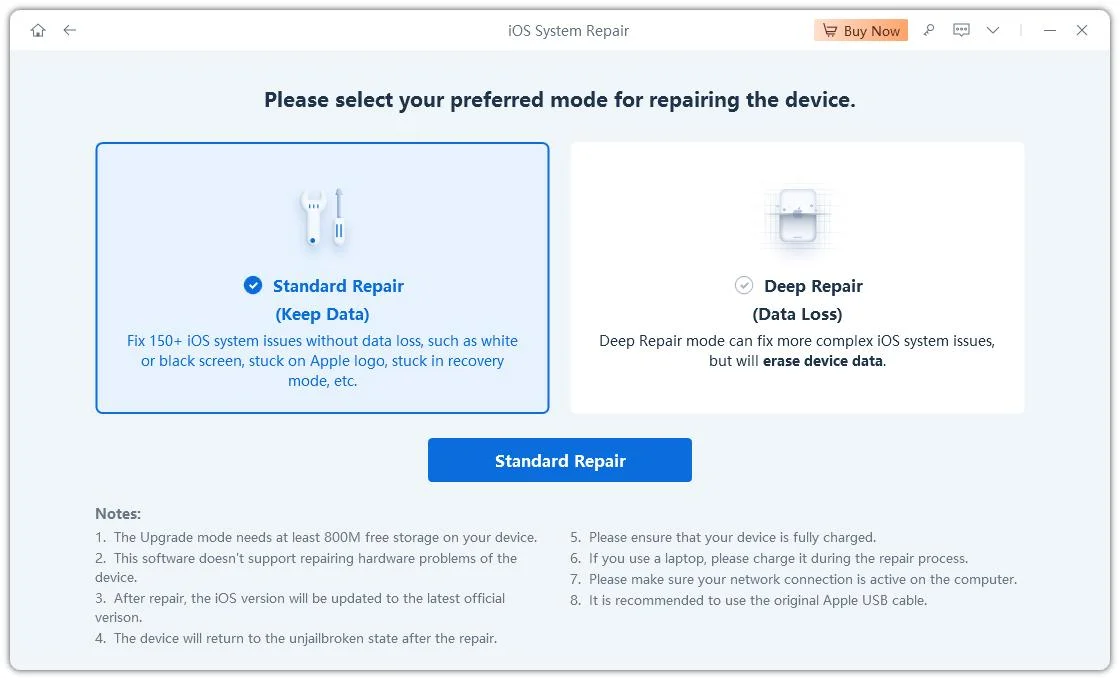
Click "Download" to let ReiBoot automatically fetch the correct, official iOS firmware from Apple's servers. Once downloaded, click "Start Standard Repair". Now, just sit back and wait.
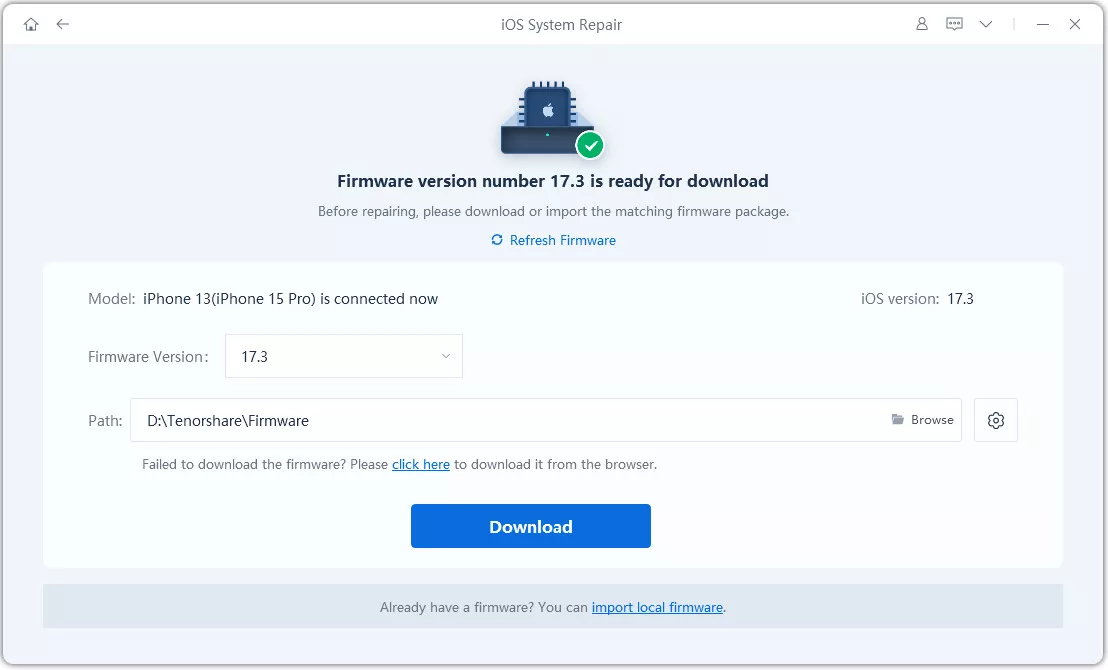

Once the progress bar finishes, ReiBoot will successfully fix the 2 white phones on screen issue.

Although you can usually fix an iPhone showing two white phones on screen in a few minutes, it is even better to avoid the problem.
Follow these simple tips.
These small habits greatly reduce the chance of seeing the iPhone showing 2 white phones on screen again.
Seeing your iPhone showing two white phones on screen can be worrying, but in most cases, it is only Apple's Recovery Mode screen. It does not usually mean your iPhone has a hardware problem. Start with a force restart, then try exiting Recovery Mode manually. If the issue continues, Finder or iTunes can restore the device, although that may erase your data. If you want the easiest way to fix the iPhone showing two white phones on screen without losing your photos, messages, or apps, Tenorshare ReiBoot is a great option. Its one-click Exit Recovery Mode feature and Standard Repair mode solve most software problems in just a few minutes.
Yes. The iPhone showing two white phones on screen can appear on every supported model, including iPhone 11 Pro, iPhone 12, iPhone 13, iPhone 14, iPhone 15, iPhone 16, and iPhone 17 Pro Max. The repair steps are the same across all of these devices.
No. They are different problems. The double phone icon iPhone screen is Apple's Recovery Mode display, while the White Screen of Death is a separate issue where the display becomes completely white and does not show the Recovery Mode icons.
Yes. Start with a force restart or manually exit Recovery Mode. If those methods do not work, use Tenorshare ReiBoot's Exit Recovery Mode or Standard Repair mode. These options are designed to repair iOS while keeping your personal data whenever possible.
Yes. Tenorshare ReiBoot supports the latest iPhone models, including the iPhone 17 series, and is regularly updated to work with the newest iOS versions. The software automatically detects your device and downloads the correct firmware when needed.


then write your review
Leave a Comment
Create your review for Tenorshare articles

Share this post


ReiBoot - No.1 Free iOS System Repair Software
Fix 150+ iOS Issues without Data Loss & Safely iOS 27 Upgrade/Downgrade
ReiBoot: No.1 iOS Repair Tool
Fix 150+ iOS Issues, No Data Loss
By Jenefey Aaron
2026-09-28 / iPhone Tips