

 iOS Tips & Latest Updates
 Bug Fixes, Unlock Guides
 Giveaways & Freebies


4uKey - One-Click Easy iPhone/iPad Unlocker
Unlock Screen Lock/Apple ID/MDM/Screen Time Passcode Instantly
Easy iPhone/iPad Unlocker
Unlock iPhone Passcode Instantly
WhatsApp unlocked features help you quickly regain access to your private chats without confusion. Locked chats often appear due to privacy settings, chat lock options, or app updates, but unlocking them is simple when you follow the right steps.
This guide clearly explains everything so you can open locked chats on Android, iPhone, and WhatsApp Web without stress. You'll learn clear methods that actually work in real situations. Stay with this guide to understand how to manage and unlock your WhatsApp chats smoothly.

WhatsApp Unlocked simply means getting back into a chat you, or your phone, had hidden behind a lock. WhatsApp lets you lock single chats with your fingerprint, Face ID, or a passcode, so unlocking just reverses that step. It is not about hacking or bypassing someone else's privacy, it is about opening your own protected conversation again.
Think of it like a locked drawer: the chat was always yours, it was just tucked away for safety. Once you unlock it, the chat looks and works exactly the way it did before.
Different WhatsApp lock issues need different solutions, and picking the right one saves time and effort. This quick table helps you quickly match your problem with the right method so you can unlock your WhatsApp account and get back into your chats without confusion.
 Please swipe to view
Locked chats on WhatsApp are not deleted or lost. They are simply moved to a secure folder made to keep your private conversations safe. This folder is different from Archived Chats and does not show in your normal chat list for privacy.
Only you can open it using your Face ID, fingerprint, or phone passcode. WhatsApp keeps it above your main chats, but it only appears when you unlock it using the correct gesture or verification.
Steps to Unlock Chats on WhatsApp:

Unlocking WhatsApp locked chats is simple on both Android and iPhone. These chats are protected for privacy, but you can easily remove the lock when you need full access again. Once unlocked, the chat will return to your normal chat list and open without any security check.
How to Unlock a Locked Chat on WhatsApp (Android and iPhone):


WhatsApp also allows users to hide chats using a secret code or privacy lock feature. These chats do not appear in the main chat list and can only be accessed when the correct code is entered. This feature is designed to keep sensitive conversations fully private.
Steps to Reveal Hidden Chats with Secret Code


Using WhatsApp Web or linked devices makes chatting easier, but locked chats are still protected for privacy. Many users try to access hidden or locked conversations on a computer and wonder how to unlock them. The process is simple and works through your main phone because all WhatsApp security settings are controlled from the primary device.
How to Unlock a Locked Chat on WhatsApp Web or Linked Devices


One forgotten passcode can lock you out of your iPhone, WhatsApp, and even your private chats in seconds. Face ID not working, Touch ID failing, or a forgotten PIN can make things even more stressful.
That's where Tenorshare 4uKey steps in as a smart rescue tool. It helps you unlock your iPhone quickly when you're stuck, removing screen passcodes, Face ID, and Touch ID locks with ease. With 4uKey, you can get back into your device fast and regain access to WhatsApp without complicated steps or technical skills.
Key Features of Tenorshare 4uKey
One-Click Passcode Unlock: Removes a forgotten screen passcode from iPhone, iPad, or iPod, including 4-digit, 6-digit, and custom codes.
iCloud Activation Lock Removal: Bypasses activation lock without the previous owner's Apple ID, no jailbreak required.
Apple ID Removal: Signs you out of an old or forgotten Apple ID without erasing your data.
MDM Bypass: Safely removes a Mobile Device Management profile without needing a passcode.
Find My iPhone Disable: Turns off Find My iPhone without entering the Apple ID.
Screen Time Passcode Removal: Clears a forgotten Screen Time passcode without any data loss.




How to Unlock an iPhone with Tenorshare 4uKey


Make sure your computer has enough free storage space for the firmware file.


Once your WhatsApp unlocking process is complete and you can access your chats again, the next important step is to protect your privacy. Unlocking gives you access, but securing your account again ensures your messages stay safe from unwanted access. WhatsApp offers built-in tools that make it easy to re-enable chat locks, privacy settings, and device security in just a few taps.
How to Secure WhatsApp Again After Unlocking


You can unlock chats by using the Chat Lock settings and verifying with your Face ID, fingerprint, or passcode. Your messages stay safe and are not deleted during the process.
If you forget the code, you must use your device's main security method like fingerprint, Face ID, or phone passcode. Without it, WhatsApp does not allow direct access for privacy reasons.
No, you cannot directly unlock chats on WhatsApp Web. You need to unlock them first on your phone. After that, they will appear normally on Web or linked devices.
It is hidden by default. Swipe down on the Chats screen and verify with Face ID, fingerprint, or passcode to open it.
No, removing chat lock will not delete your messages. It only removes the extra security layer, and your chats will return to the normal chat list.
Once you get WhatsApp unlocked, everything feels simple again and your chats are back in your control. Whether it's locked conversations, hidden folders, or privacy settings, WhatsApp makes it easy to manage access anytime. And if a locked device is stopping you from entering WhatsApp, Tenorshare 4uKey can help you unlock your phone quickly and regain access without complicated steps.


Tenorshare 4uKey - Best iPhone Unlocker






then write your review
Leave a Comment
Create your review for Tenorshare articles
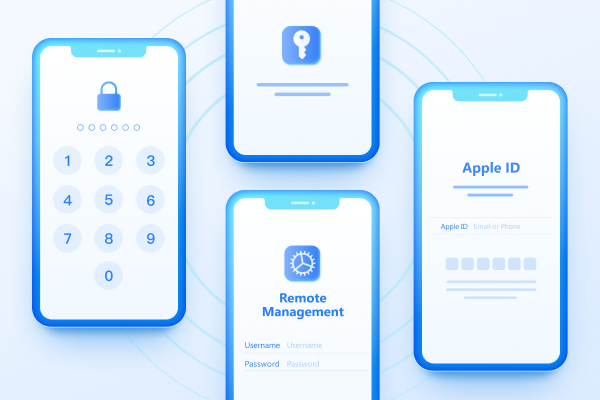
Easily Unlock iPhone passcode/Apple ID/iCloud Activation Lock/MDM
100% successful unlockShare this post


4uKey - One-Click Easy iPhone/iPad Unlocker
Unlock Screen Lock/Apple ID/MDM/Screen Time Passcode Instantly
Easy iPhone/iPad Unlocker
Unlock iPhone Passcode Instantly
By Jenefey Aaron
2026-09-28 / Unlock iPhone