

 iOS Tips & Latest Updates
 Bug Fixes, Unlock Guides
 Giveaways & Freebies

ReiBoot - No.1 Free iOS System Repair Software
Fix 150+ iOS Issues without Data Loss & Safely iOS 27 Upgrade/Downgrade
ReiBoot: No.1 iOS Repair Tool
Fix 150+ iOS Issues, No Data Loss
An iPhone blue screen can appear during normal use, after an iOS update, or before the device restarts repeatedly. The cause may be software-related, but physical damage is also possible. Use the symptoms below to find a suitable troubleshooting method, starting with steps that do not erase your data.

 Please swipe to view

These are starting points, not definitive diagnoses. A blue screen alone cannot confirm whether the cause is software or hardware.
An iPhone blue screen may be associated with an iOS or startup problem, a software change, or a hardware fault. The timing of the issue can help narrow down what to check.
An iPhone 14 Pro Max user experienced a sudden blue screen during a call and couldn't shut down the phone or enter Recovery Mode. Commenters suspected a display issue, but no confirmed diagnosis was provided.
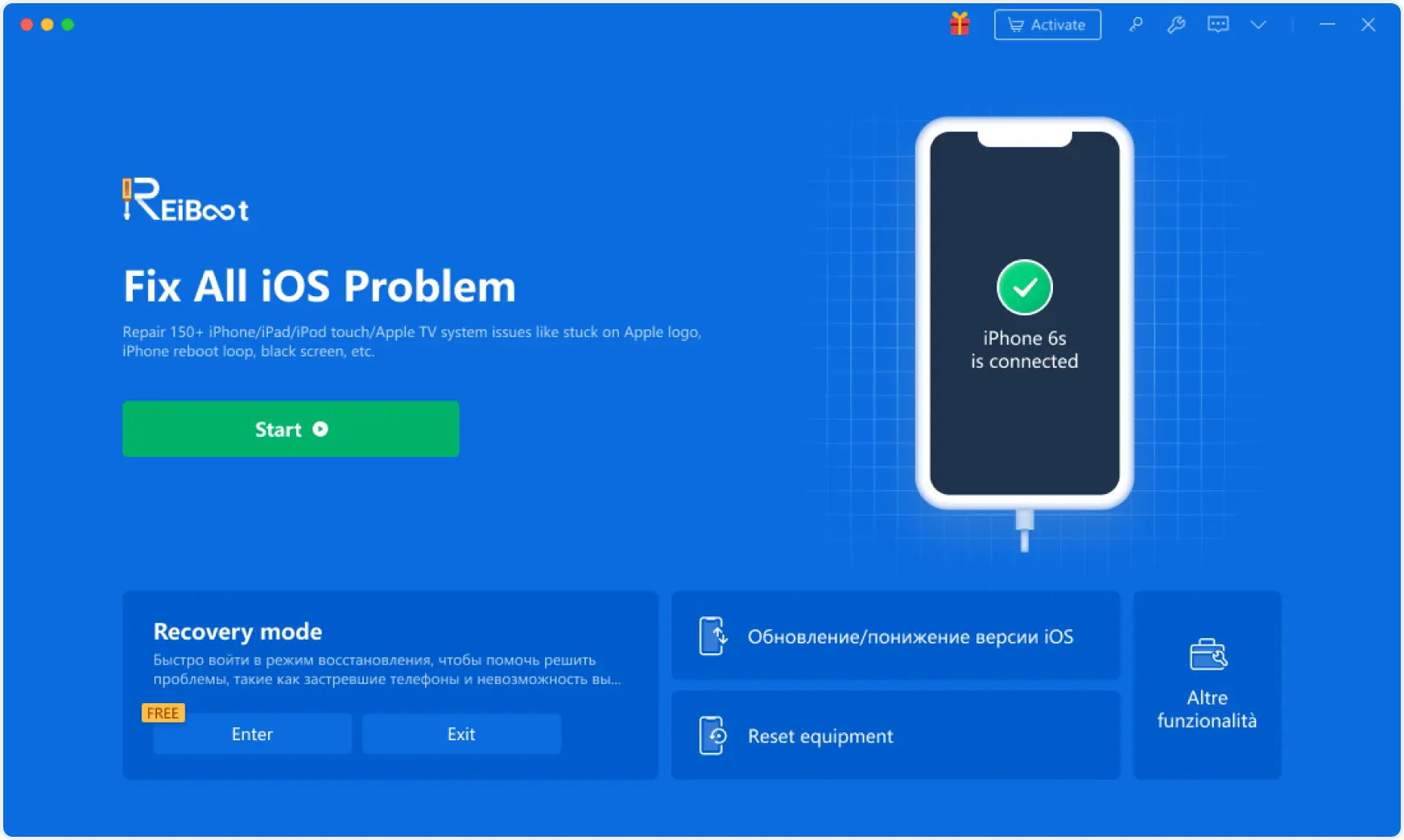
If your iPhone blue screen may be caused by an iOS system issue, Tenorshare ReiBoot offers a way to troubleshoot the device without immediately resorting to a factory restore.


What Tenorshare ReiBoot for iOS can do:
Repair common iOS system issues: Troubleshoot supported system problems that may cause an iPhone to freeze, crash, or get stuck during startup.
Offer Standard Repair: Attempt to repair supported iOS issues while preserving personal data. Back up your iPhone first whenever possible.
Provide Deep Repair: Offer a more thorough repair option when Standard Repair fails. Deep Repair erases the device's data, so use it only after reviewing the warning and considering your backup.
Enter or exit Recovery Mode: Use one-click controls to enter or exit Recovery Mode when the device supports the operation.
Support iOS upgrades and certain downgrades: Manage supported iOS version changes through the software, subject to firmware availability and compatibility.
How to use ReiBoot for iOS:
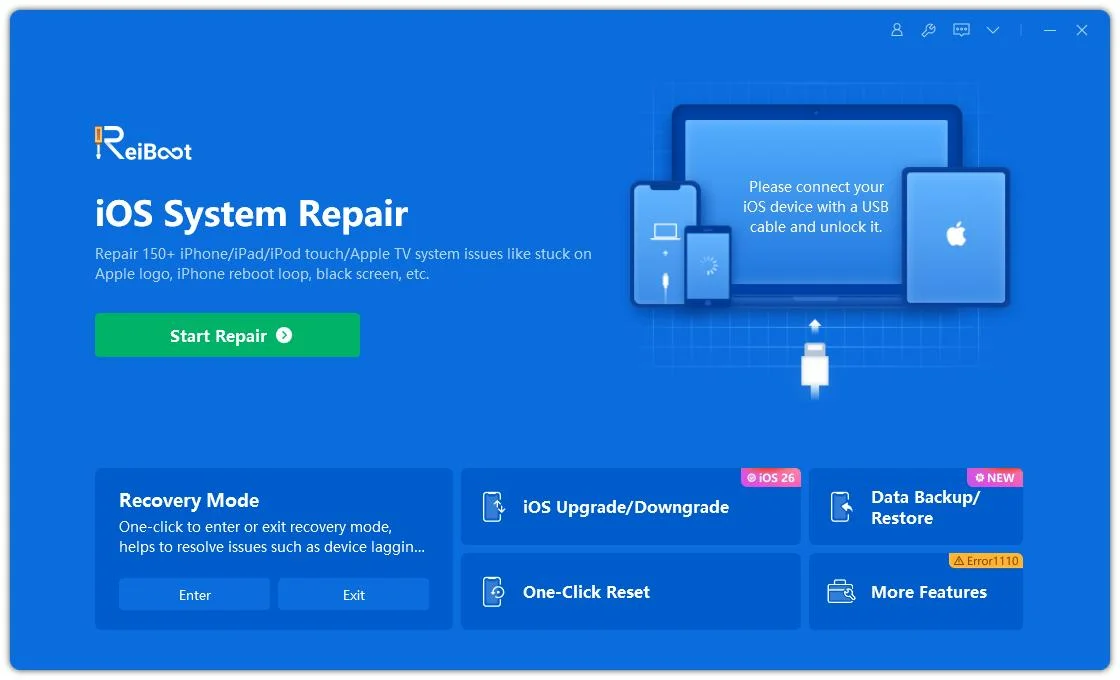
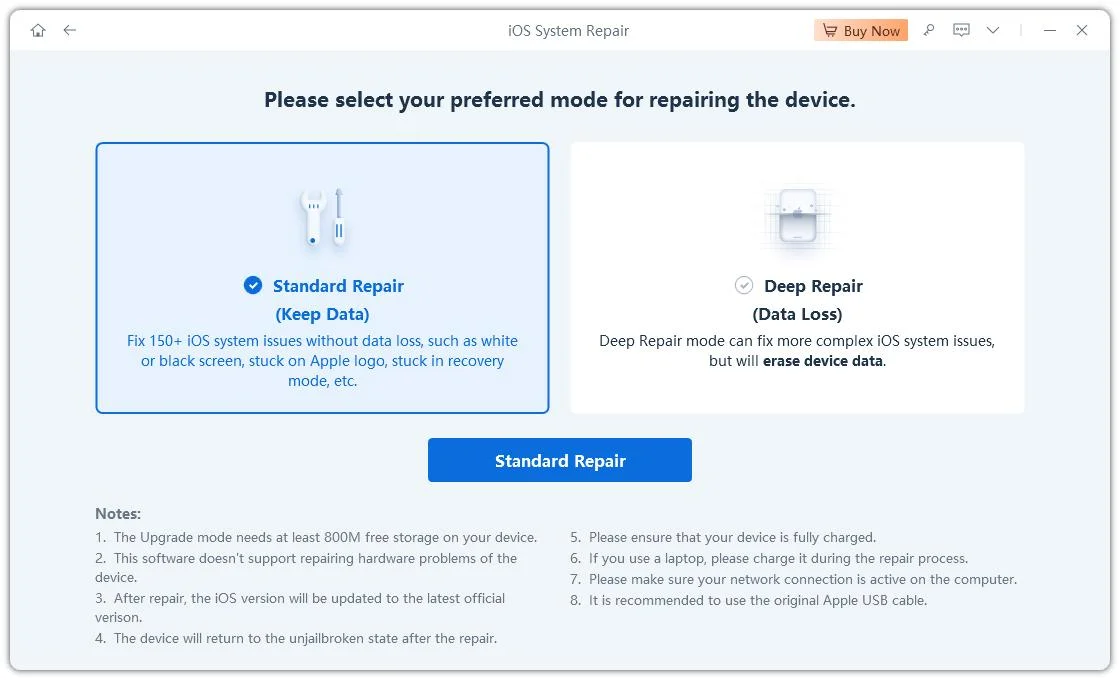
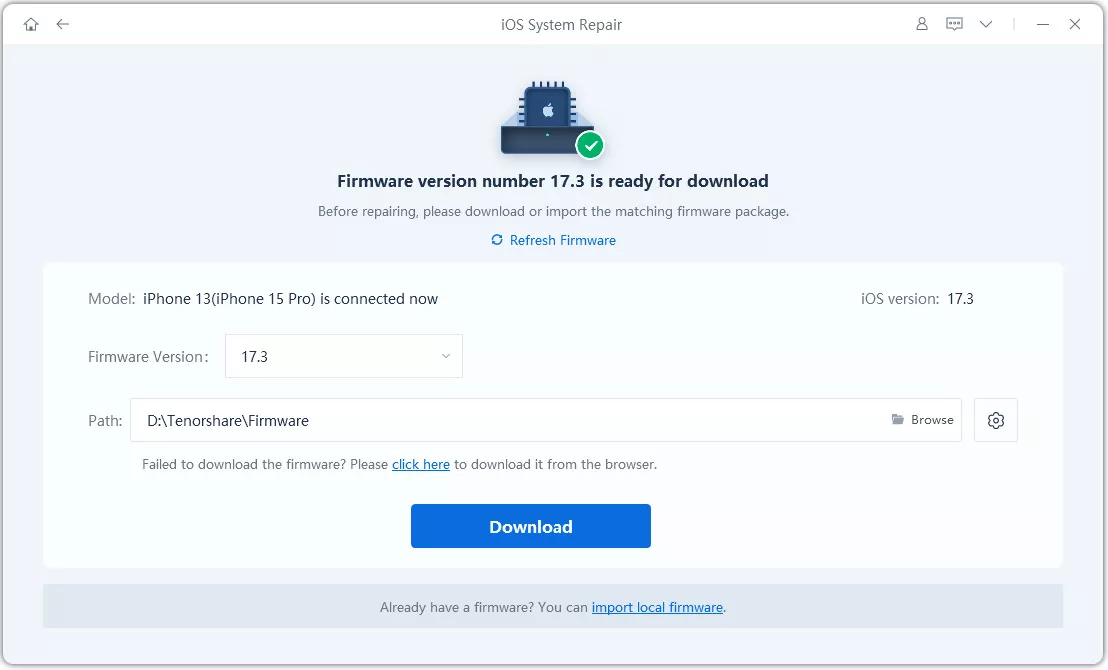
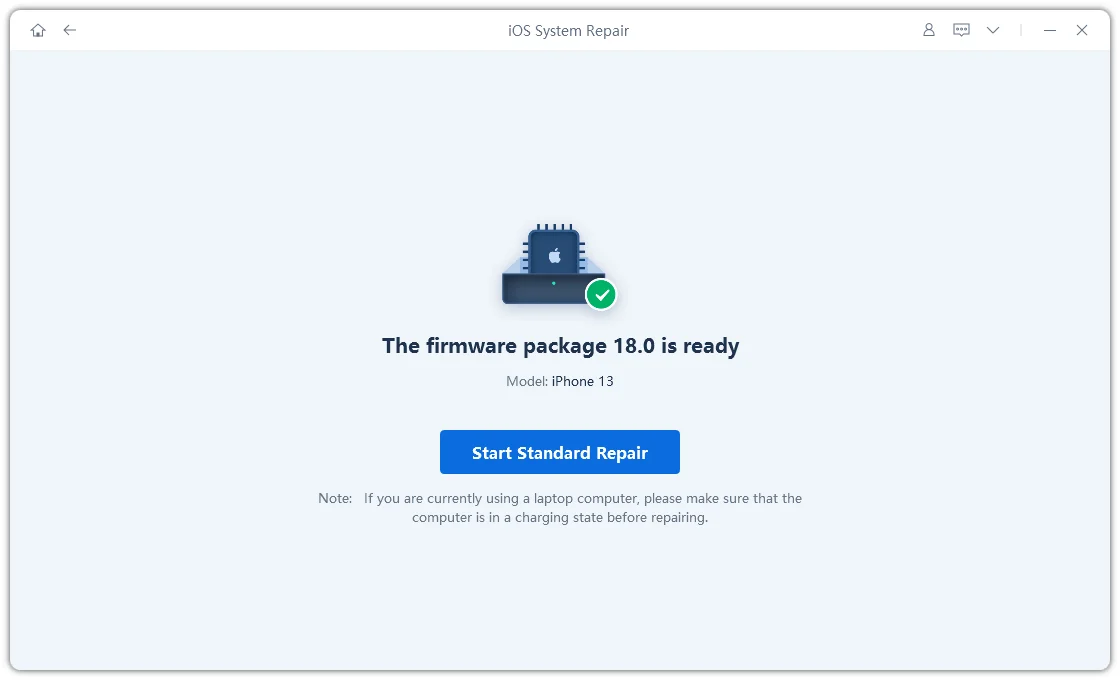
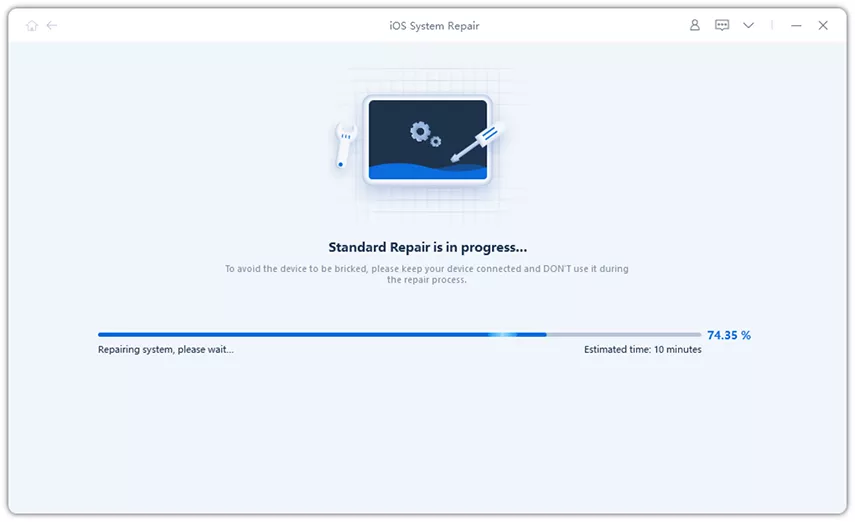
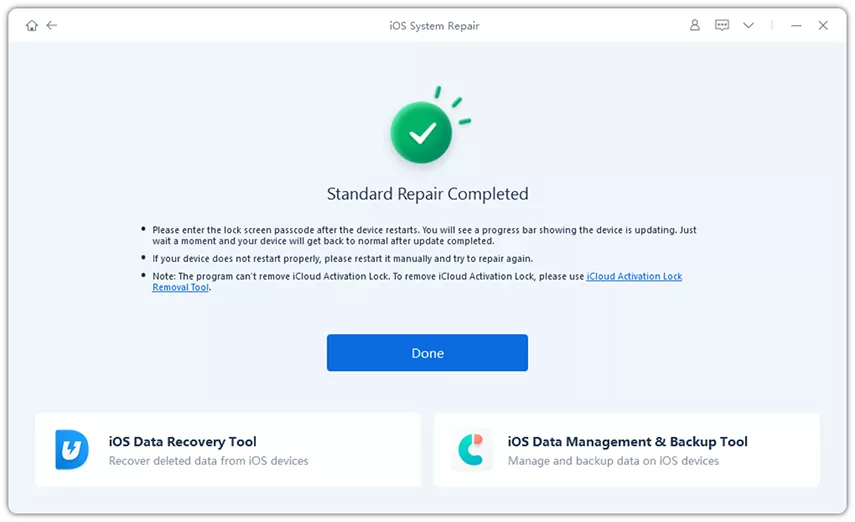
Back up your iPhone first if it becomes accessible. Review the instructions for the specific repair mode you select; do not assume every mode has the same effect on your data.
If your iPhone blue screen is caused by an iOS system issue, ReiBoot for iOS offers a quick and convenient way to try to repair it. If you prefer to try some basic, free troubleshooting methods first, you can also start with the solutions below.
A force restart can help when the iPhone is frozen and normal controls are unavailable. It does not intentionally erase personal data.
For iPhone 8 and later, including iPhone SE (2nd generation and later):
For iPhone 7 and iPhone 7 Plus:
For iPhone 6s and earlier, including iPhone SE (1st generation):
If the iPhone starts normally, check whether the blue screen returns. If it remains stuck or continues restarting, proceed to the next step.
For official instructions, see Apple's force-restart guide.
Try this only if the iPhone starts and remains usable long enough to check its settings.
Back up your data before making significant changes whenever possible. If the iPhone cannot stay on long enough to perform these checks, move to Recovery Mode rather than repeatedly attempting the same steps.
If the iPhone remains stuck or cannot start normally, Recovery Mode lets you use a computer to attempt an iOS update or restore.
What you need: A Mac using Finder, or a Windows PC using the Apple Devices app, plus a compatible USB cable.
Enter Recovery Mode:


When the computer offers Update or Restore, choose Update first if available. Update attempts to reinstall iOS while preserving personal data.
Restore erases the device's data. Do not choose it casually, especially if you do not have a backup. If the update fails repeatedly, the device cannot enter Recovery Mode, or the computer cannot recognize it, consider professional support.
See Apple's instructions for updating or restoring an iPhone
Consider hardware inspection if the blue screen started after physical damage, appeared following a screen repair, or persists despite appropriate software troubleshooting. These circumstances do not identify a specific faulty component, but they make it unwise to assume software repair alone will solve the problem.
Seek professional help if:
A software repair tool cannot fix a physically damaged display or other hardware component. If data recovery is important, explain that to the repair provider before authorizing a procedure that may erase the device.
No. "Blue screen of death" is a descriptive term people use for a blue-screen problem. It is not, by itself, an official diagnosis or a specific Apple error code.
It depends on whether the iPhone can start, whether a backup exists, and whether the device can be accessed. If you have an iCloud or computer backup, check what data is available there first. If no backup exists and the phone remains unresponsive, avoid choosing Restore before considering data-recovery options.
A blue screen alone does not establish a charging problem. However, if the device was exposed to liquid, becomes unusually hot, or shows signs of physical or battery damage, disconnect it from power and seek professional advice rather than continuing to charge it.
Not necessarily. Some problems may be software-related, while others require component repair. A blue screen alone is not enough to decide whether the device should be replaced. Get a diagnosis if the problem persists.
Start with a force restart, then consider a system repair option or Recovery Mode Update if the symptoms suggest an iOS problem. Protect your data before any operation that may erase it. If the blue screen follows physical damage or the iPhone remains unresponsive, seek professional inspection rather than assuming another software attempt will fix it.


then write your review
Leave a Comment
Create your review for Tenorshare articles
Share this post


ReiBoot - No.1 Free iOS System Repair Software
Fix 150+ iOS Issues without Data Loss & Safely iOS 27 Upgrade/Downgrade
ReiBoot: No.1 iOS Repair Tool
Fix 150+ iOS Issues, No Data Loss
By Jenefey Aaron
2026-11-03 / iPhone Tips