

 iOS Tips & Latest Updates
 Bug Fixes, Unlock Guides
 Giveaways & Freebies
then write your review


ReiBoot - No.1 Free iOS System Repair Software
Fix 150+ iOS Issues without Data Loss & Safely iOS 27 Upgrade/Downgrade
ReiBoot: No.1 iOS Repair Tool
Fix 150+ iOS Issues, No Data Loss
Apple Music battery drain on iPhone can be caused by continuous streaming, stuck downloads, background activity, or syncing with other devices. If your battery drops quickly while listening to music or even when the app is idle, identifying when the drain occurs can help you find the right fix.
To get started, open Settings > Battery and check how much power Music uses and whether its activity continues in the background. This can help you determine whether the issue is related to playback, downloads, or background processes.
In this guide, you'll learn how to fix Apple Music battery drain on iOS 26 and iOS 27, with practical troubleshooting steps ranging from quick settings changes to more advanced solutions.

 Please swipe to view
Before changing settings, use your iPhone's Battery screen to determine whether Music is consuming an unusual amount of power.

Use the results to narrow down the problem:
There is no universal battery percentage that proves Apple Music is malfunctioning. Compare its activity with your actual listening time and usual battery behavior.
When Music appears in the Battery list even though you have not been listening, investigate what may still be running. These are the main possibilities worth checking.
Please swipe to view
These are troubleshooting possibilities, not proof that a particular feature is responsible. Test one likely cause at a time and check the Battery screen again before moving on.
If the battery drain started just after installing iOS 26 or iOS 27, give the iPhone some time before assuming Apple Music is the cause.
After an update, iOS may perform background tasks such as indexing and organizing data. Battery life can temporarily change while those tasks finish, and the time required varies by device and data volume.
What to do:

If the drain continues after several days, especially if Music remains unusually active in the background, move to the next methods.
If several apps are affected, use our iOS 27 battery drain guide to investigate broader battery issues.
A download that repeatedly stalls is worth investigating when Music consumes battery even though you are not playing anything. Clearing the queue can help determine whether download activity is involved.
How to check:

If the drain improves, download your playlists again over Wi-Fi in smaller batches. This makes it easier to identify whether a particular album or download queue is causing the issue.
If there are no pending downloads, do not keep changing download settings. Continue to the device-connection checks.
If the problem appears after using another device, check that connection before changing unrelated iPhone settings.

If the sync appears stuck, reducing the number of playlists can help you test whether syncing is involved.
If the battery drain continues, avoid repeatedly signing out of accounts or resetting devices without evidence that the connection is responsible.
If the drain regularly appears after driving, download your driving playlists before your next trip and compare battery activity afterward. You can also restart the iPhone after a drive to see whether unusual background activity stops.
There is no single confirmed CarPlay setting that fixes every Apple Music battery-drain issue. Treat these steps as tests to narrow down the cause.
If downloads and connected devices do not explain the problem, test whether background refresh or cellular streaming is contributing.
Check Background App Refresh:

Background App Refresh does not control every kind of audio playback or download activity, so turning it off may not resolve the issue by itself.
Test cellular use:
Disabling cellular data prevents streaming over mobile networks when Wi-Fi is unavailable. Download anything you need in advance.
Streaming requires a network connection, and a weak cellular signal can make network activity less efficient. Downloaded music can reduce the need to retrieve audio data while you listen.
To test whether streaming is contributing:

Downloaded playback does not eliminate all battery use, but it helps you determine whether network activity is part of the problem.
Lossless Audio and Dolby Atmos may affect data use and playback power depending on your device, network, and listening setup. Their impact varies, so test them rather than assuming they are responsible.

If battery use does not change, restore your preferred settings. There is no need to sacrifice your preferred sound quality unless your own testing shows a difference.
The display can use a significant amount of power, especially at high brightness. If you leave the Now Playing screen open during long listening sessions, reducing screen activity may help.
Try these changes:
The effect of Reduce Motion and lyrics settings may be small or vary by device. Treat them as optional tests rather than established fixes.
Low Power Mode reduces some background activity and system effects to help extend battery life.

This mode can help conserve battery, but it does not specifically repair an Apple Music bug. If Music still consumes substantial power while you are not listening, return to the background-activity methods.
If the issue appears limited to Music, try closing the app and then reinstalling it if necessary.
Force-closing may stop a temporarily stuck process, but it will not resolve a persistent download or syncing issue on its own.

If the problem persists:
Deleting Music may affect downloaded tracks and availability on paired devices. Make sure you understand what may need to be downloaded or synced again before proceeding.
If several apps drain the battery, or your iPhone also freezes, restarts unexpectedly, or gets stuck during startup, investigate the battery and iOS system before assuming Apple Music is responsible.
Start by checking Battery Health and installing any available iOS update. If the symptoms suggest a broader system issue, you can consider a repair option.
Tenorshare ReiBoot is a Windows and Mac tool designed to repair certain iOS system problems. It is not an Apple Music-specific battery fixer, and it will not directly clear stuck downloads or correct a device-sync loop.




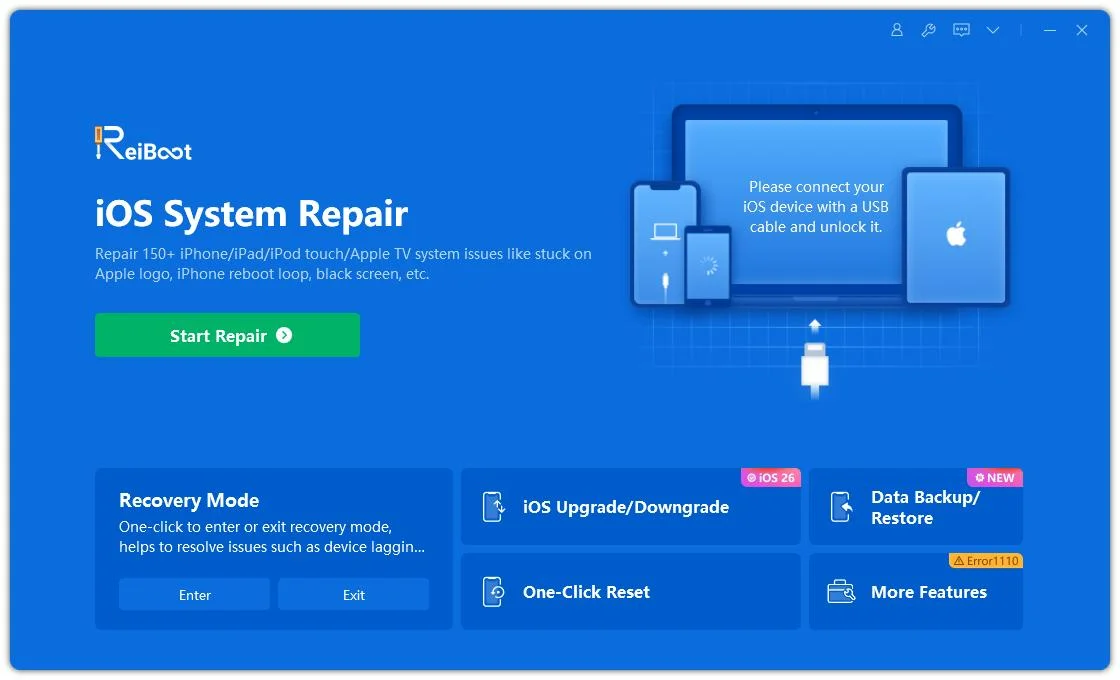
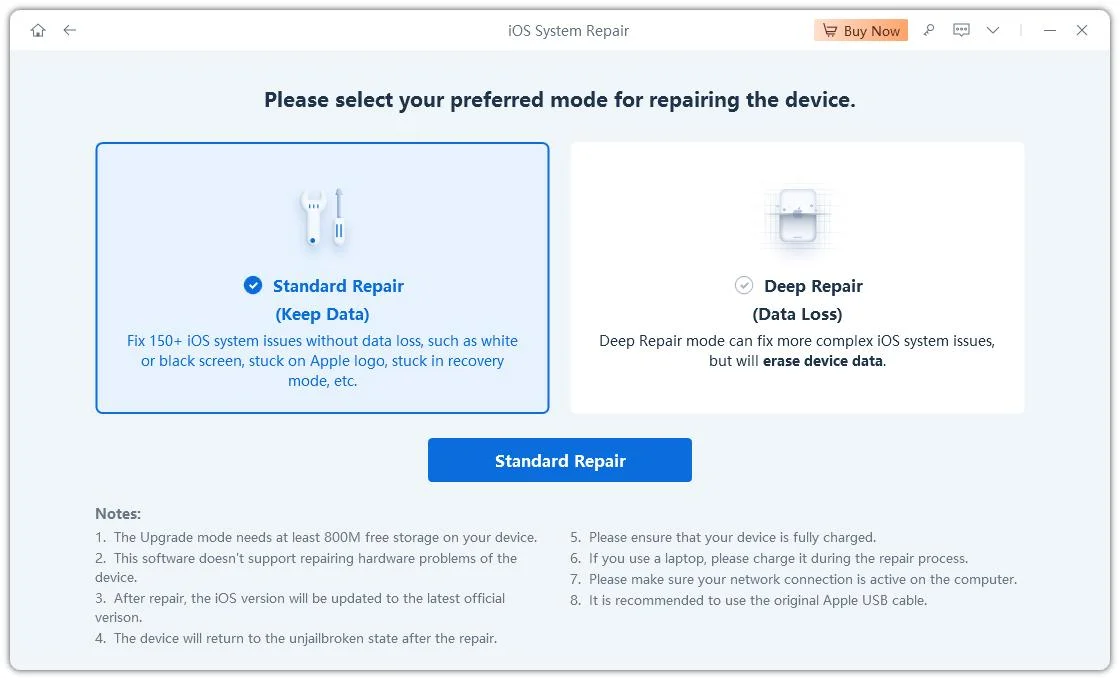
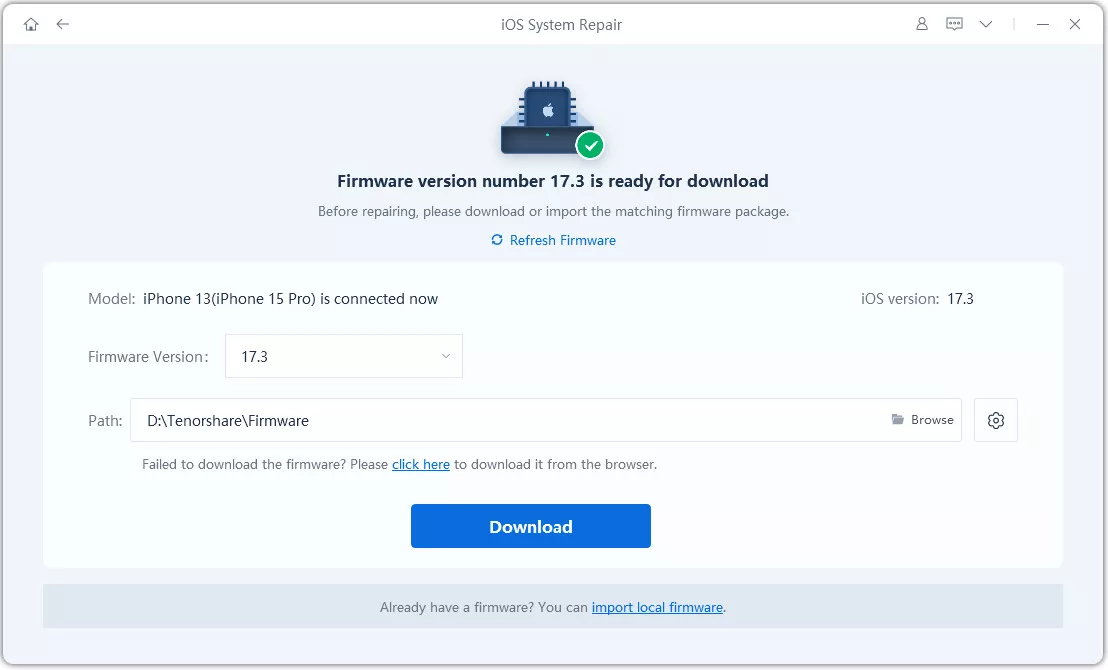
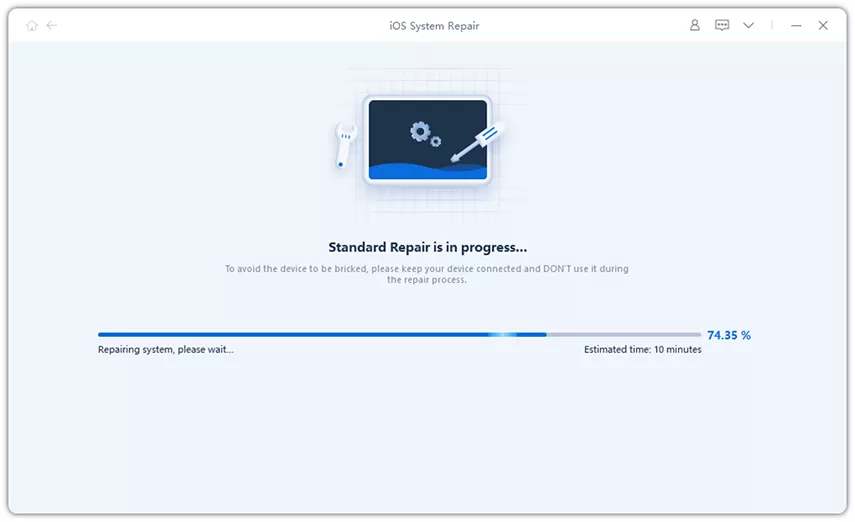
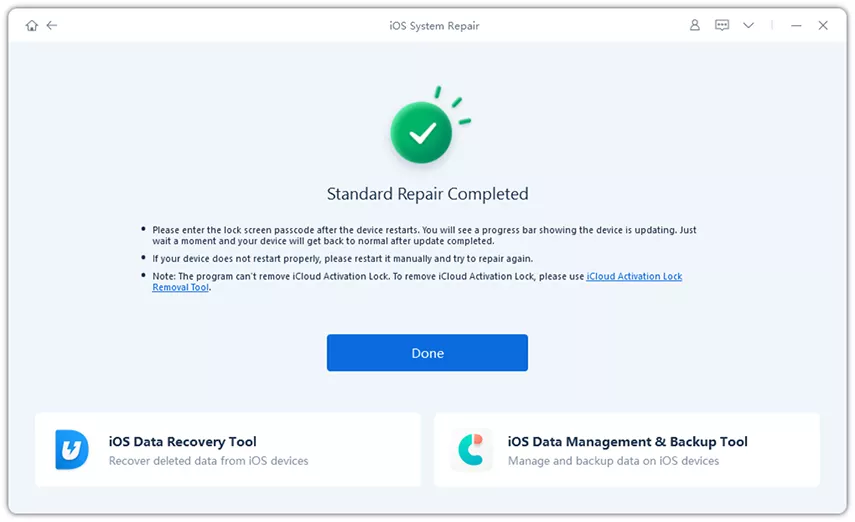
Back up your iPhone with iCloud or Finder before attempting a system repair. Standard Repair is designed to preserve data, but no repair process is entirely risk-free. Read any prompt carefully, especially if it mentions erasing the device.
If the problem appears limited to Apple Music, try the app-level methods first. A system repair is more appropriate when other iOS problems occur as well.
Please swipe to view
Start by checking Music's background activity in Settings > Battery. If it is unusually high, look for incomplete downloads and check whether an Apple Watch, Mac, or CarPlay session may be involved. If Music is not unusually active but the whole phone drains quickly, investigate battery health and broader iOS activity.
An iPhone may use more battery temporarily while background tasks finish after an update. Allow a few days, restart the phone, and install any available software update. If the problem continues, check downloads and device connections. If several apps are affected, the cause may be broader than Apple Music.
It can help reduce network activity because downloaded tracks do not need to be streamed over a cellular or Wi-Fi connection. The actual battery savings depend on signal strength, screen use, playback settings, and the device. Compare downloaded playback with streaming under similar conditions to see whether it helps on your iPhone.
You can test turning it off if Music appears in Settings > General > Background App Refresh. However, this setting does not control every type of audio playback or download activity. If the battery drain continues, check for incomplete downloads and device syncing rather than relying on this setting alone.
ReiBoot is an iOS system repair tool, not an Apple Music-specific battery fixer. It may be worth considering if battery drain occurs alongside broader system problems, such as freezing, unexpected restarts, or startup issues. For a problem limited to Music, start with the download, syncing, and app troubleshooting methods. Back up your iPhone before attempting system repair.
To fix Apple Music battery drain, start with Settings > Battery to determine whether Music is active during playback or in the background. Check for incomplete downloads and review Apple Watch, Mac, and CarPlay connections before changing unrelated settings.
If several apps are also affected or your iPhone freezes or restarts, check Battery Health and consider ReiBoot's Standard Repair after backing up your iPhone. Test one likely cause at a time to avoid unnecessary resets.


then write your review
Leave a Comment
Create your review for Tenorshare articles

Share this post


ReiBoot - No.1 Free iOS System Repair Software
Fix 150+ iOS Issues without Data Loss & Safely iOS 27 Upgrade/Downgrade
ReiBoot: No.1 iOS Repair Tool
Fix 150+ iOS Issues, No Data Loss
By Jenefey Aaron
2026-10-22 / iPhone Tips