



iCareFone - Free iOS Backup tool & Easy Data Manager
Backup/Transfer/Restore/Manage iOS Data with Simple Clicks
Backup/Manage iOS Data Easily
Backup/Manage iOS Data in Clicks

Imagine waiting close to 2 hours for your iPhone to update to the new iOS 27 , only to see that annoying "Update Failed" or "Storage Full" message pop up. Frustrating, right?
That's exactly why in this article, we'll give you the exact answer to how much storage the iOS 27 takes. Plus, we'll show you how to quickly free up space if your iPhone is full, so you can enjoy a smooth and effortless update instead of a stressful one.
Sounds good? Let's get into it.

The iOS 27 update download is roughly 8GB to 12GB in size. However, to successfully install the beta, your iPhone requires at least 20GB to 25GB of free storage space.

Here's a storage space overview:
 Please swipe to view
Our recommendation: Before attempting the iOS 27 install, target having at least 20GB--25GB of free space on your device.
The iOS 27 update storage size is around 9.8 GB, but your iPhone may need extra free space to download and install the update smoothly. If your device storage is almost full, you may see errors like "Not Enough Storage" or "Unable to Install Update."
[To Free up space for iOS 27, you can delete unused apps, remove large videos, clear old downloads, or move photos to your computer. For a faster and safer cleanup, you can use Tenorshare iCareFone to manage your iPhone storage from a computer.]
With Tenorshare iCareFone, you can easily:




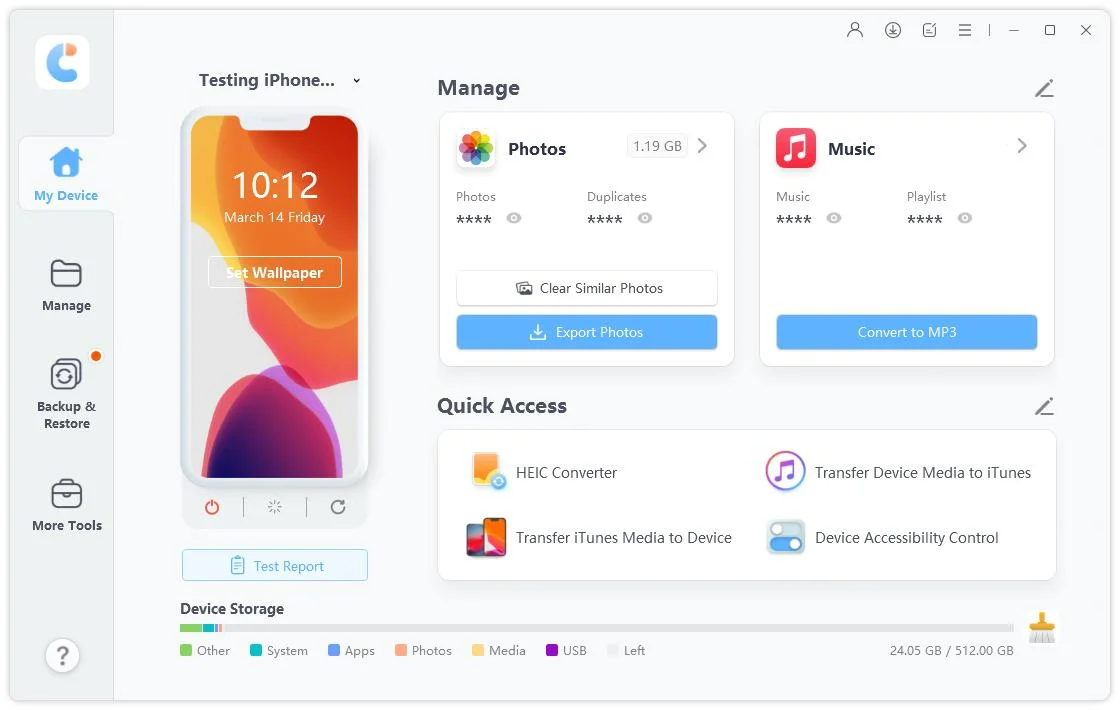


If your iPhone does not have enough space for the 9.8 GB iOS 27 update, Tenorshare iCareFone is a simple way to clean up storage and make the update process smoother.

In simple terms, System Data is a storage category that iOS uses for files that don't neatly fit anywhere else. It includes:
1. Cache files - Every time you use an app, stream a video, load a website, or scroll through social media, your iPhone creates cache files to help those experiences load faster the next time.
2. System logs and crash reports - iOS continuously creates diagnostic logs and reports in the background to help monitor system performance and troubleshoot issues.
3. Siri voice and language model files - Siri downloads voice packs and language data to support on-device processing. These files live inside System Data and can grow over time through background updates.
4. Apple Intelligence model data - With iOS 26 and the expected iOS 27, Apple is placing more emphasis on on-device AI. Supported devices may download AI models that can take up several gigabytes of storage and contribute directly to System Data growth.
See why iOS takes up so much storage?
You could have a perfectly healthy 128GB iPhone, delete every photo, every app, and every downloaded file you can find - and still have a phone telling you it doesn't have enough space for an update, because System Data has quietly filled the room while you weren't looking.

So you cleared space, you installed the beta, and you thought you were done. And then, a few days later - the storage warning is back. What happened?
This is one of the most frustrating parts of beta testing, and it's completely normal. Here's exactly why it happens.
The result? You might install iOS 27 with 20GB of free space and discover you're down to 8GB within a couple of days - even though you've been using your phone normally.
That doesn't necessarily mean something is wrong.
It simply means your iPhone is still processing background tasks associated with the beta release.

don't use the storage you see immediately after installation as your long-term baseline. Give it a few days. Some of it will resolve on its own as temporary files are cleaned up. []
Now, for you to download and install iOS 27, you need to have atleast 20GB to 25GB free space. However, if your iphone is full, here's how to quickly free up space so you can enjoy a smooth and effortless update.
There's a difference between deleting and offloading apps. Deleting an app removes everything: the app and all its data. Offloading removes the app itself but keeps your data, so if you reinstall it later, you pick up exactly where you left off.
Here's how you do it in actions:
Go to Settings → General → iPhone Storage and scroll through the list of apps.
alt: iPhone Storage app list screen
THEN tap it, then tap "Offload" App.
alt: Tap then Offload App option
For some apps like Instagram, you'll need to delete and reinstall the app entirely to clear its cache.
For Safari, go to Settings → Safari → Clear History and Website Data.
alt: Safari clear history and website data
You can delete your photos and videos manually, or consider moving them:
Turn on iCloud Photos (if it isn't already), allow everything to upload, and then enable Optimize iPhone Storage under Settings → Photos.
alt: Enable iCloud Photos and optimize storage
iOS will keep low-resolution previews on your device and store full-resolution originals in iCloud, recovering potentially gigabytes of local storage.
If your System Data has grown to genuinely alarming levels - think 30GB+ the most effective solution is a full backup and restore. If you'd like to backup your iphone safely, you can utilize tools like [Reiboot Tenorshare. No data. Just one-click. And your data is backed up!!!]

If your [iPhone gets stuck on the Apple logo, enters a boot loop, lands in recovery mode and won't come back out, tools like Tenorshare ReiBoot helps you fix this in just one-click.]
Here's how you do it in just 3 simple steps:
[STEP 1: Download and install Tenorshare ReiBoot for free.]


And that's it!

So how much storage does iOS 27 take up? Generally, it's 8GB to 12GB. But, you'll need to have atleast 20GB to 25GB free space on your iphone just to be safe.
Now go, go and try out that iOS 27.
Remember to free up your space using the methods above, back up your device before you install, and install the beta smoothly and effortlessly without losing your mind.
It's recommended to have at least 20GB--25GB of free storage before installing iOS 27 to avoid installation errors and storage-related update failures.
After installation, iOS may create temporary files, rebuild app data, sync iCloud content, and download additional AI-related resources, causing storage usage to increase temporarily.
You may be able to download the update, but installation can fail if there isn't enough room for temporary files and system processes. More free space generally results in a smoother update.
Offloading unused apps, clearing app caches, optimizing photo storage with iCloud Photos, and removing large videos are usually the quickest ways to recover several gigabytes of storage.


iCareFone for LINE - Easy LINE Data Transfer




then write your review
Leave a Comment
Create your review for Tenorshare articles
Best Free iPhone Transfer & iOS Backup Tool
Easily, without iTunesShare this post


iCareFone - Free iOS Backup tool & Easy Data Manager
Backup/Transfer/Restore/Manage iOS Data with Simple Clicks
Backup/Manage iOS Data Easily
Backup/Manage iOS Data in Clicks
By Jenefey Aaron
2026-09-15 / iOS 27