Moving your phone number to a new iPhone 18 should be quick, but things can
sometimes get stuck along the way. You may see a transfer error or find that
your number is not activating on the new device. It can be frustrating,
especially when you just want to start using your new iPhone.
This guide walks you through seven easy fixes for the
unable to transfer phone number iPhone 18 issue. Follow these
steps to get your number working again without unnecessary hassle.
Part 1. Why Can't I Transfer My Phone Number to My iPhone 18?
Several things can prevent your phone number from transferring to a new
iPhone 18. Common issues include iCloud sync problems, different Apple
Accounts, low iCloud storage, weak Wi-Fi, or outdated iOS.
Here are the main reasons to check:
iCloud Contacts syncing is turned off: Your contacts may
not appear on the new iPhone if Contacts is not enabled in iCloud.
Different Apple Accounts: Both iPhones should use the
same Apple Account for iCloud contacts to sync properly.
iCloud storage is full: Full iCloud storage can prevent
new contact data from syncing.
Weak or unstable Wi-Fi: A poor connection can interrupt
the transfer or syncing process.
Outdated iOS: Different or outdated iOS versions can
sometimes cause compatibility issues during the transfer.
Part 2.How to Fix Unable to Transfer Phone Number to iPhone 18
A phone number didn't transfer to new iPhone 18 can leave
you without calls and messages on your new device. The fixes below cover the
most common ways to get the transfer working again. Start with the first
method and move through the steps until your number is activated.
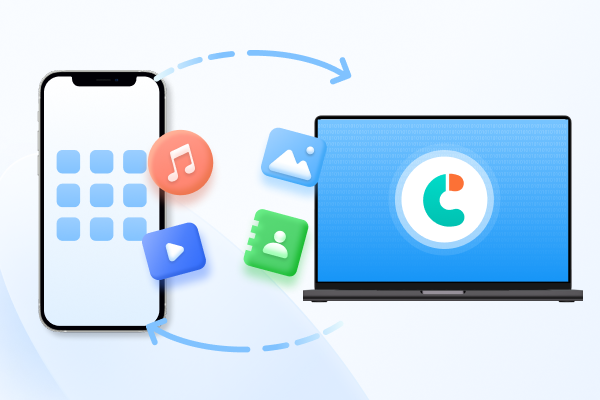
1. Transfer Data to iPhone 18 Without iCloud Using iCareFone
Transferring data directly between iPhones isn't always smooth, especially
when the usual transfer method gets stuck.
Tenorshare iCareFone
gives you an easy way to
move important iPhone data
using a computer without iCloud. It supports contacts, messages, photos,
music, videos, and more, making it useful for transferring data to your new
iPhone 18.
It gives you more flexibility to select the data you want to move instead of
transferring everything at once. You can also manage, back up, and restore
your iPhone data from one place.
Key iCareFone features:
Transfer Data: Move photos and other files between iPhone
and PC/Mac.
Manage Data:
Transfer and manage contacts, messages, music, and videos.
Backup & Restore:
Back up iPhone data to a computer and restore it when needed.
Download Apps: Manage and download apps that may not be
available in your region.
HEIC Converter: Convert HEIC photos to JPG in batches.
Free Tools: Access features such as iPhone backup,
developer mode, iPhone testing, and AI wallpapers on Mac.
How to Transfer iPhone Data with iCareFone
Download and install iCareFone on your PC or Mac. Connect your iPhone
using a USB cable and unlock it. Tap Trust if prompted, then enter your
passcode. Once detected, choose the required transfer option from the main
interface.
iCareFone will display the available data on your iPhone. Select the files
or data types you want to transfer.
Click Transfer and wait for the process to finish. Your selected data will
then be transferred to the connected destination.
2. Retry eSIM Quick Transfer
eSIM Quick Transfer
lets you move your phone number from your old iPhone to your iPhone 18
without contacting your carrier, as long as the feature is supported.
Keep both iPhones nearby, signed in to your Apple Account, and with
Bluetooth turned on. This can help fix iPhone 18 unable to transfer phone
number problems.
Here is how to fix iphone 18 transfer issues:
On your iPhone 18, open Settings > Mobile service> Add eSIM.
Tap Transfer From Nearby iPhone or select the phone number you want to
transfer.
Follow the instructions on your old iPhone and confirm the transfer.
Wait for the cellular plan to activate on your iPhone 18. Your old SIM
will be deactivated after the transfer is complete.
3. Restart Both iPhones and Check Carrier Settings
A restart can fix small connection or activation problems. Checking for
carrier updates can also help your iPhone 18 connect to the network
properly.
Steps to fix phone number didn t transfer to new iphone 18:
Not all carriers support eSIM Quick Transfer. You can use a carrier-provided
QR code or another activation method instead, especially when the
phone number didn't transfer to new iPhone 18.
Lets see how to fix:
Open Settings > Mobile Service > Add eSIM.
Choose Use QR Code and scan the QR code provided by your carrier.
Follow the instructions on the screen to finish activation.
Some carriers may instead send an activation link or require you to use
their app.
5. Reset Network Settings
Network settings can sometimes cause eSIM transfer problems. Resetting them
can give your iPhone a fresh network connection. Keep in mind that this will
remove saved Wi-Fi networks and passwords.
Lets fix iphone 18 unable to transfer phone number:
Go to Settings > General > Transfer or Reset iPhone > Reset.
After the phone restarts, reconnect to Wi-Fi and try the eSIM transfer
again.
6. Check for Carrier or Device Restrictions
Some transfer failures come down to account-level restrictions rather than
anything on the phone itself.
Confirm the new iPhone isn't still
carrier-locked
or reported lost/stolen; this alone will block activation.
Check whether your account has a limit on the number of eSIM transfers or
SIM swaps allowed in a short period; many carriers cap this for fraud
prevention.
If you recently swapped SIMs or eSIMs on this line, wait a short period
before trying again.
7. Contact Your Carrier
Still getting the unable to transfer phone number iPhone error? Your carrier
may need to activate or transfer the eSIM manually.
Have your phone number, carrier account details, and iPhone IMEI or EID
ready before contacting support. Your carrier can check the line and provide
the correct activation method.
FAQs About iPhone 18 Phone Number Transfer
1. Why won't my new iPhone let me transfer my phone number?
Your carrier may not support the transfer, or there could be an issue with
your SIM or eSIM. A weak internet connection or outdated iOS can also cause
the problem.
2. Can I Transfer My Phone Number After Setting Up iPhone 18?
Yes. You can still add your number after setup. Go to Settings > Cellular
> Add eSIM and follow the steps on your screen.
3. Why Did My Contacts Transfer but My Phone Number Didn't?
Contacts and your phone number are transferred separately. Your contacts can
sync through iCloud, while your phone number needs to be activated through
your SIM or eSIM.
4. What Does "Transfer Not Supported" Mean on iPhone 18?
It means your carrier or current SIM setup may not support that transfer
method. Check with your carrier for other available options.
Conclusion:
We've seen that the
unable to transfer phone number iPhone 18 issue can often
be fixed with a few simple steps. Try the eSIM transfer again, restart your
iPhones, check your carrier settings, or use another activation method. For
other iPhone data,
Tenorshare iCareFone
offers an easy way to transfer, manage, and back up your files without
relying on iCloud.










 iOS Tips & Latest Updates
 Bug Fixes, Unlock Guides
 Giveaways & Freebies





By Jenefey Aaron
2026-10-26 / iPhone 18