

 iOS Tips & Latest Updates
 Bug Fixes, Unlock Guides
 Giveaways & Freebies
then write your review
How to Transfer Data from Samsung to iPhone 18 Pro: Top 8 Methods
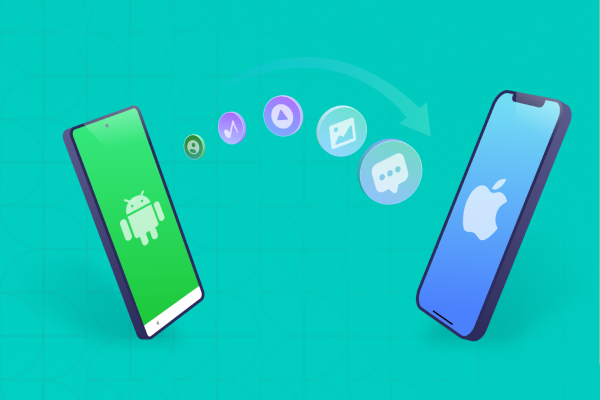
The easiest way to transfer data from Samsung to iPhone 18 Pro depends on whether the iPhone is still being set up. For a new iPhone, Apple's Move to iOS can transfer contacts, messages, photos, videos, files, calendars, call history, and WhatsApp data. If your iPhone 18 Pro is already set up, Move to iOS requires an erase, so you'll need a manual or no-reset transfer method instead.

Show More
Part 1. Before You Transfer: 4 Things to Check on Your iPhone 18 Pro Max
Before starting How to Transfer Data from Samsung to iPhone 18 Pro, spend a few minutes checking these four points.
Check Your Data Volume Against the Storage Tier
First, check how much space your Samsung uses. Go to Settings > Battery and Device Care > Storage, depending on your Galaxy model. Compare that number with the available storage on your iPhone. Apple also advises making sure the content you want to move, including data on a microSD card, fits on the new iPhone. If your Samsung contains 180GB of photos, videos, files, and messages, do not start How to transfer data from samsung to iphone 18 pro max until you confirm that the iPhone has enough free space.
USB-C to USB-C: Faster Than Last Year's Transfer
Apple supports connecting a compatible Android phone and iPhone directly with a USB-C cable for a faster transfer. This can be especially useful when moving a large amount of data. Keep both devices connected to power during the transfer when possible.
eSIM or Physical SIM? Sort This Out First
Do not leave your mobile number until the last step. Depending on your carrier and device, you may be able to transfer or activate your SIM or eSIM during the iPhone setup process. Apple notes that carrier activation may still require additional steps on the carrier's website. Your contacts and messages can transfer while your mobile service may require separate activation. Check your number before you erase or sell the Samsung.
Which Method Fits Your Situation?
Your iPhone's setup status decides which method makes sense.
- New iPhone: Use Move to iOS.
- Compatible Android 17 device: Check Apple's app-free transfer option.
- Already-set-up iPhone: Use a no-reset desktop transfer tool.
- Photos only: Google Photos works without a computer.
- WhatsApp only: Use Move to iOS during setup or a dedicated WhatsApp transfer tool.
This distinction matters because Apple's Move to iOS requires the iPhone to be erased if setup is already complete. If you do not want to erase the iPhone, you need to transfer the content manually or use a compatible third-party tool.
Part 2. How to Transfer Data from Samsung to iPhone 18 Pro via Move to iOS
Apple's Move to iOS remains the main official option for How to Transfer Data from Samsung to iPhone 18 Pro during initial setup. Apple says the method works with supported Android devices and can transfer contacts, messages, photos, videos, files, calendars, call history, WhatsApp messages and media, and other supported content.
Step-by-Step: Move to iOS Setup
Follow these steps for How to transfer data from samsung to iphone 18 pro max with Apple's official method.
- Turn on the iPhone 18 Pro and follow the setup instructions. When you reach the Transfer Your Apps & Data screen, select From Android.
- Open Google Play on your Android phone and install Apple's Move to iOS app. Open the app, agree to the terms, and allow the requested permissions.
- Tap Continue on the iPhone. The iPhone will display a six-digit or 10-digit code. Enter this code on the Android phone.
- The iPhone creates a temporary Wi-Fi network. Connect your Android phone to that network when prompted.
- Choose the information you want to move. Depending on the devices and software, this can include contacts, messages, photos, videos, calendars, call history, files, folders, and WhatsApp data.
- Leave both phones alone until the progress bar on the iPhone finishes. Apple warns that switching to another app or taking a call on Android can interrupt the process.
- After the transfer finishes, complete the remaining iPhone setup steps and check your transferred content.


What Transfers --- and What It Skips
Apple lists contacts, SMS messages, message history, camera photos and videos, photo albums, files and folders, calendars, call history, mail accounts, web bookmarks, Voice Memos, accessibility settings, display settings, and WhatsApp messages and media among the supported transfer categories. Some free apps can also be matched when they exist on both Google Play and the App Store. Music, books, and PDFs need manual transfer. Android apps also do not simply become iOS apps; you download available versions from the App Store after setup.
New in 2026: Skip the App on Android 17
Apple now supports an app-free transfer option for supported Android devices running a compatible version of Android 17 or later. During iPhone setup, choose From Android, then Transfer without App. Scan the QR code shown on the iPhone with the Android phone to connect the devices and select the supported data to transfer.
Fixing the 3 Most Common Errors
- Move to iOS stuck on preparing: Keep both phones near each other and connected to power. If the transfer fails, Apple recommends turning off cellular data on Android, disabling settings that may affect Wi-Fi, restarting both devices, and trying again.
- Move to iOS transfer stopped: Do not use another app or answer calls on the Samsung during migration. Apple says leaving the Move to iOS screen can prevent content from transferring.
- iPhone ran out of storage: Check the amount of Samsung data before restarting How to transfer data from samsung to iphone 18 pro max. Apple recommends making sure the Android content fits the iPhone before starting.
Part 3. How to Transfer Data After Setup, Without Factory Reset
If you already completed iPhone setup, Apple's normal Move to iOS process does not provide a direct no-reset migration. Apple says you must erase the iPhone and start again to use the setup-based transfer, or move content manually. That is why how to transfer data from samsung to iphone after setup requires a different approach.
Why Samsung Smart Switch Won't Work Here
Samsung Smart Switch is designed around moving content to supported Galaxy devices. It is not Apple's tool for moving Samsung data to an iPhone. For transfer data from samsung to iphone without factory reset, use an Apple-supported manual method or a compatible third-party transfer tool instead.
When Move to iOS Stops Working → Using iCareFone iTransGo
Tenorshare iCareFone iTransGo is designed to transfer data from Android to iPhone after setup without requiring a factory reset. It supports selective transfer of photos, contacts, messages, videos, calendars, and music, and can merge transferred data without overwriting existing data on the target iPhone. For How to Transfer Data from Samsung to iPhone 18 Pro, check the current device compatibility on the Tenorshare website before starting, as compatibility may change with new device and operating system releases.




Key Features of iCareFone iTransGo
- No-reset transfer: Move supported Samsung data to an already-set-up iPhone without erasing existing content, which is useful when you need to avoid issues such as an iPhone 18 Pro stuck on preparing to transfer.
- Selective transfer: Choose specific categories instead of moving everything.
- Data merge: Merge supported transferred data with existing content on the iPhone without overwriting existing target data, which can help when dealing with data missing after transfer to iPhone 18.
- Multiple data types: Transfer supported photos, videos, contacts, messages, calendars, and music.
- Computer-based process: Connect the phones to a supported Windows PC or Mac and manage the transfer from the software.
Step-by-Step Walkthrough
- Download and install iCareFone iTransGo on your Windows PC or Mac. Launch the program after installation to start the transfer process.
- Connect your Android phone and iPhone 18 Pro to the computer using compatible USB cables. Keep both phones connected while iTransGo detects them.
- Check that your Android phone appears as the Source and your iPhone 18 Pro appears as the Destination. If the devices appear in the wrong order, click the Swap icon to switch them.
- Choose the types of data you want to move, such as contacts, photos, videos, and messages. Select only the data you need to keep the transfer focused.
- Click Transfer to begin moving the selected data from Android to your iPhone 18 Pro. Keep both phones connected to the computer and avoid disconnecting them until the process finishes.


Part 4. How to Transfer WhatsApp from Samsung to iPhone 18 Pro
WhatsApp often needs special attention because chats and media contain important personal information.
1. WhatsApp via Move to iOS
For a new iPhone, Move to iOS can transfer WhatsApp messages and media as part of the supported migration. Use the Move to iOS process described above, select WhatsApp when the data categories appear, and keep both phones connected until the transfer finishes. Then install WhatsApp on the iPhone and sign in with the same phone number.
- Turn on your iPhone 18 Pro and follow the setup instructions. When you reach Transfer Your Apps & Data, tap From Android.
- Install and open the Move to iOS app on your Samsung phone. Follow the on-screen instructions and give the app the required permissions.
- Tap Continue on your iPhone 18 Pro. Your iPhone will display a six- or ten-digit code. Enter this code in the Move to iOS app on your Samsung.
- Your iPhone creates a temporary Wi-Fi network. When prompted, connect your Samsung to this network and wait for the Transfer Data screen to appear.
- Choose the content you want to move, such as contacts, messages, photos, videos, calendars, files, and WhatsApp data when supported. Tap Continue to start the transfer.
- Leave both phones near each other and connected to power if possible. Do not open other apps or answer calls on your Samsung while the transfer runs.
- Wait until the transfer finishes on the iPhone. Continue with the remaining setup steps, then install any apps that you need from the App Store and check that your important data transferred correctly.


2. WhatsApp via iCareFone iTransfer
If your iPhone is already set up, a third-party tool such as iCareFone Transfer can move chats without erasing it. WhatsApp doesn't officially support third-party migration tools, so back up your chats first.
- Install iCareFone Transfer on your Windows PC or Mac. Connect your Samsung and iPhone 18 Pro with USB cables and follow the on-screen prompts.
- Allow the required permissions, then create a WhatsApp backup on your Samsung when prompted.
- Choose the WhatsApp data you want to transfer. The program will prepare the selected data for your iPhone.
- Sign in or verify WhatsApp on your iPhone using the same phone number you used on your Samsung.
- Start the transfer and wait for it to finish. Open WhatsApp on your iPhone 18 Pro and check your chats and media before disconnecting the phones.


Part 5. How to Transfer Photos from Samsung to iPhone Without a Computer
If photos are your main concern, you do not need to move the entire phone. You can use a cloud library or a direct wireless method.

1. Wireless via Google Photos
Google Photos can back up Samsung photos to your Google Account and let you access them from the iPhone. Google says backed-up photos and videos are available on devices where you sign in to the same account.
- Open Google Photos on your Samsung Galaxy. Tap your profile picture, then go to Photos settings > Backup. Turn on Backup and wait until Google Photos finishes uploading your photos and videos.
- Install Google Photos on your iPhone 18 Pro and sign in with the same Google Account that you used on your Samsung phone.
- Open Google Photos on the iPhone and wait for your backed-up content to appear. Make sure your important photos and videos are available before deleting them from your Samsung phone.

2. Transfer Selected Photos and Files with a Computer
For selected photos, a compatible wireless transfer app can send files directly between phones. This can help when you want samsung to iphone data transfer without computer and do not want to upload your entire photo library to the cloud.
- Use a USB cable to connect your Galaxy phone to the computer. Unlock the phone and select File Transfer or Transferring files from the USB notification.
- Open the Samsung storage on your computer and find the documents, photos, videos, or other files you want to keep. Copy the supported files to a folder on your computer.
- Connect the iPhone 18 Pro using a USB cable. On Windows, open Apple Devices or iTunes if you still use it. On Mac, open Finder.
- Select your iPhone in Finder, Apple Devices, or iTunes. Use the available file-sharing or syncing options to move supported files to the appropriate iPhone app.
- Open the relevant app on your iPhone 18 Pro and confirm that your files are available before deleting the originals from your Samsung.


3. Sync Contacts from Samsung to iPhone
- Open Contacts on your Samsung phone and go to Manage contacts > Sync contacts. Select your Google Account, turn on Contacts, and tap Sync. Wait for the sync to finish.
- On your iPhone 18 Pro, open Settings > Apps > Contacts > Contacts Accounts > Add Account. Select Google and continue to the Google sign-in page.
- Enter the same Google Account details that you used on your Samsung phone. Complete any verification steps if Google asks for them.
- After adding the account, enable Contacts. You can also turn on Mail and Calendars if you want to sync those items with your iPhone. Open the Contacts app and wait for your Samsung contacts to appear.


4. What Never Transfers Automatically
Some Samsung-specific content may require separate handling. Samsung Health data, content stored in protected or device-specific areas, and Google Play purchases or app data that have no iOS equivalent may not transfer through Move to iOS. Check these items separately before erasing your Samsung phone.
Part 6. Which Transfer Method Fits You?
Here is a quick comparison for How to Transfer Data from Samsung to iPhone 18 Pro:
 Please swipe to view
Method
Computer required?
Reset required?
Data types supported
Privacy handling
Move to iOS
Yes, if iPhone is already set up
Contacts, messages, photos, videos, files, calendars, WhatsApp and
more
Direct device transfer
iCareFone iTransGo
Photos, videos, contacts, messages, calendars, music
Computer-based transfer
Google Photos
Photos and videos
Cloud-based
Peer-to-peer app
Usually no
Selected files/media
Depends on app
iTunes/Finder
Usually no for selected media
Selected manually managed files/media
Computer-based
If your iPhone is new, Move to iOS is the official starting point. If you need transfer data from samsung to iphone without factory reset, iCareFone iTransGo provides a no-reset option for supported data. If you only need photos, Google Photos can be simpler.
If You're In This Situation, Use This
- New iPhone: Move to iOS.
- Compatible Android 17: Check the app-free transfer option.
- iPhone already set up: iCareFone iTransGo for supported data.
- Photos only: Google Photos.
- WhatsApp after setup: iCareFone Transfer.
- A few files: Use a peer-to-peer or manual method.
What to Verify Before Erasing Your Samsung Phone
Before you delete anything from the Samsung, check:
- Contacts are visible on the iPhone.
- Important SMS and call history are present.
- Photos and videos open correctly.
- WhatsApp chats and media are available.
- Calendars and important files are present.
- Your mobile number works on the iPhone.
- Samsung Health data has been handled separately.
- Knox-encrypted or protected files have been exported if needed.
- Google Play purchases and app data have been checked.
- Important passwords and account access are available.
Do not erase the Samsung until you complete these checks. This final review can prevent data loss after How to transfer data from samsung to iphone 18 pro max.
Part 7. FAQs
1. Can you transfer everything from a Samsung to an iPhone?
Not literally everything. Move to iOS supports many common categories, including contacts, messages, photos, videos, files, calendars, call history, and WhatsApp messages and media. However, some Android apps, app data, music, books, PDFs, and Samsung-specific content need separate handling. If you need How to Transfer Data from Samsung to iPhone 18 Pro, check each important category instead of assuming every Samsung item will appear on the iPhone.
2. Is switching from Samsung to iPhone 18 Pro difficult?
The process is manageable if you choose the method based on your iPhone's setup status. A new iPhone can use Move to iOS, while how to transfer data from samsung to iphone after setup requires a no-reset method or manual transfers. For samsung to iphone data transfer without computer, Google Photos and other wireless methods can handle selected content, while full migration may require a computer-based tool.
3. How long does it take to transfer data from Samsung to iPhone?
There is no fixed time. The duration depends on the amount of data, connection type, device speed, and number of files. Apple says the transfer can take a while depending on how much content you move. A small contact and photo transfer may finish quickly, while a large video library can take much longer. For transfer data from samsung to iphone without factory reset, Tenorshare advertises transfers within 30 minutes for supported cases, but actual time can vary.
Conclusion
The best way to transfer data from Samsung to iPhone 18 Pro depends on your iPhone's setup status. If the iPhone is new, use Apple's Move to iOS or the supported app-free transfer option. If the iPhone is already set up, Move to iOS requires an erase, so use manual transfer methods or a no-reset tool such as iCareFone iTransGo for supported data. For WhatsApp after setup, use a dedicated WhatsApp transfer method.
Before erasing or selling your Samsung, verify your contacts, messages, photos, WhatsApp chats, files, and mobile service on the iPhone.

Hey! 👋
Welcome to Apple tech Hub!
Need help
iPhone setup guide?
New Guide
iOS 27 Tips & Tricks 🎉

Speak Your Mind
Registrer/ Login
Speak Your Mind
Leave a Comment
Create your review for Tenorshare articles
Related articles
All topics
Share this post



By Jenefey Aaron
2026-10-08 / iPhone 18