

 iOS Tips & Latest Updates
 Bug Fixes, Unlock Guides
 Giveaways & Freebies
then write your review
How to Transfer Data to iPhone 18 Pro After Setup (No Reset)
Transfer Data to iPhone 18 Pro After Setup is possible even if you have already finished setting up the phone. You can keep your current apps, settings, and files while adding photos, contacts, calendars, notes, documents, and other supported data from an old iPhone or Android phone. However, Apple's Quick Start and standard backup restore work differently because they require the iPhone to be at the initial setup stage.
This guide explains two main paths: transfer data to iPhone 18 Pro after setup without reset using sync, AirDrop, or a transfer tool, or erase the phone and use Apple's full migration and restore options.

Show More
Part 1. Can You Transfer Data to iPhone 18 Pro After Setup?
Can you transfer data to iPhone 18 Pro after setup? Yes. There are two approaches. Selective transfer adds specific data, such as photos, contacts, calendars, notes, and files, to your configured iPhone with no reset. Full migration restores a whole backup or old phone during setup and replaces what's currently on the iPhone 18 Pro.
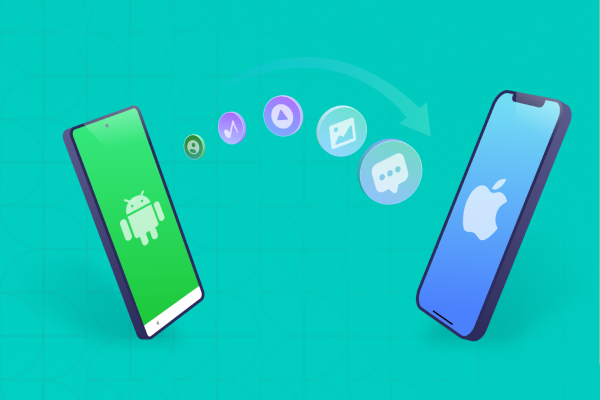
Third-party desktop software can cover what iCloud or AirDrop can't, such as moving Android messages, videos, and music to an iPhone that's already set up.
What Happens If You Already Set Up Your iPhone?
"After setup" doesn't mean transfer is blocked. It means Apple's setup-based tools are no longer available. Quick Start, iCloud backup restore, and computer backup restore all run on the setup screens, so Apple says an already-configured iPhone must be erased first.
The same applies to Android: Apple's Move to iOS only works during setup, and for a phone that's already set up, Apple's guidance is to erase it and start over or transfer your content manually.
Which Route Should You Choose?
 Please swipe to view
Situation
Keep Current iPhone Data?
Reset Required?
Suggested Method
Need contacts, notes, calendars
iCloud sync
Need selected photos or files
AirDrop
Moving Android photos
Google Photos
Moving Android contacts
Google Account
Need several supported data types
iCareFone iTransGo
Want complete iPhone migration
Quick Start
Want to restore a complete iCloud backup
iCloud restore
Want to restore a computer backup
Finder/Apple Devices
So, if your goal is to move data from old iPhone to iPhone 18 Pro after setup while keeping what you already added, use a no-reset method. If you want the new iPhone to closely match the old one, a reset and full restore may make more sense.
Part 2. Transfer Data to iPhone 18 Pro After Setup Without Reset
If you want to transfer data to iPhone 18 Pro after setup without reset, you still have several simple options. You can sync cloud data, use AirDrop for selected files, or move content from Android without wiping your iPhone. The best method depends on the type and amount of data.

Sync Photos, Contacts, Notes, and Calendars
iCloud provides one of the simplest ways to transfer data to iPhone 18 Pro after setup when both devices use the same Apple Account.
- On your old iPhone, open Settings > \Your Name\ > iCloud > See All and turn on Photos, Contacts, Calendars, Notes, Messages, and Passwords. Stay on Wi-Fi until syncing finishes.
- On your iPhone 18 Pro, confirm you're signed in with the same Apple Account, then turn on the same categories. If iOS asks whether to merge existing data, choose Merge to keep what's already on the phone.
- Keep the iPhone 18 Pro on Wi-Fi and power. Large photo libraries can take a while to appear.


Then sign in to the same Apple Account on the iPhone 18 Pro and enable those categories under iCloud. Apple supports iCloud syncing for information such as contacts, calendars, notes, and photos. This approach works well when you only need specific categories. It does not create a complete copy of your old iPhone.
For users who want to transfer photos and contacts to iPhone 18 Pro after setup, iCloud can handle both without requiring an erase. However, check your existing contacts first. Multiple accounts can create duplicate entries.
Use AirDrop for Selected Photos, Videos, Contacts, and Files
AirDrop works well when you only need a limited number of files. It lets you transfer data to iPhone 18 Pro after setup without reset and does not require you to start the setup process again.
- On your old iPhone, select the photo, video, contact, document, or other file you want to send. Tap Share > AirDrop. On the iPhone 18 Pro, make sure AirDrop receiving is set to Contacts Only or Everyone for 10 Minutes.
- When the iPhone 18 Pro appears in the AirDrop list, tap its name. If both iPhones are signed in to the same Apple Account, AirDrop accepts the transfer automatically. Otherwise, tap Accept on the iPhone 18 Pro.


This method makes sense for selected content rather than a complete phone migration. Large photo libraries can take much longer when you send them manually.
You can also use AirDrop when you need to transfer photos and contacts to iPhone 18 Pro after setup but do not want to sync your entire iCloud account.
Move Data from Android After iPhone Setup
Android users have different options. Google Photos can give you access to backed-up photos on the iPhone, while a Google Account can sync contacts and calendars. Apple's Move to iOS app can't be used after setup, so these cloud options are the simplest no-reset route.
Before you start: On your Android phone, make sure contacts and calendar events are saved to your Google Account, not only to the phone or SIM. Otherwise nothing will appear on the iPhone.
- On your iPhone 18 Pro, go to Settings > Apps > Contacts > Contacts Accounts > Add Account. For calendar events, use Settings > Apps > Calendar > Calendar Accounts.
- Choose Google and sign in with the same Google Account your Android phone backs up to.
- Turn on Contacts and Calendars, then wait for syncing to finish.


For photos, install Google Photos on the iPhone 18 Pro and sign in with the same Google Account used on Android.
Keep in mind that Google Photos access does not automatically mean every photo moves into Apple Photos. The images can remain inside Google Photos unless you save copies to the iPhone.
This distinction matters when you want to transfer data to iPhone 18 Pro after setup without reset. Cloud access and actual device storage are not always the same thing.
Part 3. Move More Data Without Erasing Your iPhone 18 Pro
If you need to move several data types from Android to an already-set-up iPhone 18 Pro, Tenorshare iCareFone iTransGo is a computer-based option that doesn't require a reset. It connects both phones to a Windows PC or Mac by USB, lets you pick data types, and merges them with existing data instead of overwriting it. Scope matters: it supports Android to iPhone (and iPhone to Android on Windows), but not iPhone-to-iPhone transfers, and it doesn't handle WhatsApp.




iCareFone iTransGo: Key Features
- No reset: It supports Android-to-iPhone transfers after the initial iPhone setup, so you can transfer data from Android to iPhone 18 Pro without erasing anything.
- Selective transfer: You can choose supported categories instead of restoring everything.
- Data merge: Tenorshare says the tool can merge supported data without overwriting existing device data. If anything looks incomplete afterward, check the causes of data missing after transfer to iPhone 18 Pro before repeating the transfer.
- Multiple data types: It supports photos, videos, contacts, messages, calendars, and music.
- USB transfer: It uses a computer connection, so the transfer does not depend on a Wi-Fi-only phone-to-phone process.
- Compatibility: It supports iPhone 18 Pro and earlier models, as well as iOS 27, Android 17, and earlier versions.
- Free trial: The trial transfers up to 10 photos; the full version is paid and comes with a 30-day money-back guarantee.
How to Transfer Data with iCareFone iTransGo
- Download and install iCareFone iTransGo on your Windows PC or Mac. Launch the program after installation to start the transfer process.
- Connect your Android phone and iPhone 18 Pro to the computer by USB. On the Android phone, enable USB debugging when prompted. On the iPhone, tap Trust This Computer. Keep both phones connected while iTransGo detects them.
- Check that your Android phone appears as the Source and your iPhone 18 Pro appears as the Destination. If the devices appear in the wrong order, click the Swap icon to switch them.click the swap icon to switch
- Choose the types of data you want to move, such as photos, videos, contacts, messages, calendars, and music. Select only the data you need to keep the transfer focused.
- Click Transfer to begin moving the selected data from Android to your iPhone 18 Pro. Keep both phones connected to the computer and avoid disconnecting them until the process finishes.


Part 4. What If You Want to Transfer Everything? Reset and Restore Options
Sometimes selective transfer is not enough. If you want your iPhone 18 Pro to receive a full backup, Apple recommends using its setup-based migration and restore methods.
Use Quick Start for a Full iPhone-to-iPhone Migration
Quick Start works when the new iPhone is still at the setup stage. Apple says you can place the old and new devices near each other, follow the onscreen instructions, and choose direct transfer or iCloud-based transfer. If you already completed setup, erase the iPhone first.
Before you erase, back up anything on the iPhone 18 Pro you want to keep, because Erase All Content and Settings deletes it. Update your old iPhone to its latest iOS first, and keep both phones on Wi-Fi with Bluetooth on, since Quick Start occupies both devices until it finishes.
Go to: Settings > General > Transfer or Reset iPhone > Erase All Content and Settings

After the iPhone returns to the Hello screen, you can start Quick Start again. This method makes sense if you want to move data from old iPhone to iPhone 18 Pro after setup and do not mind removing the current data from the new device first.
Restore an iCloud Backup to iPhone 18 Pro After Setup
If your old iPhone has a suitable iCloud backup, you can restore iCloud backup to iPhone 18 Pro after setup, but Apple requires you to erase the already configured iPhone first.
After the erase:
- Start the iPhone 18 Pro.
- Follow setup until the Transfer Your Apps & Data screen, then tap From iCloud Backup. (Older Apple pages call this Apps & Data > Restore from iCloud Backup, so follow the wording on your screen.)
- Sign in with your Apple Account.
- Select the correct backup by checking its date and size.
- Stay connected to Wi-Fi and power.

Apple notes that apps, photos, music, and other content can continue restoring after setup, depending on the backup size and network speed.
Not enough iCloud storage? On your old iPhone, go to Settings > General > Transfer or Reset iPhone > Get Started to create a temporary backup. Apple gives you 21 days to restore it, so don't erase the old iPhone until the restore is done.
Restore from a Mac or Windows Backup
You can also restore an iPhone backup created through Finder, Apple Devices, or iTunes. Before you begin, create a current backup of anything already stored on the iPhone 18 Pro that you want to keep. Apple specifically recommends an encrypted computer backup when you want Health and Activity data to transfer. Apple states that these categories do not transfer from an unencrypted computer backup. A full restore replaces the current phone state, so this route differs from methods that transfer data to iPhone after initial setup without erasing the device.
Part 5. What Data Can You Transfer After iPhone 18 Pro Setup?
The exact result depends on the source device, account, file type, and transfer method.
Please swipe to view
Data Type
After Setup Without Reset
Full Restore
Best Route
Photos
iCloud Photos / Google Photos / AirDrop
Videos
AirDrop / cloud / iTransGo (Android)
Contacts
iCloud / Google / iTransGo (Android)
Calendars
iCloud / Google / iTransGo (Android)
Notes
iCloud
Messages
Yes (iPhone: Messages in iCloud; Android: iTransGo)
iCloud / iTransGo
Passwords
Yes (iCloud Passwords)
iCloud
Music
Limited (Apple Music library sync; Android music files via iTransGo)
Apple Music / iTransGo
Documents
iCloud Drive / AirDrop
WhatsApp
iPhone → iPhone: Yes; Android → iPhone: Limited
Supported
WhatsApp Chat Transfer / iCareFone Transfer
App data
Limited (re-download apps and sign in)
More complete
Full restore
What Does Not Transfer Cleanly After Setup?
Some data needs special handling. Apps: App data doesn't move after setup, so re-download apps from the App Store (Account > Purchased) and sign in again. WhatsApp: Between iPhones, install WhatsApp on the new phone, verify the same phone number, and restore your iCloud chat backup, or use WhatsApp's Chat Transfer. Both work without erasing the iPhone.
From Android, WhatsApp's official route runs through Move to iOS during setup, so an already-configured iPhone needs a dedicated tool such as iCareFone Transfer. Cellular plan: If you didn't move your number during setup, transfer your eSIM at Settings > Cellular > Add eSIM. Keep your old phone until you've checked photos, contacts, messages, and authenticator apps on the new one.
FAQs
1. Can I transfer data to my new iPhone after the initial setup?
Yes. You can transfer data to iPhone after initial setup through iCloud syncing, Google services, AirDrop, cloud storage, computer file transfers, and compatible third-party tools. You only need to erase the iPhone when you want to use Apple's setup-based full restore or migration process.
2. Can I restore an iCloud backup after setup?
Yes, but Apple requires you to erase an already configured iPhone before you can use the normal iCloud backup restore process. Back up anything on the new iPhone that you want to keep before you erase it.
3. Will transferring data after setup erase what's already on my iPhone 18 Pro?
Not necessarily. Syncing, AirDrop, cloud storage, and selective transfer methods can add supported content without erasing the phone. A full backup restore works differently because it restores the device from a backup and requires the appropriate erase-and-restore process.If you want to keep everything already on the phone, choose a method that adds only the categories you need.
4. How long does it take to transfer data to an iPhone 18 Pro after setup?
Transfer time depends on data size and method. A few contacts sync in seconds, while a large photo library over iCloud can take hours on a slow connection. For USB transfers, Tenorshare says iTransGo typically finishes in about 30 minutes. Keep both devices connected until the software reports completion.
Conclusion
You can transfer data to an iPhone 18 Pro after setup without a reset. Use iCloud sync for contacts, calendars, notes, messages, passwords, and photos, AirDrop for a few files, and a Google Account for Android contacts and calendars.
- If you're moving from Android and want photos, videos, contacts, messages, calendars, and music in one go without erasing, Tenorshare iCareFone iTransGo is the no-reset desktop option.
- If you want the iPhone 18 Pro to mirror your old iPhone exactly, back up what's on it, erase it, and use Quick Start or a full backup restore.
Whichever route you choose, keep your old phone until you've verified everything on the new one.

Hey! 👋
Welcome to Apple tech Hub!
Need help
iPhone setup guide?
New Guide
iOS 27 Tips & Tricks 🎉

Speak Your Mind
Registrer/ Login
Speak Your Mind
Leave a Comment
Create your review for Tenorshare articles
Related articles
All topics
Share this post



By Jenefey Aaron
2026-10-08 / iPhone 18