
Move to iOS Stuck on iPhone Duo? Fix 1 Minute, 99% and Transfer Errors
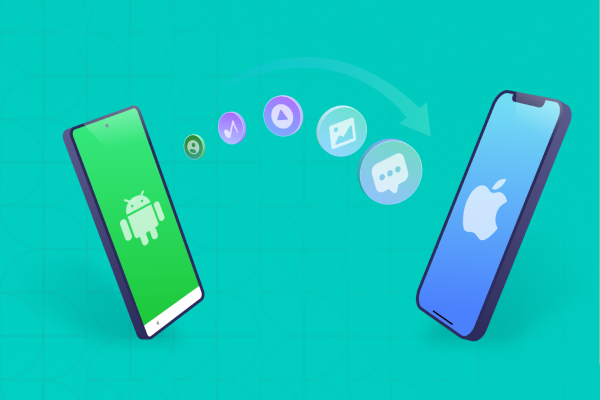
If Move to iOS is stuck on iPhone Duo at "Estimating time," "1 minute," or 99%, don't restart yet, because the transfer may still be running. Apple gives no fixed transfer time, and the Android screen can say "done" before the iPhone's loading bar finishes. If it is truly frozen, these 8 fixes cover the usual causes: Wi-Fi, mobile data, storage, and the app itself. You'll also see how to transfer without erasing an iPhone that's already set up.


Part 1. Quick Answer: What to Do When Move to iOS Is Stuck
Move to iOS transfers supported data from an Android phone to a new iPhone during setup. Apple advises users to keep both devices powered, leave Move to iOS open, and avoid using the Android phone until the transfer finishes. Before trying another transfer, identify the screen that causes the problem.
Identify the Exact Transfer Stage First
 Please swipe to view
- Move to iOS stuck on estimating time to transfer: Check the temporary Wi-Fi connection, disable mobile data on Android, and prevent automatic network switching.
- Move to iOS stuck on 1 minute iPhone Duo: Keep both devices awake and connected to power. Large photo libraries and videos can take longer than expected.
- Move to iOS stuck at 99 percent iPhone Duo: Wait until the iPhone finishes its own progress indicator. The Android phone may report completion before the iPhone finishes processing.
- Move to iOS transfer failed iPhone Duo: Check storage, restart both phones, update the app, and retry with fewer selected files if necessary.

Apple does not publish a fixed transfer time, and a message such as "1 minute remaining" or a high percentage does not by itself mean the transfer failed. Wait while the iPhone's loading bar is still moving, and do not rely on the Android screen showing "done".
Quick Decision Guide
Please swipe to view
Part 2. How to Fix Move to iOS Stuck on iPhone Duo: Five Checks
Try these five checks before repeating the transfer. They address common causes without immediately erasing your new phone.
1. Keep Android Connected to the iPhone's Temporary Wi-Fi
During setup, your iPhone creates a temporary Wi-Fi network for the transfer. Your Android phone must stay connected to that network.
Follow these steps:
- Open Move to iOS on your Android phone.
- Follow the instructions on your iPhone Duo.
- Enter the displayed code when prompted.
- Connect Android to the temporary network created by the iPhone.
- Keep Move to iOS open until the transfer finishes.
Do not switch to another Wi-Fi network during the process. Avoid using other apps or answering calls because they can interrupt the transfer.

2. Turn Off Mobile Data, VPN, and Wi-Fi Auto-Switching
Some Android phones switch networks when they detect a weak internet connection. This can disconnect the temporary network used by Move to iOS.
To reduce this risk:
- Turn off mobile data on Android.
- Disconnect any active VPN.
- Disable Wi-Fi auto-switching or similar smart network features.
- Turn off network optimization settings that change connections automatically.
- Retry the transfer.

Menu names vary by Android brand. Search Settings for terms such as Smart Network Switch, Adaptive Connectivity, or Wi-Fi Assistant. Your Android phone may display a warning that the temporary Wi-Fi network has no internet access. That warning does not always indicate a problem because the transfer network serves a different purpose.
3. Check iPhone Storage, Battery, and Selected Data Size
Your iPhone needs enough available storage for the data you want to transfer. Check the size of your Android photos, videos, messages, and other selected content before retrying.
Check storage before you start, not mid-transfer.During setup the iPhone's Settings app is not available, so compare in advance. On Android, add up the content you plan to move, including your microSD card. It must fit in the iPhone Duo's free space.
If only some content transferred, or the iPhone appears full, Apple's fix is to erase the iPhone and run the transfer again with less content. Back up anything you added first.

4. Update Move to iOS and Restart Both Devices
An outdated app or a temporary system issue may cause the transfer to stop.
Follow these steps:
- Open Google Play Store on Android.
- Find Move to iOS and install any available update.
- Restart both phones.
- Connect both devices to power.
- Begin the transfer again from the iPhone's setup screen.

Keep the app in the foreground and avoid opening other apps during the process. If the transfer fails repeatedly, select fewer data categories during the next attempt. This can help you identify whether a large file collection or a particular data category causes the delay.
5. Use a USB-C Cable if Both Devices Support Wired Transfer
A wired connection can help avoid some wireless connection problems. Apple supports direct USB-C connections for compatible Android phones and iPhones. Use a compatible data cable, not a charge-only cable. Follow the setup instructions on both devices, and approve any USB permission request on Android.
Keep both phones connected until the transfer finishes. A cable does not guarantee success, so check device compatibility, available storage, and software requirements first.

Part 3. Move to iOS Not Working on an Already Set-Up iPhone Duo?
Move to iOS normally works during the initial iPhone setup. If you have already reached the home screen, Apple instructs users to erase the iPhone and begin setup again to use the standard transfer process. If you want to keep your current data, consider the following alternatives.
Option 1. Erase the iPhone Duo and Retry Move to iOS
Choose this option if you want to use Apple's standard migration process and have not added important data to the new iPhone. Before proceeding, back up any new data you want to keep.
Then:
- Open Settings on your iPhone.
- Tap General.
- Select Transfer or Reset iPhone.
- Tap Erase All Content and Settings.
- Complete the confirmation steps.
- Set up the iPhone again and select From Android when prompted.
- Follow the Move to iOS instructions.


Erasing removes the current content and settings from the iPhone. Do not proceed until you have backed up anything important. This process does not erase your old Android phone.
Option 2. Transfer Data Without a Factory Reset
If you have already set up your iPhone and do not want to erase it, consider a third-party transfer tool. Tenorshare iCareFone iTransGo offers Android-to-iPhone data transfer after setup. Its official product page lists selective transfer for supported categories, including photos, videos, contacts, messages, calendars, and music.




Key Features
- Transfer After Setup: Move supported data from your Android phone to an iPhone Duo you have already set up, without resetting it. Your number moves separately, so if you are unable to transfer phone number to iPhone Duo, treat it as an eSIM or carrier issue rather than a failed data transfer.
- Select Data Categories: Choose only the supported data categories you need instead of moving everything at once, which keeps a large library from overloading the transfer.
- Computer-Based Connection: Connect both phones to a compatible Windows PC or Mac using suitable data cables. This wired setup does not rely on the Wi-Fi and Bluetooth pairing that can leave an iPhone Duo stuck on preparing to transfer during Quick Start.
- Existing Data: The software describes a data-merging feature that helps preserve existing iPhone data during supported transfers. Check the current version's instructions and confirm how it handles your selected data before starting.
How to Use iCareFone iTransGo
- Download and install iCareFone iTransGo on your computer. Open the program and click Start under the Android to iOS section.
- Connect your Android phone and iPhone Duo to the computer using USB cables. Enable USB debugging on Android and tap Trust on your iPhone when prompted. Follow the on-screen instructions, then click Start.
- Select the types of data you want to transfer from Android to iPhone Duo. Choose one or more available categories based on your needs.
- Wait for the software to scan the selected data. Review your selection and click Transfer Data to start the transfer.
- Keep both phones connected until the software confirms that the transfer is complete. Then, check your iPhone Duo to make sure the transferred data appears correctly.


Option 3. Transfer Specific Data Manually After Setup
Manual transfer works well if you only need certain files or account information.
- Contacts and calendars: Add your Google account to the iPhone and enable the relevant sync options.
- Photos and videos: Use Google Photos, a supported cloud service, or a computer to copy files.
- Documents: Upload files to Google Drive or another supported cloud service, then open them on your iPhone.
- Music: Use a supported music service or transfer compatible files through a computer.
- Apps: Download available iOS versions from the App Store and sign in to your accounts.
WhatsApp chats may require a separate supported migration process. Manual file copying alone does not move all app data or message history.
Which Method Should You Choose?
Please swipe to view
Part 4. Move to iOS Stuck at 99 Percent or 1 Minute: Verify Your Data
A transfer screen can remain near completion while the iPhone processes files. However, you should verify the result rather than assume every item arrived.
Check Photos, Videos, Albums, and File Counts
Open Photos on both phones and compare recent pictures, older pictures, videos, and important albums. Check several files from different dates instead of checking only the newest photos. Also, inspect the Files app for documents you expected to transfer. Some content may remain in cloud storage or an Android-specific folder instead of appearing in Apple Photos.
Check Contacts, Messages, Calendars, and WhatsApp
Open Contacts and compare the number of entries. Review important message conversations and calendar events. Call history and other data may depend on the transfer method, Android version, or software support.
WhatsApp chats also need separate verification because not every transfer tool supports them. Keep your Android phone unchanged until you confirm that your important information is available on the iPhone.
Move to iOS vs. iCareFone iTransGo
Please swipe to view
Apple provides Move to iOS as its standard migration method. iCareFone iTransGo is a third-party alternative that may suit users who have already completed setup. Review the official feature list and current compatibility before choosing either method.
Part 5. FAQs: Move to iOS Stuck on iPhone Duo
1. Why Is the Move to iOS Process Taking Forever?
Large photo libraries, videos, unstable connections, and insufficient storage can increase transfer time. Keep both phones connected to power, leave Move to iOS open, and disable mobile data on Android. If the progress remains unchanged for an unusually long time, check the connection and retry after restarting both devices.
2. Why Is Move to iOS Stuck at 99 Percent?
The iPhone may still be processing data even when the Android phone reports completion. Wait for the iPhone's progress indicator to finish. If the process repeatedly fails, check available storage and retry with fewer selected items.
3. Can I Use Move to iOS After Setting Up iPhone Duo?
Apple's standard Move to iOS process requires the initial setup stage. To use it after setup, you normally need to erase the iPhone and start again. If you want to preserve existing data, transfer supported content manually or consider a compatible third-party tool.
4. Does a USB-C Cable Fix Move to iOS Transfer Failures?
A compatible USB-C data cable can help reduce wireless connection problems. However, it cannot fix every issue. Both devices must support the wired transfer method, and the cable must support data transfer. Storage limits, software issues, and incompatible devices can still cause errors.
Conclusion
When Move to iOS is stuck on iPhone Duo, first check whether the iPhone's loading bar is still moving. If it is, wait. If not, keep Move to iOS on screen, turn off mobile data, forget saved Wi-Fi networks, plug in both phones, and make sure your data fits.
Still failing? If you can erase the iPhone, retry from setup. If you want to keep existing data, use iCareFone iTransGo (check compatibility first) or a manual transfer. Verify your photos, contacts, and messages before you touch your Android.

 iOS Tips & Latest Updates
 Bug Fixes, Unlock Guides
 Giveaways & Freebies

Speak Your Mind
then write your review
Speak Your Mind
Leave a Comment
Create your review for Tenorshare articles
Related articles
All topics
Share this post



By Jenefey Aaron
2026-10-20 / iPhone 18