

 iOS Tips & Latest Updates
 Bug Fixes, Unlock Guides
 Giveaways & Freebies


ReiBoot - No.1 Free iOS System Repair Software
Fix 150+ iOS Issues without Data Loss & Safely iOS 27 Upgrade/Downgrade
ReiBoot: No.1 iOS Repair Tool
Fix 150+ iOS Issues, No Data Loss
If Touch ID isn't working on your iPhone Duo, start by cleaning the side button, checking your fingerprint settings, and restarting your phone. This guide covers seven practical fixes, explains why your iPhone may ask for a passcode instead of using Touch ID, and shows what to do if the problem persists.

The right fix depends on what happens when you try to use Touch ID. Check your symptoms before changing settings or resetting your device.
 Please swipe to view

Touch ID uses the fingerprint sensor built into the side button. It is different from the touchscreen, so a fingerprint recognition problem doesn't necessarily mean your display is faulty.
If you're also having trouble with screen responsiveness, see our guide on iPhone Duo touch screen not working for more troubleshooting tips.
Dirt, moisture, or poor contact can prevent the sensor from reading your fingerprint correctly.
- Clean the sensor: Wipe the side button with a clean, lint-free cloth.
- Dry your finger: Make sure your finger is clean and dry before trying again.
- Check your grip and button clearance: Place the pad of your finger naturally and flatly over the entire side button. If your phone case or a thick screen protector edge overlaps the side button and blocks full skin contact, remove the case temporarily and test again.
Avoid using liquids or abrasive materials directly on the sensor.
If cleaning the sensor doesn't help, check whether Touch ID is set up correctly.
If your phone reports that Touch ID is unavailable or repeatedly fails during enrollment, don't keep repeating the same steps. Continue with the checks below or contact Apple Support.

If Touch ID still works but feels slower than expected, check your finger placement before changing other settings.
- Rest your finger on the sensor and allow it to read your fingerprint.
- Avoid repeatedly lifting and replacing your finger before the scan finishes.
- Restart your phone if the delay started suddenly.
You may find online advice about changing button or accessibility settings to make unlocking feel faster. However, settings available on other iPhone models may not exist on iPhone Duo. Verify the available options on your own device before following instructions written for another model.
A simple soft reboot is sometimes not enough if the system's biometric security daemon is frozen. A Force Restart clears temporary system glitches:
Being asked for your passcode after a force restart is normal iOS security behavior and doesn't automatically mean Touch ID is broken.
If Touch ID continues to behave unexpectedly, check whether a compatible iOS update is available.
If the problem began after an update, note when it started and whether other system issues appeared at the same time. This information may help with further diagnosis, although it doesn't prove that the update caused the problem.
Does Touch ID work to unlock your phone, but a particular app still ask for Face ID? If so, the app itself may be the issue.
-Update the app: Install the latest available version from the App Store.
-Check app biometric settings: Some older or unoptimized apps may fail to correctly interface with side-button biometric flows.
-Try alternative sign-in: Use a passcode or account password if the app offers it, and contact the developer if the issue persists.
An app may have an authentication flow that doesn't correctly account for the biometric methods available on a device. That is different from the fingerprint sensor itself failing. If Touch ID works elsewhere on your phone, focus on the affected app before attempting a system reset or using a repair tool.
If you've tried the steps above and Touch ID still won't recognize or enroll your fingerprint, further diagnosis may be necessary.
Pay particular attention to persistent errors that say Touch ID is unavailable or prevent you from completing fingerprint enrollment. These problems may require an inspection to determine whether the sensor or another component is faulty.
See Apple's official guide: If Touch ID isn't working on your iPhone or iPad.
If Touch ID problems occur alongside broader iOS system symptoms---such as persistent system freezes, uncompleted updates, options graying out, or boot loops---you may be dealing with a corrupted iOS system firmware or a broken security enclave driver.
Tenorshare ReiBoot is a professional iOS system repair tool designed to fix software-related system faults without damaging your data.




Its key highlights include:
- Standard Repair: Attempts to repair supported iOS system issues while preserving device data.
- Deep Repair: Provides a deeper repair option for supported problems, but erases device data.
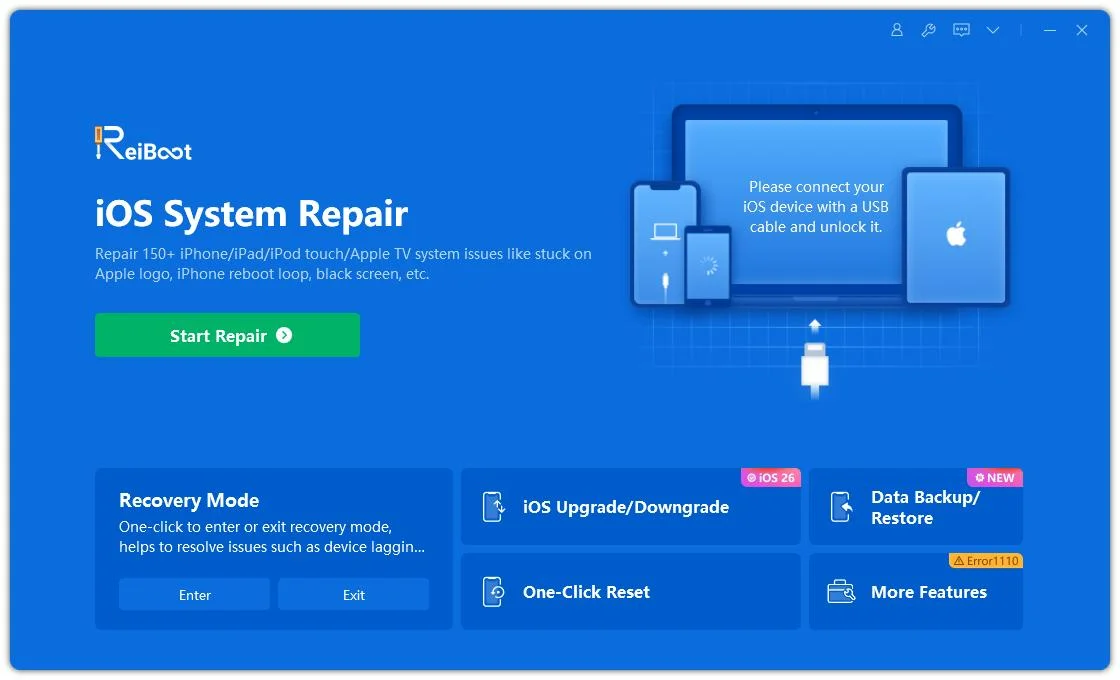
- Recovery Mode: Helps users enter or exit Recovery Mode.
- iOS Upgrade and Downgrade: Provides firmware upgrade or downgrade functions for supported devices and versions.
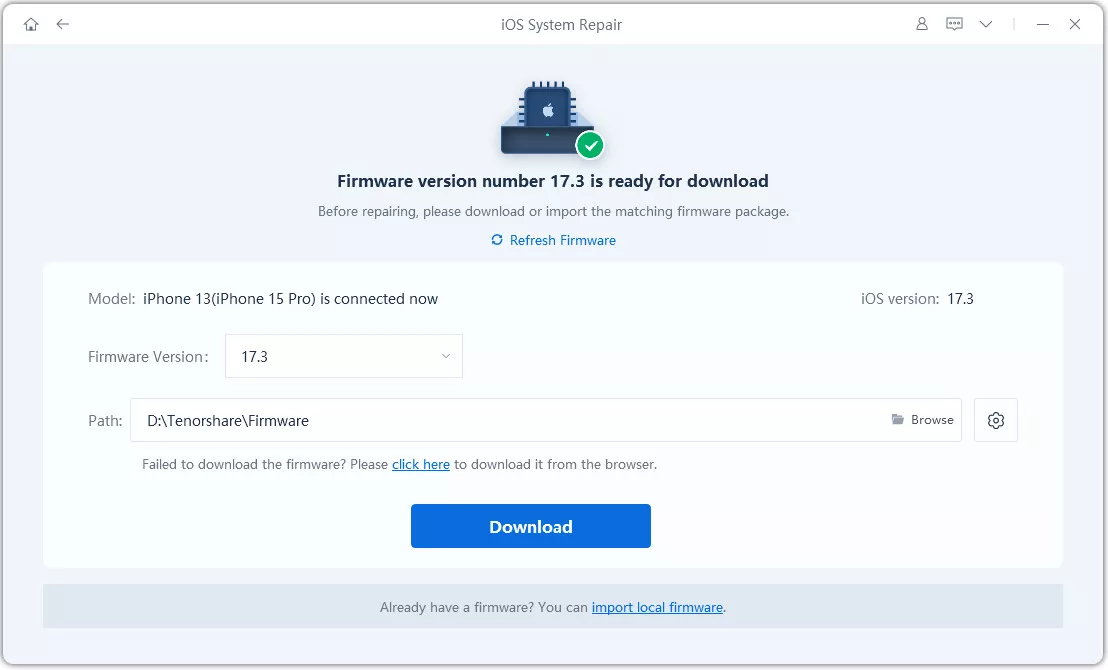
- Firmware-Based Repair: Downloads a firmware package to carry out the selected repair process.
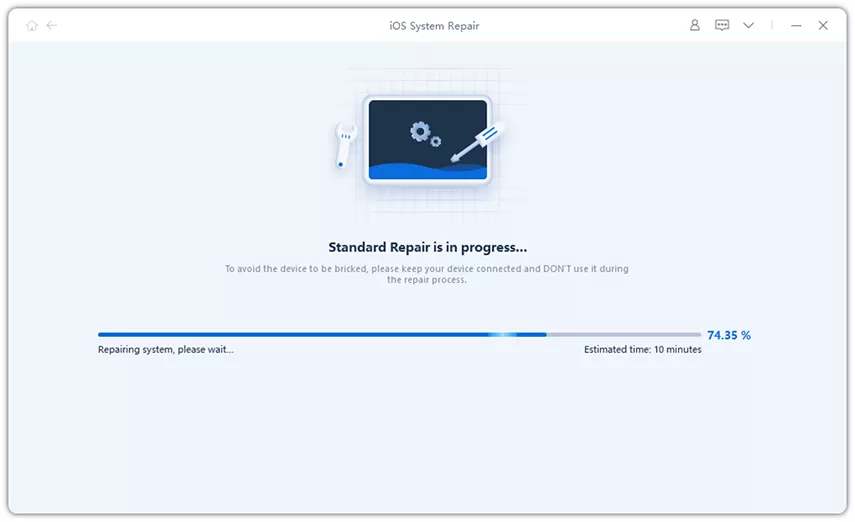
If your Touch ID failure is accompanied by system-level instability, glitches, or missing settings menus, running ReiBoot's Standard Repair can safely re-flash the system drivers to resolve the software conflict. However, note that ReiBoot cannot fix a physically broken or water-damaged fingerprint sensor.
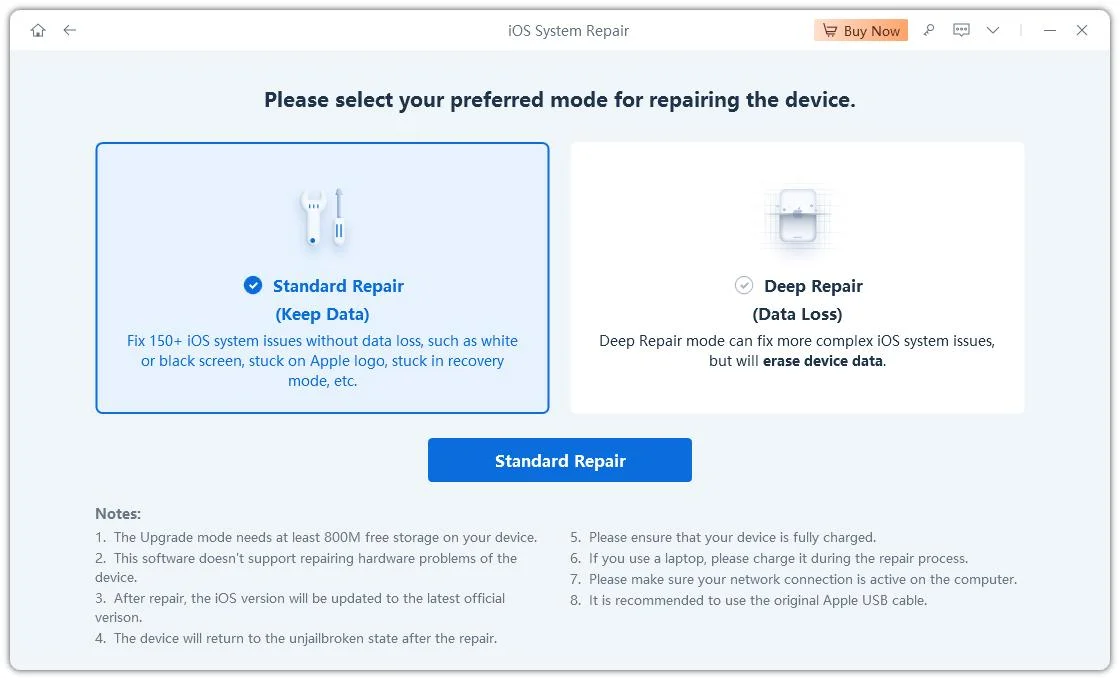
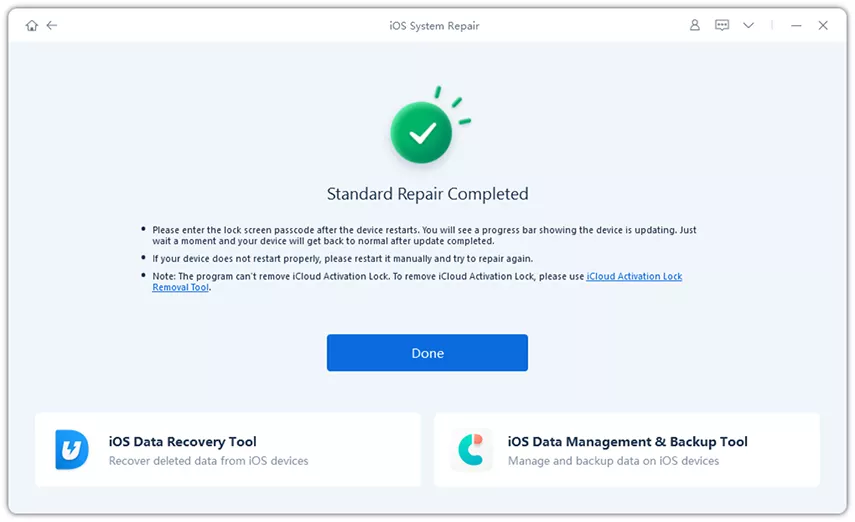
Deep Repair may erase device data, so back up your iPhone before proceeding. ReiBoot cannot fix physical damage to the Touch ID sensor.
Clean and dry your finger and the side-button sensor, then check your fingerprint settings. If Touch ID still fails, perform a force restart and check for a compatible iOS update.
Check your Touch ID settings and follow the enrollment instructions. If setup repeatedly fails or your phone reports that Touch ID is unavailable, it may point to a system driver error or hardware fault.
Check your finger placement to ensure full skin contact with the side button and make sure the sensor is clean. A quick force restart often clears temporary micro-lags.
The app may have outdated code that doesn't correctly handle side-button biometric authentication flows. Update the app or use an alternative login method.
iOS periodically requires passcode authentication for security reasons (such as after a restart or 48 hours of inactivity). A passcode prompt alone doesn't mean Touch ID is broken.
If Touch ID isn't working on your iPhone Duo, start with the sensor, fingerprint settings, and basic software checks. If the problem persists, especially when fingerprint enrollment is unavailable, seek further diagnosis rather than assuming a repair tool will fix it.
The key is to identify whether you're dealing with a fingerprint recognition problem, an app compatibility issue, or a broader iOS system fault before choosing the next step. For help with other device issues, check our guide to common iPhone Duo problems and their fixes.


then write your review
Leave a Comment
Create your review for Tenorshare articles

Share this post


ReiBoot - No.1 Free iOS System Repair Software
Fix 150+ iOS Issues without Data Loss & Safely iOS 27 Upgrade/Downgrade
ReiBoot: No.1 iOS Repair Tool
Fix 150+ iOS Issues, No Data Loss
By Jenefey Aaron
2026-10-26 / iPhone 18