

 iOS Tips & Latest Updates
 Bug Fixes, Unlock Guides
 Giveaways & Freebies
then write your review


ReiBoot - No.1 Free iOS System Repair Software
Fix 150+ iOS Issues without Data Loss & Safely iOS 27 Upgrade/Downgrade
ReiBoot: No.1 iOS Repair Tool
Fix 150+ iOS Issues, No Data Loss
Waiting on "Update Requested" can be frustrating. This issue may be caused by Apple's servers, network problems, or insufficient storage. If your iPhone Duo is stuck on Update Requested, here are eight fixes, from checking Wi-Fi and storage to updating through a computer or using Tenorshare ReiBoot, an iOS system repair tool.

The "Update Requested" message means your iPhone hasn't started downloading the update yet. A short wait is normal, but a long delay may indicate a problem.
Not always. Your iPhone may need more time to connect to Apple's servers. If the message doesn't change, your iPhone Duo software update is not working properly.
Your iPhone displays different messages during the update process. Understanding them helps you identify where the problem occurs and troubleshoot an iPhone Duo update stuck issue.
Several factors can cause your iPhone Duo stuck on update requested issue and prevent the iOS update from moving forward.
Try these fixes one by one to find what's stopping your iPhone update. They can also help if your iPhone Duo is stuck on preparing update . Start by checking your Wi-Fi and storage.
A strong Wi-Fi signal doesn't always mean your connection is working properly. Network restrictions or VPN settings may leave your iPhone Duo unable to update iOS .
Your iPhone needs enough free storage to download and prepare an iOS update. A low battery can also interrupt the process.
If your iPhone Duo update won't install , continue with the next fix.
Your iPhone may need more time to process an update, especially after a new iOS release. If nothing changes, try these steps to fix an iPhone duo iOS update failed issue.
Avoid repeatedly restarting your device while an update is actively installing. If your iPhone Duo software update is stuck before downloading begins, restarting after a reasonable wait may help clear a temporary glitch.
An update may no longer appear if Apple stops offering that version or your device isn't compatible with it. Beta software settings can also affect which updates are available.

If your iPhone Duo unable to update iOS , confirming the available version can help rule out compatibility issues.
Try this method when an iOS update appears incomplete or repeatedly fails to download or install. Removing the downloaded update file lets your iPhone Duo download a fresh copy.

Updating through a computer is a useful alternative when an over-the-air update gets stuck or your iPhone Duo update won't install through Settings. The exact steps depend on the computer and software you use.
On a Mac

On Windows

Work or school settings may restrict updates and cause your iPhone Duo software update stuck issue. Go to Settings > General > VPN & Device Management to check for a profile. Ask your IT administrator before removing it.

Choose the next step based on the problem:
Consider an iOS repair tool if standard fixes and computer updates fail or your iPhone shows other system problems. However, repair tools cannot fix Apple server outages, network restrictions, or unavailable iOS versions. Rule out these issues first.
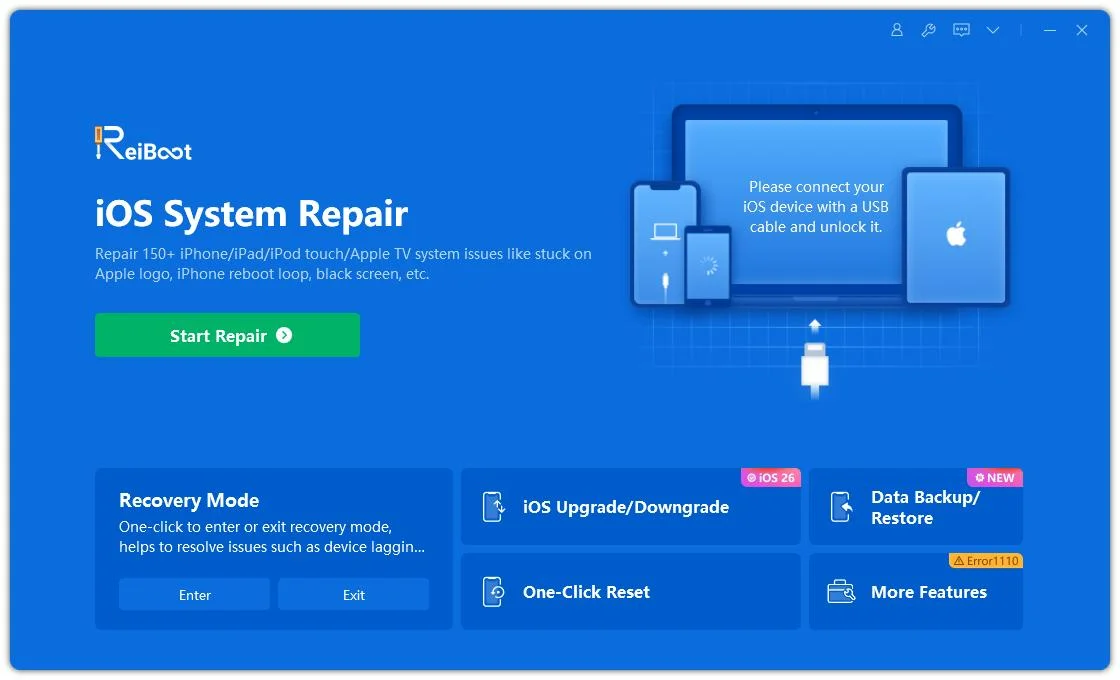
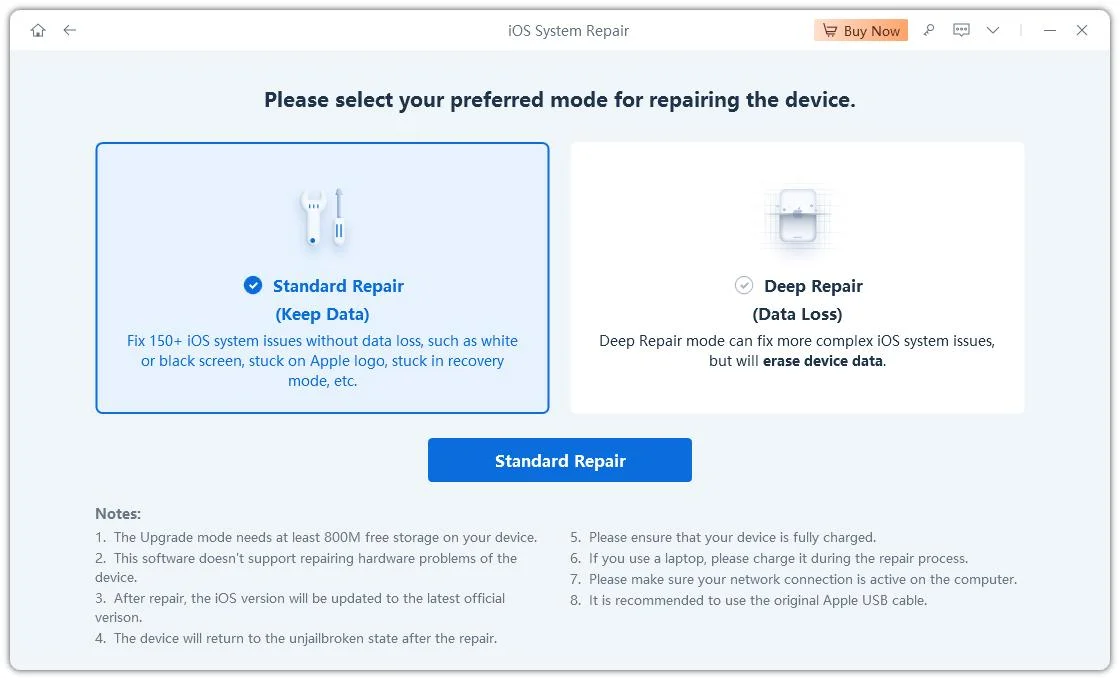
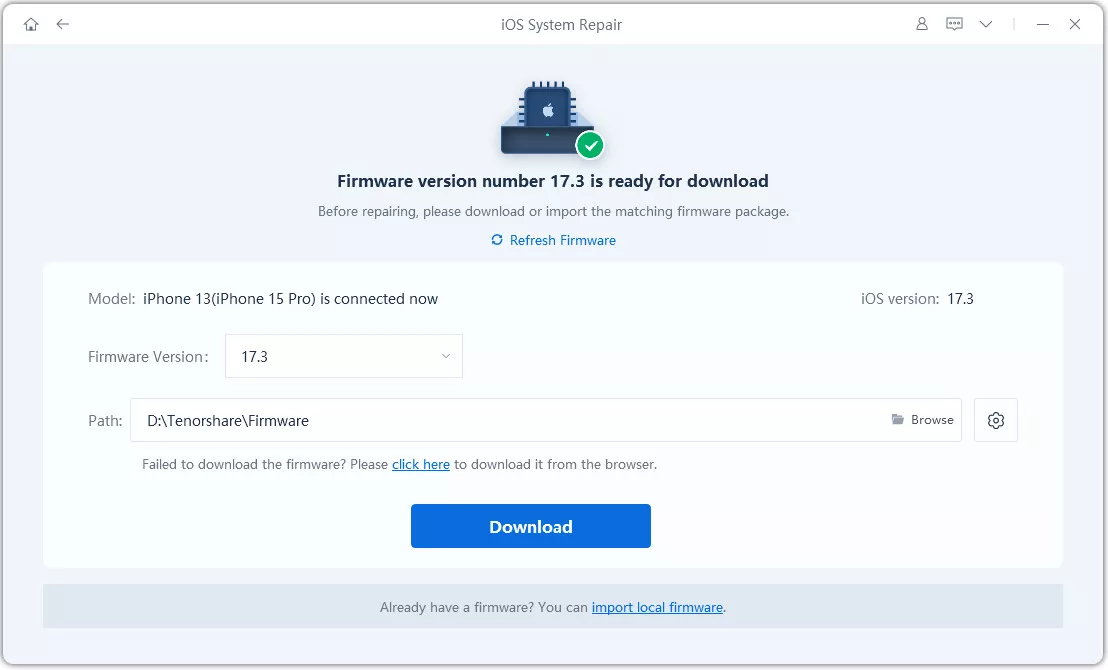
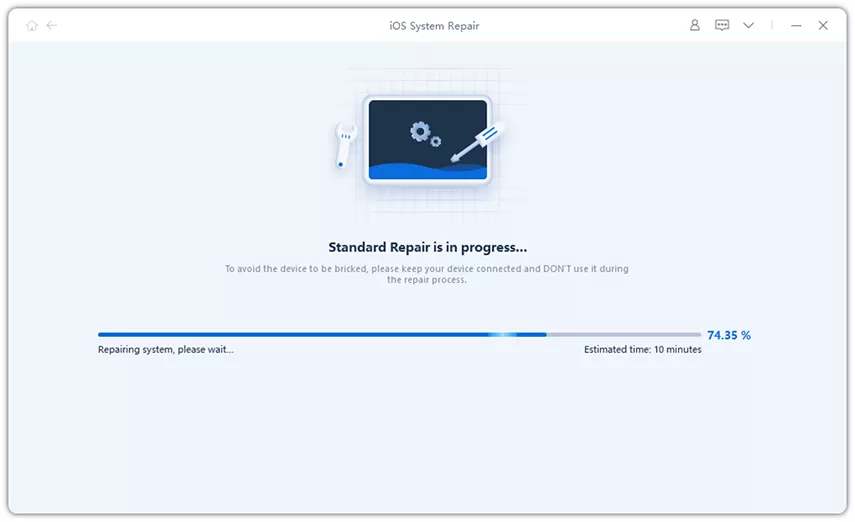
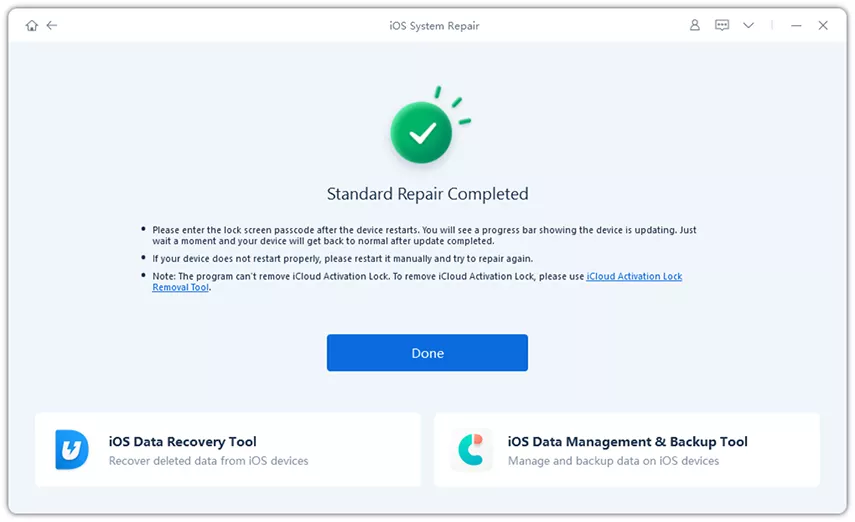
Tenorshare ReiBoot offers tools for troubleshooting supported iOS system problems. Its Standard Repair feature is the most relevant option when your iPhone Duo remains stuck after basic troubleshooting. It can repair 150+ iOS issues without intentionally erasing data.




ReiBoot also supports Recovery Mode and certain iOS upgrade or downgrade options, depending on your device and available firmware. These features may help with other issues.
Key features of Tenorshare ReiBoot:
There is no fixed time. If the status remains unchanged for an unusually long time, check your internet connection and try the troubleshooting steps above.
Yes, you can wait overnight, but it may not fix persistent network problems, failed downloads, or unavailable updates.
A normal restart generally won't delete personal data. However, avoid restarting or interrupting your iPhone while an iOS installation is in progress.
Available options depend on your device and network. If a wireless update fails, you can try updating your iPhone through a Mac or Windows computer.
Enough storage doesn't rule out other issues. Weak Wi-Fi, Apple server delays, incomplete downloads, or temporary software glitches may also prevent the update.
Tenorshare ReiBoot may help repair supported iOS system issues, but it cannot fix every update problem. Check your network, update availability, and downloaded files before trying a repair tool.
The iPhone Duo stuck on update requested issue can result from network problems, low storage, or software glitches. Check your connection, free up storage, restart your iPhone, or try updating through a computer. Tenorshare ReiBoot offers a Standard Repair feature that may help fix supported iOS system issues without intentionally erasing data. Consider it when standard troubleshooting fails.


then write your review
Leave a Comment
Create your review for Tenorshare articles

Share this post


ReiBoot - No.1 Free iOS System Repair Software
Fix 150+ iOS Issues without Data Loss & Safely iOS 27 Upgrade/Downgrade
ReiBoot: No.1 iOS Repair Tool
Fix 150+ iOS Issues, No Data Loss
By Jenefey Aaron
2026-10-20 / iPhone 18