
 iOS Tips & Latest Updates
 Bug Fixes, Unlock Guides
 Giveaways & Freebies

iCareFone Transfer - No.1 Solution for WhatsApp Transfer
Transfer, Backup & Restore WhatsApp without Reset in Clicks
Transfe WhatsApp without Reset
Easily Transfer WhatsApp without Reset
Buying a new Samsung S26 is a great upgrade, but transferring your data may seem difficult at first. If you're searching for how to transfer data from old Samsung to new Samsung S26, the process is actually simple. You can move your contacts, photos, apps, and important files in just a few steps.
No technical knowledge is needed. In this guide, we will explain easy and reliable ways to transfer everything safely, so you can set up your new phone without any hassle or data loss.
When you get your new Samsung S26, the first question is usually where to start. The good news is you don't need to set up everything from the beginning. Samsung allows you to move your data easily from your old device during setup or even later. If you are thinking about how to transfer data from old Samsung to new Samsung S26, it starts with knowing what you can actually move. This helps you plan better and avoid missing anything important.
Here's what you can transfer to your new Samsung S26:
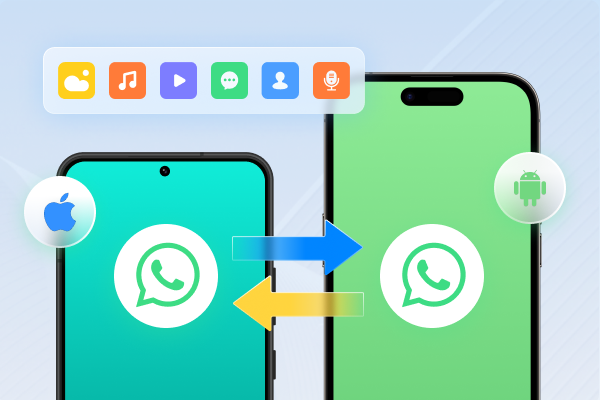
iCarefone WhatsApp Transfer tool is the best way to transfer WhatsApp from iPhone to Android and vice versa without resetting your phone. It can also move WhatsApp between Android devices. Besides, you can choose the data to transfer. Here's more about this tool:




Follow the instructions beneath to employ iCareFone WhatsApp Transfer to move WhatsApp from iPhone to Android:
Download and install Tenorshare iCareFone Transfer on your pc. Connect both your phones to the computer via USB cables. Select the source and target device. Click the Transfer button.

Wait for the data to be backed up.
Select what you want to transfer, and click the Continue button.
Wait for the success, and then all WhatsApp data has been transferred from iPhone to Android.
Samsung Smart Switch is the official tool provided by Samsung. It is easy to use and suitable for beginners. You can transfer data wirelessly or with a cable.
The process is simple: install the app on both devices, connect them, and start the transfer. However, it may take more time if you have large data, and sometimes it requires both devices to stay close during wireless transfer.

USB cable transfer is one of the fastest and most stable methods. It directly connects your old Samsung to the new Samsung S26 using a cable.
This method reduces transfer errors and works well for large files. The steps are straightforward, but you need a compatible USB cable and adapter. It is a good choice if you want a quick and reliable transfer without internet dependency.

Google Account sync is a basic and automatic method. It helps you transfer contacts, calendar, app data, and some settings.
The process is very simple just log in with the same Google account on your new Samsung S26, and your data will sync automatically. However, it does not transfer all files like photos or WhatsApp completely, so you may need another method for full data transfer.

This method uses an SD card or USB drive to move data manually. You first copy files from your old Samsung to external storage and then transfer them to your new Samsung S26.
It gives you full control over your files, but the process is more manual and time-consuming. It is useful if you prefer offline transfer or want to keep a backup of your data.

Create a full backup first
Always back up your old Samsung before starting. This protects your data if anything goes wrong.
Keep both devices fully charged
Low battery can interrupt the transfer and cause data loss or errors.
Use a stable connection
For wireless transfer, stay close to both devices. For large data, prefer a USB cable for better stability.
Check storage space on the new Samsung S26
Make sure your new phone has enough space to receive all data.
Update both devices
Install the latest Android updates to avoid compatibility issues during transfer.
Turn off unnecessary apps
Close background apps to speed up the process and avoid interruptions.
Log in to the same accounts
Use the same Google and Samsung accounts to sync data smoothly.
Transfer important data first
Start with contacts, messages, and WhatsApp to ensure essential data is safe early.
Do not disconnect during transfer
Interrupting the process can corrupt files or stop the transfer midway.
Verify data after transfer
Check contacts, photos, and apps on your new Samsung S26 to confirm everything moved correctly.
Samsung Smart Switch cannot transfer some app data, especially data from apps that don't allow backup (like certain banking or secure apps). It may also miss WhatsApp chats, DRM-protected files, and some app settings.
No, Samsung Smart Switch does not fully transfer WhatsApp chats. You need to use WhatsApp backup (Google Drive) or a dedicated tool to move chats properly to your new Samsung S26.
It depends on the data size and method used. Small data may take 10--20 minutes, while large transfers (photos, videos, apps) can take 30 minutes to a few hours. USB cable transfer is usually faster than wireless.
Upgrading your phone should be simple, not stressful. Once you understand how to transfer data from old Samsung to new Samsung S26, the process becomes easy and manageable. Wireless and USB methods both work; choose based on speed, safety, and completeness. For a fast and hassle-free experience, iCarefone WhatsApp Transfer is a reliable choice. It lets you move your data without reset or data loss, making the whole process smooth and easy.


iCareFone Transfer - WhatsApp Transfer, Backup & Restore






then write your review
Leave a Comment
Create your review for Tenorshare articles
No.1 Solution for WhatsApp Transfer, Backup & Restore
Fast & Secure TransferShare this post


iCareFone Transfer - No.1 Solution for WhatsApp Transfer
Transfer, Backup & Restore WhatsApp without Reset in Clicks
Transfe WhatsApp without Reset
Easily Transfer WhatsApp without Reset
By Jenefey Aaron
2026-09-28 / Transfer