

 iOS Tips & Latest Updates
 Bug Fixes, Unlock Guides
 Giveaways & Freebies

UltData - Best iPhone Data Recovery Tool
Recover Deleted & Lost Data from iOS Devices Easily, No Backup Needed!
UltData: Best iPhone Recovery Tool
Recover Lost iPhone Data without Backup
Opening GarageBand and finding an empty project list is a stomach-dropping moment, especially after hours of recording and editing. If you spot GarageBand files missing from the app, take a breath before assuming the worst. Many projects turn out to be stored elsewhere, tied to another Apple Account, or waiting in a recent backup. This guide walks you through each place to look.
A missing project is not always deleted. Accidental deletion, a changed storage location, iCloud syncing trouble, or an app glitch can each hide a song. Many people dealing with GarageBand files missing on iPhone often find them quickly. We start with GarageBand and the Files app, then move to backups and recovery options.

Some of the common reasons why GarageBand projects or audio files may disappear are:

A project that disappears from the GarageBand app is one problem. An exported audio file that goes missing from the Files app is another. These situations may require different recovery methods.
Before trying anything advanced, confirm whether your projects are still in the app, stored somewhere else, or only temporarily out of reach.
Best for: Users whose projects no longer appear in GarageBand's project browser.

A project missing from Recents may still be in another folder. Check existing projects before creating a replacement, and avoid overwriting a file while troubleshooting.
Best for: Users who cannot find their projects or exported audio files in GarageBand.

An exported recording may be in a different folder from its editable project. Finding the audio file gives you a copy to listen to, though it may not contain the project's separate tracks.
Best for: Users who may have accidentally deleted GarageBand-related files through the Files app.

Files deleted from iCloud Drive or On My iPhone generally remain in Recently Deleted for 30 days. Files permanently removed from that folder cannot be recovered through it. A project deleted within GarageBand may not always appear there, so check other locations too.
Best for: Users whose projects disappeared after changing devices, adjusting iCloud settings, or experiencing syncing issues.

A disabled setting or a syncing delay can make files temporarily unavailable. Check another Apple device, such as an iPad or Mac, for an existing copy, since projects do not always sync everywhere. Also remember that iCloud Drive holds files you saved there, while an iCloud device backup is a separate snapshot.
Image requirement: Add a screenshot showing the relevant iCloud Drive settings or file location.
Best for: Users who cannot find the missing files in GarageBand, the Files app, or iCloud Drive.
Check your Mac or PC for a manually saved project. An external drive may also hold a copy. For an iPhone backup, review the available backup date before deciding whether to restore it.


An iPhone backup may contain eligible local app data, but it may not contain every project. Files already stored in iCloud Drive are handled separately. A full-device restore can replace current data and settings, so preserve anything important first.
Image requirement: Add a screenshot showing a relevant backup or storage location.
If a GarageBand file disappeared and the initial checks did not locate it, determine whether it was deleted, whether another copy still exists, or whether the file itself may be recoverable. The next steps depend on where the project was stored.
Best for: Users whose missing files were stored in iCloud Drive and may still be eligible for recovery.
Finding a file that exists in iCloud Drive differs from recovering one that was deleted. A file in iCloud Drive means it still exists in its folder, while the deleted one requires checking Apple's recovery area:

You can also check iCloud Data Recovery and choose Restore Files for eligible files from other apps. Apple generally offers recovery for files deleted within the past 30 days. However, permanently removed files cannot be restored through these options.
Image requirement: Add a screenshot showing the relevant iCloud Drive file recovery interface, if available.
Best for: Users who have an existing backup or another copy of the missing project.
A previous backup or an AirDrop or iCloud Drive export can bring back an earlier version of a song. For example, if you are confident that a previously made backup in iCloud or Finder/iTunes contains the lost songs, you can restore the backup. However, this approach restores the entire backup, not just an individual file.
For restoring an iCloud backup, you first have to factory reset the iPhone: Settings > General > Transfer or Reset iPhone > Erase All Content and Settings. Then use the "From iCloud Backup" recovery option during iPhone setup.

For restoring an iTunes backup, connect your iPhone to the computer and click "Restore Backup". iTunes will replace the existing iPhone data with backed-up data.

The backup copy may lack your latest edits or some original media. Also, create a separate backup of current data before you restore anything.
Best for: Users who cannot find the project in GarageBand, the Files app, iCloud Drive, Recently Deleted, or existing backups.
A deleted file, a corrupted project, and a project hidden by a sync issue require different approaches. If you suspect permanent deletion, limit unnecessary changes to the device or storage location while investigating.
Recovery depends on the file type, where it was stored, and whether usable data remains. Some deleted files cannot be recovered.
If the issue of GarageBand files missing on iPhone isn't resolved through Apple's built-in options or existing backups, you should now consider a recovery tool that supports the specific file type and recovery scenario.
Tenorshare UltData is a powerful iPhone Data Recovery tool that follows a scan, preview, and recovery approach. It scans the iPhone storage to pull out retrievable files from 35+ data types and then lets you preview the results, followed by recovery of selective files. How? Follow these steps:


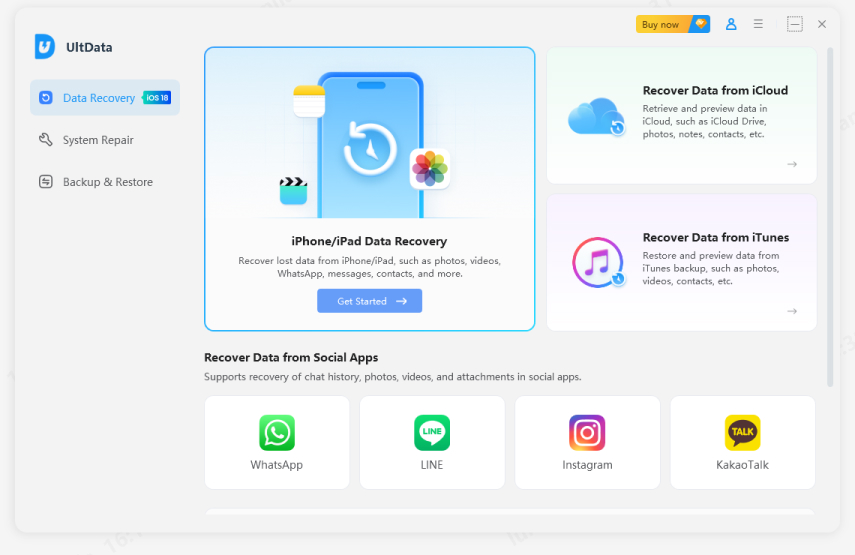
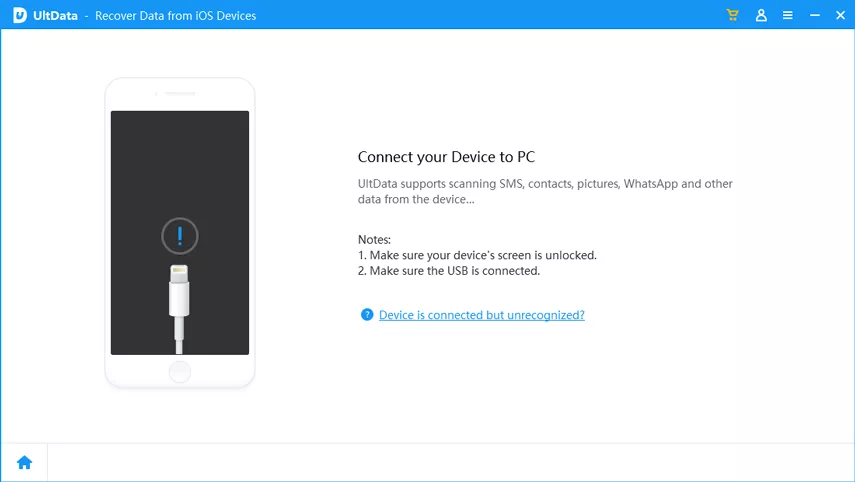
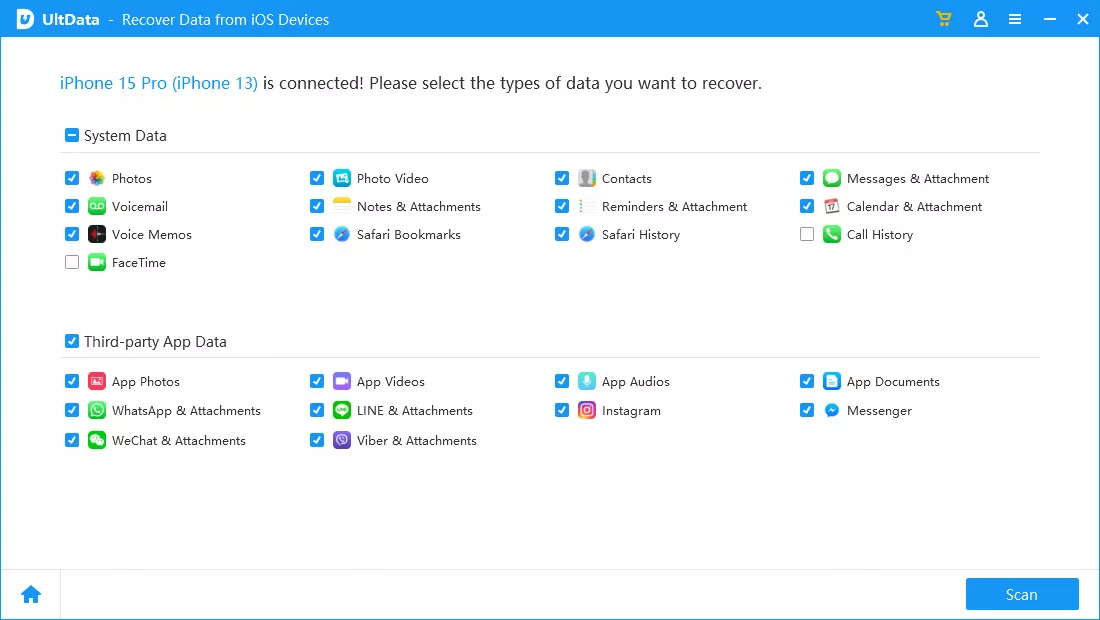
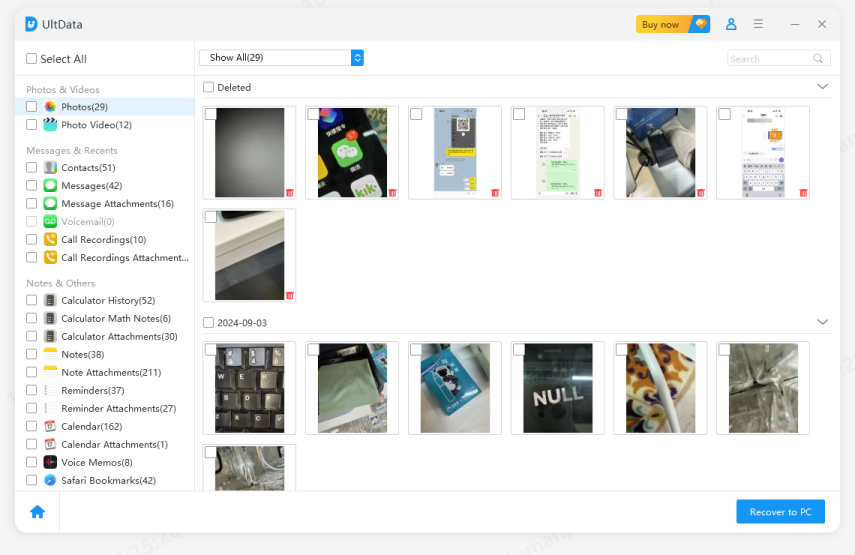
Feel impressed? Download UltData for free and try it to recover lost audio files from your GarageBand projects.
The following are some recommended tips to prevent GarageBand files from disappearing again:
Cloud synchronization and device backups serve different purposes. The former helps keep files available across devices, while the latter gives you another copy to check if a file is deleted.
Your GarageBand project may have disappeared because it was accidentally deleted, moved to another folder, or saved under a different Apple Account. An incomplete iCloud Drive sync can also prevent it from appearing. Similarly, an app crash or iOS update may temporarily affect the project browser. The file may still exist on another device or in a backup.
Yes, possibly. Check Recently Deleted, iCloud Drive, and any other device where you worked on the project. If it was permanently deleted, recovery depends on whether usable data remains and whether a tool supports that particular file type.
Check GarageBand's My Songs browser, then look under On My iPhone and iCloud Drive in Files. An exported audio recording may be stored separately from the editable GarageBand project.
When you find GarageBand files missing. Start with GarageBand's project browser, then search the Files app, review Recently Deleted, check iCloud Drive, and look for copies or backups on other devices. Most cases of GarageBand files missing on iPhone end at one of those steps. If none works, Tenorshare UltData recovery tool is an option to try retrieving the audio files.


UltData - Best iPhone Data Recovery Software




then write your review
Leave a Comment
Create your review for Tenorshare articles
Share this post


UltData - Best iPhone Data Recovery Tool
Recover Deleted & Lost Data from iOS Devices Easily, No Backup Needed!
UltData: Best iPhone Recovery Tool
Recover Lost iPhone Data without Backup
By Jenefey Aaron
2026-11-16 / iOS Data Recovery