

 iOS Tips & Latest Updates
 Bug Fixes, Unlock Guides
 Giveaways & Freebies


UltData - No.1 Android Data Recovery Tool
Recover Lost Data Without Root or Backup for Any Android Devices!
UltData: No.1 Android Recovery Tool
Restore Lost Android Data Without Root
A broken Android phone can make your contacts seem lost, especially when the screen is damaged or the device no longer responds. Fortunately, you may still be able to recover them if they were synced with a Google Account, saved to your phone manufacturer's cloud, or stored on a SIM card. Even without a backup, recovery software may help retrieve contacts from a damaged but still accessible phone. In this guide, we'll show you how to recover contacts from a broken Android phone using four practical methods.

Yes, in many cases. First answer three questions. Does the phone still power on, can you unlock or interact with it, and were contacts synced before the damage? These point to the right route.
 Please swipe to view
Google-account contacts are the most straightforward case. Contacts that are saved to a Google Account can sync across Android devices. Meanwhile, Google's Restore contacts feature can copy backed-up device or SIM contacts to another Android phone.
If internal storage holds the only copy, things get harder. Android devices use encrypted storage. Devices launched with Android 10 or later are required to use file-based encryption. A dead handset therefore isn't like an ordinary USB drive whose files can be opened from a computer.
If you're asking, "How can I recover contacts from a broken Android phone?", check online accounts before paying for repairs or recovery. Android users recovering contacts from a broken phone may discover that the required numbers were already synchronized elsewhere.
Suitable for:
Android users who enabled Google Contacts sync or had contacts included in a Google backup.
On another phone, tablet, or computer, sign in with the same Google Account and open Google Contacts. If the names and numbers appear there, you don't need to extract them from the damaged handset. What you have to do is add that Google Account to the replacement Android phone and enable contact synchronization. Google confirms that contacts that saved to a Google Account sync with Google Contacts and the user's Android devices.
For Google's device-level contact restore, use a working Android phone:
This can retrieve contacts from a broken Android phone even when you can't use its display, as long as the required contacts reached the Google Account or backup before the damage occurred.

Some manufacturers operate their own contact-sync or device-backup services. Menus differ, but the basic rule doesn't. Sign in with the same manufacturer account used on the damaged device.
For a Samsung Galaxy phone, open Settings, tap the Samsung account name, choose Samsung Cloud > Restore data, select the relevant backup, and, finally, follow the prompts. Note that Samsung's current support documentation confirms this restoration route.
Users who previously synchronized contacts with Xiaomi Cloud can sign in and check their cloud contacts. Its cloud-based contact restoration isn't available if cloud synchronization hadn't been enabled. Similarly, Huawei allows cloud contacts to sync back to a device. Its cloud service provides restoration for recently deleted contacts within its supported retention period.
Here, you should avoid one practical mistake. Don't create a fresh Samsung, Xiaomi, or Huawei account and expect the old address book to appear. You must sign in with the original account, confirm that contact data exists there, and proceed with restoration.

This method works only when the contacts were stored on the SIM.
Remember that when you save the imported data or records to a Google Account, this also provides them with the advantage of contact synchronization afterward.
There are trade-offs. Samsung says that SIM cards aren't designed as general storage and can hold only a limited quantity of contacts. A phone or cloud account can also accommodate richer contact information beyond what a SIM-based address book may contain.
If Manage SIM displays no contacts, don't keep repeating the import. That's a good clue that your address book was stored in Google, another cloud service, or the phone's internal memory.

Suppose Google is empty, the manufacturer's cloud has no copy, and the SIM contains nothing useful. Now the remaining contact database may exist only in the handset's internal storage.
That's the moment when Android data-recovery software becomes relevant. But phone condition is critical enormously. A cracked display with a functioning device is one situation. A handset that won't power on, communicate over USB, or authorize a computer is quite another.





Not only that, but the software also allows users to preview recoverable items and select particular records instead of exporting everything. That comes handy when your goal is just the address book. Tenorshare says that scanning and previewing can be performed before purchase. However, actually recovering the discovered files requires the paid version.
For someone who is researching how to get contacts from a broken Android phone when no cloud copy exists, selective local scanning seems to be UltData's main appeal.
Yet, there is a boundary. Tenorshare's own recovery guide requires the device to connect over USB, enable USB debugging, approve the computer, and grant its Connector app the relevant permissions. Android itself also requires user authorization for a new USB-debugging computer.
Along these lines, UltData is most appropriate when the phone is damaged but is still operational enough to communicate. A handset that is completely dead and that can't reach the operating system might demand hardware repair or professional data-recovery work first.
Prepare a Windows PC or Mac as well as use the phone's original USB cable. Alternatively, you should use another reliable cable that supports data, not charging alone.


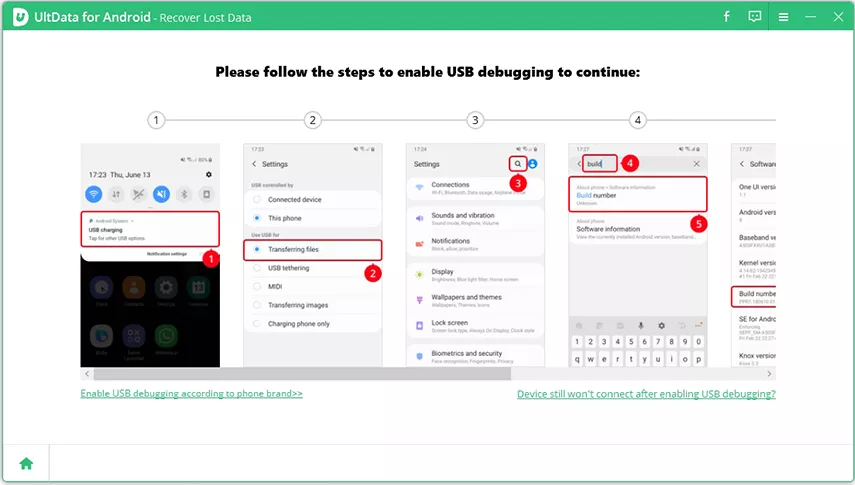
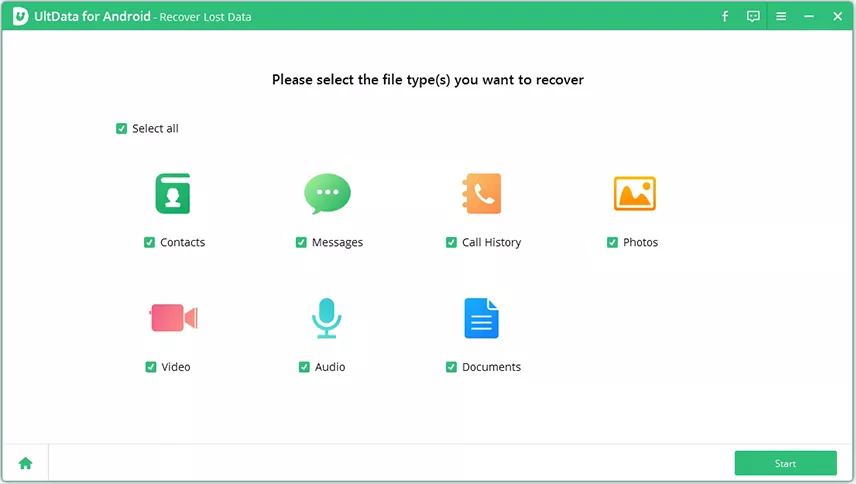
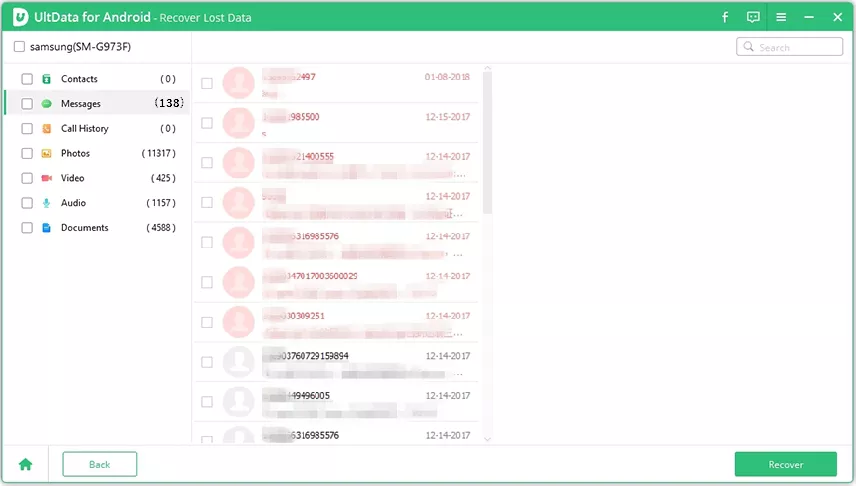
Recovered contacts, text messages, and call records can be exported in TXT, XML, or XLS.
That makes this fourth method quite different from cloud restoration. You're inspecting what the connected handset can still expose and are not downloading an already-created backup.
So, now you know how to recover contacts from broken Android phone safely.
Recovering contacts from a broken Android phone is possible in many cases, especially if your contacts were synced with Google, your phone manufacturer's cloud, or stored on a SIM card. If no backup is available, recovery software such as Tenorshare UltData for Android can help scan a still-working device and recover selected contacts. The key is to choose the method based on where your contacts were stored and how severely the phone is damaged.


UltData - No. 1 Android Data Recovery Tool






then write your review
Leave a Comment
Create your review for Tenorshare articles
Best Android Data Recovery Software
Highest Data Recovery RateShare this post


UltData - No.1 Android Data Recovery Tool
Recover Lost Data Without Root or Backup for Any Android Devices!
UltData: No.1 Android Recovery Tool
Restore Lost Android Data Without Root
By Jenefey Aaron
2026-09-28 / Android Recovery