

 iOS Tips & Latest Updates
 Bug Fixes, Unlock Guides
 Giveaways & Freebies


UltData - No.1 Android Data Recovery Tool
Recover Lost Data Without Root or Backup for Any Android Devices!
UltData: No.1 Android Recovery Tool
Restore Lost Android Data Without Root
You woke up and found that your Samsung account not syncing data across your devices. Your contacts, calendars, Samsung Notes, and other important data may no longer be up to date.
Sync problems are common on Galaxy phones. However, most sync issues can be fixed by checking your internet connection, sync settings, software updates, and accessing storage. This guide walks through the real causes, effective fixes, and what to do if you have already lost data along the way.

Different users have reported different reasons regarding why Samsung account does not sync. Some of the most common reasons are:

One of the above reasons is probably behind why your Samsung account is not syncing.
If your Samsung account does not sync automatically, you can trigger it manually in under a minute using one of the following methods:


Sometimes only one app refuses to cooperate. You can sync each one separately:

Notes is a common casualty when Samsung account not syncing strikes, since they are stored locally until sync completes. If you are also facing this issue, follow these fixes to get Samsung Notes sync with Samsung account working again:
Go to Samsung Notes > Menu > Settings > Sync with Samsung Cloud. Turn synchronization on and select Sync now, if available.

Open the Galaxy Store or Google Play, search for Samsung Notes, and install any available update. Samsung recommends keeping applications updated when troubleshooting compatibility and performance problems.
A corrupted temporary file can interfere with app behavior. Go to:
Settings > Apps > Samsung Notes > Storage > Clear cache

Clearing cache removes temporary files without resetting the app's personal data. Samsung recommends this process for problematic apps.

Do not select Clear data unless you understand the consequences. Samsung states that clearing app data resets the app and removes its stored settings/data.
If the previous fixes don't work, sign out of your Samsung account, restart the phone, and sign in again. This can refresh the account connection. Afterward, re-enable sync.

Even with these fixes applied, some notes, contacts, or photos created during the outage window may not reappear. This is common when the app overwrote local data before sync resumed. In such scenarios, you can use a dedicated recovery tool to recover lost data.
When notes, messages, photos, or documents vanish because sync failed at the wrong moment, Tenorshare UltData for Android comes to the rescue.
UltData for Android is an advanced Android data recovery tool that can recover lost/deleted photos, videos, messages, notes, contacts, and other data types from a diverse range of Samsung devices with high accuracy. It can scan the device's internal storage and then lets you restore lost data through preview-based selective recovery.




Follow these steps to recover lost Samsung data with UltData for Android when the Samsung account does not sync:


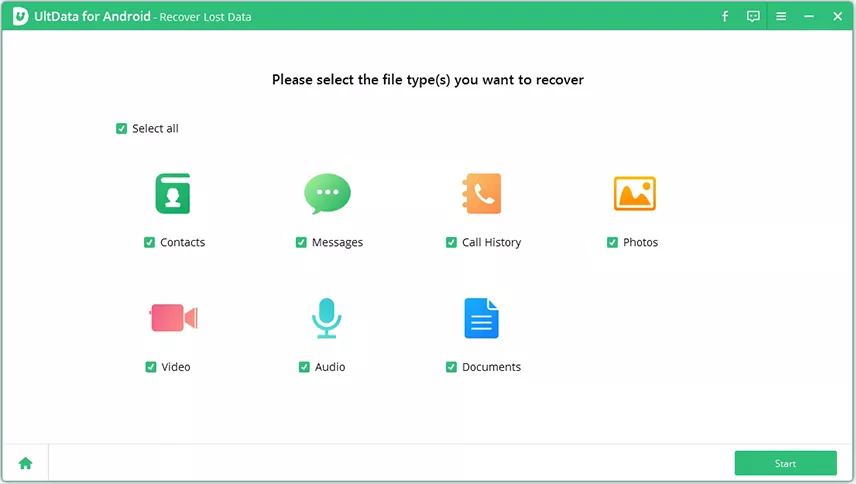
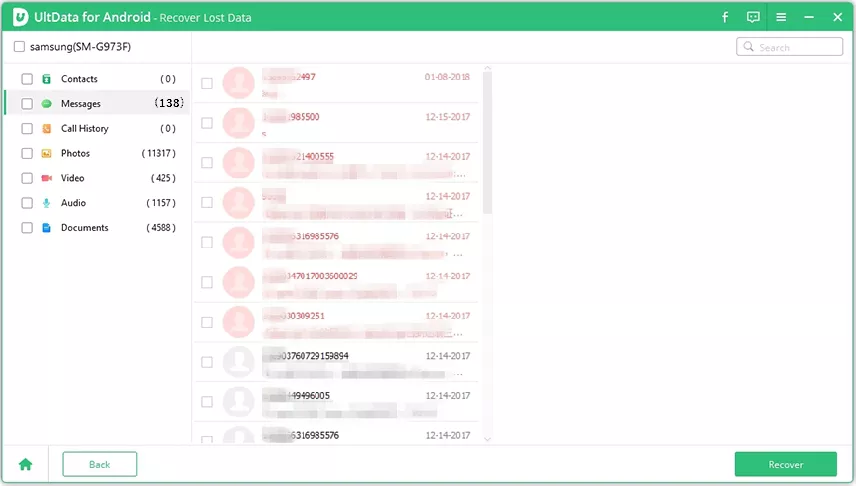
That's how quick it is to recover lost Samsung data when you are already struggling with why is my Samsung account not syncing. Download UltData for Android and get started!
Samsung account not syncing is a common and fixable issue. Start with enabling the Samsung account sync toggle, updating your software, and checking your storage and connection. These steps resolve most cases within minutes.
If the problem persists with a specific app like Notes, try the targeted fixes above. But if data has already been lost in the process, use Tenorshare UltData for Android to scan your device and recover lost notes, contacts, messages, and photos without rooting.


UltData - No. 1 Android Data Recovery Tool






then write your review
Leave a Comment
Create your review for Tenorshare articles
Best Android Data Recovery Software
Highest Data Recovery RateShare this post


UltData - No.1 Android Data Recovery Tool
Recover Lost Data Without Root or Backup for Any Android Devices!
UltData: No.1 Android Recovery Tool
Restore Lost Android Data Without Root
By Jenefey Aaron
2026-09-28 / Android Recovery