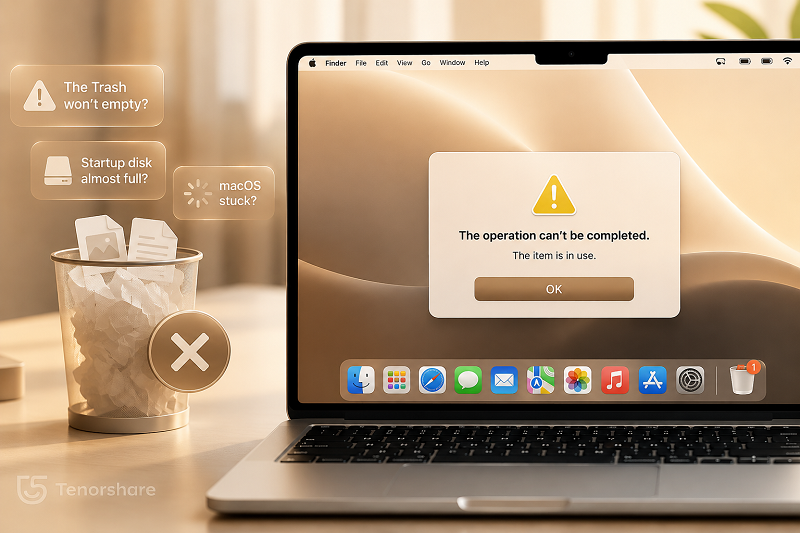
If you're seeing errors like "The operation can't be completed" or your Mac refuses to empty the Trash, you're not alone. Many Mac users encounter situations where the Trash won't empty, even after multiple attempts.
Whether a file is still being used, your startup disk is full, or macOS is temporarily stuck, this guide explains why your Trash won't empty and how to force empty Trash on Mac safely.
Before trying advanced fixes, it's helpful to understand what is preventing macOS from deleting the files.
The File Is Still Being Used by an App
One of the most common reasons you cannot empty Trash on Mac is that a file is still open or being used by an application.
Examples include:
A PDF file still opened in Preview
A Word document currently being edited
A video file being indexed by Finder
Files stored on an external drive that is still connected
Even if the app window appears closed, the background process may still be accessing the file.When this happens, macOS may display errors such as:
"The item is in use."
"The operation can't be completed because the item is in use."
The Trash Contains Locked Files
Mac allows files to be marked as "Locked" to prevent accidental deletion.
If one or more locked files are present in the Trash, macOS may refuse to remove them until the locked status is removed manually.
Startup Disk Is Almost Full
Many users are surprised to learn that a full startup disk can prevent Trash from being emptied.
macOS requires temporary working space to perform file deletion operations. When storage is critically low:
System cache files cannot be created
Background processes may fail
Trash deletion may get stuck
This often causes the message:"The operation can't be completed."
Finder or macOS Is Glitching
Sometimes the problem isn't the file itself.Finder may become unresponsive, or certain system processes may freeze due to temporary software issues.
In these situations, Trash may appear stuck even though the files themselves are not causing the problem.
How to Force Empty Trash on Mac
Try the following methods in order. In most cases, one of these solutions will successfully empty the Trash.
Method 1. Empty Trash Normally
Start with the simplest solution.
Open Finder.
Locate the Trash icon in the Dock.
Right-click the Trash icon.
Select Empty Trash.
Confirm the deletion.
If the process completes successfully, no further action is required.
Method 2. Use Option + Empty Trash
macOS includes a force deletion shortcut.
Hold the Option (⌥) key.
Right-click the Trash icon.
Select Empty Trash.
This method can sometimes bypass minor file permission issues and force the deletion process to continue.
Method 3. Force Quit Apps Using the File
If macOS reports that a file is in use, close the application that's accessing it.
To force quit applications:
Press Command + Option + Escape key.
Select the running application.
Click Force Quit.
After closing all relevant apps, try emptying the Trash again.You can also restart Finder:
Press Option and right-click Finder in the Dock.
Select Relaunch.
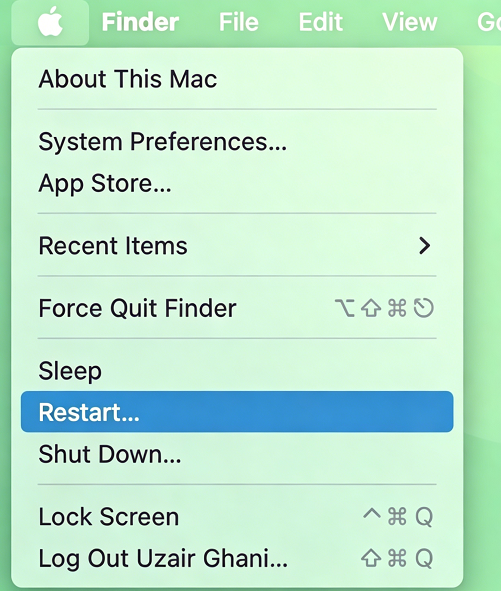
Method 4. Restart Your Mac
A simple restart can clear temporary system glitches.
Click the Apple menu.
Select Restart .
Wait for macOS to reboot.
Try emptying the Trash again.
Many background processes that lock files are automatically released after a restart.
Method 5. Remove Locked Status from Files
If locked files are preventing deletion:
Open the Trash.
Right-click the file.
Select Get Info.
Uncheck Locked.
Close the window.
Empty the Trash again.
Repeat this process for any locked items you find.
Method 6. Use Safe Mode
Safe Mode loads only essential macOS components and can help remove problematic files.
For Apple Silicon Macs:
Shut down the Mac.
Press and hold the power button.
Select your startup disk.
Hold Shift and click Continue in Safe Mode.
For Intel Macs:
Restart your Mac.
Hold the Shift key during startup.
Once in Safe Mode:
Open Trash.
Attempt to empty it.
Restart normally afterward.
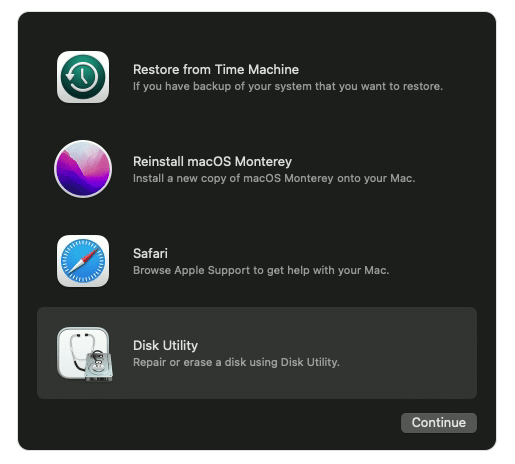
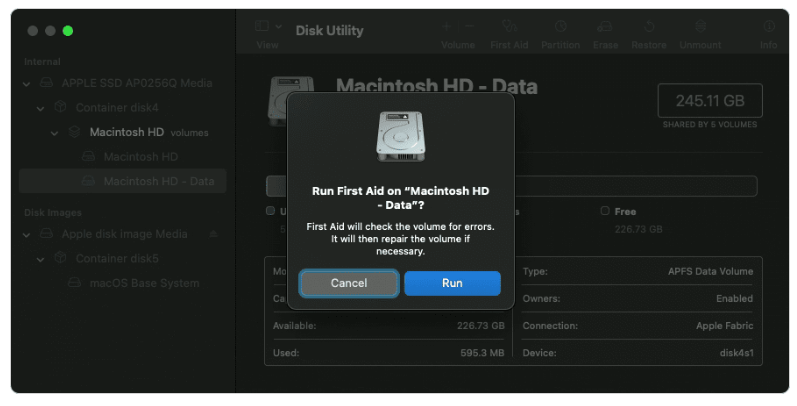
Method 7. Repair Disk with Disk Utility
File system errors can sometimes interfere with Trash operations.To repair your disk:
Open Disk Utility.
Select your startup disk.
Click First Aid.
Choose Run.
Cannot Empty Trash on Mac Because Disk Is Full?
Why a Full Disk Prevents Trash Deletion
Although it sounds counterintuitive, deleting files requires temporary storage resources.When your startup disk is completely full:
Finder cannot complete deletion tasks
System processes become unstable
Cache files cannot be generated
Trash may fail to empty
This is why many users search for solutions to "mac cannot empty trash because disk is full" or "how to empty trash on Mac when disk is full." When your startup disk runs out of available space, macOS may not have enough working space to complete the deletion process, causing the Trash to become stuck and refuse to empty.
Use Tenorshare Cleamio to Reclaim Storage Automatically
Tenorshare Cleamio
helps free up storage space by automatically identifying and removing unnecessary files, including system junk, caches, logs, duplicate files, temporary files, and application leftovers.
By reclaiming valuable disk space, it can help resolve situations where your Mac won't empty the Trash because the startup disk is full, allowing the deletion process to complete successfully.
Cleamio
simplifies mac cleanup into a quick, beginner-friendly process:
Download and install Cleamio on your Mac, then open the app.
Run a system scan to detect junk files, cache, and leftover app data.
Review what's taking up space and confirm what can be safely removed.
Click "Smart Cleanup" to free up disk space and improve performance.
How to Prevent Trash Problems in the Future
Keep at Least 10–15% Free Storage
macOS performs best when there is sufficient free disk space available.
Try to maintain at least 10–15% of your storage capacity as free space to avoid system slowdowns and deletion errors.
Regularly Remove System Junk
Over time, cache files, logs, temporary data, and unused application files accumulate.Performing regular maintenance can help prevent storage-related Trash issues before they occur.
Tools such as Tenorshare Cleamio simplify this process by automatically detecting unnecessary files and reclaiming storage space.
Empty Trash Regularly
Many users leave files in Trash for months.Since Trash still occupies disk space until emptied, developing a habit of regularly clearing it can help avoid future problems.
FAQ
Why does Mac say the item is in use?
This usually means an application or background process is still accessing the file.Close related applications, restart Finder, or reboot your Mac before attempting to delete the file again.
Can a full disk stop Trash from emptying?
Yes. When the startup disk is nearly full, macOS may not have enough working space to complete deletion operations, causing Trash to become stuck.
Is it safe to use Terminal to empty Trash?
Yes, but only if you understand the commands being used.
Commands such as sudo rm -rf ~/.Trash/* permanently delete files and cannot be undone. For most users, Finder, Safe Mode, or Disk Utility are safer options.
Conclusion
If you cannot empty Trash on Mac, the problem is usually caused by files still being used, locked permissions, low storage space, or temporary Finder glitches.
Start with simple solutions such as restarting Finder, force quitting applications, or restarting your Mac. If your startup disk is full, reclaiming storage space first can often resolve the issue immediately.
By following the methods above, you should be able to force empty Trash on Mac and prevent the problem from returning in the future.






 iOS Tips & Latest Updates
 Bug Fixes, Unlock Guides
 Giveaways & Freebies






By Jenefey Aaron
2026-09-28 / Mac Cleanup