

 iOS Tips & Latest Updates
 Bug Fixes, Unlock Guides
 Giveaways & Freebies

ReiBoot - No.1 Free iOS System Repair Software
Fix 150+ iOS Issues without Data Loss & Safely iOS 27 Upgrade/Downgrade
ReiBoot: No.1 iOS Repair Tool
Fix 150+ iOS Issues, No Data Loss
If your iPhone 15 Pro Max keeps restarting, crashing, or getting stuck in a restart loop after an iOS update, the problem could be caused by a software glitch, an incomplete installation, battery issues, or an underlying hardware fault. In this guide, we'll explore the possible causes and walk you through eight practical fixes to help get your iPhone running normally again.

Repeated restarts don't always mean the latest iOS update is defective. Several software and hardware factors can cause an iPhone to shut down or restart unexpectedly.

Here are some possible reasons.
An iOS update changes system files, settings, and background processes. Occasionally, temporary software glitches may occur after installation, causing apps to crash, the device to freeze, or the system to restart unexpectedly.
Some users have also reported repeated restarts after updating their iPhones. However, individual reports don't necessarily indicate a widespread problem with a particular iOS version.
If something interrupts an iOS update or the installation doesn't complete properly, the operating system may not work as expected.
In some cases, this can lead to startup problems, repeated crashes, or a boot loop in which the iPhone repeatedly displays the Apple logo and restarts.
If your iPhone stays stuck on the Apple logo instead of completing startup, see our guide on how to fix an iPhone stuck on the Apple logo for more troubleshooting methods.
An aging battery or a problem with power delivery can sometimes cause unexpected shutdowns.
For example, your iPhone may restart even when the battery indicator shows that some charge remains. If the battery percentage also changes unexpectedly after restarting, it's worth checking the battery's condition.
An iOS update doesn't necessarily cause battery damage. The timing may simply make an existing battery or power-related issue more noticeable.
Available storage and app compatibility can also affect how smoothly your iPhone runs.
If your device has very little free storage, it may have difficulty completing certain system operations. Meanwhile, an outdated or incompatible app may crash or behave unexpectedly after an iOS update.
These issues don't automatically explain repeated system restarts, but checking them can help rule out common software-related problems.
Not every restart issue can be fixed by changing settings or reinstalling iOS.
Problems involving the battery, storage components, or other internal hardware may cause an iPhone to crash or restart repeatedly. If the device continues restarting even after a clean iOS installation, a hardware problem becomes more important to investigate.
In some cases, technicians may examine panic logs to look for clues about unexpected system crashes. These logs can help with diagnosis, but they usually require technical knowledge to interpret correctly.
Before trying advanced recovery methods, start with the simpler fixes below. They can help determine whether the problem is temporary or requires more extensive troubleshooting.
 Please swipe to view
If your iPhone freezes, becomes unresponsive, or keeps restarting unexpectedly, a force restart is a good first step.
Unlike a factory reset, a force restart doesn't erase your photos, apps, or other personal data. It simply forces the device to restart.
Follow these steps:

Wait for your iPhone to start up and check whether the restart problem continues.
If it happens again, move on to the next fix. A force restart can help with temporary glitches, but it won't resolve an underlying battery or hardware problem.
If the restart problem started after installing an iOS update, check whether Apple has released a newer version.
A subsequent update may include bug fixes or improvements that address software stability issues.
Here's how:
Before updating, connect your iPhone to a stable Wi-Fi network and make sure it has sufficient battery power or is connected to a charger. Backing up your data beforehand is also recommended.
If your iPhone keeps restarting too frequently to complete an over-the-air update, you may need to try updating it through a computer instead.
A battery that has degraded over time may struggle to provide the power your iPhone needs, potentially leading to unexpected shutdowns.
To check its condition:
Pay attention to the battery's maximum capacity and whether iOS indicates that servicing may be needed.
If you notice unexpected shutdowns, a significant drop in battery capacity, or a service recommendation, contact Apple Support to have the battery checked.
Also, don't assume that an unusual battery percentage after restarting automatically means the battery is defective. It is one clue to investigate alongside the device's overall battery condition and behavior.
Running low on storage can interfere with certain system operations and make troubleshooting more difficult.
Check how much space is available:
If your iPhone is nearly full, consider removing downloaded videos, unnecessary files, or apps you no longer use.
You can also review large message attachments and downloaded content to free up additional space.
After clearing some storage, restart your iPhone and see whether its behavior improves.
An app that hasn't been updated to work properly with your current iOS version may crash or behave unexpectedly.
If your iPhone mainly restarts while using a particular app, check whether that app has an available update.
To update your apps:
If the problem continues with one specific app, you can also try deleting and reinstalling it. Make sure any important app data is backed up or synced before removing it.
Incorrect or conflicting system settings may sometimes contribute to unexpected behavior. Resetting all settings can help rule out this possibility.
This option resets system preferences without intentionally deleting your personal photos, apps, or other stored content.
Follow these steps:
Your iPhone will restart after the process.
Keep in mind that saved Wi-Fi networks, privacy preferences, and other customized settings may need to be configured again.

Make sure you select Reset All Settings, not Erase All Content and Settings. The latter erases your personal data.
If your iPhone keeps restarting after the basic troubleshooting steps, its iOS installation may need further attention.
Recovery Mode lets you connect your iPhone to a computer and attempt to reinstall iOS. When the computer offers the option, try Update first rather than immediately choosing Restore.
If you're unfamiliar with this mode or need help entering or exiting it, follow our step-by-step guide on how to enter and exit iPhone Recovery Mode.
Here's how to enter Recovery Mode on an iPhone 15 Pro Max:

Wait for the process to finish without disconnecting your iPhone.
Update vs. Restore: What's the Difference?
If the Update option fails or doesn't resolve the problem, you may need to consider Restore. Only proceed after understanding that it erases your data.
If the previous methods haven't helped, restoring your iPhone may be a final software troubleshooting option.
A factory restore erases the device and installs a fresh copy of iOS. It can help address persistent software problems, but it won't repair a defective battery or damaged internal component.
Before proceeding, back up your iPhone to iCloud or a computer if possible.
You can restore your device through Finder on a Mac or the Apple Devices app on Windows:
After the restore, set up your iPhone and check whether it continues restarting.
If the problem persists even after restoring iOS, don't keep repeating the same process. The cause may be hardware-related, and professional diagnosis is the next step.
If your iPhone 15 Pro Max keeps restarting alongside other system abnormalities, such as getting stuck on the Apple logo or experiencing persistent iOS startup errors, a dedicated system repair tool may offer another troubleshooting option.
Tenorshare ReiBoot is designed to repair supported iOS system issues. Its Standard Repair mode is designed to address supported software problems while retaining device data, so you can try repairing the system without immediately erasing your iPhone.


To get started:
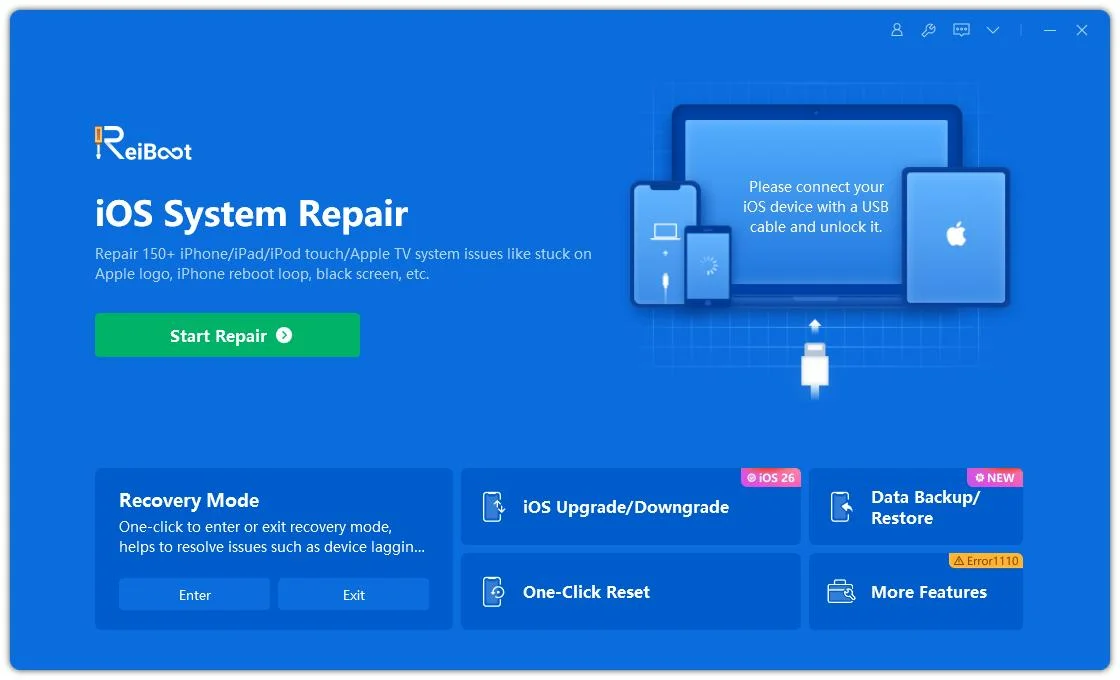
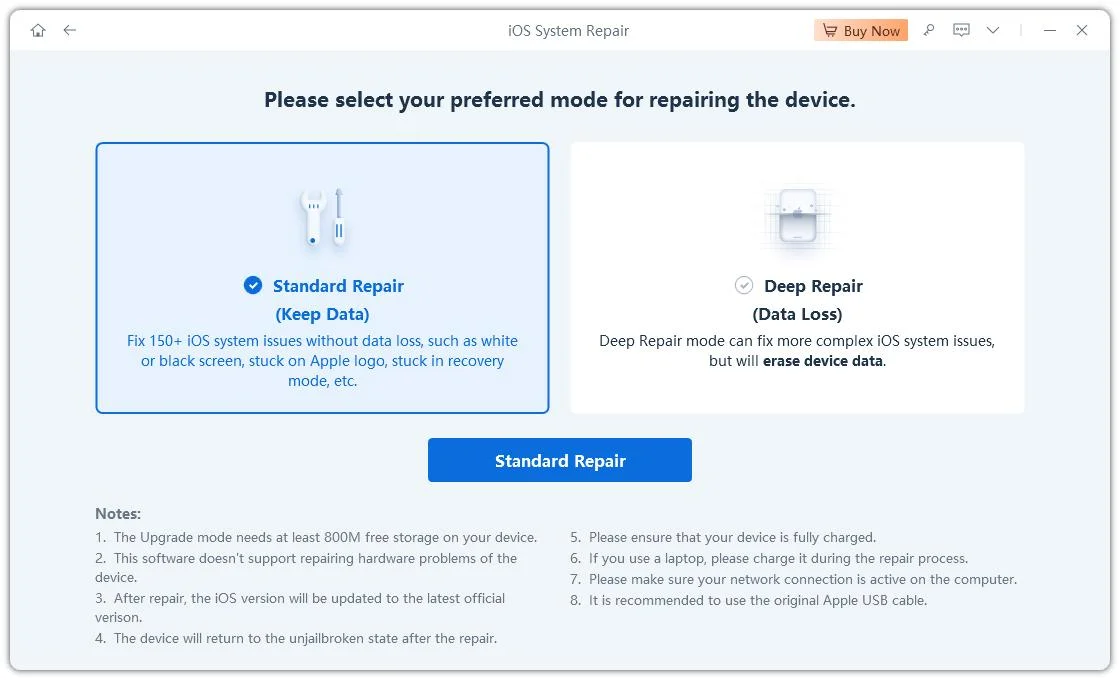
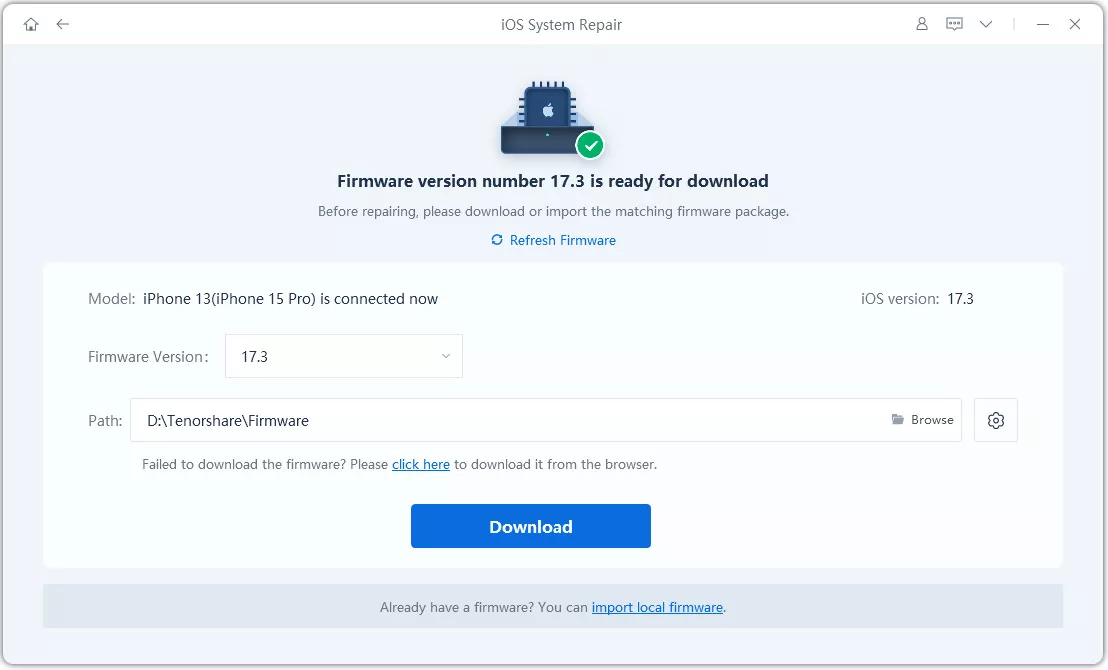
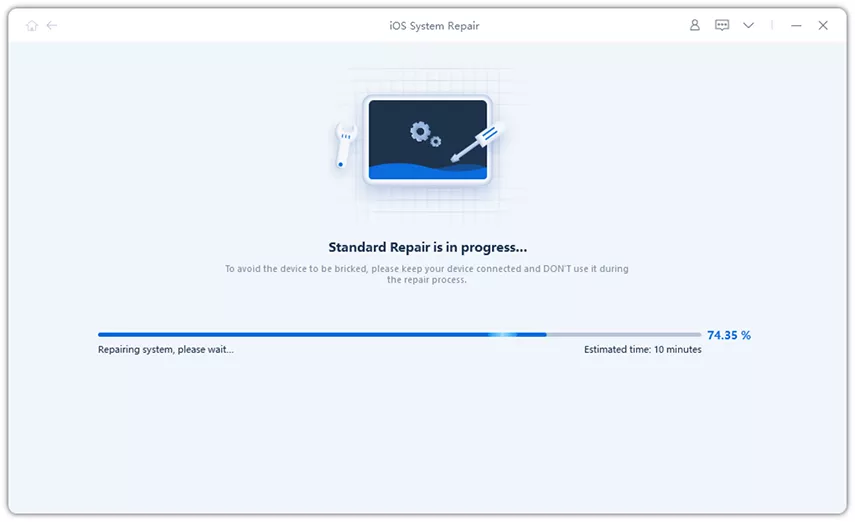
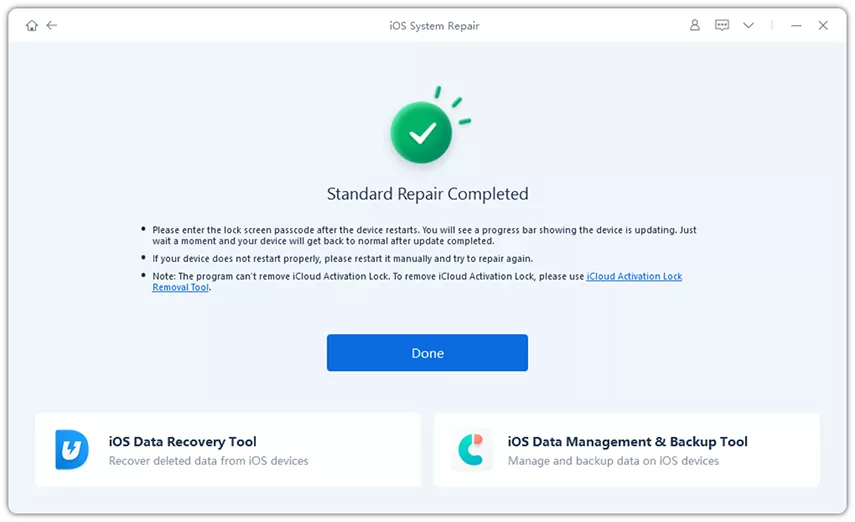

Standard Repair is designed to retain your data, but backing up your iPhone beforehand is still recommended. ReiBoot cannot fix physical battery degradation, defective storage components, or other hardware failures. If your iPhone continues restarting because of a hardware problem, contact Apple Support or an authorized service provider.
If your iPhone 15 Pro Max continues restarting after you've tried the troubleshooting methods above, it may be time to seek professional help.
Consider contacting Apple Support or visiting an Apple Authorized Service Provider if:
A technician can run diagnostics and determine whether the issue involves the battery, storage, or another internal component.
It's also helpful to note when the restarts occur, how frequently they happen, and whether they started before or after the iOS update. This information can make troubleshooting more efficient.
If your iPhone restarts every few minutes, the issue may involve more than a temporary software glitch. Repeated system crashes, an unstable iOS installation, battery or power-related problems, and hardware faults are all possible causes.
Pay attention to whether the restarts happen during specific activities, such as opening an app, charging, or using the camera. If the problem occurs regardless of what you're doing, further system or hardware diagnostics may be necessary.
An unexpected change in the battery percentage after restarting may be related to battery reporting or power-related issues. Check Battery Health in Settings > Battery and look for any service recommendations.
If the percentage continues changing significantly or the phone shuts down unexpectedly, contact Apple Support for a battery assessment rather than assuming the issue is caused by the iOS update.
Recovery Mode provides an Update option that attempts to reinstall iOS while keeping your personal data. A Restore, on the other hand, erases the device and reinstalls iOS.
If you want to preserve your data, choose Update first when it is available. However, data retention isn't guaranteed, so make a backup whenever possible before starting the process.
A hardware issue becomes more likely if your iPhone continues restarting after a clean iOS installation, shuts down unexpectedly despite having sufficient charge, or has a history of physical or liquid damage.
Panic logs may also contain clues about hardware-related failures, but they can be difficult to interpret. If you suspect a hardware problem, have Apple or a qualified technician run diagnostics.
A factory reset may resolve some persistent software problems by erasing the device and reinstalling iOS. However, it cannot repair a degraded battery or a defective internal component.
If your iPhone continues restarting after a factory restore, further troubleshooting by Apple Support or an authorized service provider is recommended.
An iPhone 15 Pro Max that keeps restarting after an iOS update can be frustrating, but the cause isn't always the update itself. Temporary software glitches, installation problems, battery issues, and hardware faults can all contribute to unexpected restarts.
Start with a force restart and basic checks, then move on to more advanced recovery options if necessary. Always back up your data before attempting a restore. If the problem persists even after reinstalling iOS, professional diagnostics can help identify whether your iPhone needs hardware service.


then write your review
Leave a Comment
Create your review for Tenorshare articles
Share this post


ReiBoot - No.1 Free iOS System Repair Software
Fix 150+ iOS Issues without Data Loss & Safely iOS 27 Upgrade/Downgrade
ReiBoot: No.1 iOS Repair Tool
Fix 150+ iOS Issues, No Data Loss
By Jenefey Aaron
2026-11-13 / iPhone Tips