

 iOS Tips & Latest Updates
 Bug Fixes, Unlock Guides
 Giveaways & Freebies
then write your review

ReiBoot - No.1 Free iOS System Repair Software
Fix 150+ iOS Issues without Data Loss & Safely iOS 27 Upgrade/Downgrade
ReiBoot: No.1 iOS Repair Tool
Fix 150+ iOS Issues, No Data Loss
Some iPhone Duo users have reported that the outer screen's Always-On Display (AOD) turns completely black when the phone is folded, even though it worked normally before. Restarting the device has helped some users temporarily, but the issue has reportedly returned.
These are individual user reports, not a confirmed iOS bug. If your iPhone Duo Always-On Display is not working when folded, try the following checks, from display settings and accessories to restarting and updating iOS.

Nobody outside Apple can say for certain, and Apple hasn't published how Always-On behaves when the Duo is folded, opened, or propped up. But here are some realistic scenarios that might be the cause of "iPhone Duo Always-On Display not working when folded":
Normal Always-On Display Behavior: According to Apple's explanation of Always-On Display, the display automatically turns off in certain situations, such as when the iPhone is face down or obstructed, Low Power Mode or Sleep Focus is enabled, or the device is near the user's usual bedtime. These conditions are worth checking, but Apple has not confirmed that folding the iPhone Duo should automatically turn off its outer display.
Cases and Screen Protectors: Accessories may be worth checking if they cover part of the outer display or interfere with its edges. In a Reddit discussion about iPhone Duo Always-On Display issues, some users reported that removing or changing their screen protectors helped, while others experienced the issue without a protector. This suggests that accessories may be a factor for some users, but they are not a confirmed cause.
Temporary Display or Software Glitches: Some users reported that restarting their iPhone temporarily restored the Always-On Display, only for the issue to return later. This could point to a temporary software or display glitch, but the underlying cause has not been confirmed.
If your iPhone Duo screen goes black when folded, go through these fixes. Test for a few minutes after each step, because a fix that only lasts until the next fold isn't a fix:
Incorrect display settings or power-saving features may affect how the Always-On Display works. Start by checking the following options:


If the display still goes black when folded, move on to the next fix and check whether your case or screen protector could be interfering with the outer display.
A case or screen protector may interfere with the outer display, especially if it overlaps the screen's edges. Although accessories have not been confirmed as the cause of this AOD issue, removing them temporarily is a useful way to rule out possible interference.
Some iPhone Duo users on Reddit reported that removing or changing their screen protectors helped. However, others experienced AOD problems without a screen protector, so accessories are only one possible factor to check.
If removing the case or protector makes a difference, consider using an accessory specifically designed for the iPhone Duo's outer display.

Dirt, fingerprints, or other obstructions on the outer display may affect its visibility. Try these simple checks:

If the toggle in Fix 1 didn't help, a temporary software glitch may be the cause. So, restart the iPhone Duo. Apple's steps for an iPhone Duo Always-On Display black screen are as follows:

Several Reddit users said a restart helped temporarily, and the problem returned. Treat it as a diagnostic step. If AOD works for hours and then fails, note when it fails, for example, after unfolding and refolding.
Outdated software or unresolved iOS bugs may affect how the Always-On Display works. Apple included bug fixes in its iOS updates, so it's worth checking whether a newer version is available for your iPhone Duo.

Updating iOS may help resolve software-related issues, but it doesn't guarantee that the Always-On Display problem will be fixed. If the issue continues, note your current iOS version before contacting Apple Support.
If your iPhone Duo's Always-On Display remains unresponsive after checking the settings, screen protector, and case, and you're also experiencing other iOS issues such as system freezing, unexpected restarts, or startup problems, the issue may involve a broader system malfunction.
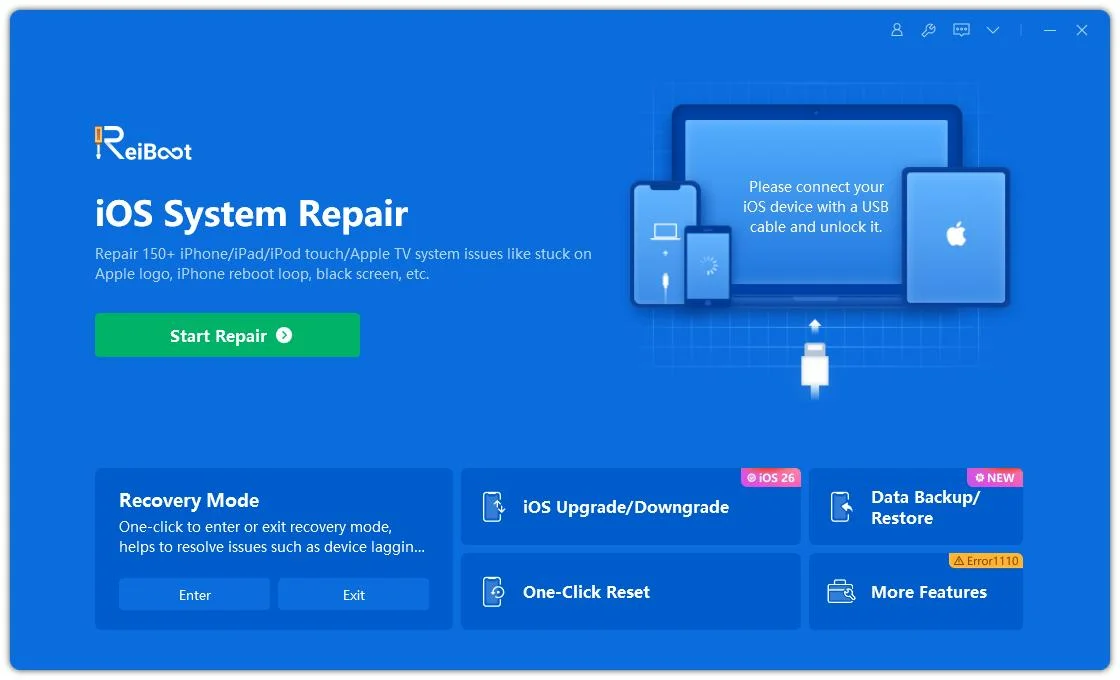
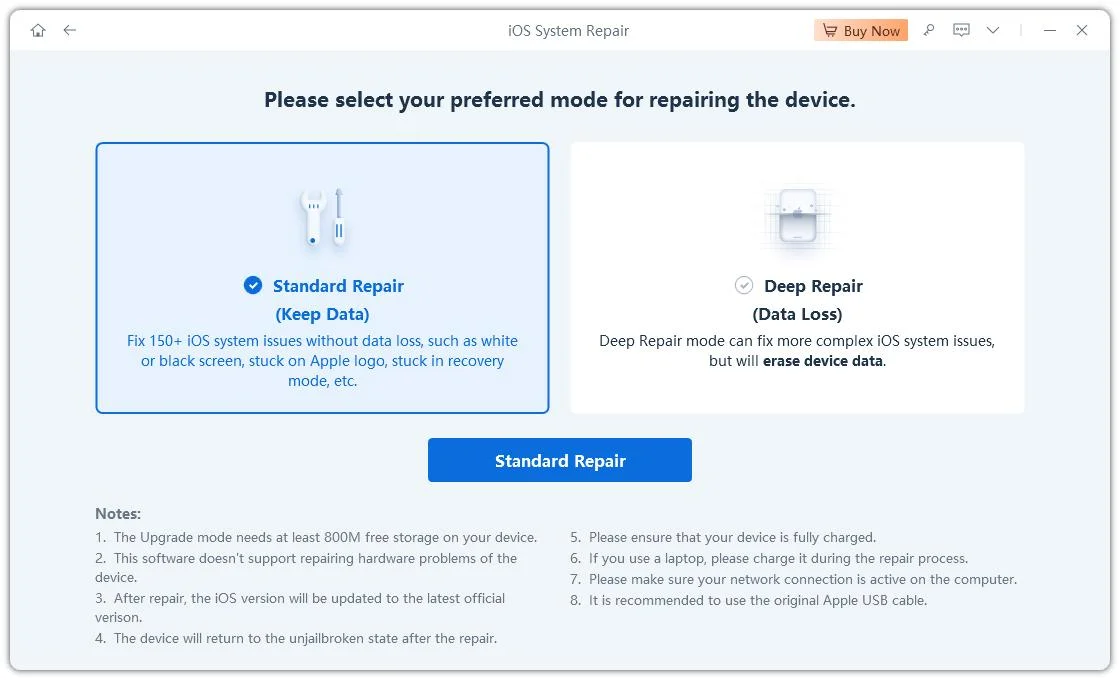
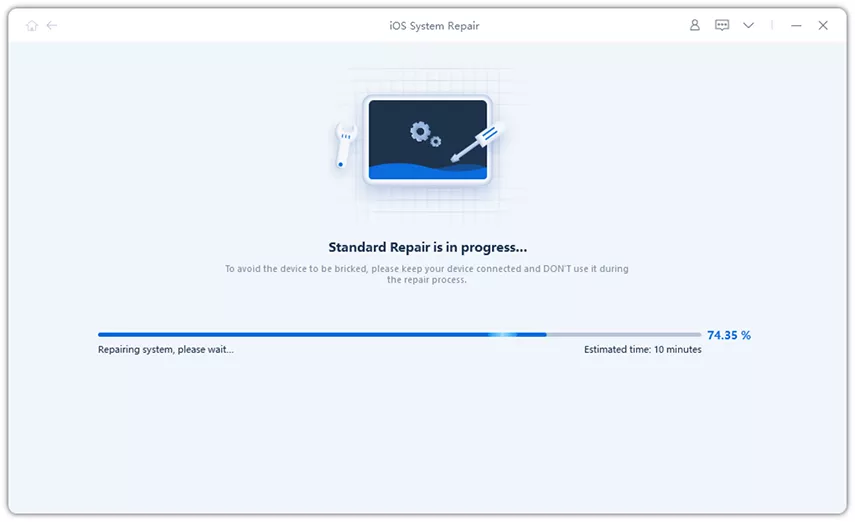
In such cases, Tenorshare ReiBoot offers tools to troubleshoot supported iOS system issues. Its Standard Repair mode is designed to preserve device data while repairing supported system problems.


Key Features of Tenorshare ReiBoot:
-iOS System Repair: Troubleshoot 150+ supported iOS/iPadOS system issues, including boot loops, black screens, and update-related problems.
If your iPhone Duo is experiencing broader iOS system problems alongside the AOD issue, you can explore ReiBoot as an additional troubleshooting option.
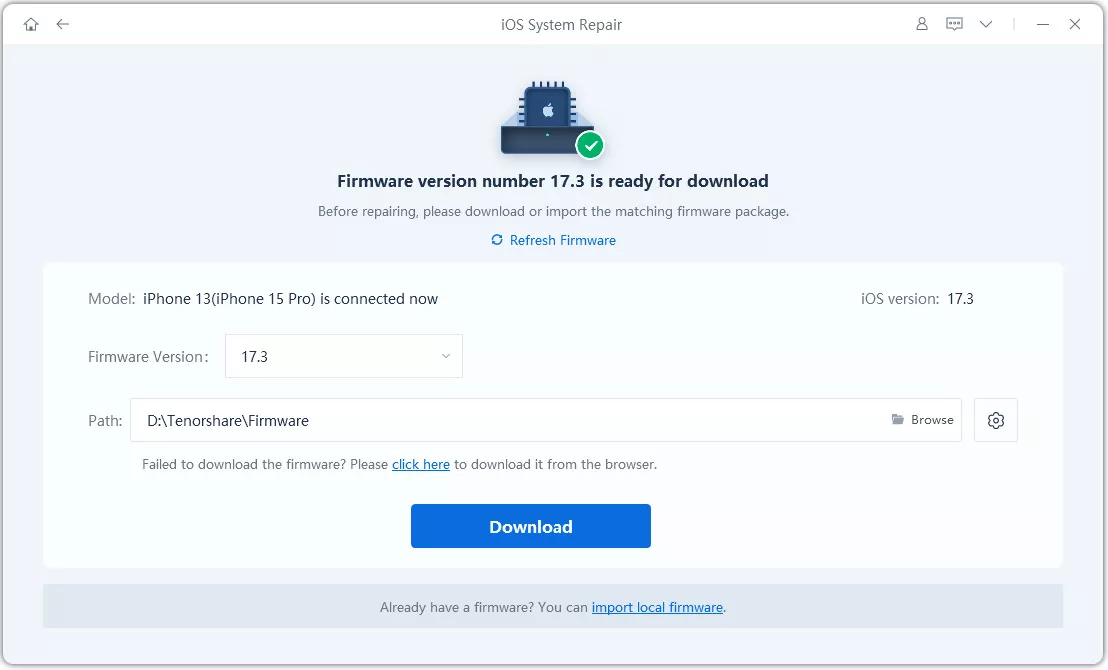
How to use ReiBoot to Repair iOS System Issues?
Book an appointment or start a chat with Apple Support if:
On that last point, Apple has acknowledged a separate inner-display issue on a small number of Duo units and says affected owners can request a replacement through AppleCare. It's a different problem from AOD, but it's worth mentioning to a technician.
Restarting your iPhone may temporarily resolve a software or display glitch, but it doesn't necessarily prevent the issue from returning. Some iPhone Duo user shave reported similar behavior, although the exact cause remains unknown. If it keeps happening, note when the screen goes dark and share these details with Apple Support.
Apple's Always-On Display documentation describes several conditions that can turn off the display, but it does not establish folding the iPhone Duo as a normal reason for the outer display to go completely black. If this happens repeatedly, check your display settings and follow the troubleshooting steps above.
Yes. You can start with less disruptive checks, such as reviewing display settings, removing accessories temporarily, cleaning the outer screen, restarting your device, and checking for iOS updates. A factory reset should not be your first troubleshooting step, especially if you haven't backed up your data.
The "iPhone Duo Always-On Display not working when folded" issue might not always be resolved by simply restarting the device. So, start by checking your AOD settings, removing incompatible screen protectors or cases, cleaning the outer display, and installing the latest iOS update.
If the problem persists alongside system freezes, unexpected restarts, or other software issues, consider Tenorshare ReiBoot. Its Standard Repair mode can repair 150+ iOS system problems while preserving device data.

then write your review
Leave a Comment
Create your review for Tenorshare articles
Share this post


ReiBoot - No.1 Free iOS System Repair Software
Fix 150+ iOS Issues without Data Loss & Safely iOS 27 Upgrade/Downgrade
ReiBoot: No.1 iOS Repair Tool
Fix 150+ iOS Issues, No Data Loss
By Jenefey Aaron
2026-11-06 / iPhone 18