

 iOS Tips & Latest Updates
 Bug Fixes, Unlock Guides
 Giveaways & Freebies

ReiBoot - No.1 Free iOS System Repair Software
Fix 150+ iOS Issues without Data Loss & Safely iOS 27 Upgrade/Downgrade
ReiBoot: No.1 iOS Repair Tool
Fix 150+ iOS Issues, No Data Loss
The iPhone Duo makes multitasking easier with Split View, letting you run two apps side by side on its unfolded inner display. You can browse the web while taking notes, reply to messages, or manage tasks without constantly switching apps.
But what if your iPhone Duo split screen not working as expected? Don't worry! This guide shows you how to split screen on iPhone duo, manage both apps, and fix common issues so you can get the most out of your device.

The iPhone Duo lets you use two apps side by side through Split View on its unfolded inner display. Before getting started, open your iPhone Duo fully and turn it to landscape orientation. Once the screen is in landscape mode, you can open two compatible apps and manage them together.
Follow these steps to know how to use split screen on iPhone duo:
You can now use both apps at the same time without switching between them.

Alternative Method:
You can also open Split View directly from the Home Screen or App Library. Touch and hold the app you want to open, then tap Open in Split View from the available options. Next, select the second app to complete the setup.

Once you have two apps open, iPhone Duo makes it easy to switch between them, create app pairs, and open multiple windows. You can also close one app without leaving the other. Here are the main iPhone Duo multitasking features and gestures you should know.
You don't have to close both apps to change their positions. The iPhone Duo Split View gesture lets you move an app from one side of the screen to the other.
Follow these steps:

To switch to a different app: You can use the App Switcher to return to another open app. Alternatively, move the current app aside using the Split View gesture, then select a different app from the Home Screen or App Library.
Do you regularly use the same two apps together? iPhone Duo lets you pair them so they open together whenever you launch either app.
Here's how to use two apps at once on iPhone duo:

This iPhone Duo multitasking feature is useful when you frequently use combinations such as Safari and Notes or Messages and Photos.
You can remove one app from Split View and continue using the other in full screen.
Steps of how to split screen on iPhone duo:

To return to the Home Screen, swipe up from the middle of the screen.
Want to compare two documents or browse different pages side by side? Some apps support multiple windows on iPhone Duo, including Mail, Notes, Safari, and Files.
Here is how to do iphone duo multitasking:

For example, you can keep two Safari windows open to compare websites or view a note alongside another note.

Apple lists Mail, Notes, Safari, and Files as examples of apps that support multiple windows. This feature depends on the app's support for multiple windows.
Having trouble opening two apps side by side? Several things can affect Split View, including the device's position, the gesture you use, and the features supported by individual apps. Before assuming something is wrong with your phone, try these troubleshooting steps to get iPhone Duo multitasking working again.
First, check how you are holding your device. Split View works on the unfolded inner display, so make sure your iPhone Duo is fully open before trying to launch two apps.
Also, turn the device to landscape orientation and try again. The outer display does not support this Split View arrangement.
An incorrect swipe or releasing your finger too early may be why your iPhone Duo can't split screen. Follow the correct iPhone Duo split screen gesture:

Alternative method: Touch and hold an app icon on the Home Screen or in the App Library. Select Open in Split View, then choose the second app.
Not every app offers the same multitasking features. Opening two different apps in Split View is different from opening two separate windows of the same app.
For example, Mail, Notes, Safari, and Files support multiple windows. However, other apps may allow Split View with another app without supporting multiple windows of their own.
Try these checks:

If the feature works with other apps, the problem may be related to the app rather than your iPhone Duo.
Temporary software issues can sometimes affect iPhone Duo multitasking. Restarting your device and installing available updates can help resolve unexpected behavior.
Try the following steps if iPhone duo can't split screen:

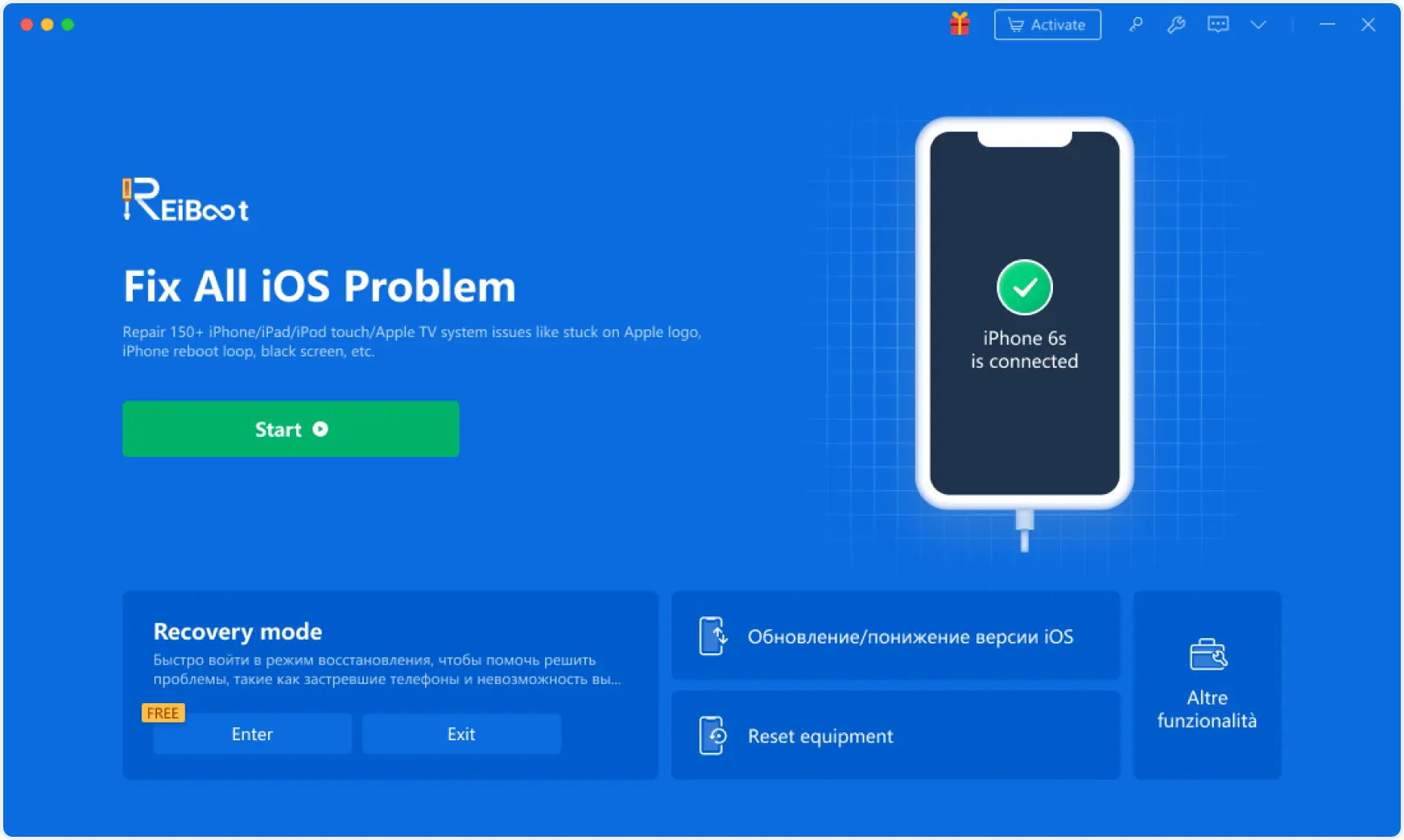
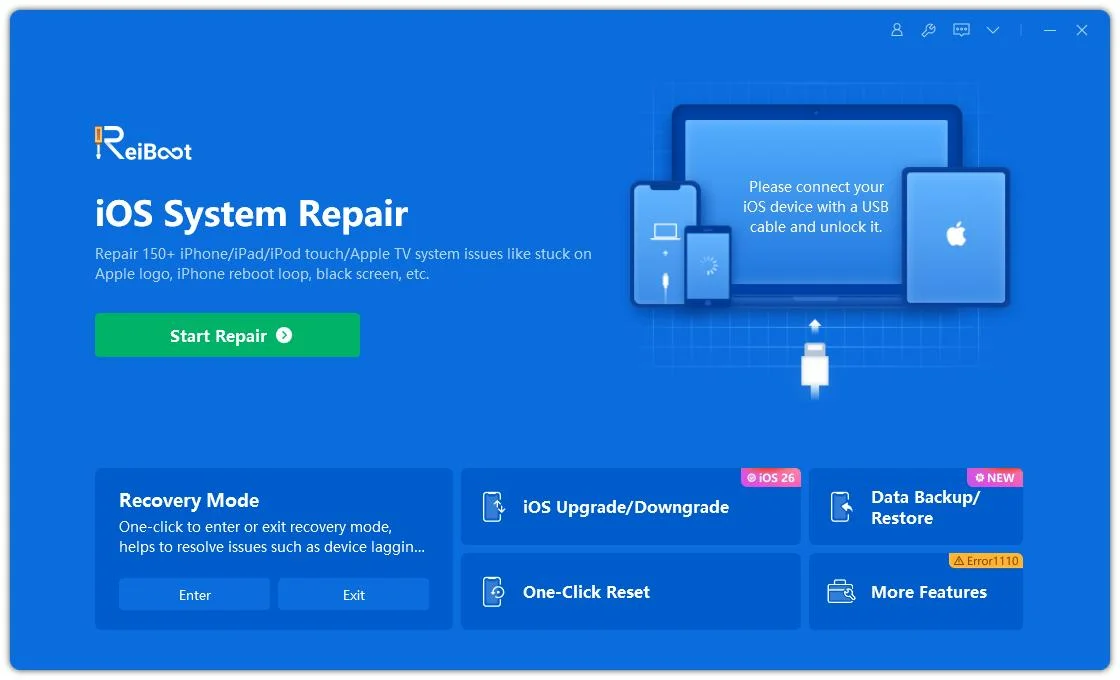
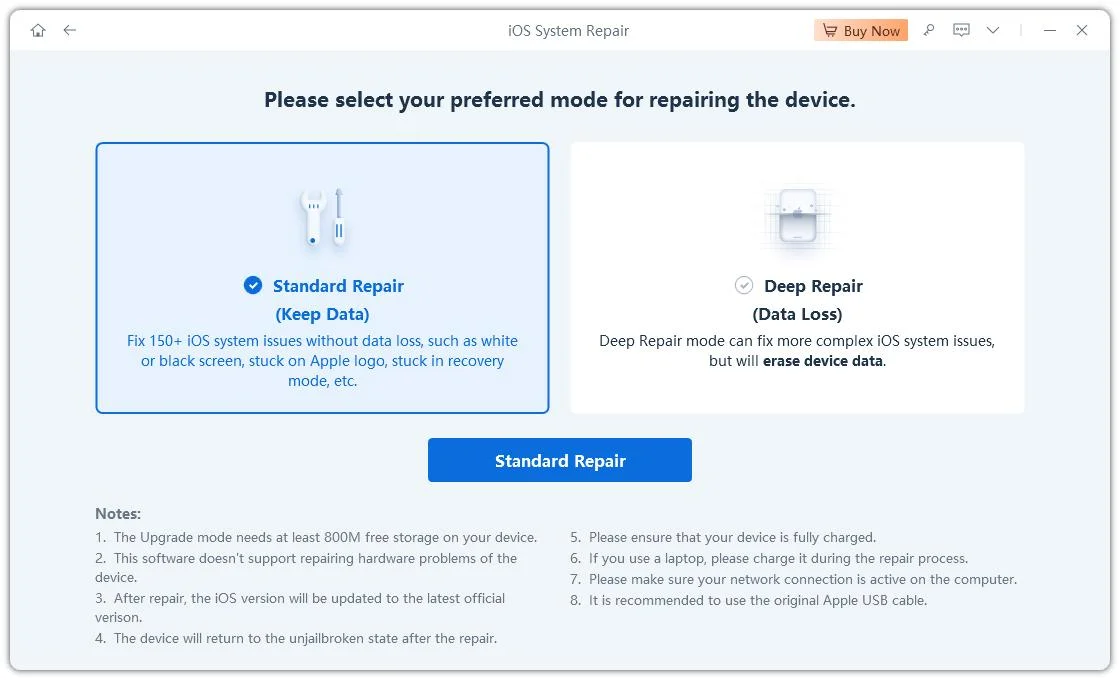
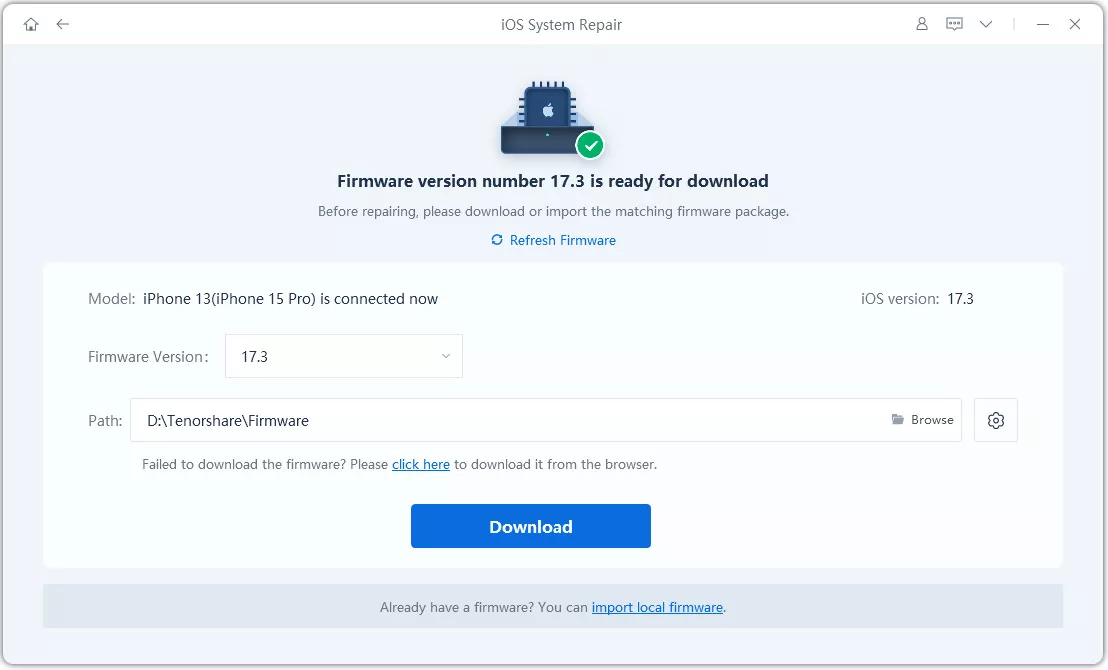
Split View issues may be related to iOS problems, especially when your iPhone Duo also freezes or becomes unresponsive. Tenorshare ReiBoot makes iOS troubleshooting easier with several useful repair and recovery features.


What Can Tenorshare ReiBoot Do?
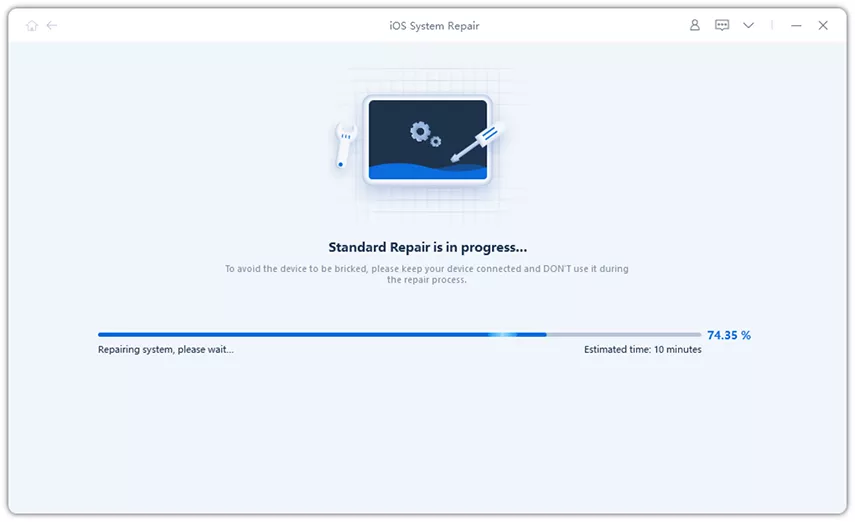
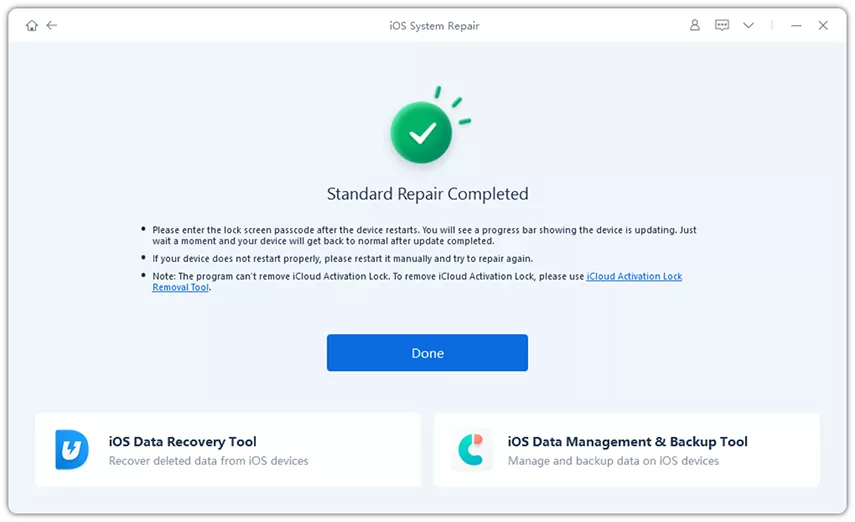
How to Repair iOS System Issues Using ReiBoot
No. Split View is designed for the larger inner display. You need to fully unfold your iPhone Duo to use two apps side by side.
Split View uses a fixed layout, so you cannot freely resize each app window. Both apps share the available screen space.
Yes, but the app must support multiple windows. Apps such as Safari, Notes, Mail, and Files allow you to open two separate windows side by side.
First, open the two apps in Split View. Then, tap the divider between them to pair the apps. Once paired, opening either app can bring up both together.
If swiping up from the bottom of your iPhone Duo opens the App Switcher instead of Split View, try an alternative method. Touch and hold an app icon on the Home Screen or in the App Library, select Open in Split View, and then choose the second app.
Some iPhone Duo users have also reported difficulty triggering Split View with the standard gesture. In one Reddit discussion, a user found that the long-press method worked when the usual swipe gesture did not. Make sure your device is fully open and in landscape orientation before trying again.
The iPhone duo split screen not working issue can interrupt your multitasking and make it harder to use two apps side by side. Try the suggested fixes to get Split View working again. Tenorshare ReiBoot can also help resolve certain iOS system problems that may affect your device's normal functions.

then write your review
Leave a Comment
Create your review for Tenorshare articles
Share this post


ReiBoot - No.1 Free iOS System Repair Software
Fix 150+ iOS Issues without Data Loss & Safely iOS 27 Upgrade/Downgrade
ReiBoot: No.1 iOS Repair Tool
Fix 150+ iOS Issues, No Data Loss
By Jenefey Aaron
2026-11-06 / iPhone 18