

 iOS Tips & Latest Updates
 Bug Fixes, Unlock Guides
 Giveaways & Freebies


UltData - Best iPhone Data Recovery Tool
Recover Deleted & Lost Data from iOS Devices Easily, No Backup Needed!
UltData: Best iPhone Recovery Tool
Recover Lost iPhone Data without Backup
If you are seeing that Mail folders fail to refresh, some emails disappear, or there are inconsistent displays across iPhone, iPad, and Mac, it means iCloud Mail folders are not syncing properly.
This could happen for various reasons (connection problems, disabled sync settings, or storage limits), but most synchronization problems are fixable by checking settings. However, further recovery measures are required if emails are lost due to deletion, synchronization failures, or abnormal backups.
This guide covers both the causes of the issue and the best fixes to restore synchronization and recover lost emails.

Different users have reported different causes for why my iCloud Mail isn't syncing. The most common ones are:
Sync depends on a stable connection to Apple's servers on both ends. A weak Wi-Fi or cellular data connection or an ongoing iCloud outage can stall folder updates before they reach every device.
Check whether the Mail toggle under iCloud settings is switched off on the device. If yes, that device won't receive updates, even though sync is working fine everywhere else.
Incorrect account settings can make it appear that folders aren't syncing. The device may be signed in to a different Apple account, or the folder may belong to another email account.
Another reason why some folders are not syncing to iCloud is their storage location. The folder may be stored locally rather than under the iCloud header. These folders were never going to sync to other devices.
When the iCloud storage quota is exhausted, new emails and folder changes may stop uploading. So, the folders may appear frozen or out of date.
Older software versions may handle iCloud sync differently after Apple updates its servers. They can also raise compatibility or authentication issues. This can create mismatches between an unpatched device and the rest of your account.
Now that we know some potential reasons behind iCloud Mail folders not syncing, let's move on to the best fixes. The methods below start with the simplest checks and move toward deeper fixes.
On iPhone or iPad, go to Settings → [your name] → iCloud → Mail, and confirm the toggle is on. On Mac, check System Settings → Apple Account → iCloud and make sure Mail is enabled there too.

Close and reopen the Mail app, or pull down to refresh the inbox. These activities often kick a stalled sync back into motion without any deeper troubleshooting.
If iCloud Mail folders are not syncing even after a restart, remove the account from the affected device and add it back. This forces the device to re-download the full folder structure from Apple's servers.
Install the latest available iOS, iPadOS, or macOS update. Software updates may include fixes for Mail, iCloud authentication, and account synchronization problems.
On iPhone, go to Settings → General → Software Update. On Mac, go to System Settings → General → Software Update. Install any pending update, then restart the device before checking Mail again.

Sign in to >iCloud.com and check whether the missing folders appear in Mail.
If they are visible on iCloud.com but not in the Mail app, the issue is limited to the device or its account synchronization.
If they are missing from iCloud.com as well, verify that they were not moved/deleted or created under another mail account.

If none of the above methods have helped you solve why isn't my iCloud Mail syncing, let's figure out whether the data is still there or genuinely gone. There are two possible scenarios:
When everything shows up in iCloud.com, this indicates the data still exists. So, the issue is abnormal device synchronization. Continue troubleshooting Mail settings on the affected device using the methods above.
This means it is not a simple synchronization issue. iCloud Mail itself does not offer a function such as "restore all historical emails", so the options to recover those emails or Mail folders are narrow.
You may check:


If your iCloud Mail folders disappeared after accidental deletion, failed syncing, or device issues, an iPhone data recovery software may help you retrieve lost data from available backups or your device.
If iCloud Mail folder sync issues are only display-related, use Apple's official troubleshooting methods first.
Tenorshare UltData for iPhone does not recover emails directly from the Mail app. However, if email content was previously saved outside Mail---such as a PDF, an .eml file, or a downloaded attachment---UltData may recover the exported copy if it was stored in a supported location or included in an iCloud/iTunes backup. It can also recover other supported iPhone data, including photos, messages, contacts, and notes.




What UltData offers includes:
Follow these steps to use UltData to recover lost Mail folders when iCloud Mail Folders not syncing:

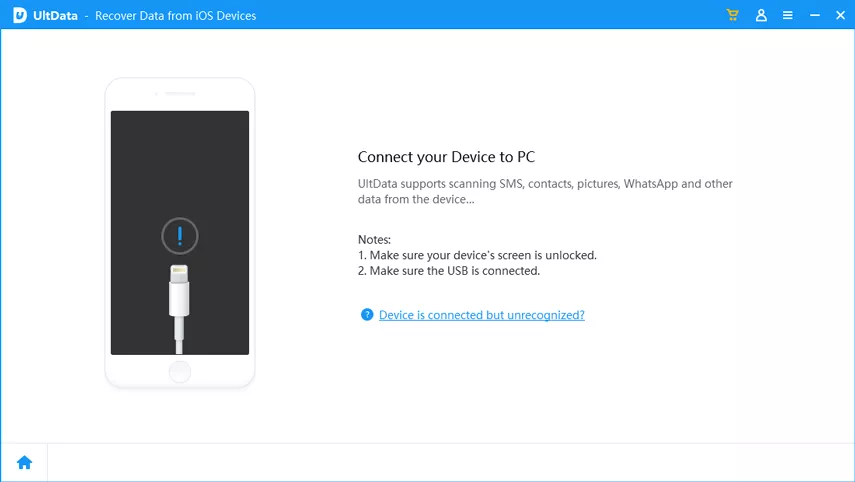


That's how simple it is to use UltData iPhone data recovery software to recover lost iCloud data.

If you want to restore iCloud backup, check this guide on how UltData helps preview and recover selective data from iCloud backup without full restoration.
iCloud Mail syncing usually fails due to a connection issue, a disabled Mail toggle in iCloud settings, full iCloud storage, or an outdated OS version. Checking these in order resolves most cases.
Folders created "On My Mac" instead of under iCloud never sync to other devices, since they are stored locally rather than on Apple's servers.
If the emails still exist on iCloud.com, you can recover deleted iCloud Mail folders because it's a sync issue. If they were actually deleted and aren't in Recently Deleted, use a data recovery tool to check the device or an iCloud backup for recoverable copies.
iCloud Mail folders not syncing usually occurs due to internet connection issues, disabled Mail sync, or an incorrect Mail account. That's why it is fixable in most cases by troubleshooting the sync problems. However, if you are sure that the data is lost and is also not showing in iCloud.com, use UltData iPhone data recovery software to restore the lost data from the iPhone's storage or iCloud backup.


then write your review
Leave a Comment
Create your review for Tenorshare articles

Share this post


UltData - Best iPhone Data Recovery Tool
Recover Deleted & Lost Data from iOS Devices Easily, No Backup Needed!
UltData: Best iPhone Recovery Tool
Recover Lost iPhone Data without Backup
By Jenefey Aaron
2026-10-26 / iOS Data Recovery