

 iOS Tips & Latest Updates
 Bug Fixes, Unlock Guides
 Giveaways & Freebies


UltData - Best iPhone Data Recovery Tool
Recover Deleted & Lost Data from iOS Devices Easily, No Backup Needed!
UltData: Best iPhone Recovery Tool
Recover Lost iPhone Data without Backup
There's nothing quite like the mix of excitement and low-grade panic that comes with a new iPhone. After setting up your iPhone 18 and moving data from your old iPhone, you may feel something is off about your data. Take a breath; don't panic.
Not all data is transferred in the same way. Some data relies on Quick Start, iCloud Sync, iCloud Backup, or app-specific cloud services. Similarly, some data takes a little longer to catch up, while some is sitting in a place you haven't checked yet. Some even need one extra step to reappear.
So, data missing after transfer to iPhone 18 does not necessarily mean the data has been permanently deleted. In most cases, your data isn't lost. It's just stuck somewhere you haven't looked yet.
This guide covers why data goes missing after an iPhone 18 transfer, what to check first, and the recovery methods that actually work, including recovering data with or without backup.

There are different reasons that can lead to missing data after iPhone 18 transfer. The common ones reported by most users are:
Photos, messages, contacts, and notes don't always land on your new iPhone the instant setup finishes. This is common when your library is large. To let syncing finish properly:
Give it time before assuming anything is actually missing.
iCloud Sync and iCloud Backup aren't the same thing. Don't mix them up and think you have lost data.

Data that already syncs with iCloud may not be included in an iCloud Backup because it can be downloaded directly from Apple's cloud service. Meanwhile, some other information may depend on the backup created from your old device.
Above all, many third-party apps run their own backup or cloud systems separate from Apple's. This means that their data may need to be restored separately.
The content of some apps won't appear immediately after transferring to a new iPhone. Apps may need to be downloaded again from the App Store, and some may require you to sign in before your information becomes available. Depending on how an app handles data, its content may also need to be restored through the app's own cloud or backup system.
So, if a particular app seems empty after the transfer, check the app's account and sync settings before assuming the information is gone.
Transfers can stall or fail outright due to:
If the transfer stopped before everything was copied, your iPhone 18 may contain only part of the data from your old device.
One of the common reasons why data is missing after transfer to iPhone 18 is using a different Apple account than the one on your old device. Data associated with another Apple Account won't automatically appear after signing in to a different account.
Check the Apple Account on your old iPhone and compare it with the account currently signed in on your iPhone 18. If they're different, that may explain why certain photos, contacts, notes, or other synced information isn't showing up.
Different types of information can have different storage and recovery paths. Use the table below as a quick starting point.
 Please swipe to view
Data that isn't visible immediately may still be syncing and isn't necessarily lost.
Before jumping to recovery tools, perform a few checks. Verify whether the missing data is still syncing, stored on your old iPhone, or available in a backup. These checks can help you avoid unnecessary recovery steps and prevent overwriting data on your new iPhone.
Let's take a closer look at these checks and their associated steps:
Connect your iPhone 18 to Wi-Fi and keep it connected to power.
Wait for apps, photos, messages, and other iCloud data to finish downloading. Check whether the missing data appears after syncing is complete.
Make sure you are signed in with the same Apple Account used on your old iPhone. To check it, go to Settings > [Your Name] > check the Apple ID at the top.

Also, check whether the relevant iCloud sync options are enabled by navigating to Settings > [Your Name] > iCloud and checking the toggles next to the sync options. Check iCloud Photos, Contacts, Notes, Messages, iCloud Drive, etc. Make sure you have enough iCloud storage.

If you still have your old iPhone, don't erase it yet. Search for the missing photos, messages, notes, contacts, or files.
If the data is still on the old iPhone, you may be able to sync or transfer it again. Back up the old iPhone before trying more advanced recovery methods.
Check for an iCloud Backup created before the transfer. Check the backup date and size. If you have a Mac or Windows computer, check for a Finder/iTunes backup.
Make sure the backup was created when the missing data was still available. Don't restore a backup just yet. First, confirm that it contains the missing data.
There are three methods to recover data missing after transfer to iPhone 18. You can restore a previously created iCloud or iTunes/Finder backup, or restore data directly from the iPhone's internal storage using a dedicated data recovery tool. Let's go through all three methods with their step-by-step workflows:
Best for: Missing data exists in an older iCloud backup. You don't have the data on your new iPhone, and you are willing to restore your device from that backup.
Steps


Best for: Missing data exists in a previously-made Finder/iTunes backup on your computer. Plus, you are willing to restore your iPhone 18 with that backup.
Steps


Important Reminders
Best for: You don't have a backup of missing data to restore and need to scan and extract data directly from your old iPhone's internal storage. Or you want to selectively recover missing data from backup without full restoration.
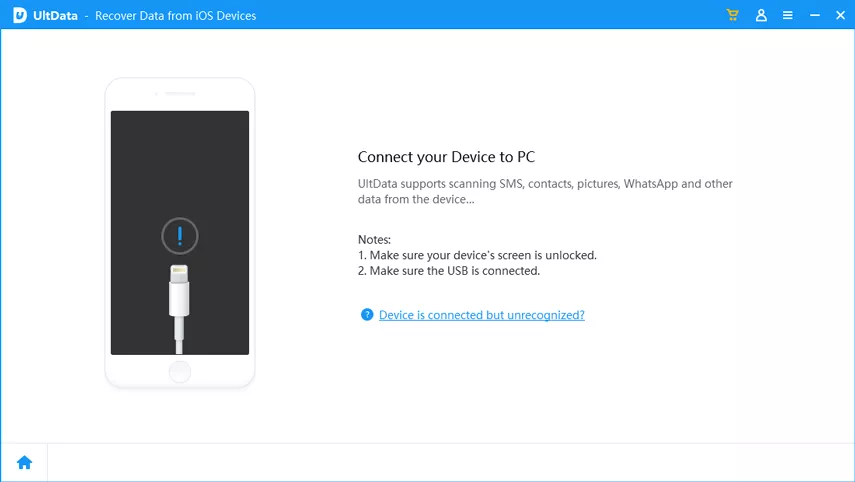
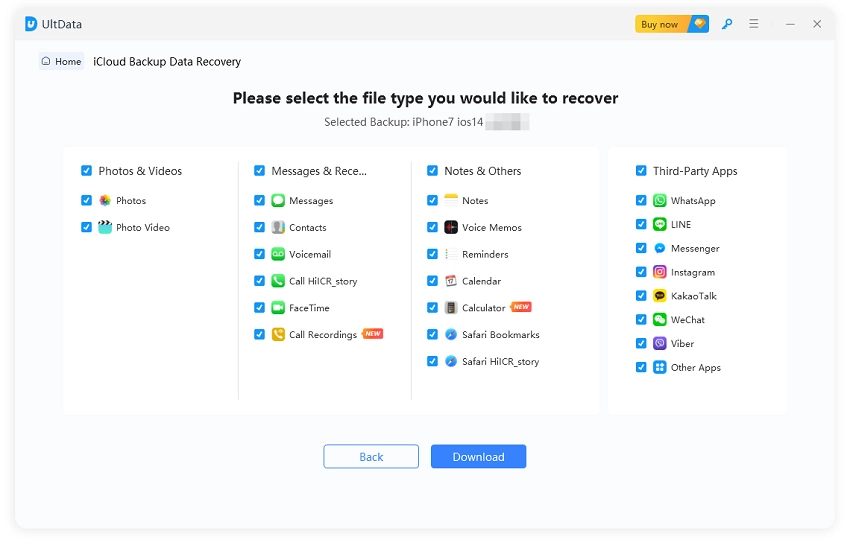
Tenorshare UltData is an advanced iPhone data recovery software that can recover data from 35+ data types lost during iPhone transfer or other scenarios. It can scan internal storage and recover all lost data instantly, including photos, videos, documents, messages, contacts, app data, and more. You also get to preview and select the data you need to recover.
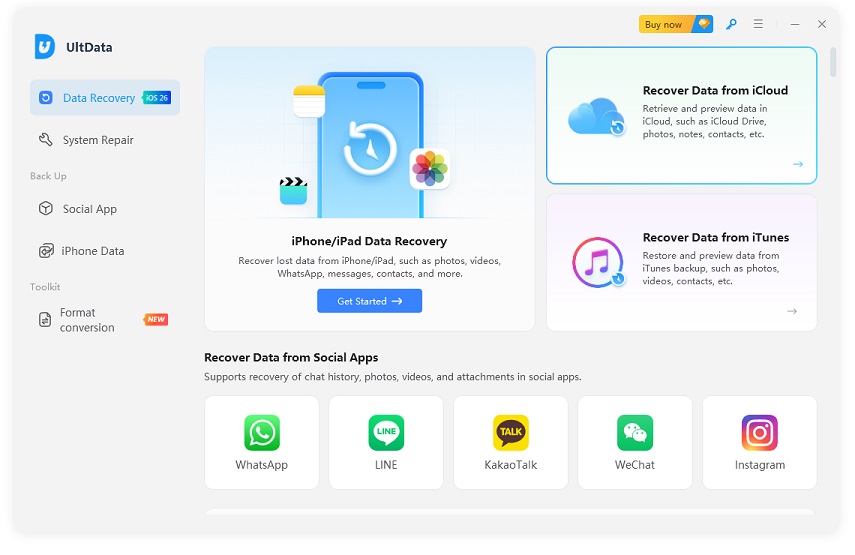
UltData is also capable of restoring selective data from iCloud and iTunes/Finder backup. It can extract content from backups and let you preview and select the files you need. This eliminates the need to restore the entire backup on your iPhone.
Follow these steps to recover missing data using UltData:





Data missing after transfer to iPhone 18 is usually recoverable. Often, the data is still syncing, or the apps need to download and sync it again. Start by checking your Apple Account, sync settings, old device, and available backups before trying recovery methods. If you don't have a suitable backup or need to recover only specific files, Tenorshare UltData is the best option for scanning and recovering missing data from your iPhone or from existing backups.


then write your review
Leave a Comment
Create your review for Tenorshare articles

Share this post


UltData - Best iPhone Data Recovery Tool
Recover Deleted & Lost Data from iOS Devices Easily, No Backup Needed!
UltData: Best iPhone Recovery Tool
Recover Lost iPhone Data without Backup
By Jenefey Aaron
2026-10-26 / iOS Data Recovery