If you're suddenly searching "is there a way to recover deleted iCloud photos," you're not alone. Many iPhone users find that
photos disappear after an iCloud sync issue
, accidental deletion, switching devices, or clearing storage. And because iCloud doesn't always clearly show what's recoverable, it can be difficult to know whether your photos can still be restored.
The good news is that "deleted" iCloud photos may not be permanently lost in every situation. In this guide, we'll explain why deleted iCloud photos may still be recoverable, where those photos might still exist, and the step-by-step methods you can try to restore or recover them in 2026.
Many users searching for a way to recover deleted iCloud photos assume that once a photo disappears, it is permanently gone. The truth is that recovery may still be possible in certain situations, depending on where the photo was stored, whether it was recently deleted, and if any copies remain on your devices or backups.
iCloud photos provides a Recently Deleted album where removed photos are kept temporarily before permanent deletion. In some cases, your other synced Apple devices, local backups, or existing device backups may also contain copies of your photos.
Since iCloud works differently from a traditional backup system, the chances of recovering deleted photos depend on where those photos were stored. Therefore, you should check every possible recovery source, including Recently Deleted, synced devices, available backups, and professional recovery software.
Quick Ways to Recover iCloud Photos (Try These First)
Sometimes the simplest checks solve the problem — especially if you think all your iCloud photos are missing or not showing across devices.
You can restore them instantly if they're still inside the retention window.
Check iCloud Sync and Device Storage Settings
If your iCloud Photos aren't showing up on your iPhone, the issue could be related to iCloud sync or local storage settings. Start by checking whether iCloud Photos is correctly enabled across your devices and if your device is properly syncing with iCloud.
Here’s what to check:
iCloud Photos Sync Status: Go to Settings → Apple ID → iCloud → Photos and ensure that iCloud Photos is turned on. If it's off, turn it on and wait for the sync process to finish.
Storage Space: Ensure you have enough iCloud storage available. If you're running out of space, some photos may not sync properly. Check your available space in Settings → Apple ID → iCloud → Manage Storage.
Device Storage: Make sure there’s enough local storage on your iPhone to allow iCloud to sync photos. You can check storage by going to Settings → General → iPhone Storage.
Network Connectivity: Ensure that your iPhone is connected to a stable Wi-Fi network. Poor network connectivity can cause sync delays or prevent photos from appearing across devices.
These simple checks may resolve issues with iCloud Photos not syncing properly across devices.
Effective Methods to Recover Deleted iCloud Photos
If your photos are missing from iCloud.com and the Recently Deleted folder, they might still be recoverable through other methods. However, before trying any recovery solution, it's important to understand where your photos were stored. iCloud Photos and iCloud Backup work differently, and the available recovery options depend on whether your photos were synced with iCloud or included in a device backup.
Here are some of the most reliable methods you can try:
Method 1: Restore Photos from an iCloud Backup (If Available)
iCloud Backup may contain your photos only if iCloud Photos was turned off when the backup was created. Here’s how to check for and restore photos from an iCloud backup:
Go to Settings → Apple ID → iCloud → iCloud Backup on your device to check the date of the most recent backup.
If the backup date is before the photos were deleted, you can restore the backup to your device.
Go to Settings → General → Reset → Erase All Content and Settings to erase your iPhone. Afterward,
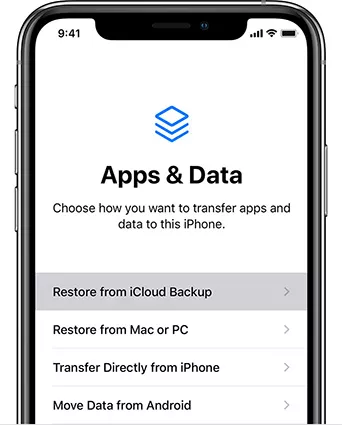
Select Restore from iCloud Backup during the setup process.Choose the backup that contains your missing photos and restore it to your iPhone.
If you don’t mind losing recent data, this method can be an effective way to recover older photos that were erased.
Method 2: Restore Photos from an iTunes or Finder Backup
If you’ve ever connected your iPhone to a computer and created a local backup, you can try restoring photos from iTunes (or Finder on macOS Catalina and later). Here’s how:
Connect your iPhone to the computer you used to back it up.
On macOS Catalina or later, open Finder. On earlier macOS versions or Windows, open iTunes.
Select your device and look for the Backups section.
Choose a backup created before the photos were deleted and click Restore Backup.
Wait for the restore process to finish and check if the photos are back on your iPhone.
Restoring from an iTunes or Finder backup can be a great option when iCloud isn't available, but this method will erase any current data on your device, so be sure to back up anything important before proceeding.
Method 3: Use Third-Party Tools to Scan iPhone for Deleted Photos
When no backup is available or the photos were permanently deleted from iCloud, you can use a third-party recovery tool like UltData iCloud Data Recovery
to scan your iPhone’s internal storage. UltData can scan your iPhone storage for recoverable photo data that hasn't been overwritten yet.
Download and install Tenorshare UltData on your computer.
Connect your iPhone to the computer and launch UltData.
Select Recover from iPhone to begin scanning for deleted photos.
Preview the recovered photos and restore them to your computer or back to your iPhone.
This method works when all other options fail, offering the best chance of recovering photos that seem permanently deleted.
Best Method — Recover Deleted iCloud Photos with Tenorshare UltData
When iCloud cannot restore your photos,
Tenorshare UltData
remains the most reliable method in 2026. It can scan the iPhone deeply — including hidden system caches and photo fragments — and recover images that no longer appear in iCloud.
Why UltData Recovers Photos iCloud Cannot
UltData works because it reads:
local storage sectors
outdated photo database entries
partially synced iCloud files
hidden system caches
This allows recovery even when iCloud says the photos are "permanently deleted."
Step-by-Step Guide to Recover Photos with UltData
Install Tenorshare UltData on your computer.
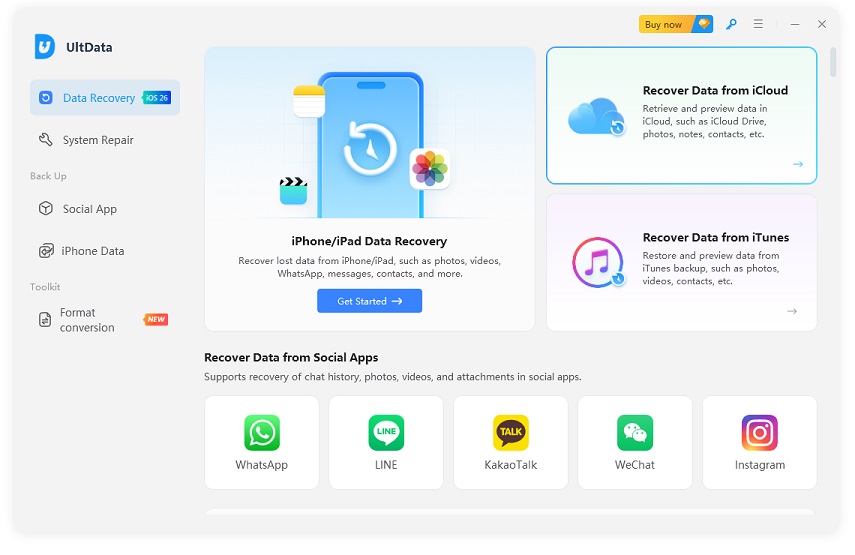
Connect your iPhone and choose ''Recover Data From iCloud'' button. Sign in to iCloud with your Apple ID.
Select Photos and run a deep scan to locate deleted files.Preview the found images and restore them to your computer.
Preview the found images and restore them to your computer.
If you have enabled iCloud Backup before losing your photos, UltData also provides a simple way to recover data from your iCloud backup. Unlike Apple's traditional restore process, you don't need to erase your iPhone or restore the entire backup. You can preview the backup content and selectively recover the photos you need.
Sign in to your iCloud account and select the backup file you want to scan.
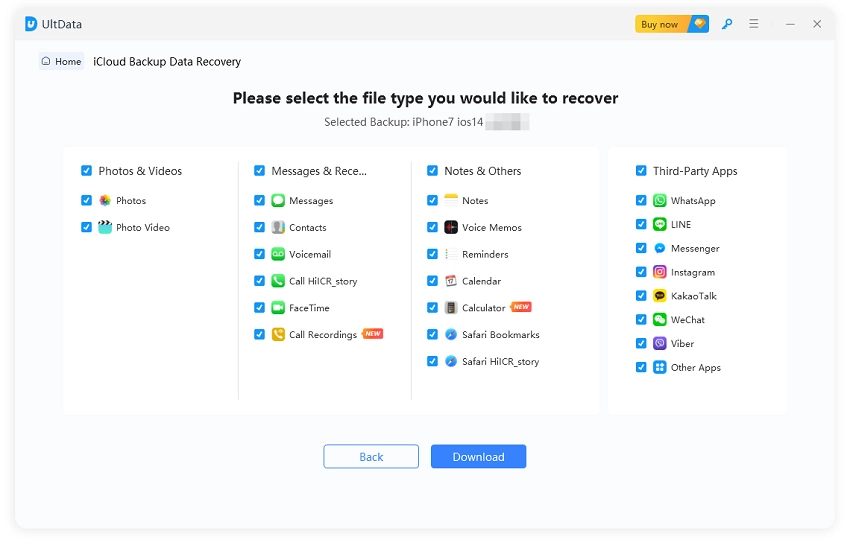
Choose the specific data types you want to recover.
Preview the backup data, select the photos you need, and start the recovery process. Once the scanning process is complete, you can recover the selected photos to your computer. The scanning time may vary depending on the size of the backup file and the amount of data being scanned.
Users often recover photos that disappeared months or years earlier.
Final Tips to Prevent iCloud Photo Loss in the Future
To avoid the stress of wondering is there a way to recover old deleted iCloud photos again:
Keep iCloud Photos enabled on all devices
Back up your iPhone regularly (iCloud or Finder/iTunes)
Avoid deleting photos while iCloud is syncing
Download important albums to local storage
Taking small precautions helps ensure your photos stay safe.
Conclusion
If you've been asking is there a way to recover deleted iCloud photos, the answer is yes — often more times than you expect. While iCloud can restore recently deleted items or older backup versions, deeper recovery may require scanning your iPhone directly. When iCloud fails, Tenorshare UltData gives you the best chance of
retrieving lost or permanently deleted photos
.












 iOS Tips & Latest Updates
 Bug Fixes, Unlock Guides
 Giveaways & Freebies






By Jenefey Aaron
2026-10-26 / iOS Data Recovery