


iCareFone - Free iOS Backup tool & Easy Data Manager
Backup/Transfer/Restore/Manage iOS Data with Simple Clicks
Backup/Manage iOS Data Easily
Backup/Manage iOS Data in Clicks
Apple is expected to introduce iOS 27 in September 2026. If you are a developer, tester, or advanced user and preparing your device for the upcoming beta cycle, the most important setting for app testing and sideloading is Developer Mode.
Searching for how to enable TamperMonkey developer mode on iOS 27, or simply want to know how to enable developer mode in iPhone settings before the beta arrives, this guide covers everything you need to know.

Developer Mode is a special iPhone setting introduced by Apple for developers and advanced users. With Developer mode, you can:
If you plan to test beta apps, use development tools, or want to experiment with app configurations on iOS 27, enable developer mode iOS first.
Before installing any beta version, it's important to prepare your device carefully.
Beta software sometimes contains bugs, app crashes, battery drain, or performance issues. Always create a full backup using iCloud or Finder before updating.
Apple has not officially confirmed the supported devices for iOS 27 yet. Check Apple's official announcements once the beta is released.
If you use Xcode for app testing, make sure your Mac is running the latest available version.
Beta installations sometimes fail unexpectedly. Users commonly experience:
Troubleshooting with Tenorshare ReiBoot can resolve all the update issues.
There are two methods to enable developer mode on iOS directly on an iPhone or with a Mac running Xcode. The exact interface for iOS 27 can be changed slightly after release, but based on Apple's current workflow, the process should remain similar.
If the feature appears automatically when you install a development app, follow these steps:
Use Xcode or another trusted development environment to install a testing app on your iPhone.
Go to "Settings" and select Privacy & Security. Toggle Developer Mode ON. Your iPhone will ask you to restart the device.
After rebooting, unlock your iPhone and tap on "Turn On" when the prompt appears. Enter your passcode if needed. Developer Mode should now be enabled.

After updating to iOS 27, some users may find that Developer Mode is missing from Settings. Normally, you can go to Settings > Privacy & Security > Developer Mode to turn it on. However, on some iPhones, especially after a beta update, this option may not appear right away.
If you are searching for how to enable developer mode iPhone on iOS 27, Tenorshare iCareFone is an easier solution. It can help trigger the hidden Developer Mode option, so you can enable it on your iPhone without using Xcode.
Download and install Tenorshare iCareFone on your PC or Mac. Then connect your iPhone to the computer with a USB cable.




After your iPhone is connected, open iCareFone and click the edit button, represented by a pen icon, next to the Quick Access section on the home page. Then add the Developer Mode tool to Quick Access.

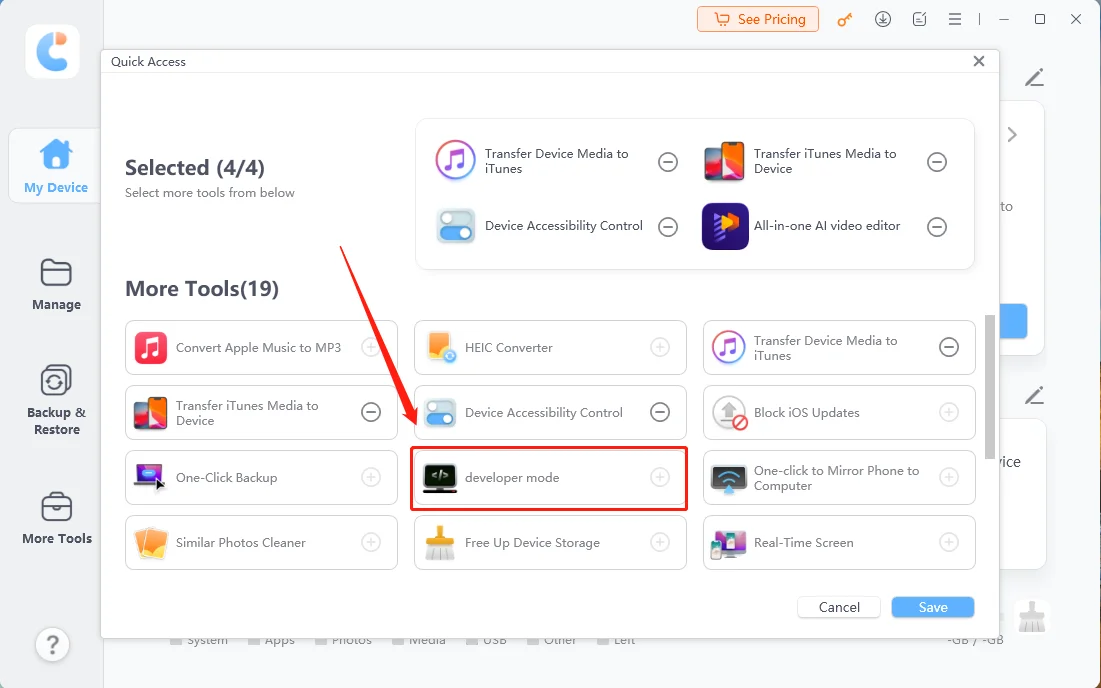
Click the Developer Mode tool in iCareFone. Then open the Settings app on your iPhone and go to Privacy & Security.

Scroll down to find Developer Mode. Turn it on and tap Restart when prompted.

After your iPhone restarts, a pop-up window will appear. Tap Turn On again and enter your device passcode to confirm. Once completed, Developer Mode will be enabled on your iOS 27 device.

This method is especially useful when you meet the iOS 27 developer mode missing issue and cannot find the option in Settings. With iCareFone, you can quickly enable developer mode iPhone without going through a complicated developer setup.
If the option does not appear automatically, you will need to connect your iPhone to a Mac.
Use a Lightning or USB-C cable to connect your iPhone to your Mac. Now tap on "Trust this Computer" and enter the password if asked.
Launch Xcode and go to Window > Devices and Simulators. Under Device search for your iPhone. Now go to Settings > Privacy & Security > Developer Mode. Turn it ON and restart your device.

Sometimes users encounter that the Developer Mode option does not show after updating. If you encounter iOS 27 developer mode not showing or iOS 27 beta developer mode missing issues, try the solutions below.
Beta updates are exciting, but they can also trigger unexpected system problems. Tenorshare ReiBoot is designed to help users repair and manage iOS update issues without complicated manual troubleshooting.
You can resolve common problems with ReiBoot such as:
It also helps users enter or exit Recovery Mode easily during troubleshooting.
If you plan to prepare for iOS 27 installation, ReiBoot helps you upgrade without any issue.
Install and launch ReiBoot on your Windows PC or Mac. Connect your iPhone using a USB cable.
Once detected, click on "iOS Upgrade/Downgrade" at the bottom of the PC screen.
Now select "Upgrade." This option works for both beta and stable iOS versions.

ReiBoot automatically detects compatible firmware versions. Click on "Download." If necessary, you can also import firmware manually.

Once the firmware downloads successfully, click on "Initiating Upgrade." The process of updating iOS will start. The process upgrades iOS without clearing your data.

Keep your iPhone connected until the installation finishes. Once complete, your device will restart normally with the updated iOS version.
Before enabling Developer Mode on iOS 27, remember these precautions:
If you are preparing for Apple's upcoming beta cycle, learning how to enable developer mode on iOS 27 is important for developers and testers.
Although Apple has not officially released iOS 27 yet, the expected process should remain similar to recent iOS versions. If you experience problems like iOS 27 developer mode missing or installation failures, troubleshooting with Tenorshare ReiBoot can help restore your device quickly.
Go to Settings > Privacy & Security > Developer Mode. Turn it ON, restart your device, and confirm activation with your passcode.
If the option does not appear, connect your iPhone to a Mac running Xcode and install a development build.
Developer Mode is generally safe when used carefully, but it reduces certain security protections. Only install trusted apps and disable the feature when you don't need it.
Yes. ReiBoot is designed to repair common iOS system issues, including a stuck Apple logo, Recovery Mode loops, frozen updates, and boot loops.
ReiBoot supports upgrading compatible iOS firmware versions and can simplify the update process compared to manual methods.


iCareFone for LINE - Easy LINE Data Transfer




then write your review
Leave a Comment
Create your review for Tenorshare articles
Best Free iPhone Transfer & iOS Backup Tool
Easily, without iTunesShare this post


iCareFone - Free iOS Backup tool & Easy Data Manager
Backup/Transfer/Restore/Manage iOS Data with Simple Clicks
Backup/Manage iOS Data Easily
Backup/Manage iOS Data in Clicks
By Jenefey Aaron
2026-09-15 / iOS 27