If you’ve opened Activity Monitor and noticed
Mac kernel_task high CPU usage skyrocketing to 300%, 800%, or
even higher, you're not alone. Many MacBooks, MacBook Air, and iMac users
panic when their systems slow down unexpectedly. The good news? This behavior
is usually intentional, not a system failure, and there are practical ways to
fix it quickly.
Part 1. What Is Kernel_Task on Mac? (And Why It’s Not a Bug)
What Is Kernel_Task
Kernel_Task is a core macOS process responsible for managing system-level
operations such as CPU usage, temperature regulation, memory allocation, and
hardware communication. It acts as a bridge between macOS software and your
Mac’s physical components.
Why It’s Not a Bug?
Many users assume kernel_task high CPU usage is a malfunction, but it’s
actually a protective feature.
Kernel_Task deliberately “steals” CPU cycles to reduce overheating
It slows down other processes to prevent hardware damage
It activates when sensors detect heat, even if you don’t feel it
High CPU usage by kernel_task is often a sign that your Mac is protecting
itself, not breaking down.
Part 2. Why Is Kernel_Task Using So Much CPU (The Real Reason Behind
100%–1000% Spikes)
Before we learn how to fix kernel tasks using all the CPUs, it is important
to know the root cause, and we will be discussing that here:
1. Why Is Kernel_Task Hogging CPU
Here are the most common causes behind kernel_task high CPU usage:
Overheating due to blocked vents or high ambient temperature
External devices are causing a power or thermal imbalance
Faulty or incompatible chargers
High CPU apps running in the background.
macOS bugs or outdated system versions
Using external monitors (especially high-resolution displays)
Dust buildup inside the fans and the cooling system
Dynamic wallpapers consume GPU/CPU
2. How Much CPU Should Kernel_Task Use?
Different usage conditions require different CPU usage percentages as listed
below:
Normal: 0%–10%
Moderate load: 20%–50%
High (temporary): 100%–300%
Extreme: 400%–1000% (thermal throttling mode)
If it stays above 300% for long periods, your Mac likely has a thermal or
hardware-related issue.
Part 3. How to Fix Kernel_Task High CPU Usage? | 6 Proven Methods
If your Mac becomes slow or unresponsive due to kernel_task taking too much
CPU, don’t worry, there are several proven solutions you can apply
immediately. These methods target the root causes, such as overheating,
resource overload, and system misconfiguration, helping you bring CPU usage
back to normal quickly and safely.
Fix 1. Cool Down Your Mac Immediately
When kernel_task CPU usage spikes, overheating is usually the primary
trigger behind the issue. macOS intentionally increases kernel_task activity
to protect internal components from heat damage. By lowering your Mac’s
temperature quickly, you can stop thermal throttling and restore normal
system performance without making any complex changes or adjustments.
Shut down your Mac and move it to a cooler, well-ventilated area.
Remove any case or cover blocking airflow, and if you have a laptop
cooling pad, put the Mac on it with the laptop screen lid open.
Let it rest for 10–15 minutes, then restart and monitor CPU usage
Fix 2. Identify and Quit Resource-Hogging Processes with Cleamio
Sometimes kernel_task Mac high memory spikes happen because other apps are
consuming excessive resources. Instead of manually checking Activity
Monitor, a smarter tool can quickly identify and remove problematic
processes, helping reduce CPU pressure instantly.
Use
Tenorshare Cleamio
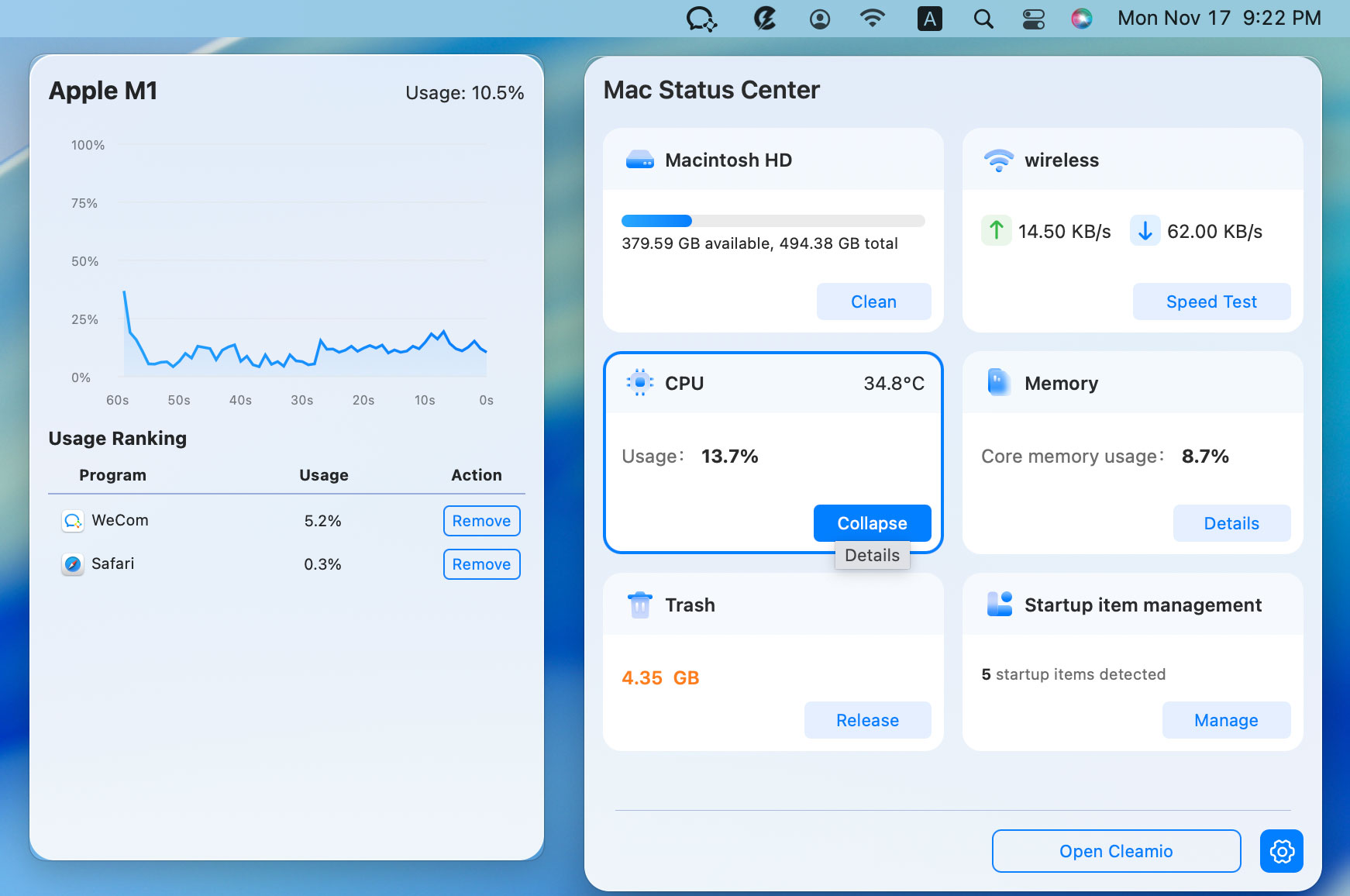
because it comes with a built-in Mac Status Center that monitors CPU and
memory usage. It detects heavy apps in real time and allows one-click
removal of resource-hogging processes.
Install and open Cleamio on your Mac and click the “Mac Status Center”
icon from the menu bar to check CPU and
M emory usage.
Identify heavy apps by clicking “Details” and clicking “Remove” to quit
them instantly.
Fix 3. Change All Screen Wallpapers from “Dynamic” to “Still”
Dynamic wallpapers may look visually appealing, but they constantly adjust
lighting and animations in the background, which consumes both GPU and CPU
resources. On systems already under load, this can indirectly trigger
kernel_task to throttle performance. Switching to a static wallpaper helps
reduce system strain and stabilizes CPU usage effectively.
Open System “Settings” and go to “Wallpaper."
Select a Still image instead of a dynamic image
Apply changes and restart your Mac
Fix 4. Switch Charging Port / Unplug Charger
Charging-related issues can confuse your Mac’s internal thermal and power
sensors, especially when using third-party adapters or hubs. This
miscommunication may cause kernel_task to spike as a safety measure.
Changing the charging port or using a direct power connection often resolves
abnormal CPU behavior linked to power delivery inconsistencies.
Unplug your current charger and plug directly into a different Thunderbolt
port.
Avoid using USB hubs or adapters, especially for charging
Use an official Apple charger if possible, and observe CPU behavior after
reconnecting
Fix 5. Reset SMC (System Management Controller)
The System Management Controller (SMC) plays a critical role in managing
your Mac’s thermal control, battery, and fan operations. If kernel_task high
CPU usage is caused by incorrect sensor readings or power management issues,
resetting the SMC can restore proper communication between hardware
components and significantly reduce unnecessary CPU throttling.
Shut down your Intel Mac and hold “Shift + Control + Option + Power” for
10 seconds
Release all keys, then turn your Mac back on
(For Apple Silicon Macs, simply restart the device.)
Fix 6. Clean Dust from Vents and Fans
Over time, dust buildup inside your Mac can block airflow and reduce cooling
efficiency, even during light usage. When heat cannot dissipate properly,
mac kernel_task high CPU usage happens to compensate and prevent
overheating. Regular cleaning of vents and fans improves airflow, lowers
internal temperature, and helps maintain stable system performance.
Power off your Mac and use compressed air to clean vents.
Focus on fan intake/exhaust areas
Avoid opening hardware unless experienced
Restart and monitor temperature/CPU
Part 4. How to Prevent Kernel_Task High CPU in the Future?
To avoid recurring kernel_task Mac high CPU issues, follow these practical
tips:
Keep your Mac in a cool, ventilated environment
Avoid blocking vents (especially on beds or couches)
Update macOS to fix bugs and improve thermal handling
Reduce external monitor usage if overheating occurs
FAQs about Kernel_Task High CPU
Q1: Is kernel_task malware?
No, kernel_task is a legitimate macOS system process. It is not malware and
cannot harm your Mac. Its high CPU usage is a protective mechanism, not a
security threat.
Q2: What does 400% CPU mean on a Mac?
macOS uses multiple CPU cores, so percentages exceed 100%. For example, 400%
means four cores are fully utilized. Kernel_task reaching this level usually
indicates thermal throttling.
Q3: Why does kernel_task use so much CPU with an external monitor?
External monitors increase GPU workload and heat output. This can trigger
kernel_task to limit performance and prevent overheating, especially with
high-resolution displays like 4K or ultrawide monitors.
Q4: Does kernel_task high CPU usage affect the MacBook battery?
Yes, prolonged high CPU usage can drain the battery faster. However, since
kernel_task reduces other processes, it may indirectly prevent excessive
battery strain caused by overheating.
Conclusion
The Mac kernel_task high CPU issue may look alarming, but
it’s usually your Mac protecting itself from overheating or hardware stress.
By cooling your device, managing resource-heavy apps, and optimizing system
settings, you can quickly restore normal performance. For ongoing monitoring
and one-click optimization, Tenorshare Cleamio is a
reliable solution to keep your Mac running smoothly and efficiently.






 iOS Tips & Latest Updates
 Bug Fixes, Unlock Guides
 Giveaways & Freebies






By Jenefey Aaron
2026-10-14 / Mac Optimization