
 iOS Tips & Latest Updates
 Bug Fixes, Unlock Guides
 Giveaways & Freebies


UltData - Best iPhone Data Recovery Tool
Recover Deleted & Lost Data from iOS Devices Easily, No Backup Needed!
UltData: Best iPhone Recovery Tool
Recover Lost iPhone Data without Backup
Losing important messages can feel like a punch in the stomach — especially when you're trying to recover iMessages from iCloud without backup and realize those conversations aren't appearing anywhere. Whether your iPhone glitched after an update , you deleted a thread by accident, or your device was replaced before your iCloud backup saved properly, this situation is more common than it seems.
The good news is that deleted iMessages aren't always gone forever. Even when there's no iCloud backup, parts of your conversations may still exist through iCloud message sync, on other devices logged into your Apple ID, or inside hidden iMessage database fragments stored on your iPhone. And when iCloud can't bring them back, tools like Tenorshare UltData can scan deep inside your device and recover deleted iMessages that aren't visible in the Messages app.
Below, you'll find the most effective 2026 methods—starting from the simplest checks to powerful recovery tools when nothing else works.
Many users searching how to recover iMessages from iCloud without backup assume everything depends on a full iCloud device backup — but iMessages are often stored separately. Apple's Messages in iCloud sync keeps conversations updated across devices independently of full backups.
This means deleted iMessages may still exist even when your iCloud backup is missing, outdated, or never enabled.
Before attempting deep recovery, start with the methods Apple commonly overlooks — especially if you're trying to recover deleted iMessages iPhone with no iCloud backup.
Go to:
Settings → Apple ID → iCloud → Apps Using iCloud → Messages

If this is enabled, your iMessages may still be stored in iCloud sync rather than an iCloud backup. Turning the toggle off and back on can sometimes re-sync old messages.
Before assuming your iMessages are gone, make sure they're not simply hidden by filters, muted threads, or the wrong view in the Messages app. iOS can quietly tuck conversations away without actually deleting them, especially after updates or setting changes.

These quick checks often reveal “missing” iMessages that were never truly deleted, saving you from deeper recovery steps.
Even if you searched for how to recover iMessages from iCloud without backup, many users later discover that an older iCloud or computer backup actually exists. If that backup was created before the messages were deleted, you may be able to bring those conversations back using Apple's built-in restore options.
The key is to check for available backups first and only restore if the backup is likely to contain the missing iMessages.
iCloud Backup can include your iMessages if you didn’t enable Messages in iCloud or if the backup was created before you turned on sync. Here's how to check and restore safely:


If you've ever connected your iPhone to a Mac or Windows PC, there might be a local backup containing your old iMessages. This can be a lifesaver when iCloud backups are missing or disabled.

This method is especially useful if iCloud Backup was never turned on but your computer has been creating automatic backups in the background.
If you don’t want to erase your current data just to restore a backup, or if no usable backup exists at all, move on to Part 4, where we cover using Tenorshare UltData to recover deleted iMessages directly from your device without relying on iCloud or iTunes backups.
When all other methods fail, UltData iPhone Data Recovery offers the most effective way to recover iMessages from iCloud without backup, especially when you can't restore your iPhone or access older iCloud data.
It's the closest option to "undelete iMessages" on iOS.
[Free Download]: Tenorshare UltData - Recover deleted iMessages without backup




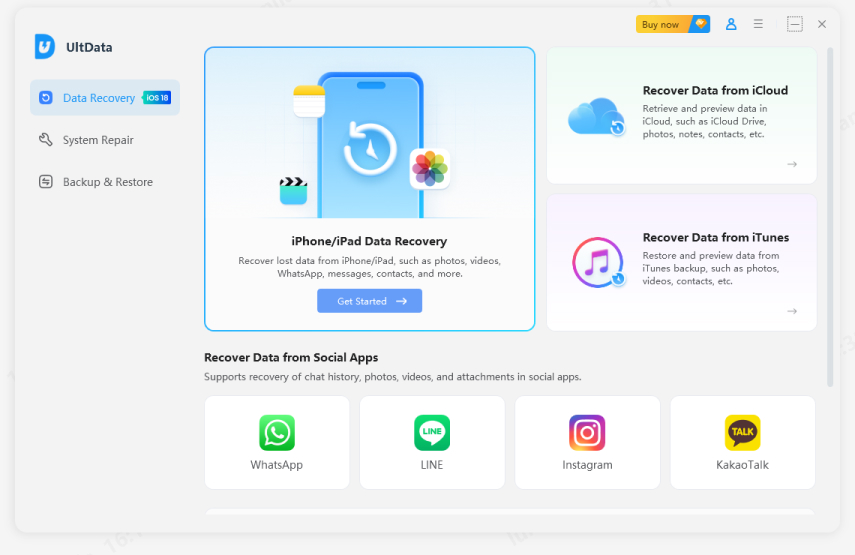
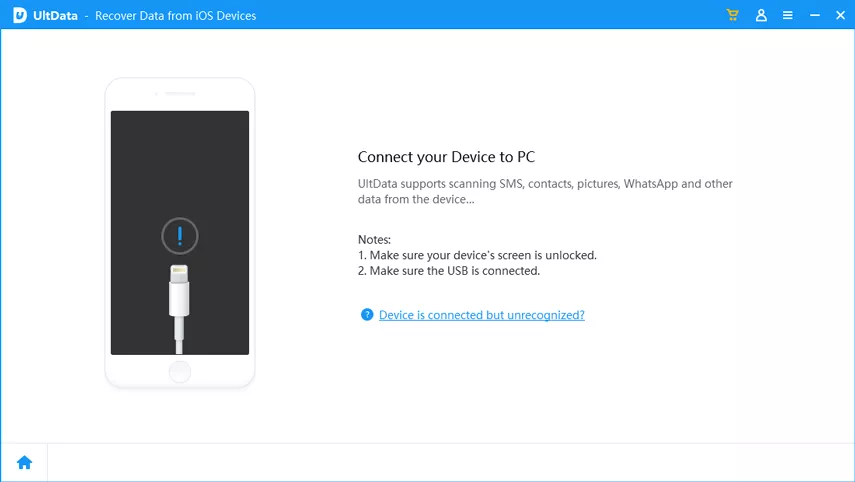
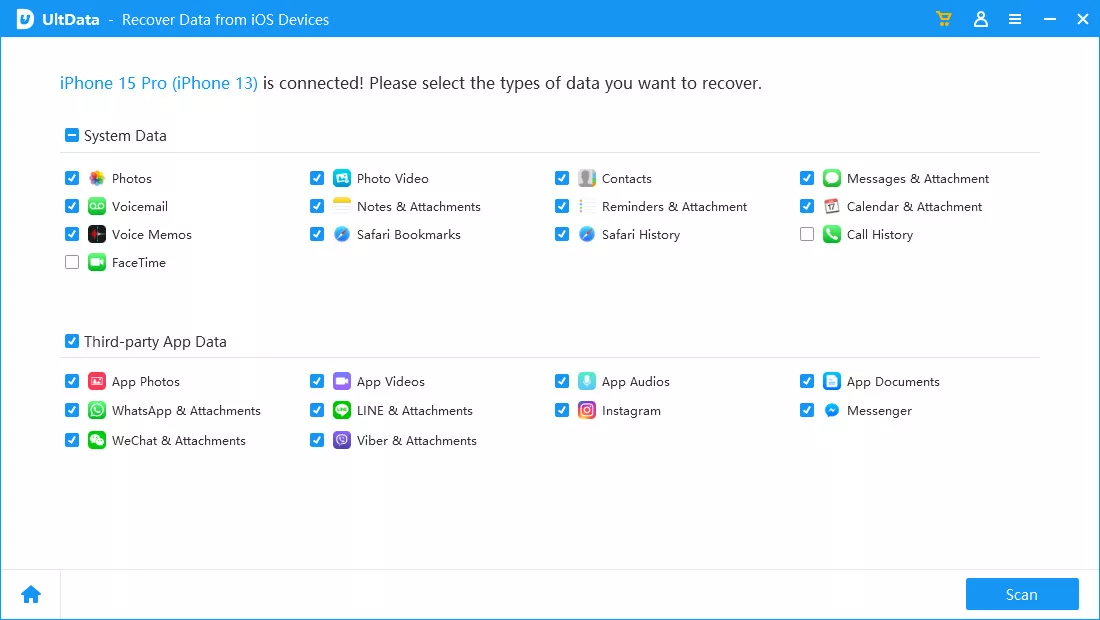
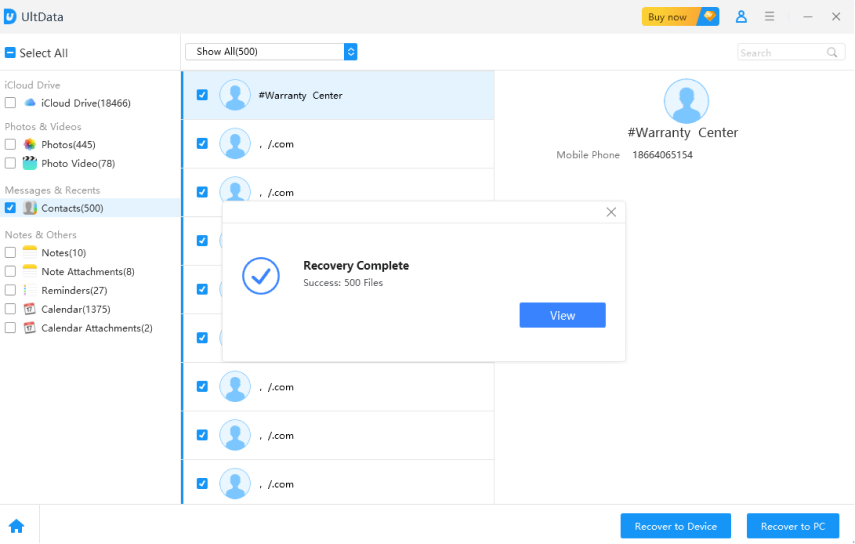
This method retrieves conversations even when no backup exists.
If the messages are still inside your device's storage, UltData can find them.
Yes, deleted iMessages can sometimes be recovered without backup by using Messages in iCloud sync, checking linked devices, or using iCloud data recovery tool like Tenorshare UltData that scan your iPhone's internal storage for deleted message fragments.
When Messages in iCloud is enabled, deleted messages are immediately synced across all devices and removed from iCloud. However, if they existed in an older iCloud backup before Messages in iCloud was turned on, they may still be recoverable from that backup.
iCloud backup saves a snapshot of your entire device including messages at specific points in time. Messages in iCloud continuously syncs your conversations across all devices in real-time, but doesn't keep deleted messages. This is why recovery without backup often depends on Messages in iCloud being enabled.
Understanding how to recover iMessages from iCloud without backup gives you more options than you may expect. Even when iCloud backup is missing or outdated, your messages may still exist through device sync, attachments, or local storage.
But if none of Apple's methods work, Tenorshare UltData provides the strongest chance of recovering deleted iMessages safely — without wiping your device or relying on iCloud.


then write your review
Leave a Comment
Create your review for Tenorshare articles
Share this post


UltData - Best iPhone Data Recovery Tool
Recover Deleted & Lost Data from iOS Devices Easily, No Backup Needed!
UltData: Best iPhone Recovery Tool
Recover Lost iPhone Data without Backup
By Jenefey Aaron
2026-10-20 / iOS Data Recovery