

 iOS Tips & Latest Updates
 Bug Fixes, Unlock Guides
 Giveaways & Freebies

UltData - Best iPhone Data Recovery Tool
Recover Deleted & Lost Data from iOS Devices Easily, No Backup Needed!
UltData: Best iPhone Recovery Tool
Recover Lost iPhone Data without Backup
You deleted a Pages document, and now it's gone. Annoying, I know. Before you assume the worst, though, it's worth checking a few spots, because the file is often still hiding somewhere. This guide shows how to recover deleted Pages documents on iPad and iPhone, starting with the easy stuff and ending with a recovery tool if nothing else works.

Usually, it's one of three things. You hit delete by mistake, iCloud didn't sync the way you expected, or you saved changes over a version you wanted to keep. What works depends on where the file lived, whether it was deleted or overwritten, and whether an older copy exists.
Apple's own tools come first because they're free and won't mess with anything else on your device. After that, we'll look at backups and then at Tenorshare UltData if you're still stuck. There's a short section at the end on not ending up here again.
Go through these in order. You don't need to install anything.
When you delete a document in Pages, it doesn't vanish right away. It goes to Recently Deleted and stays there for roughly 30 days. If you deleted it recently, start here.
It works the same on iPhone and iPad, and the file goes back to the folder it was in. Not showing up? Try searching, or tap Browse or Recents at the bottom of the screen.

The catch is that this only works while the file is still in there. If you've emptied the folder, or it's been over a month, it's probably gone from here. Also, a document someone else shared with you doesn't go to Recently Deleted at all. It's deleted immediately, so you'll need to open the original invitation link again or ask them to resend it.
Sometimes, nothing was actually deleted. Pages just isn't showing the file, but it's still sitting in iCloud Drive.

If another iPhone, iPad or Mac is signed in with the same Apple Account, check it too. A copy could be on there. iCloud syncs changes and removals across all your devices, so leave it alone until you've made a duplicate.
If not, check the data app's Recently Deleted folder. iCloud.com also offers Restore Files for recently erased iCloud Drive data.
If the file is there but incorrect, use this one. Maybe some text is gone, or you saved the good copy. It only works for files stored in iCloud and not for all files.

Preview the old version first. Restore replaces what you have now, so you could lose newer edits. Not sure? Tap Save a Copy instead, which keeps both versions.
If the file isn't in Recently Deleted or iCloud Drive, an old backup might have it. Go to Settings > \your name\ > iCloud > Manage Account Storage > Backups to see iCloud backups, or check your Mac or PC for a computer backup. Either one has to be older than the day the file went missing.
Apple's method restores the whole device. For an iCloud backup, you erase the phone or iPad, then choose the backup when you set it up again. For a computer backup, you use Finder on a Mac or Apple devices or iTunes on a PC.

Two problems with this:
Back up the device as it is now before you try this, and keep a full restore as your last resort.
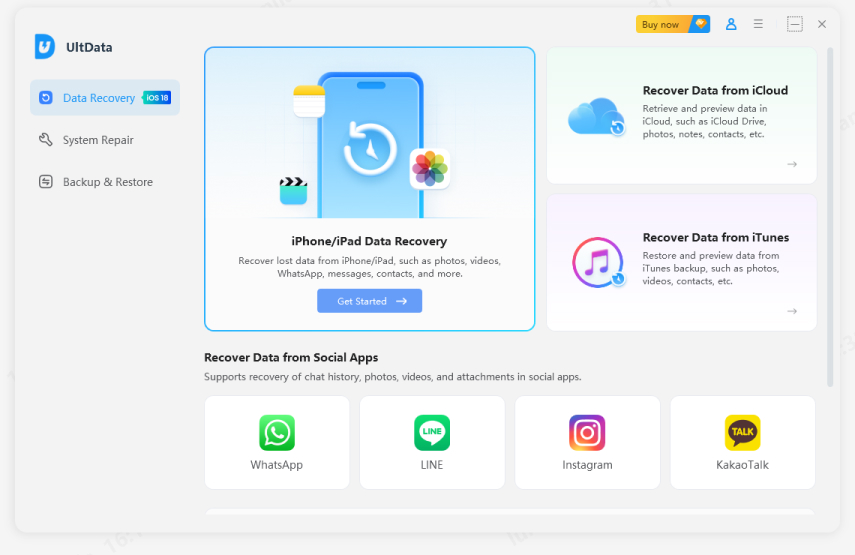
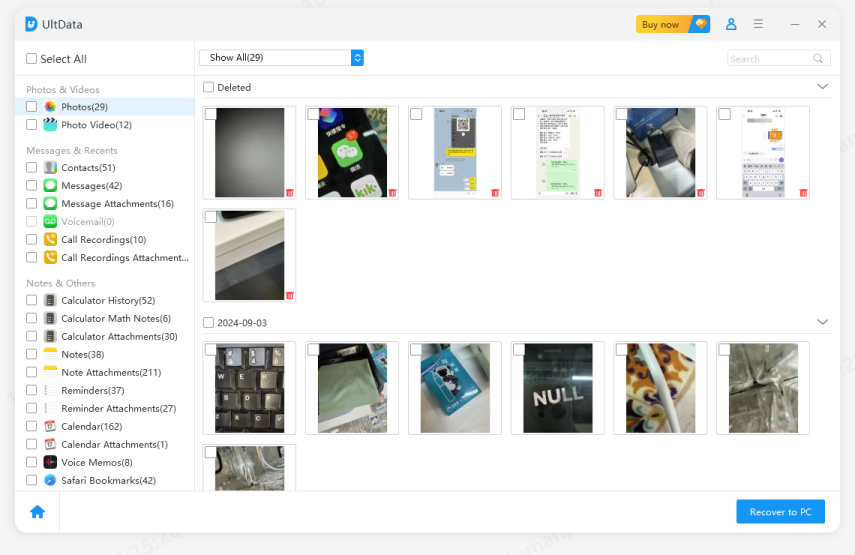
If you've checked Recently Deleted, iCloud Drive and your backups and the document still isn't there, a data recovery tool is the next thing to try. Tenorshare UltData iPhone Data Recovery scans an iPhone for supported recoverable data and lets you preview what it finds before you recover anything.


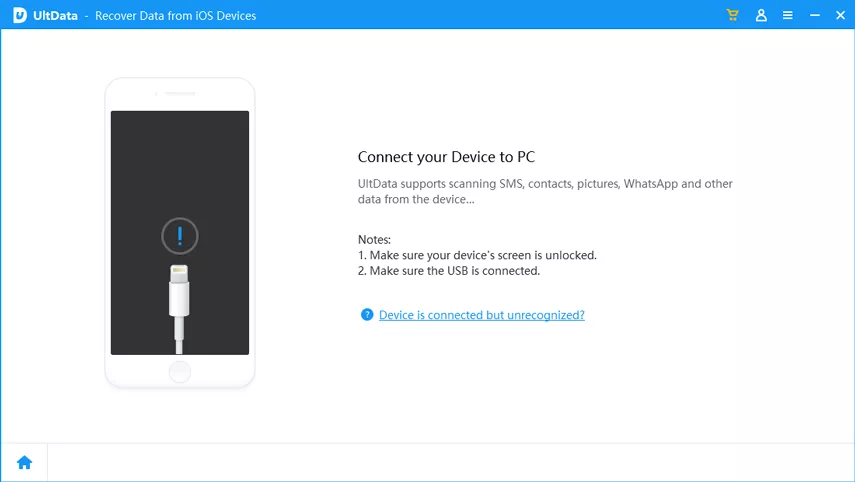
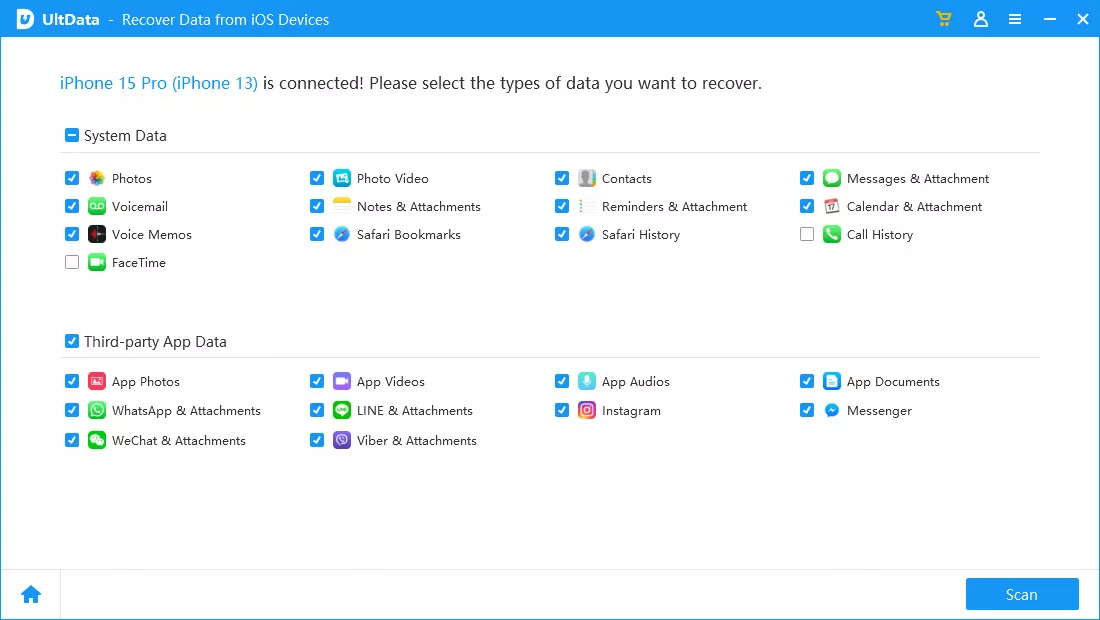
UltData works on Windows and Mac. You plug in your iPhone, pick a recovery mode, run a scan, and go through what it finds. Tenorshare lists three modes: scanning the device itself (with or without a backup), restoring from iCloud without resetting the device, and restoring from an iTunes or computer backup.
iPads are on their supported list, too. Before you start: The supported data list covers photos, videos, messages, contacts, notes, voice memos, and social app data. Page documents aren't listed, so run a scan before you get your hopes up.
Some habits that help:
Work out what happened first. Deleted it? Check Recently Deleted. Can't find it? Look in iCloud Drive. Text changed or gone? Try an earlier version. Only go for a backup restore after those fail, and save your current data before you do.
If Apple's methods don't find it, Tenorshare UltData can scan your iPhone for supported data, and you can preview the results before paying. Avoid using the device more than necessary in the meantime, so deleted data isn't overwritten.


UltData - Best iPhone Data Recovery Software




then write your review
Leave a Comment
Create your review for Tenorshare articles
Share this post


UltData - Best iPhone Data Recovery Tool
Recover Deleted & Lost Data from iOS Devices Easily, No Backup Needed!
UltData: Best iPhone Recovery Tool
Recover Lost iPhone Data without Backup
By Jenefey Aaron
2026-11-03 / iOS Data Recovery