How to Put iPhone Duo in Recovery Mode

authorPic

By Jenefey Aaron

2026-11-03 / iPhone 18

A stuck Apple logo, failed update, or unresponsive screen can make it difficult to use your iPhone Duo normally. Recovery Mode gives you another way to connect the device to a computer and troubleshoot these problems. This guide explains how to put iPhone Duo in recovery mode using the physical buttons or Tenorshare ReiBoot. You'll also learn what to do after entering Recovery Mode and how to exit it safely.

iphone duo recovery mode guide

Part 1. How to Put iPhone Duo in Recovery Mode

Before You Start

Have these things ready before you put iPhone Duo in recovery mode:

  • A compatible USB cable
  • A Mac or Windows PC
  • Finder on Mac or the Apple Devices app on Windows
  • A recent backup of your important data, if the iPhone is still accessible

A backup is especially important if you may need to restore the device. Restore reinstalls iOS and erases the iPhone's content and settings.

Enter Recovery Mode on iPhone Duo

Follow these iPhone Duo recovery mode steps carefully:

  • Use a USB cable to connect the iPhone to your Mac or Windows PC.
  • Open Finder on Mac or Apple Devices on Windows. Keep the iPhone connected.
  • Quickly press and release the Volume Up button.
  • Quickly press and release the Volume Down button.
  • Press and keep holding the Side button. Continue holding it even when the Apple logo appears.
  • holding side button until apple logo
  • Release the Side button only when the Connect to Computer screen appears. This confirms that you have successfully entered recovery mode on iPhone Duo.

Part 2. How to Put iPhone Duo in Recovery Mode with Tenorshare ReiBoot

Steps to Enter Recovery Mode with ReiBoot

Tenorshare ReiBoot provides a simple way to enter recovery mode on iPhone Duo without using the physical button combination. It offers a one-click option to enter Recovery Mode and is free to use for this feature. The process only takes a few steps and guides you through recovery directly from your computer.

Here is how to enter recovery mode on iPhone with reiboot:

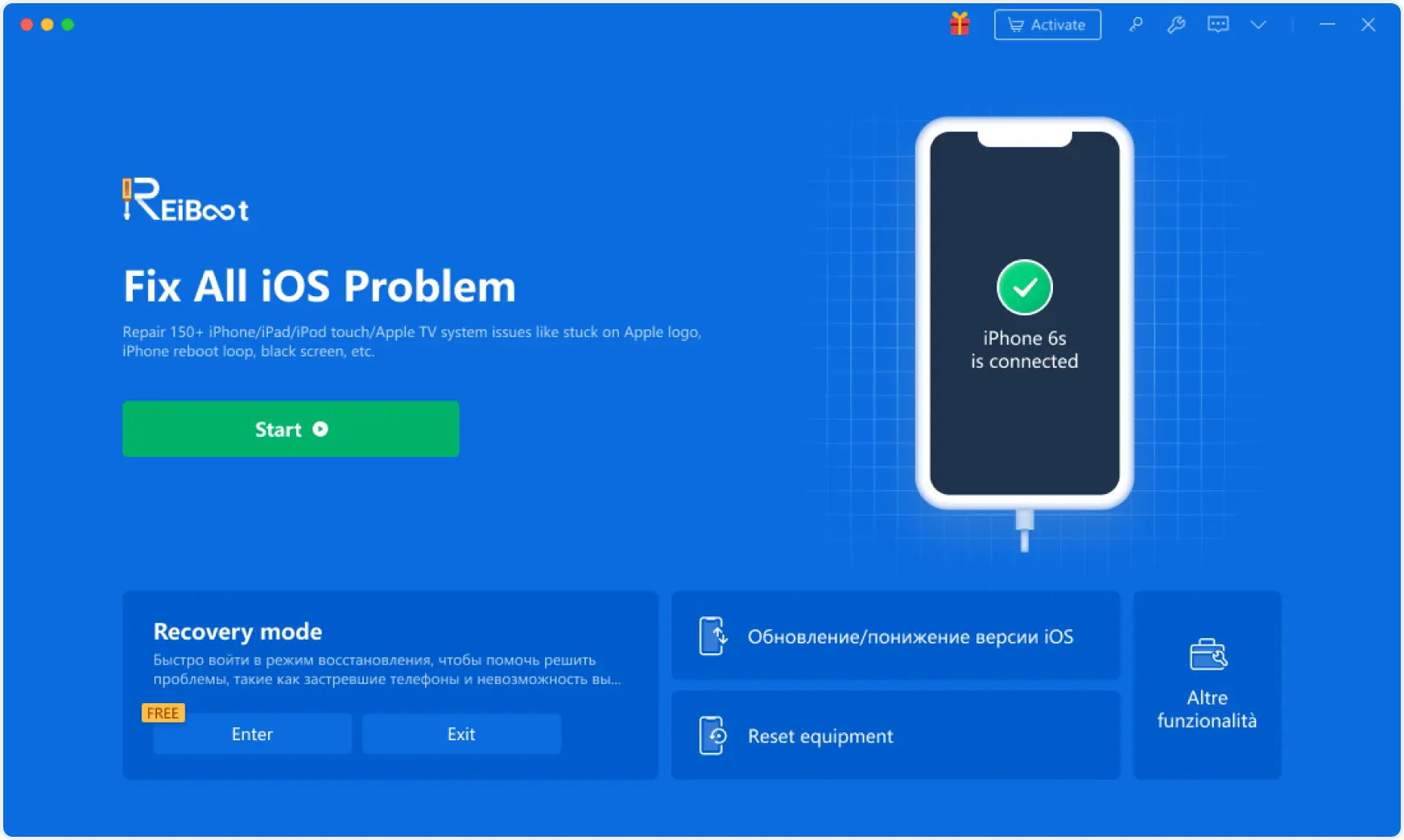
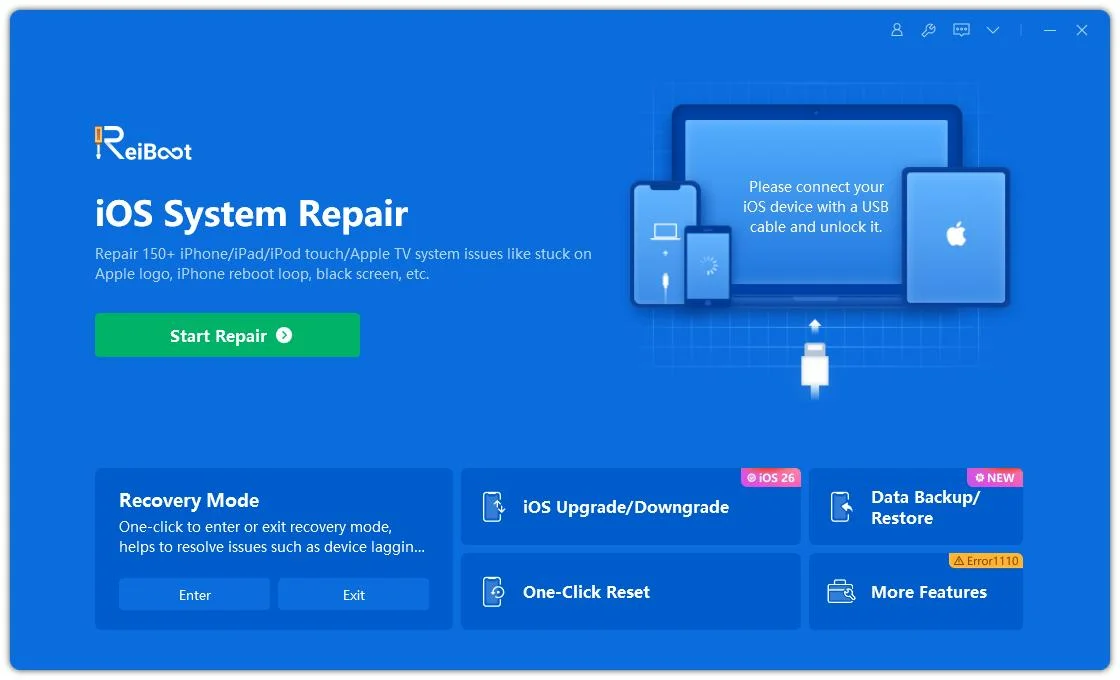
  • Download and install Tenorshare ReiBoot on your Windows PC or Mac. Launch the program and connect your iPhone Duo to the computer using a USB cable.
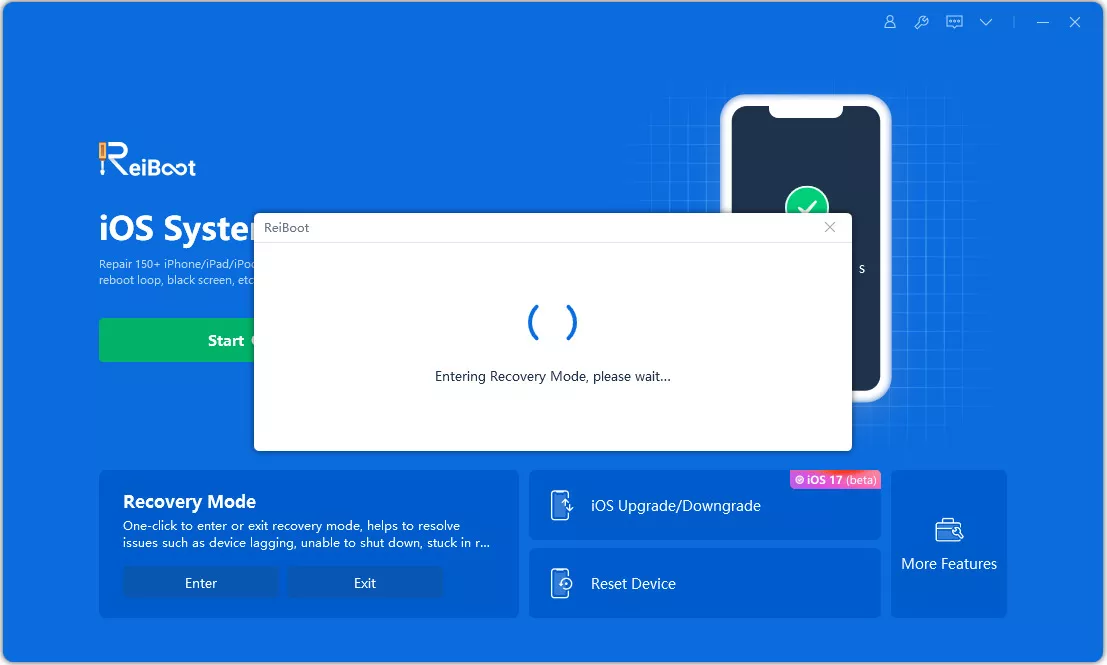
  • Wait for ReiBoot to recognize your iPhone Duo. Once the device is detected, select Enter under the Recovery Mode option to start the process.
  • ReiBoot will guide the iPhone Duo into Recovery Mode. After the process is complete, the iPhone Duo connect to computer screen should appear, confirming that Recovery Mode is active.

ReiBoot also includes Standard Repair, Deep Repair, and DFU Repair for different iOS system issues. These tools can be useful when entering Recovery Mode alone does not resolve the underlying problem.

Part 3. How to Exit Recovery Mode on iPhone Duo

Exit Recovery Mode Without Restoring

You can leave Recovery Mode using the iPhone's physical buttons without restoring or erasing the device.

Here is how to exit recovery mode iPhone Duo:

  • Quickly press and release the Volume Up button.
  • Quickly press and release the Volume Down button.
  • Press and hold the Side button until the Apple logo appears.
  • Release the Side button when the Apple logo appears and wait for the iPhone Duo to restart.
  • releasing side button at apple logo

Exit Recovery Mode with ReiBoot

Tenorshare ReiBoot also lets you exit Recovery Mode from your computer without using the button combination.

  • Open Tenorshare ReiBoot on your Mac or Windows PC. Connect your iPhone Duo to the computer using a USB cable and wait for ReiBoot to detect it.
  • Once ReiBoot recognizes the iPhone in Recovery Mode, click Exit on the ReiBoot interface to start the process.
  • ReiBoot will exit Recovery Mode and restart the iPhone. Once the process is complete, the device should boot back to its normal state.

Part 4. What If iPhone Duo Won't Enter Recovery Mode?

Check the Button Sequence and Connection

A small timing mistake or connection problem can prevent your iPhone Duo from entering Recovery Mode. Check each part of the process and try again.

  • Press the volume buttons quickly: Quickly press and release volume up, then quickly press and release volume down.
  • Hold the Side button: Keep holding the side button even after the Apple logo appears. Release it only when the connect to computer screen appears.
  • Check the USB cable: Use a working, compatible USB cable and try another one if the computer does not detect your iPhone.
  • Try another USB port: Connect the iPhone to a different USB port on your Mac or Windows PC.
  • Check Finder or Apple Devices: Make sure Finder on Mac or the Apple Devices app on Windows is updated and can recognize the connected iPhone.
  • Try Another Solution: If you still cannot enter Recovery Mode after checking the buttons and connection, Tenorshare ReiBoot offers a simpler way to enter Recovery Mode from your computer. You can also contact Apple Support if the device remains unresponsive or the problem continues.

Part 5. FAQs About iPhone Duo Recovery Mode

1. When should I put my iPhone Duo in Recovery Mode?

Use Recovery Mode when your iPhone Duo is stuck on the Apple logo, is not recognized normally by a computer, or has problems with an iOS update or restore.

2. Can I restore iPhone Duo without a computer?

Yes, in supported situations, Apple offers nearby device restore using a compatible nearby iPhone or iPad. This can help restore an iPhone that is in the required recovery state. It is different from the standard method of entering Recovery Mode with a computer.

3. What is the difference between Recovery Mode and DFU Mode?

Recovery Mode lets a computer update or restore the iPhone through its recovery system. DFU Mode works at a lower level and keeps the iPhone screen black, giving the computer a deeper connection with the device.

4. How long should I keep my iPhone Duo in Recovery Mode?

You do not need to leave it in Recovery Mode for a set amount of time. Once the computer detects the iPhone, follow the update or restore prompt. Keeping it in Recovery Mode longer than needed does not fix the problem by itself.

Conclusion

Recovery Mode is a useful way to troubleshoot an iPhone Duo that is stuck, unresponsive, or having iOS update issues. The manual button sequence makes it easy to how to put iPhone Duo in recovery mode and connect it to a computer for further action. Remember, entering Recovery Mode does not erase your data. Choosing Restore does. For an easier option, Tenorshare ReiBoot can help you enter or exit Recovery Mode and handle common iOS system issues.

img
Hey! 👋 Welcome to Apple tech Hub!
Need help iPhone setup guide?
New Guide iOS 27 Tips & Tricks 🎉

Apple Tech Hub

  • icon iOS Tips & Latest Updates
  • icon Bug Fixes, Unlock Guides
  • icon Giveaways & Freebies
Join Now
img

Speak Your Mind

Registrer/ Login

then write your review

Speak Your Mind

Leave a Comment

Create your review for Tenorshare articles
Related articles

All topics

Share this post

Tenorshare ReiBoot

ReiBoot - No.1 Free iOS System Repair Software

Fix 150+ iOS Issues without Data Loss & Safely iOS 27 Upgrade/Downgrade

ReiBoot: No.1 iOS Repair Tool

Fix 150+ iOS Issues, No Data Loss